
Event Approval and Deployment
This page explains the approval process for events created by users (Makers) and reviewed by authorized approvers (Checkers), detailing each role’s permissions and steps for submitting, reviewing, approving, or declining events.
Events created by users require approval before deployment. This process involves two roles:
- Maker – Creates and submits the event.
- Checker – Reviews, approves, or declines the event, and manages deployment.
Maker Role
A maker is a user with the permissions to:
- Create and edit events.
- Submit any event (their own or others’) for approval.
- Edit declined events and resubmit.
Submit an Event
- After reviewing the event setup, click Submit for Approval.
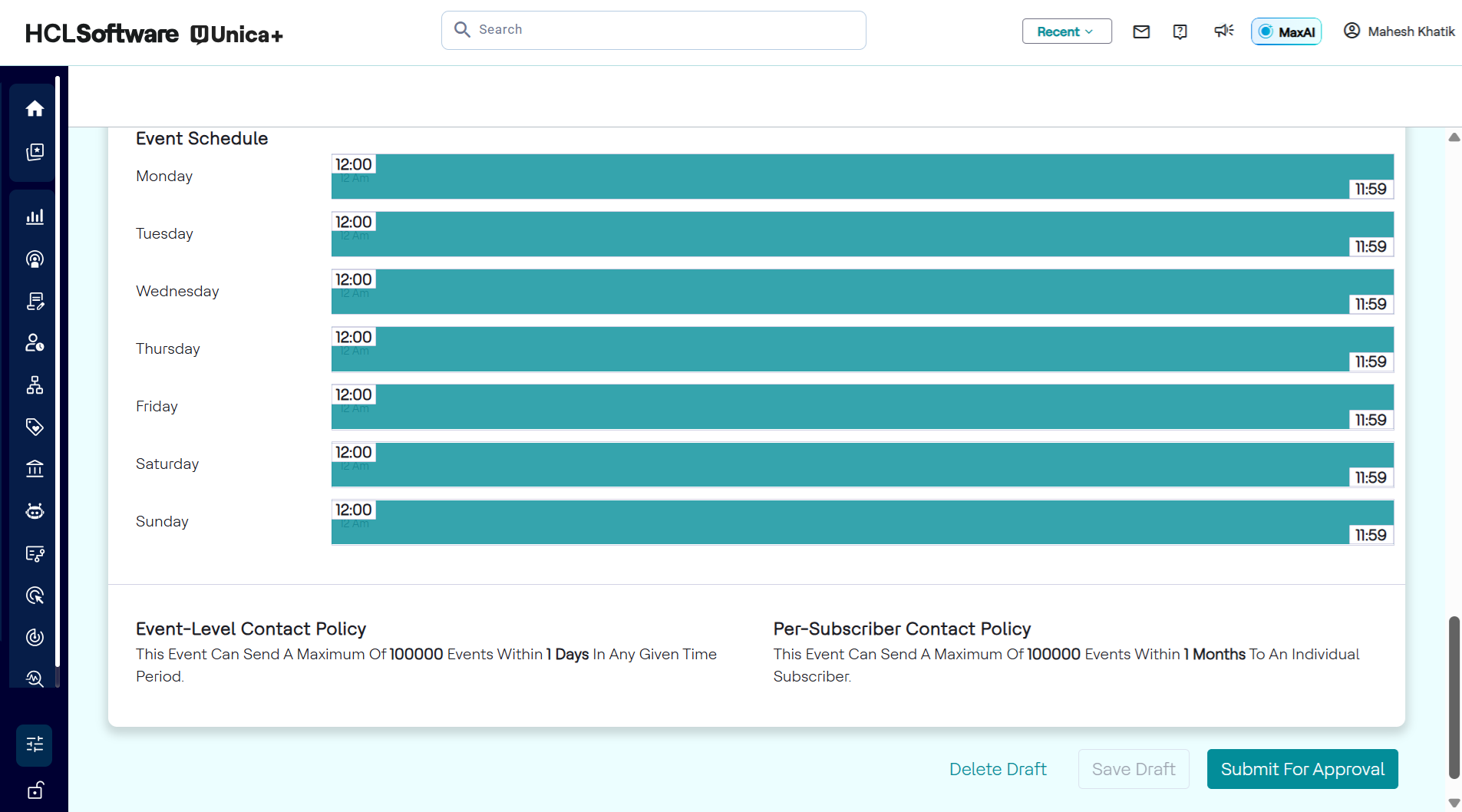
- Event status changes to Pending Approval.
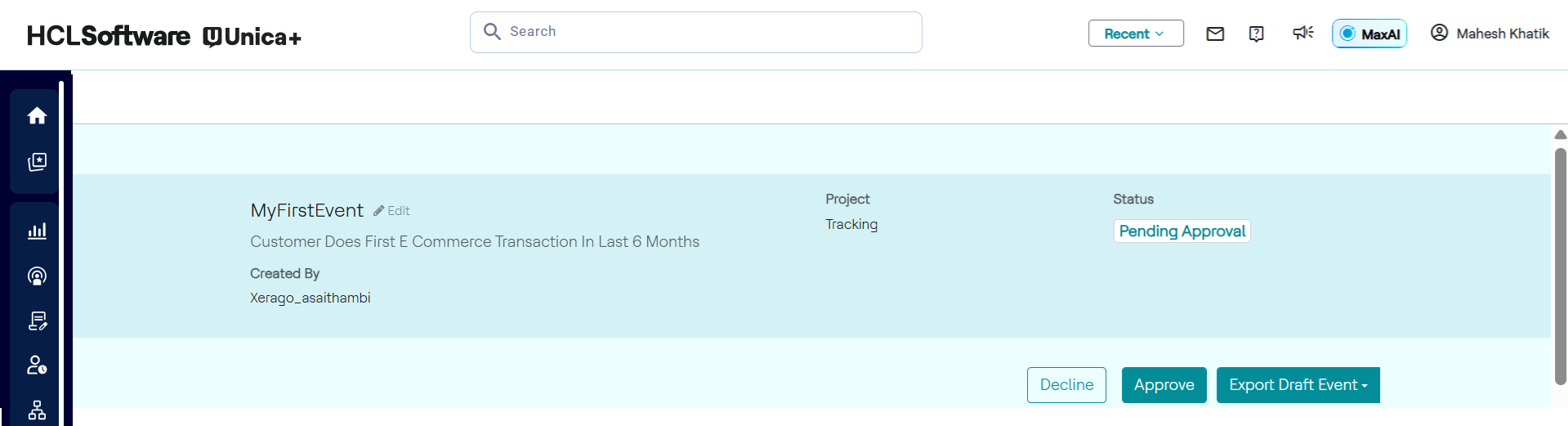
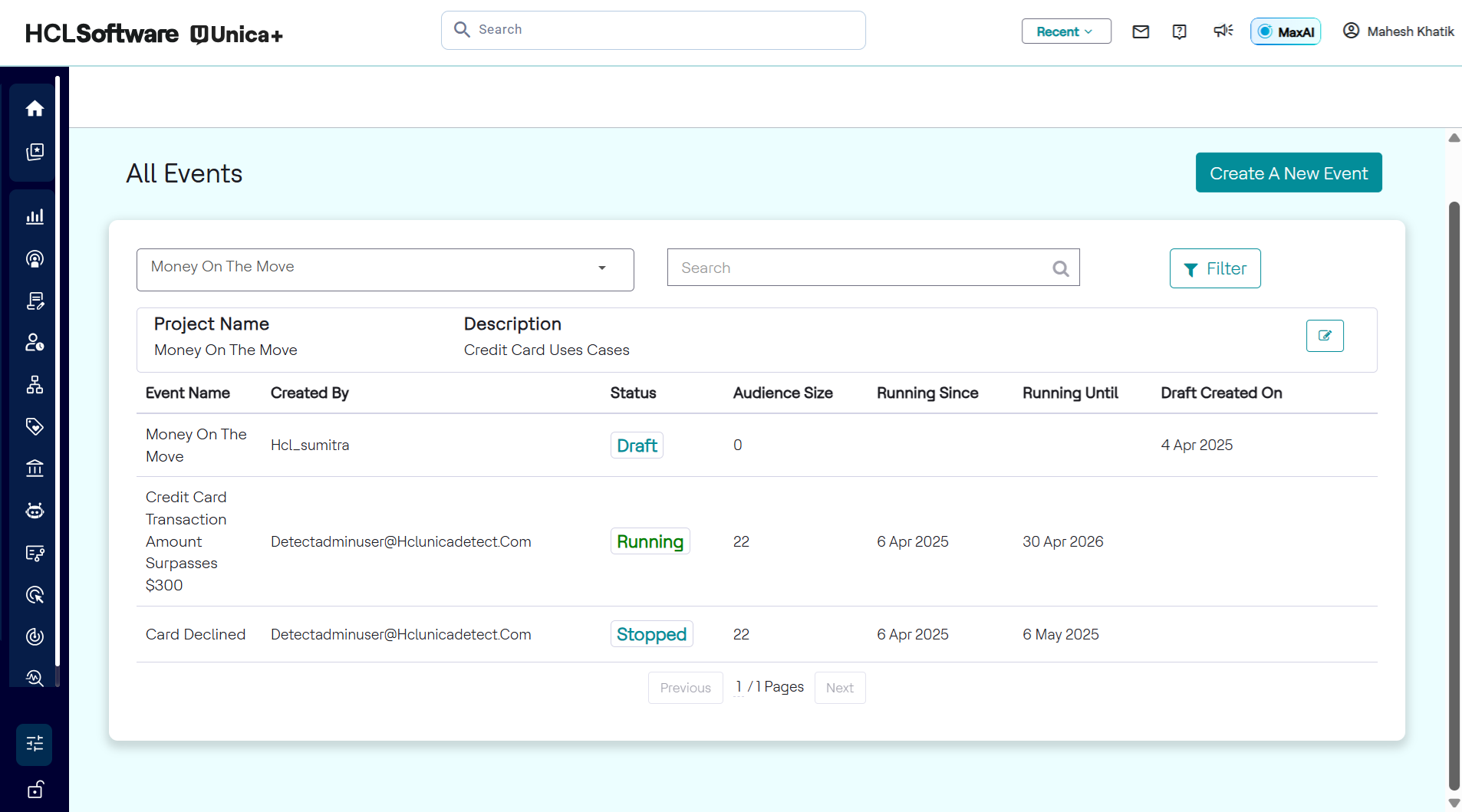
- Navigate back to the All Events page.
- Click Filter and select PENDING APPROVAL, and click Apply.
- Select the event to view the status.
- If approved, it moves to Running status and you can review and deploy it.
- If declined, status updates to Declined, and event can be edited and resubmitted.
Example: A maker creates a campaign for "Inactive premium users" and submits it for approval. Upon decline, they revise the audience criteria and resubmit.
Checker Role
The checker has permissions to:
- view events which are in the Pending Approval status.
- approve, decline, or deploy submitted events.
- create events, same as a maker.
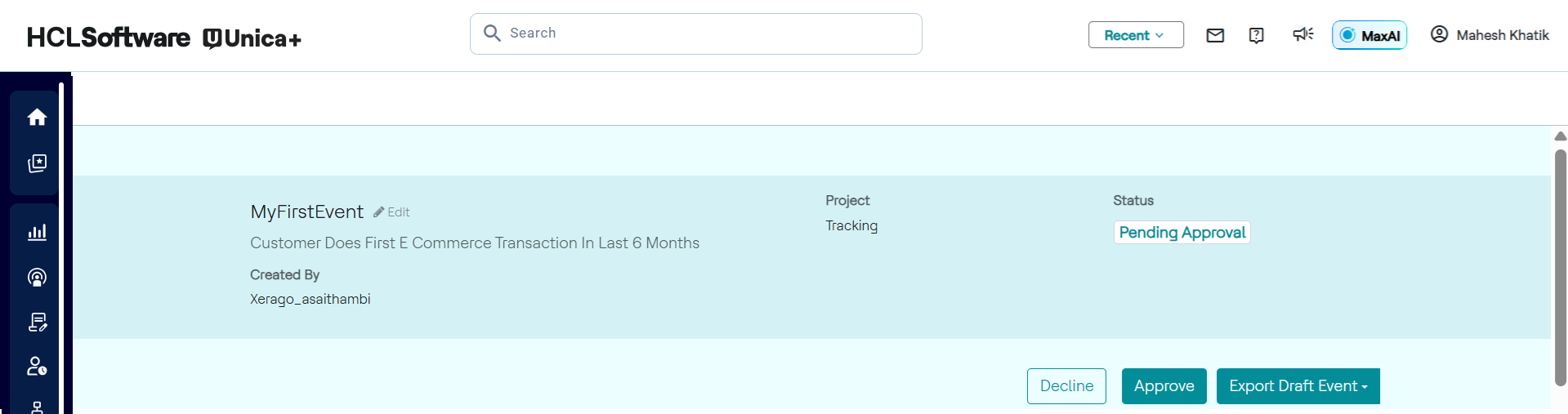
Approve and Deploy
- Select an event which is in the Pending Approval Status.
- Click Review to inspect full configuration.
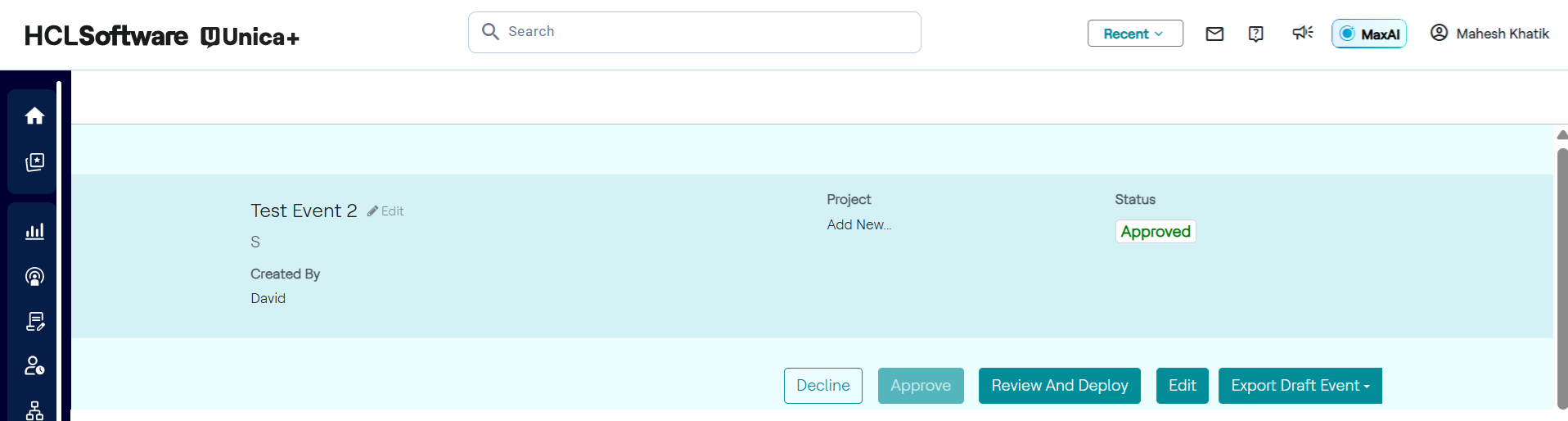
- Click Approve, then choose Review and Deploy.
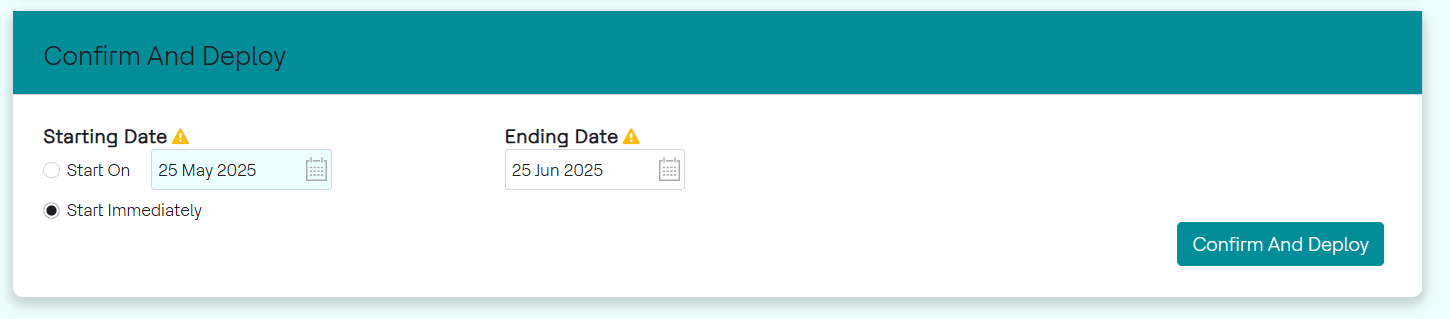
- Select event starting date and ending date.
- Click Confirm and Deploy to make it active.
- Decline Event (if needed): Click Decline and provide reason.
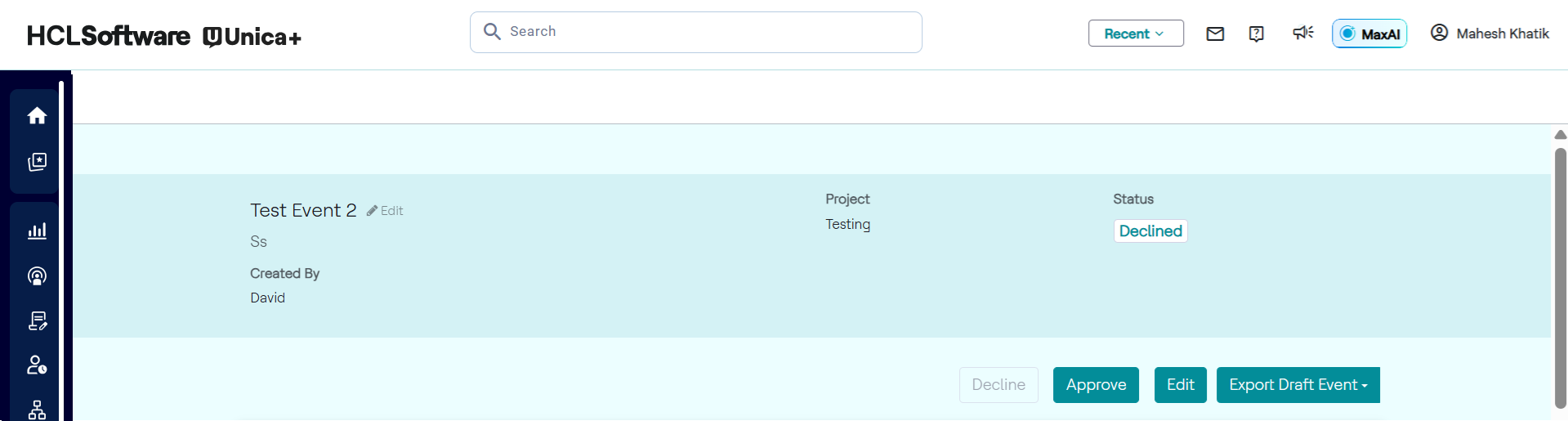
- Event status updates to Declined, allowing maker to revise and resubmit. Example: A checker reviews a draft for a "Referral bonus campaign," updates the start date, and deploys it. If declined, feedback is shared with the maker for correction.
Note:
- Only approved events can be deployed.
- Checkers can also act as makers and follow identical steps for event creation.
- Makers can view all their events across statuses under the All Events page.