
Cloning an Event
This page explains how users can duplicate an existing event of any status, modify it, and save it as a new draft for further editing and submission.
Users can clone existing events—regardless of their status or creator—and edit them as their own. The cloned event becomes a draft, allowing the user to make necessary changes before submitting it for approval or deployment.
Clone an Event
- In the menu bar, click Unica Detect > Events
- In the All Events page, hover over any event to be cloned.
- Click the Clone Event icon (two-document symbol).
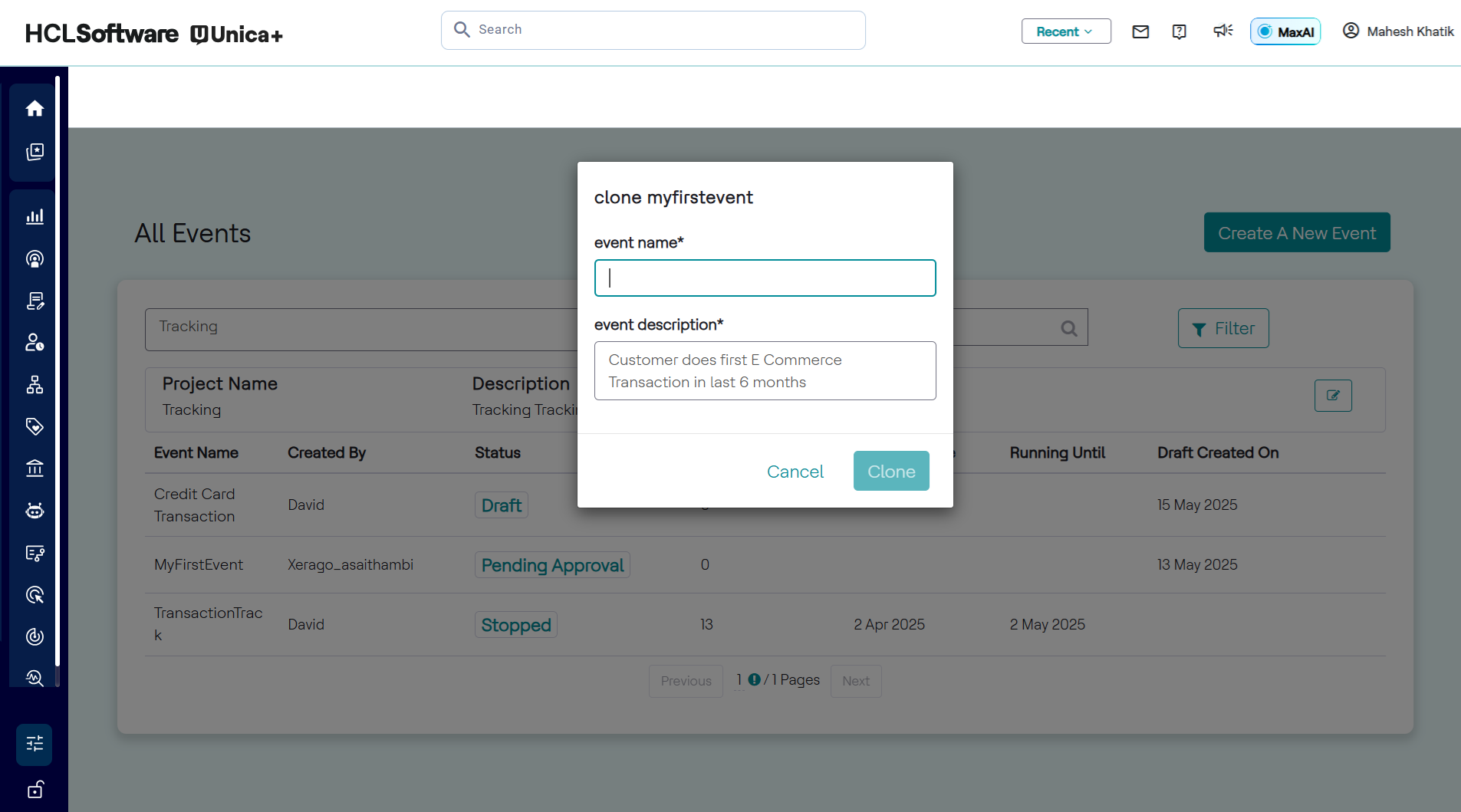
- Update the Event Name and Description in the pop-up
window.
- Ensure the event name is unique—an error will appear if it already exists. Example: Clone an event targeting “Promo-based churn users” and rename it to focus on “Loyalty program engagement.”
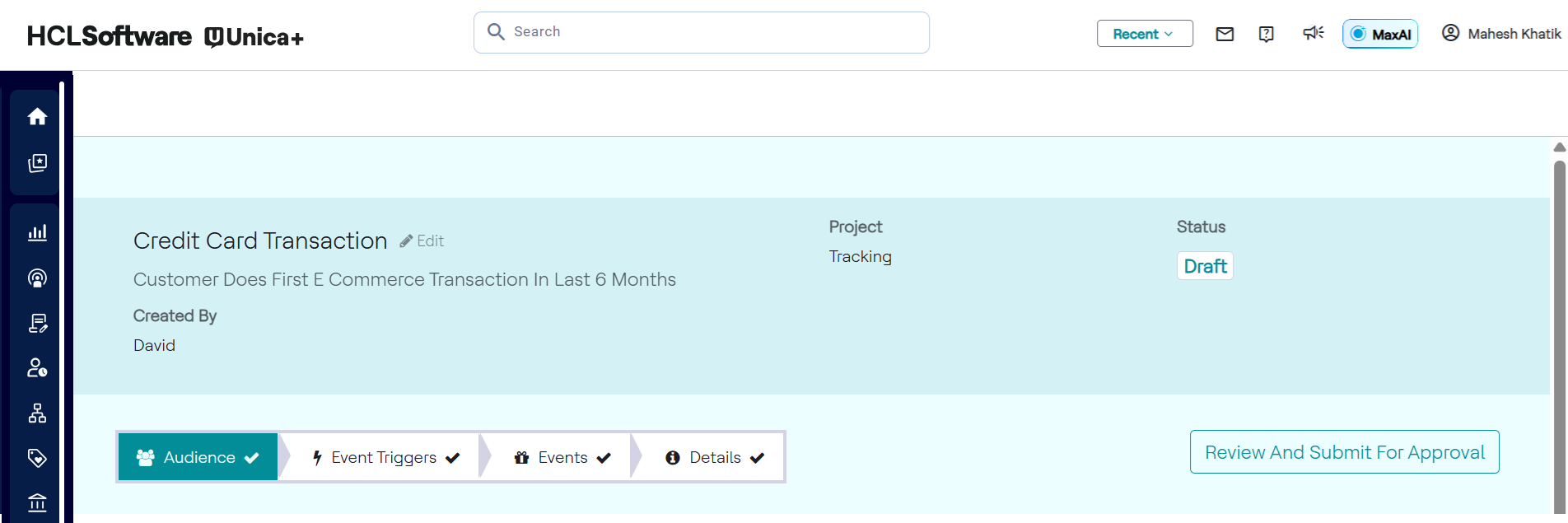
- After editing, click Clone. The cloned event will appear under Drafts.
- You can edit it like any other draft, including selecting a new project if needed (project is not copied).
Important:
- Any event can be cloned—regardless of its status or the original user who created it.
- Only event details are cloned; associated projects must be manually selected.