
Create Project
This page explains how to add a new project while creating or editing an event, using the project selection section within the event description page.
During event creation or editing, users can add a new project directly from the event interface. This allows associating the event with a relevant project, even if it hasn't been created beforehand.
Add New Project Name
- While filling the Event Description section, locate the Project Name dropdown.
- Click the Add New... option from the dropdown menu.
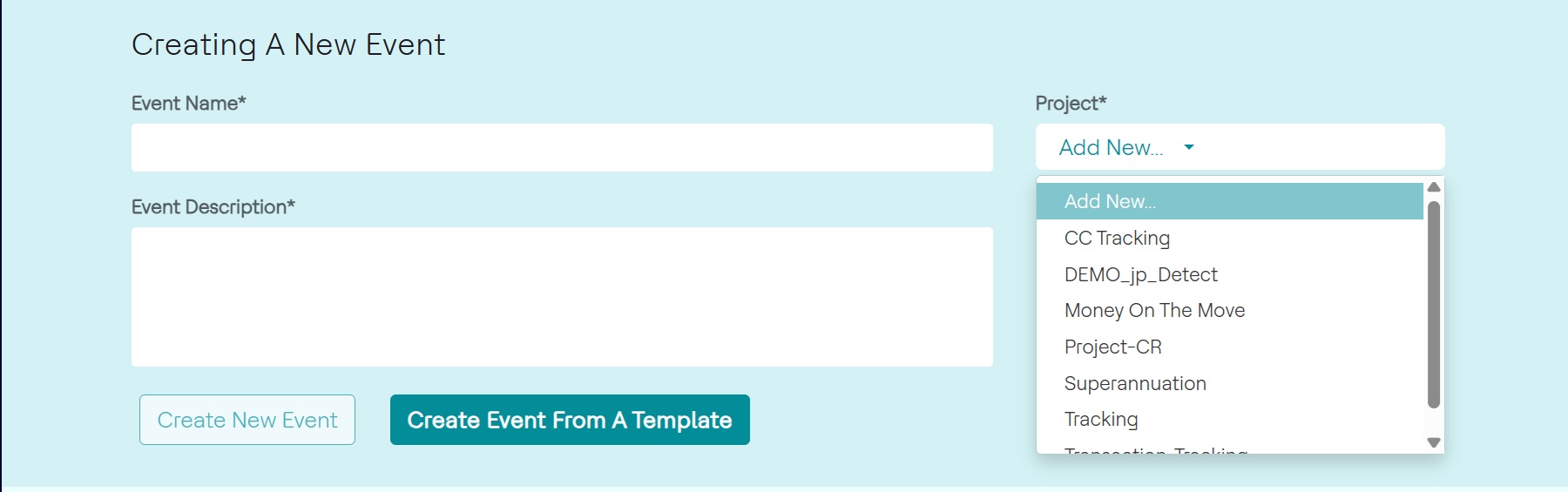
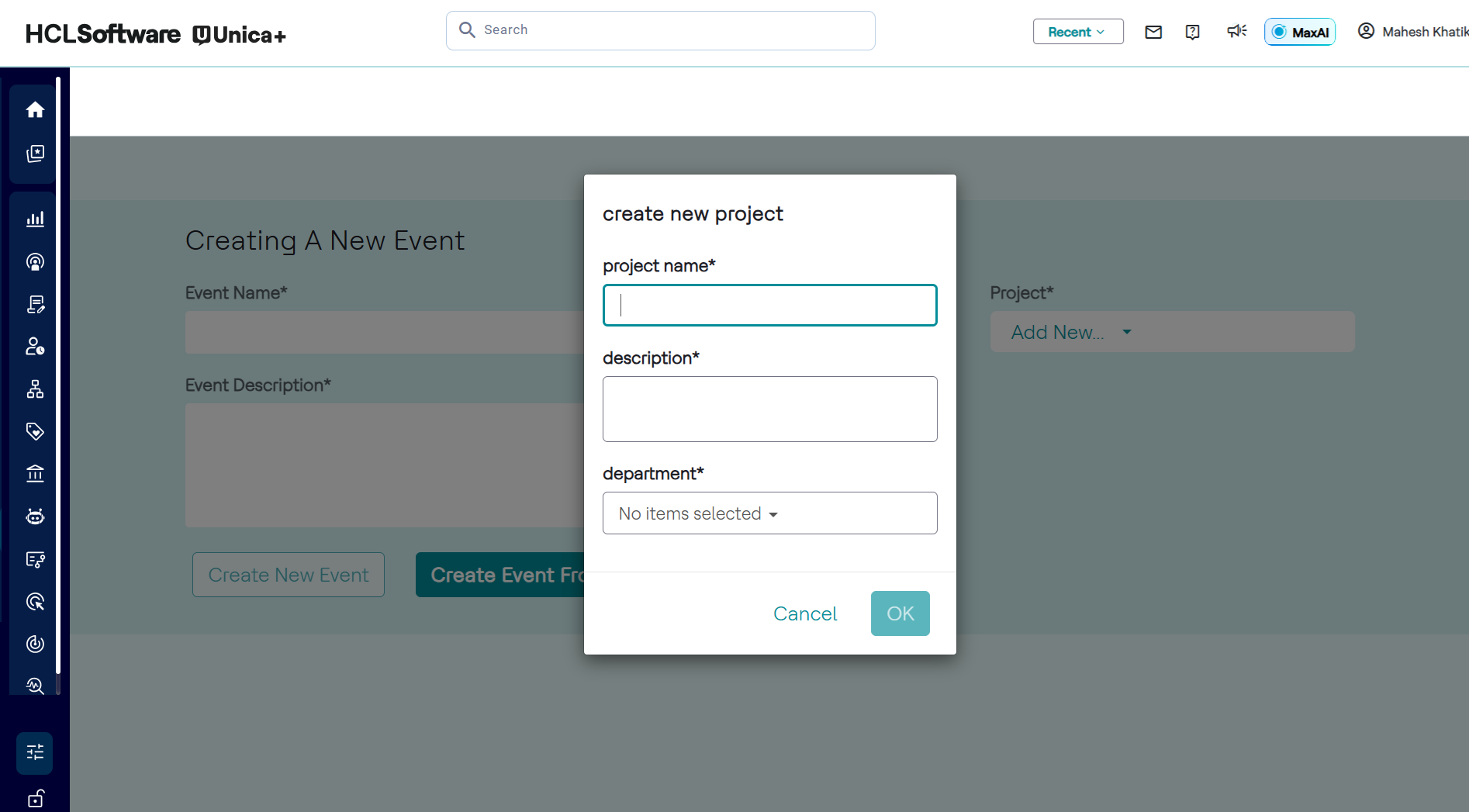
- A pop-up will appear prompting for:
- project name: enter an unique project name.
- description: enter the project description.
- department: select a department under which the project to be grouped. For more information about adding new department, refer to the User and Role Management section in Administration Guide.
- Fill in the details and click OK to save.
Department
Departments organize your data and control user access to ensure that users only see
the information relevant to their roles and responsibilities. From 25.1.0 version,
departments are managed through 'User Groups' in the Unica+ Platform. When you
assign a user to a group, Detect automatically filters their view to show only the
events, reports, and dashboards associated with that department. For more
comprehensive information about managing User Groups, refer to Unica+ Platform
guide.
Note: Currently, Sub-Groups are also considered as
Departments. User with Detect Admin role can see all the events.
By
default, a "default" department is accessible to all users. This ensures that even
users without specific department assignments can use Detect and create projects and
events in a public space.