
Creating an Event
This page provides explanation on how to create an event from scratch, existing file or from a template.
You can define an event's objective, configure its details, and classify it under a project. You can export or import of these events to simplify event management and transfer. Events can be exported as reusable templates to replicate them without starting from scratch. Alternatively, events can be exported as server-stored files, enabling seamless migration between environments with the same application configuration. For demonstration purposes, this topic uses the example of encouraging Credit Card customers to perform e-commerce transactions.
You can create an Event from scratch or from existing event file or from a template.
Create an Event
Create an Event from Scratch
To create an event from scratch, follow the steps below:
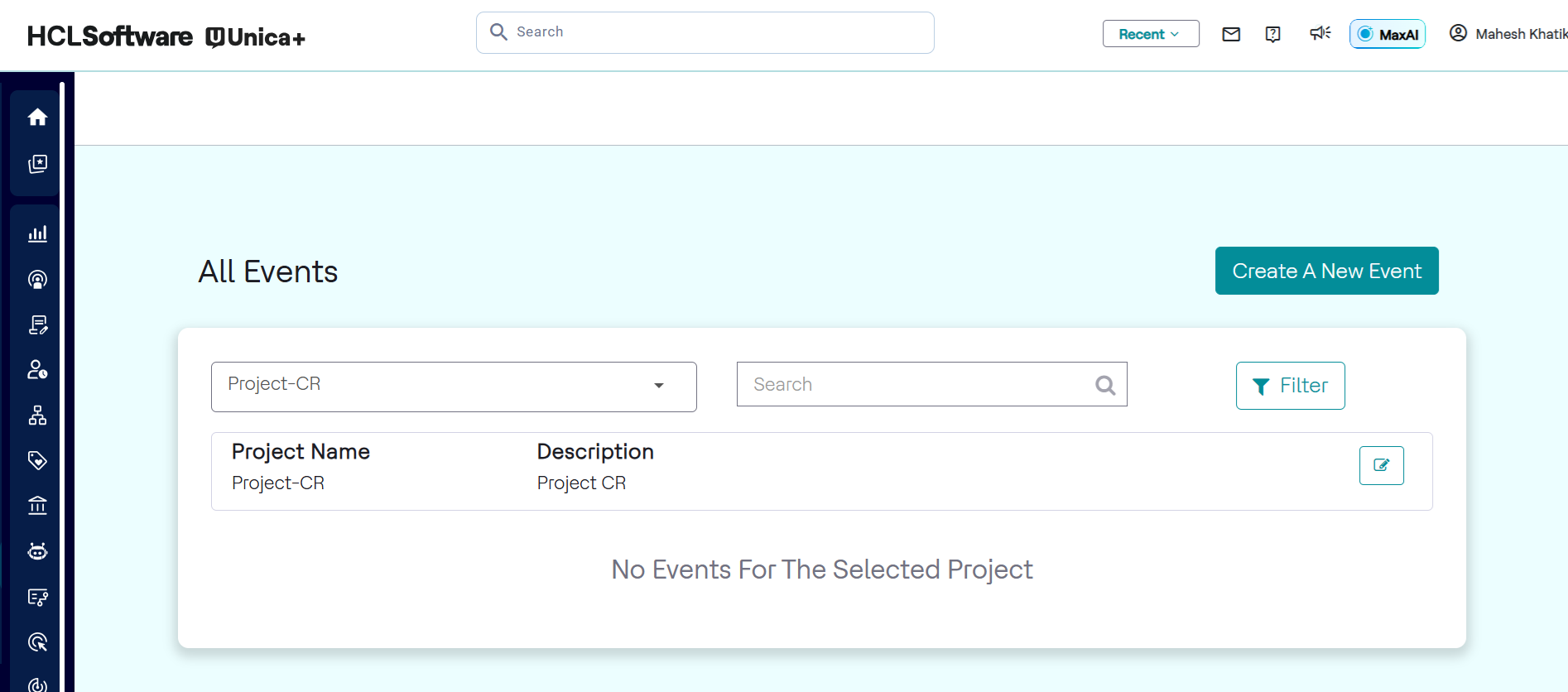
- In the menu bar, click Unica Detect > Events. In the All
Events page, click Create A New Event, as shown
below.
- Fill in the details of the Event Name and Event
Description.
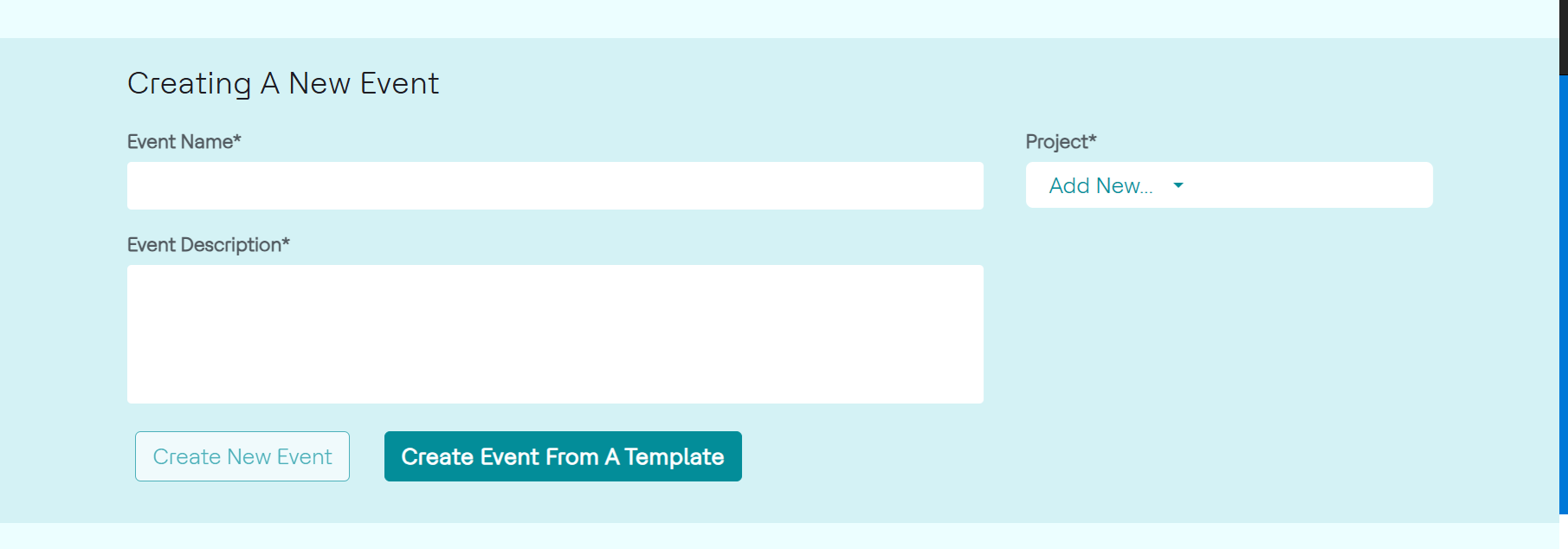
- Select a project name from the drop-down menu under Project.
- Click Create New Event to proceed.
Import an Event from File
You can import an event, which is previously exported as a file in the server, to quickly recreate or share event configurations without rebuilding them from scratch. To import an event from an existing file, follow the steps below:
- In the menu bar, click Unica Detect > Events> Create A New
Event.
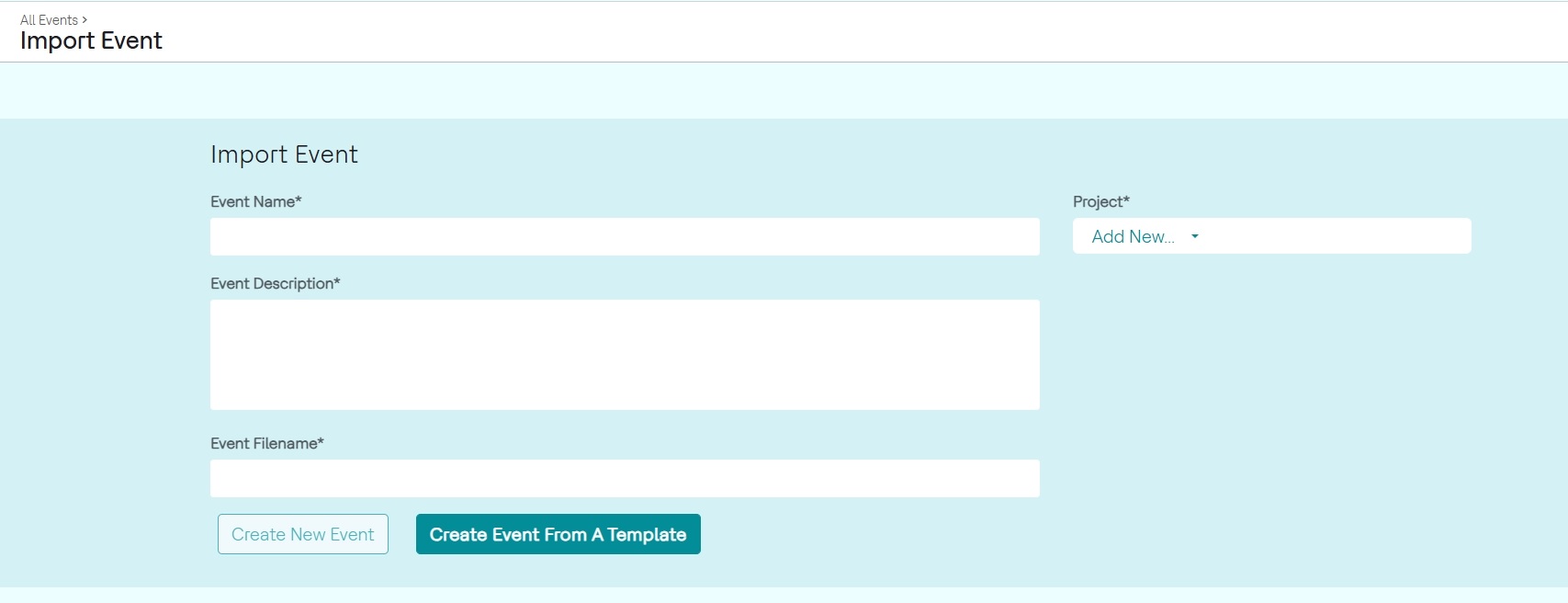
- In the Creating A New Event page, click Create Event From File.
- In the Import Event page, enter details of the event name and event description.
- In the EVENT FILENAME, paste the file name of the exported event from
the server.Note: The file name is displayed when you export an event. For more information about exporting events, refer here. In case, if the exported file is available in another VM, make sure to copy it to the destination VM, and enter the path.
- Select a project name from the drop-down menu under Project. The event can also be classified under a project.
- Click Create New Event to proceed.
Create an Event from Template
To create an event from template, follow the steps below:
- In the menu bar, click Unica Detect > Events, and in the All Events page, click Create A New Event
- In the Creating a New Event page, click Create Event from a Template.
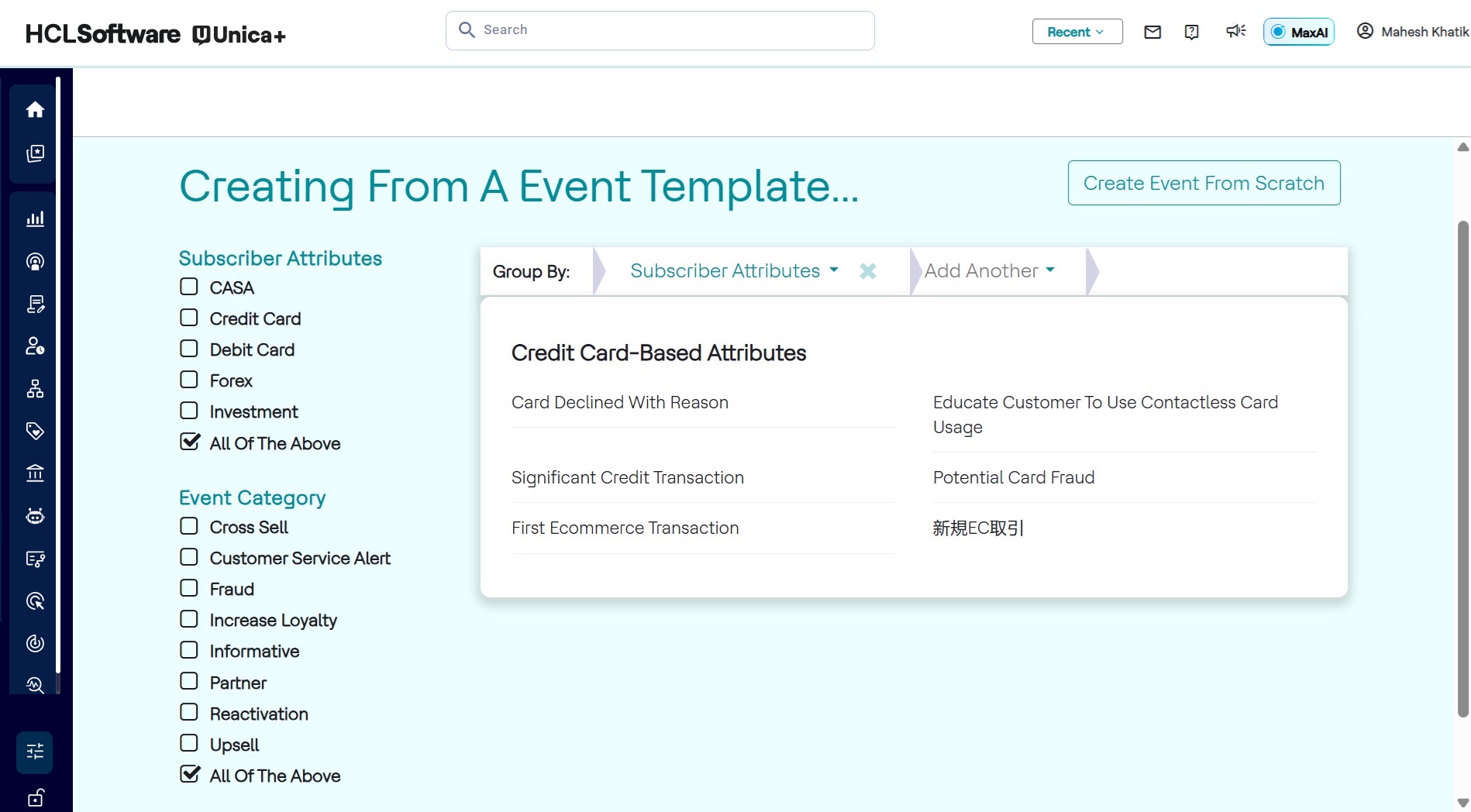
- In the Creating From A Event Template page, in the Group
Bysection, select a group, and select a template in the listed templates
as shown below.
- In the TEMPLATE PREVIEW page, click USE THIS TEMPLATE to
create the events using this template.
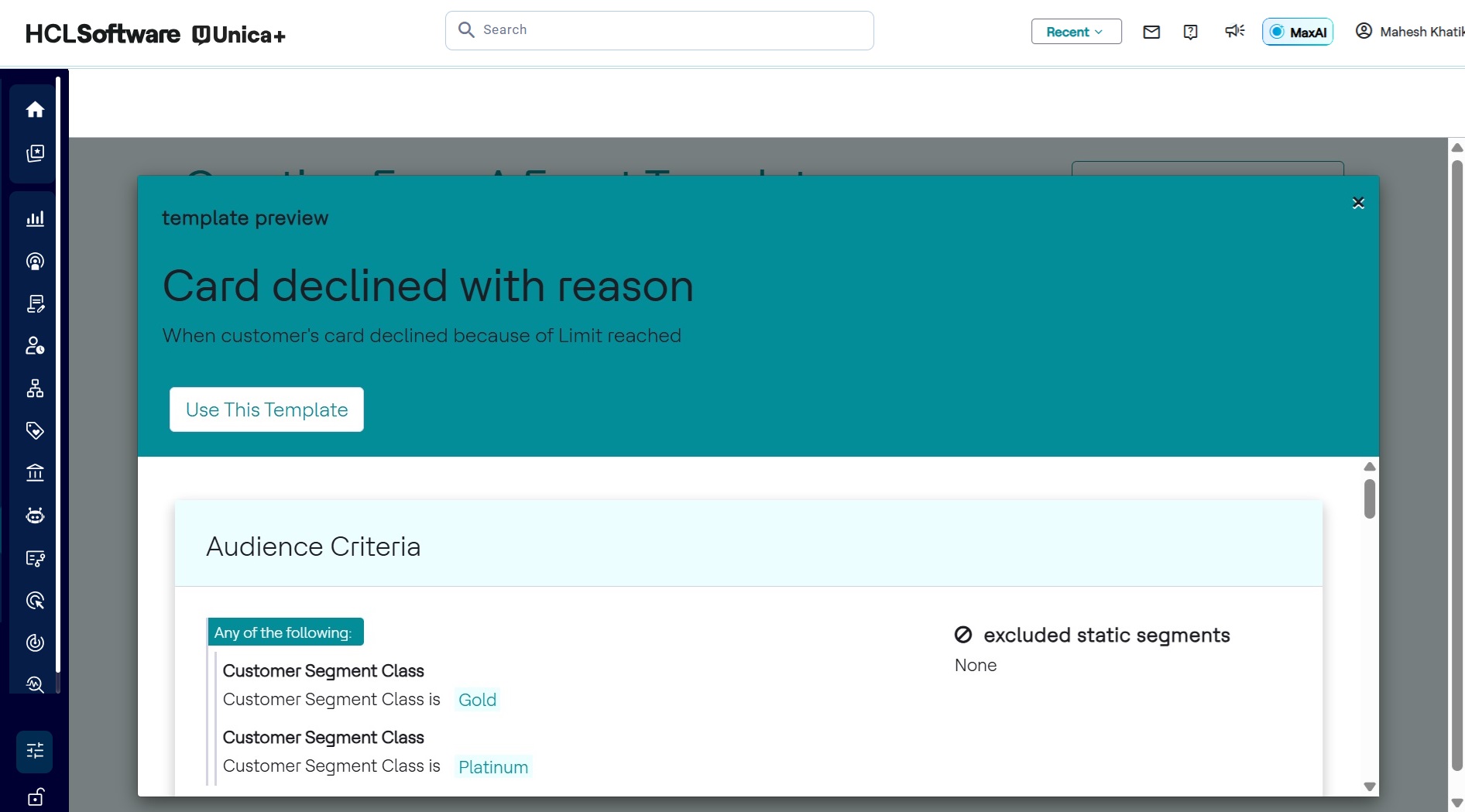
- As a result, the CREATING A NEW EVENT page will be displayed with pre-filled Audience Criteria, Events Triggers, Events, and Details section. Fill in the details of the Event Name and Event Description.
- Select a project name from the drop-down menu under Project. The event can also be classified under a project.
- Click Create New Event to proceed.