
Database Setup
User can create a customized database using the following steps.
- On the Database Details view, type the Server Name , and then the
Database Instance Name.
Figure 1. Select Authentication 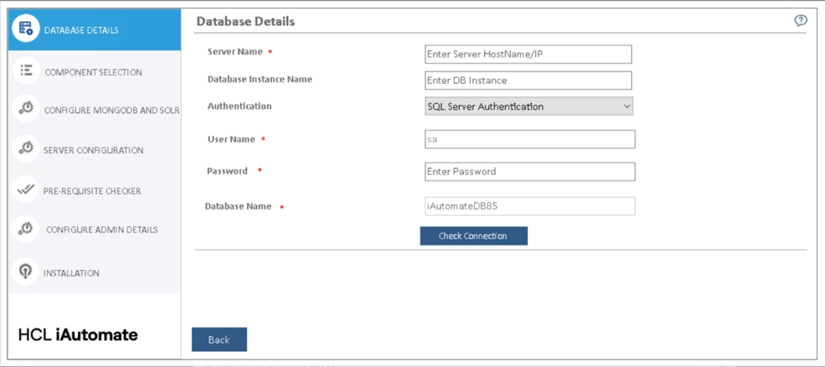
- Select the Authentication type. The type of login authentication used to configure the database determines the resulting username.
- There are two types of authentications used for database configuration:
- Windows Authentication
- SQL Server Authentication
Note:It is recommended to use windows authentication in production environment. - In the UserName and Password fields, type username and password to access the server.
- In the Database Name field, database is auto filled by default.
- To check the connectivity to a server using the credentials provided, click Check Connection. This displays a message for Connection Success or Connection Failure .
- Successful connection to the database enables the
Next button.
Figure 2. Test Connection 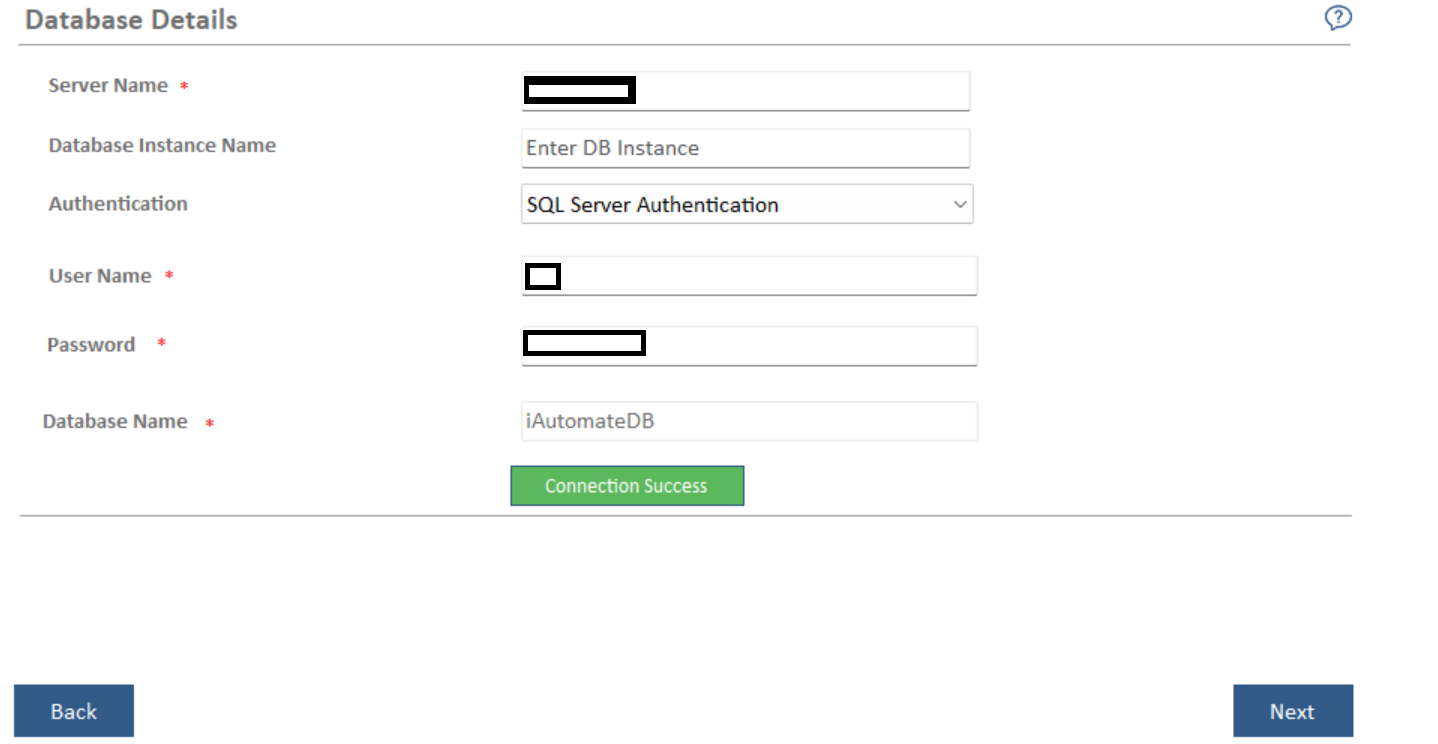
- Click Next.
- The Component Setup page appears.
Note:
All fields marked with an asterisk (*) are mandatory.