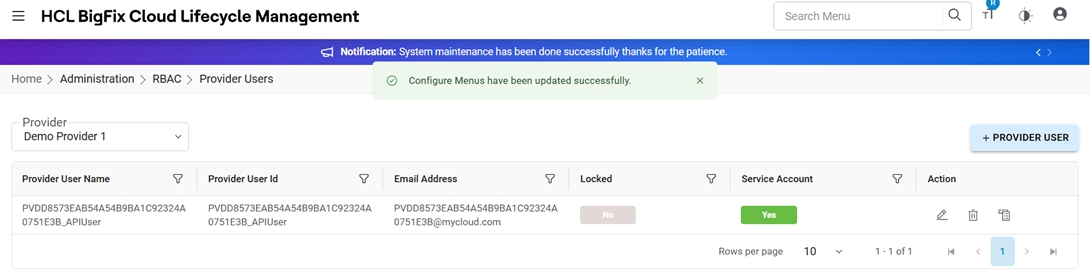
Provider Users
In this section, Admin creates and manages provider users.
- On the side menu bar, click Administration, then RBAC, and then click Provider Users.
Add User
To add a provider user, follow the steps below:
- Under the Provider Users, click on Add User.
Figure 1. Add Provider User 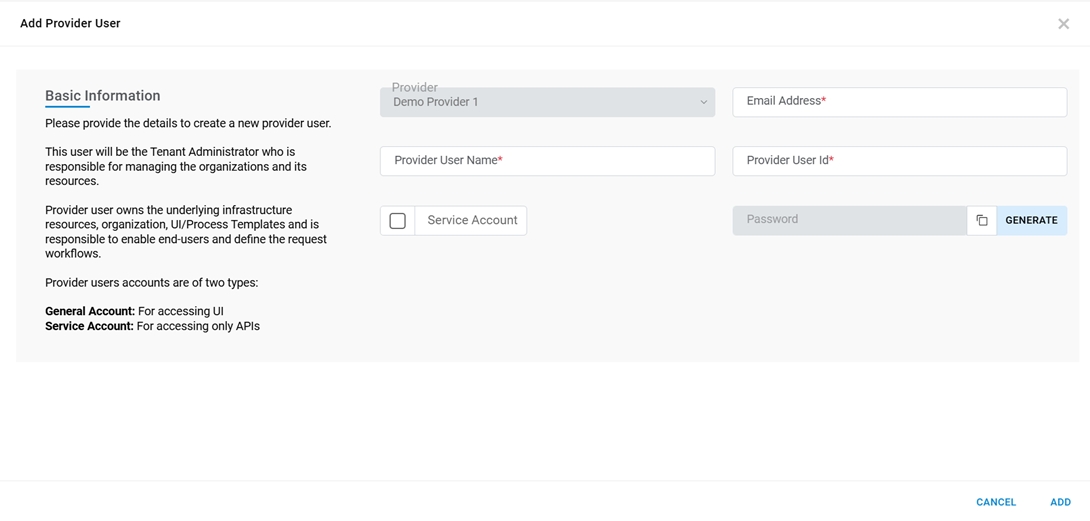
Refer to the table below to understand the fields mentioned in the above figure:
Table 1. Add Provider User Field Name Description Provider Lists out the providers.
-If selected provider is elevated provider, then service account users of this provider will have privileged role to create another provider and users under Provider through API
If selected provider is elevated provider, then users of this provider will have privileged role to create another provider and users under through out of box methods (Create Provider, Create User, Create Organization Users)
Provider Username (First & Last Name) Provide the first and last name of the user Email Address The email Id of the user Provider User Id The desired User Id - Click Generate Password, the password field is populated by secure auto generated password.
- Use Copy (
.png) ) to copy
the password.Note:
) to copy
the password.Note:- On the first Login, the provider user is redirected to the Change Password screen and enforced to change the system generated password.
- My Cloud generates a password of 12 characters in length that contains alphabets, numbers & special characters.
- To add the provider user, click Add or click Cancel to discard the
action. A success message appears.
Figure 2. Confirmation Message 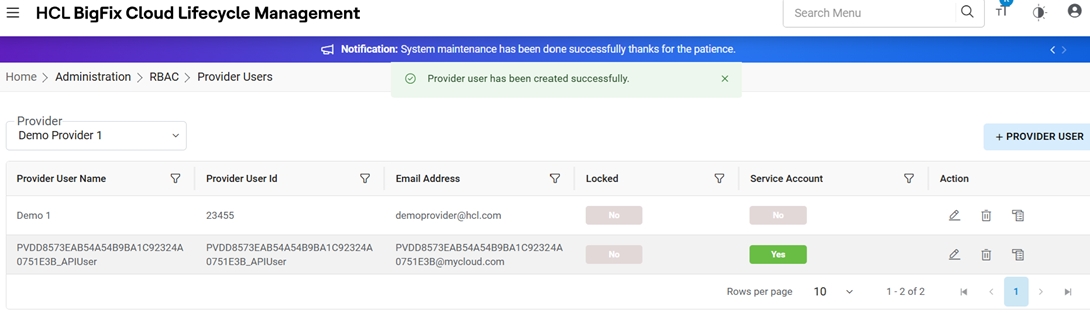
The new user is created, and it appears in the list of users.
View Provider Users
This section lists all the provider users that have been created by Admin.
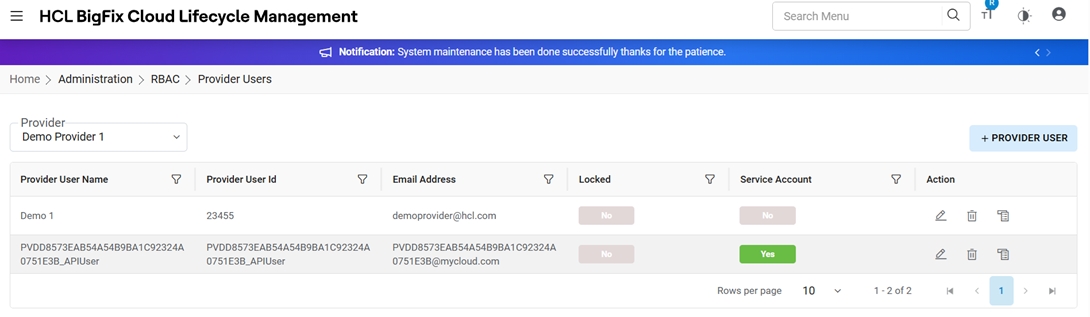
Refer to the table below to understand the fields mentioned in the above figure:
| Field Name | Description |
|---|---|
| Provider Username (First & Last Name) | Displays the name of the person who will become the Provider User |
| Email Address | Displays the business email id of the person who will become the Provider User |
| Provider User Id | Displays the username of provider user |
| Locked | It signifies whether the account of a user has been locked or unlocked due to multiple attempts to log into the system |
| Service Account | It confirms if the Account is a service account or not |
| Action | It provides Cloud Admin to take actions like Edit, Configure Menus, and Delete against the listed Provider users |
It also comprises of the following actions:
- Edit: To modify the details of existing providers.
- Delete: To delete the providers.
- Configure Menus: To configure menu for providers.
Edit Provider User
To edit/ modify the details of a Provider User, follow the steps below:
- On the Provider Users, select Provider and click Edit.
Figure 4. View Provider User 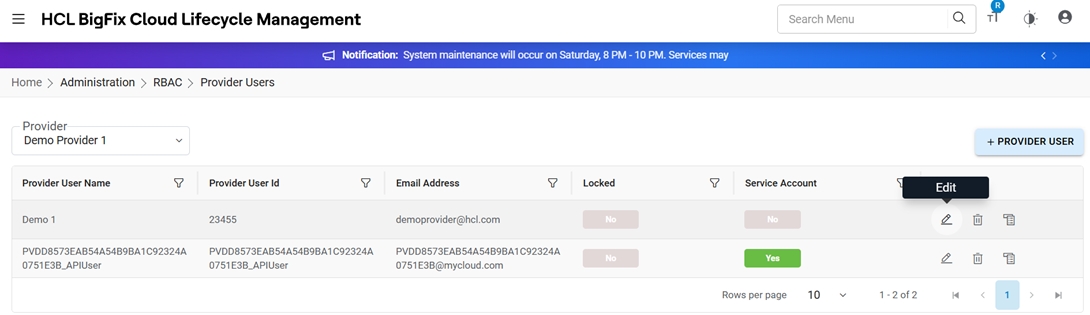
- Modify the desired details.
Figure 5. Edit Provider User (Cont.) 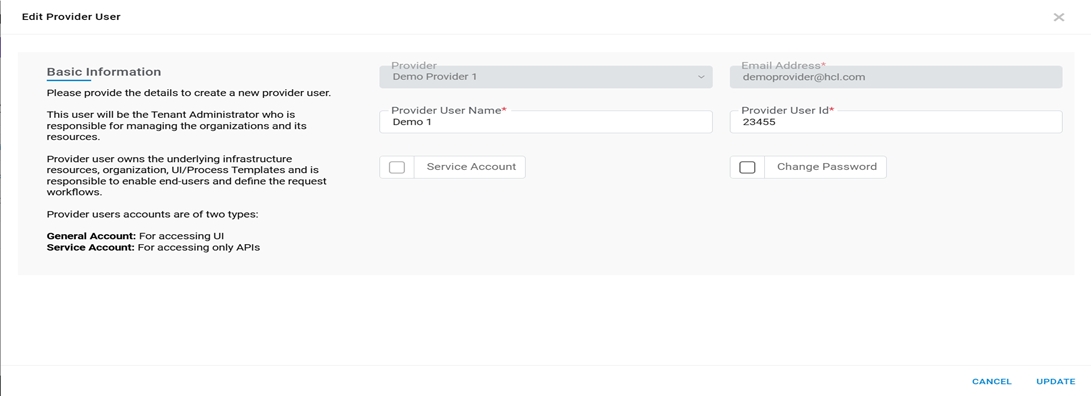
- Click Update to save the settings or click Cancel to discard all the changes.
- A success message appears.
Figure 6. Edit Provider User (Cont.) 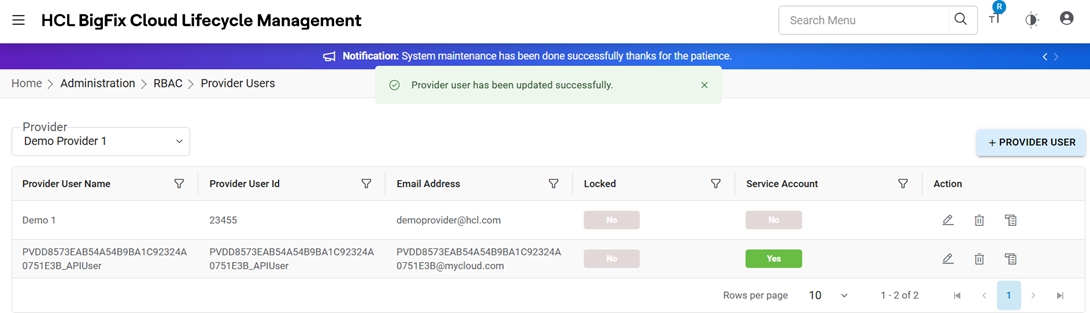
Delete Provider Users
To delete provider users, Admin needs to follow the steps below:
- On the View Provider Users, select Provider and click Delete.
Figure 7. Delete Provider User (Cont.) 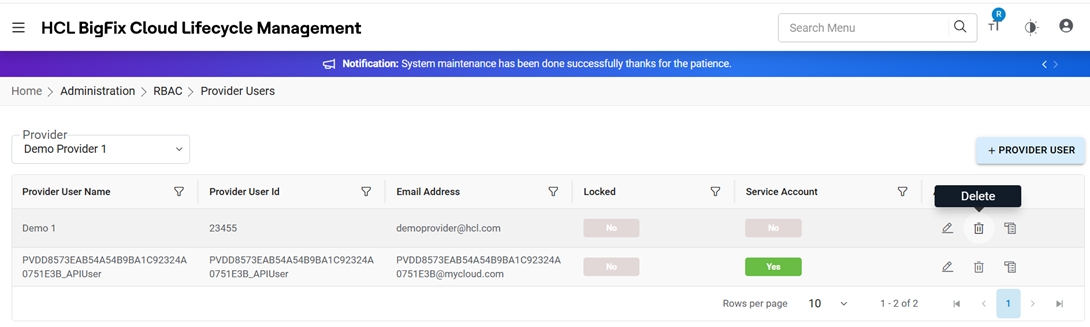
- Click Delete.
- When prompted for confirmation, click OK.
Figure 8. Delete Provider User (Cont.) 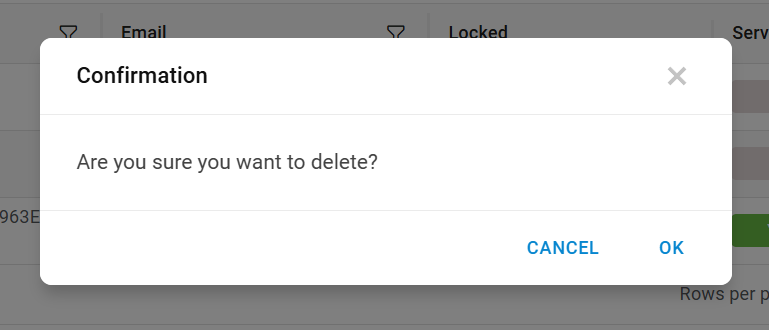
- A success message appears.
Figure 9. Confirmation Message 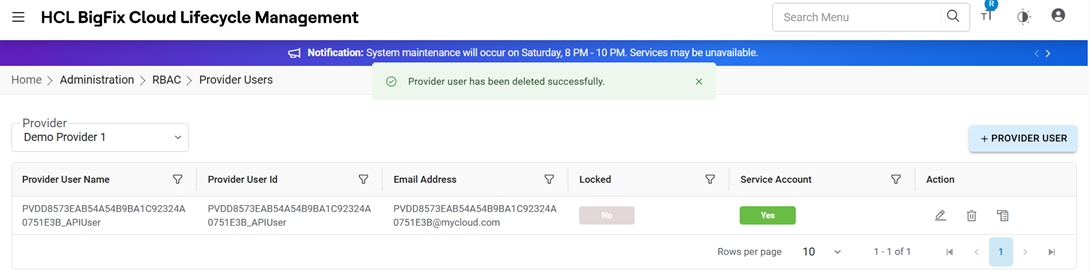
Configure Menu for Provider Users
To add/update the menu and submenu for the provider users, follow the steps below:
- On the Provider user, click Configure (
 ) corresponding to the provider that admin wants to
configure.
) corresponding to the provider that admin wants to
configure.Figure 10. View Provider 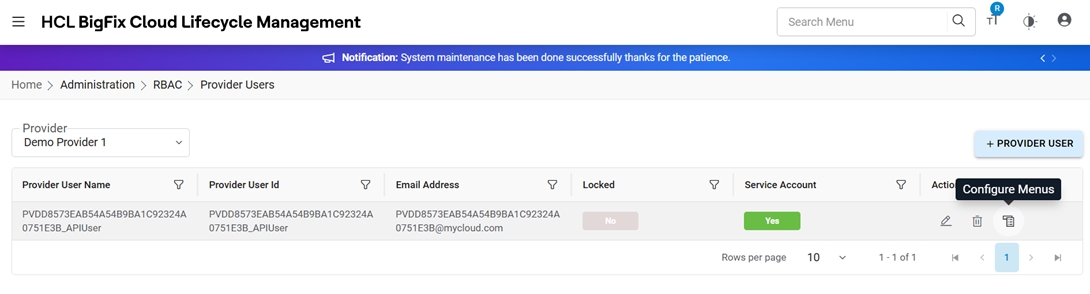
- Modify the details and click Configure.
-
Check/Uncheck the menu items and click update.
Figure 11. Configure Menu for Provider (Cont.) 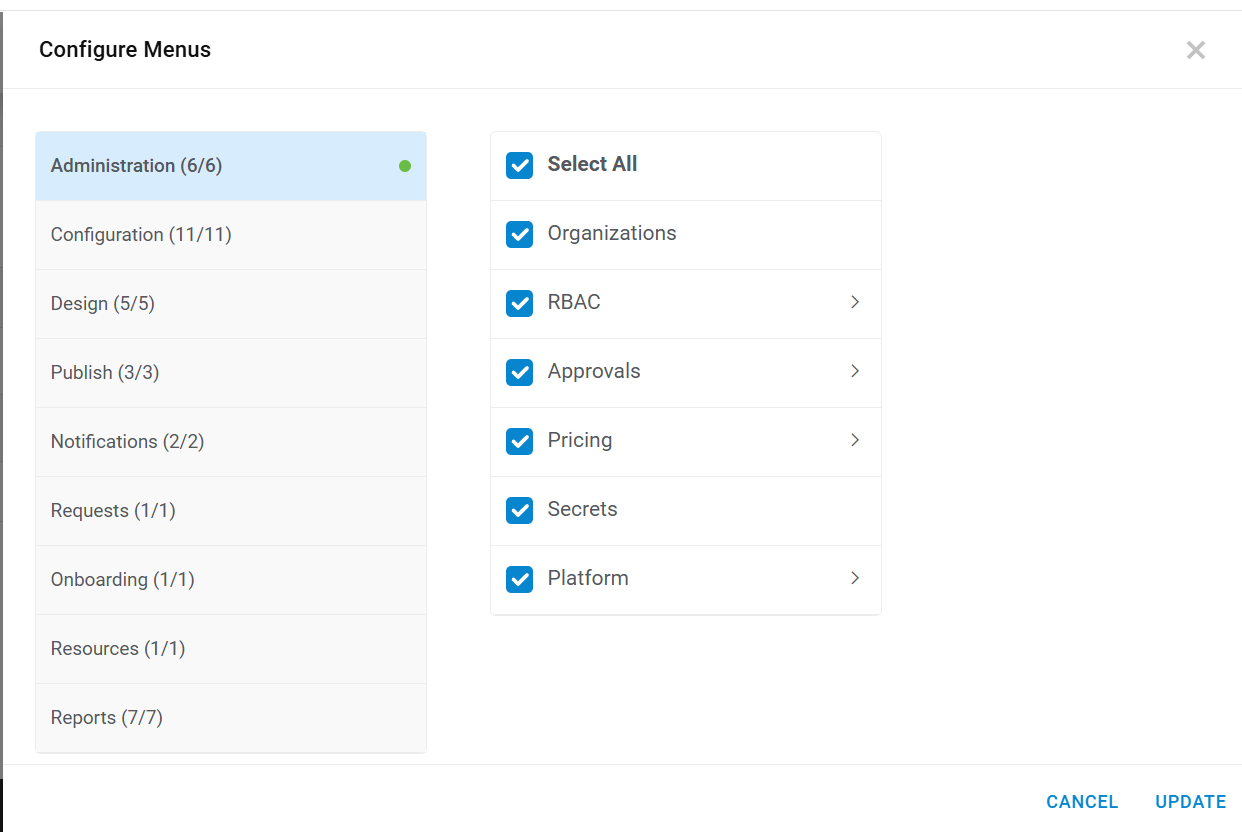
- A success message appears.
Figure 12. Configure Menu for Provider (Cont.)