
Objects
Object types are the resources that are provided by cloud provider(s). HCL BigFix CLM admin users can view or edit object types as required.
To manage Object Types, HCL BigFix CLM Admin needs to follow the steps below.
- From the side menu bar, click Configuration, then Objects, and then Types.
View Object Types
This section lists out all the Object Types that are available in HCL BigFix CLM.
It also comprises of the following action:
- Edit: To modify the details of existing object Types.
- Change Status: To change the status of existing object Types.
- Map: To map active existing Object Type with Provider and Platform.
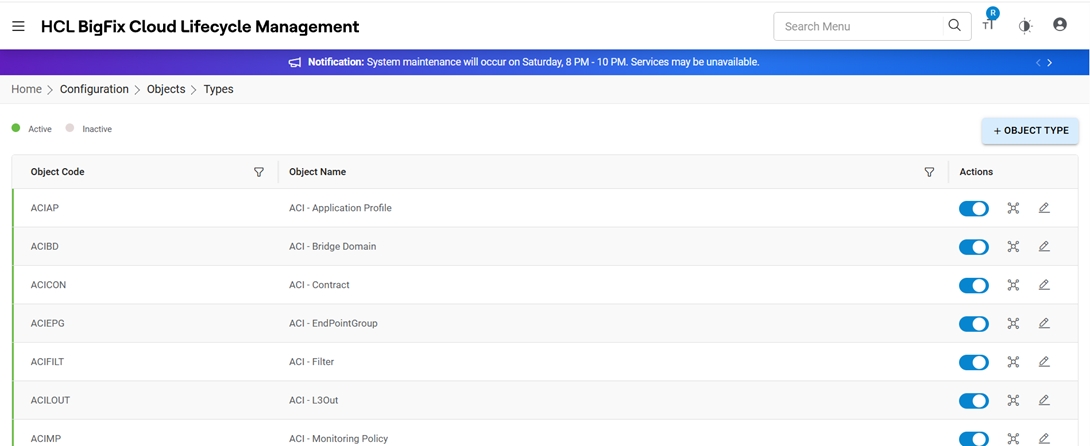
Refer to the table below to understand the fields mentioned in the above figure:
| Field | Description |
|---|---|
| Object Code | Name of the infrastructure resource |
| Object Name | Provide object code for the object type. This should be unique for HCL BigFix CLM. |
| Action | To modify existing object type using Edit action |
Edit Object Type
To edit Object Type, admin needs to follow the steps below:
- Click on Edit (
 ) Corresponding to the Object Type to be edited.
 - Modify the details.
- Click Update.
Figure 2. Edit Object Type 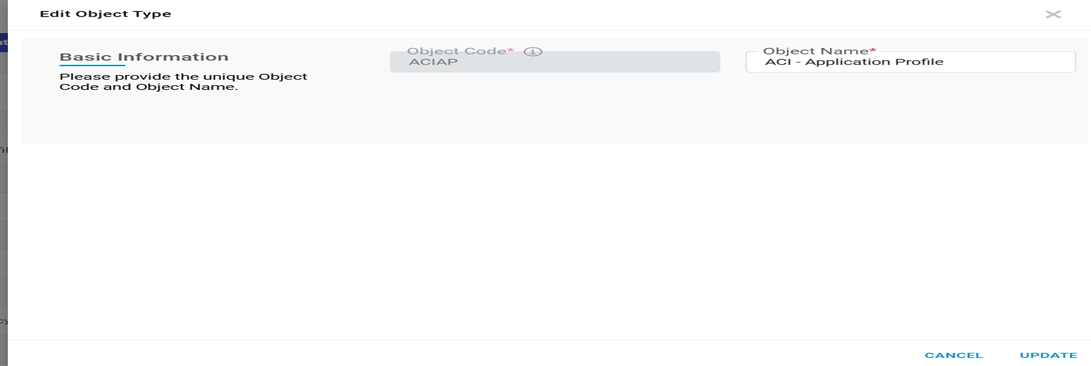
- A success message appears.
Figure 3. Success Message 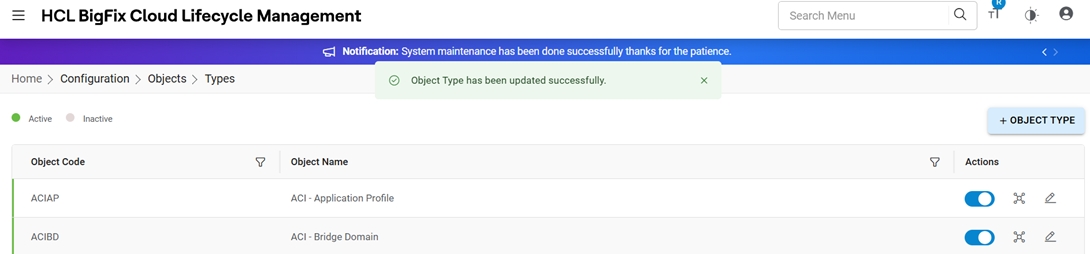
Note:
All fields marked with asterisk (*) are mandatory.
Change Status
To change Object Type status, admin needs to follow the steps below:
- Click on Change Status against specific Object Type.
Figure 4. Change Status 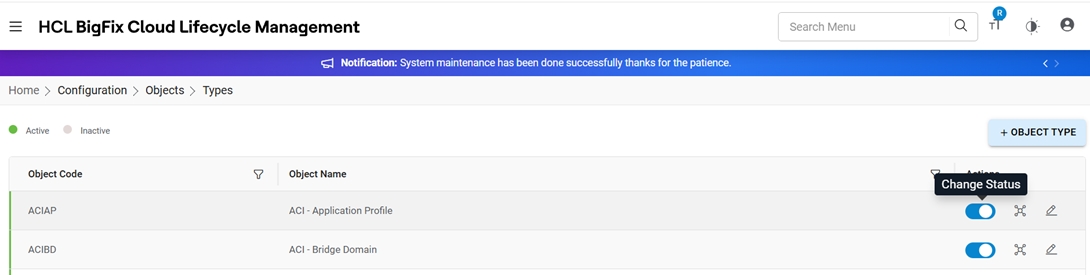
- A Confirmation message appears.
Figure 5. Confirmation Message .png)
- Click OK to Confirm. A success message appears.
Figure 6. Success Message 
Map Object Type
To map Object Type with Platform and Provider, admin needs to follow the steps below:
- Click on Map Object Type against a specific Object Type.
Figure 7. Map Object Type 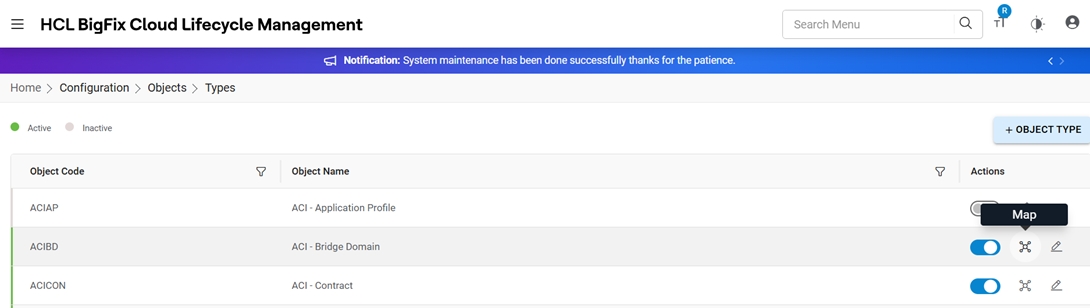
- Select Provider, choose Cloud Provider.
Figure 8. Map Object Type 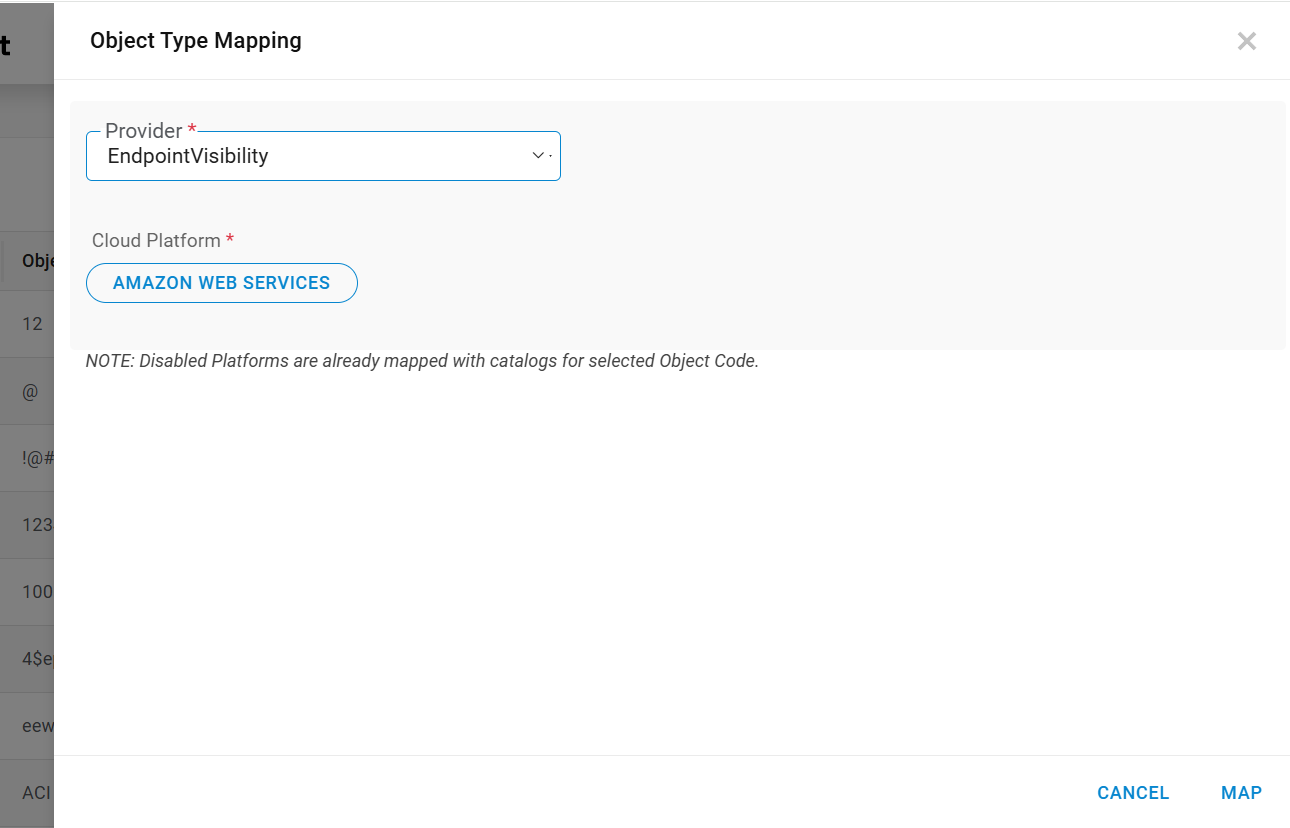
- Click Map.
Figure 9. Success Message 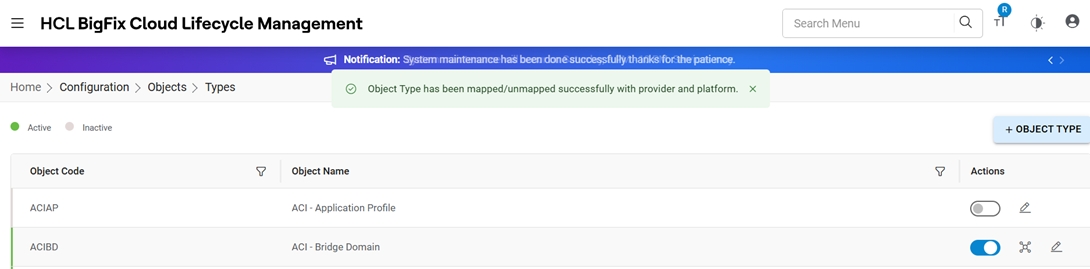
Add Object Type
To add Object Type, admin needs to follow below steps:
- Click on + OBJECT TYPE.
Figure 10. Add Object Type 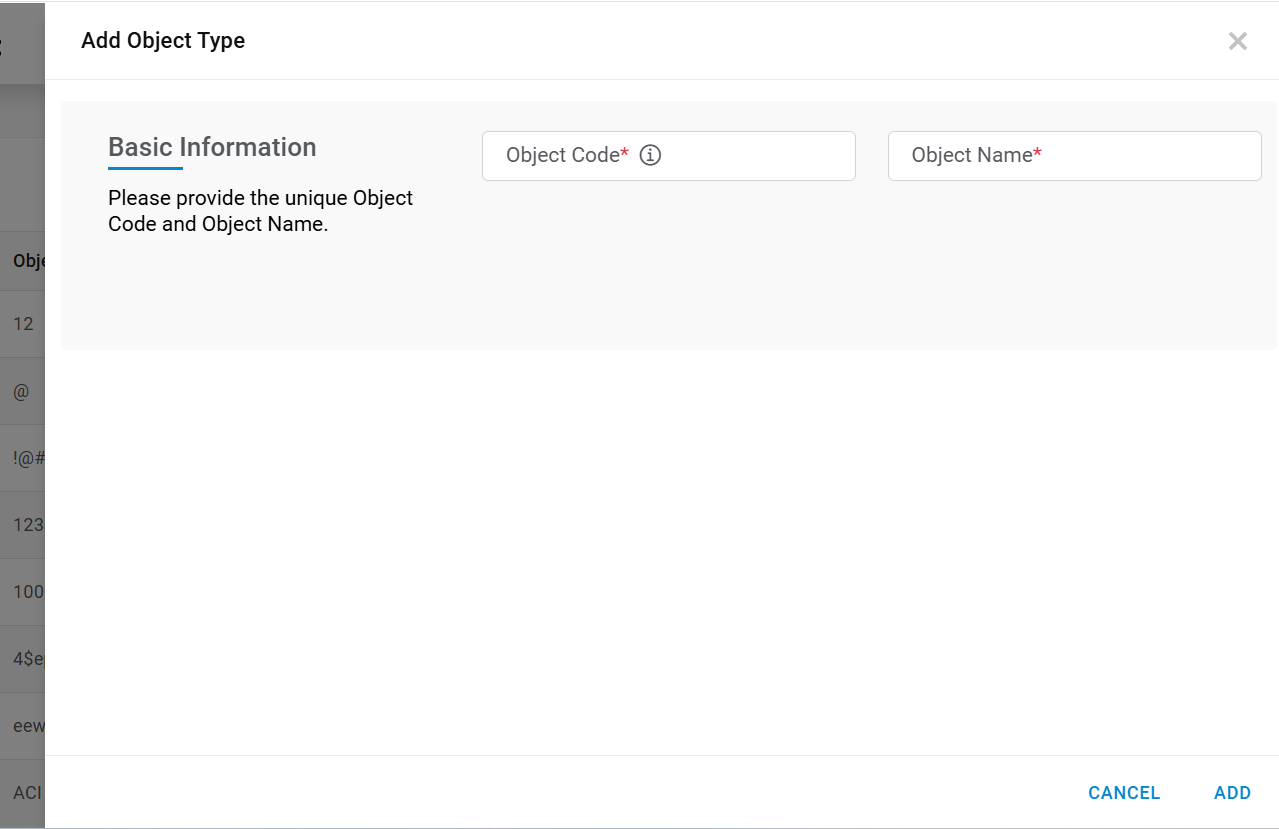
- Enter Object Code and Object Name.
- Click Add.
Figure 11. Add Object Types (cont.) 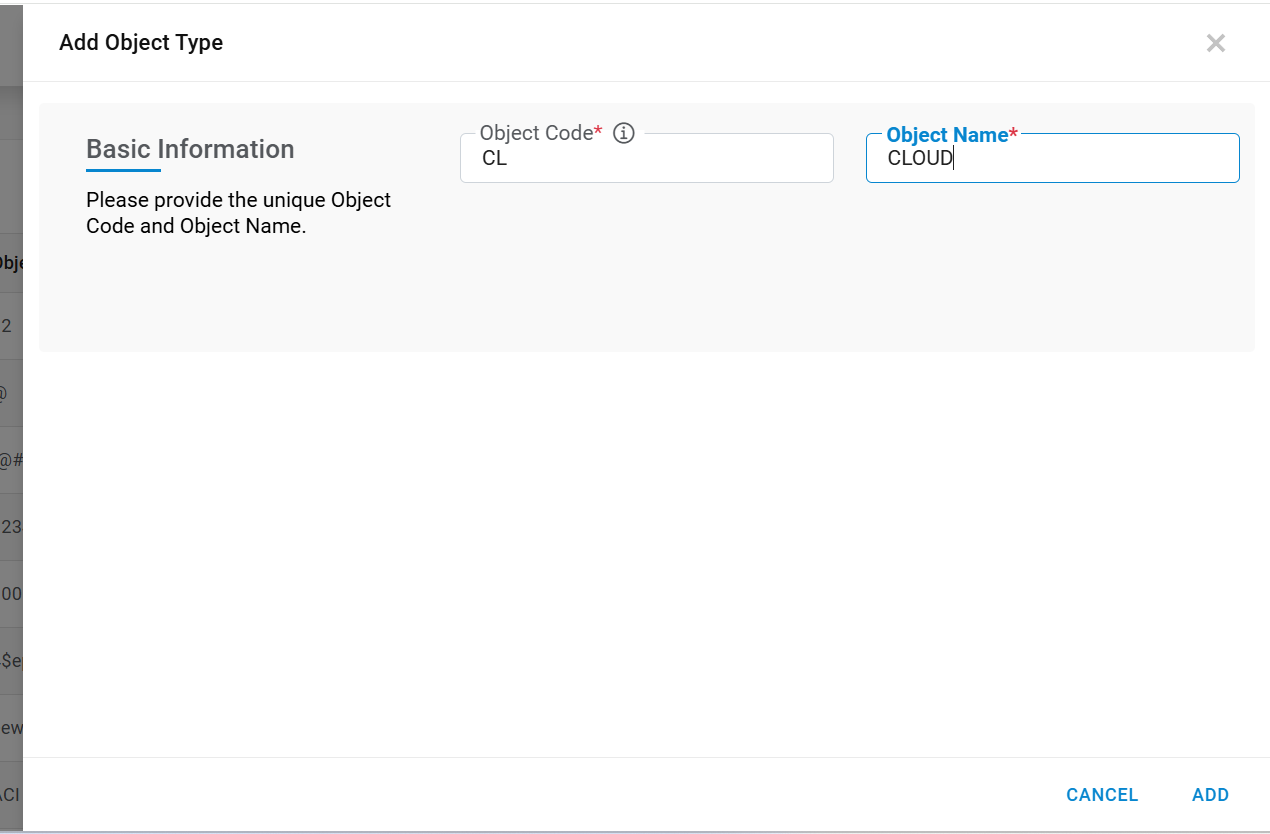
- A success message appears.
Figure 12. Success Message (cont.) 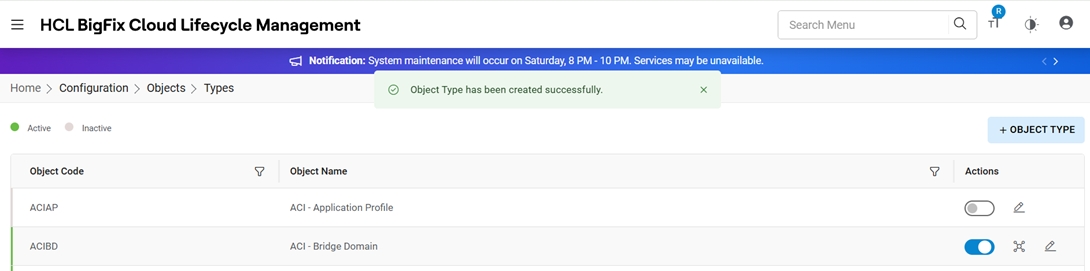
Note:
All fields marked with asterisk (*) are mandatory.