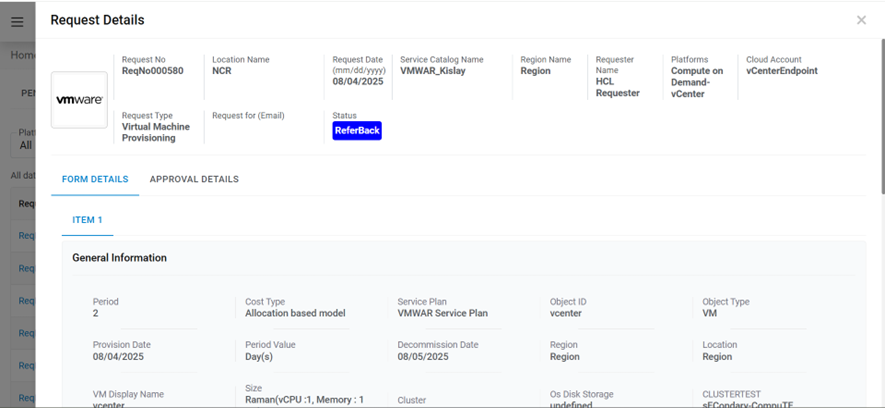
Accessing HCL BigFix CLM
Get the URL and user credentials for HCL BigFix CLM.
Reach out to the person who has configured HCL BigFix CLM or drop an email to bigfixclm-prodsupport-team@hcl-software.com
- Launch a web browser (Chrome, Mozilla, or Edge) and use the HCL BigFix CLM URL and User credentials to login to the system.
- Enter the Email ID.
- Click Next.
Figure 1. HCL BigFix CLM Login Page .png)
- Enter Password.Remember:Change the password frequently, at least once a month, to keep hackers out of the system. When the application is not being used then log out.
- Select the Authentication Type . The following authentication types are available
for login:
Table 1. Technical Approver: Authentication Type Authentication Type Description Form Based It provides a mechanism to authenticate the user through the credentials which are stored in the database LDAP It provides a mechanism to authenticate the user to login through Active Directory (AD) credentials SAML Based Authentication It provides a mechanism to authenticate users through the third -party Identity Access Management (IAM) which supports SAML based authentication Note:If there are no login credentials, then drop an email to bigfixclm-prodsupport-team@hcl-software.com.
If the login type is LDAP , domain credentials need to be entered with domain selection.
If the login type is SAML, the user gets re-directed to the authentication page.
If the login type is Form Based , no domain selection is required.
Figure 2. HCL BigFix CLM Login Page (Cont.) .png)
- Click Login.
- On successful login, HCL BigFix CLM homepage for technical approvers appears, as shown
below.
Figure 3. Technical Approver 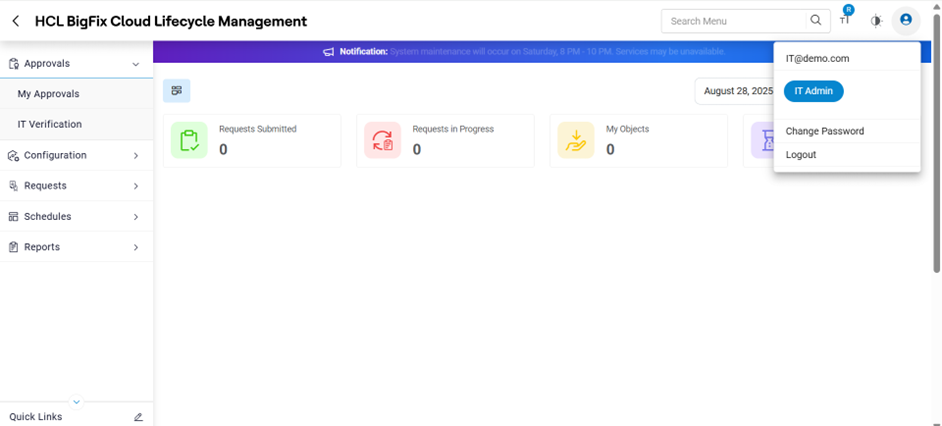
- The following options are available for Technical Approver:
My Account
This section details out the steps required to manage the service requests that were submitted by Requester.
My Approvals
On the main menu bar, click My Account and then click My Approvals.
The My Approvals screen appears with the following options:
Button like Edit/Approve is not visible then check the Organization configuration.
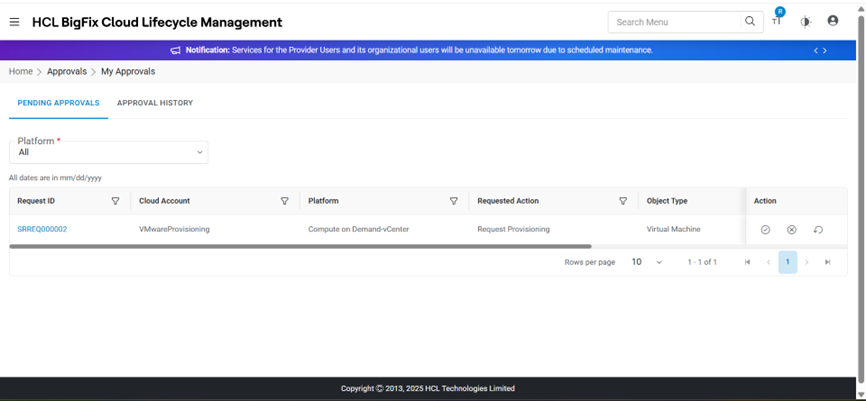
Refer to the table below to understand the fields mentioned in the above figure.
| Fields | Description |
|---|---|
| Request ID | Displays the ID-number of the request created |
| Request Number | ID of the Service request |
| Request ID | ID of the Service request |
| Cloud Account | Name of environment (cloud endpoint). |
| Platform | Name of Cloud service providers |
| Requested Action | Displays the action requested by requester |
| Object Type | Displays the type of the infrastructure resource |
| Request Date | Date on which the request has been created |
| Requester Name | Name of the person who has created the request |
| Status | Displays the status of the request placed |
| Action | It allows the user to take actions like mark as Complete, reject or refer the request. |
My Pending Approval
This section explains the steps required to manage pending requests and necessary actions that need to be taken against the requests.
- On the My Approval screen, click My Pending Approvals.
Figure 5. My Pending Approval 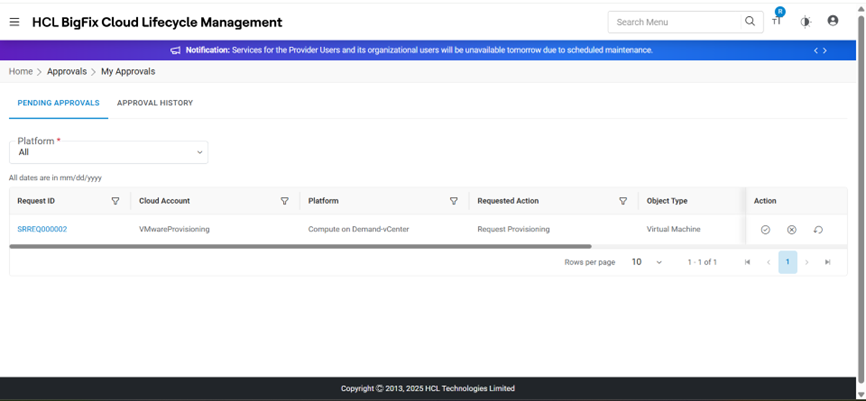
A Technical Approver performs the following actions on the pending request:
- Approve Requests: To approve a request, the user needs to follow the steps:
- Click Approve (
 )
against the request ID.
)
against the request ID. -
A window pops-up with a summarized view.
-
If required, enter Remarks in remarks box.
- Click Approve.
Figure 6. Requester Approver Comments 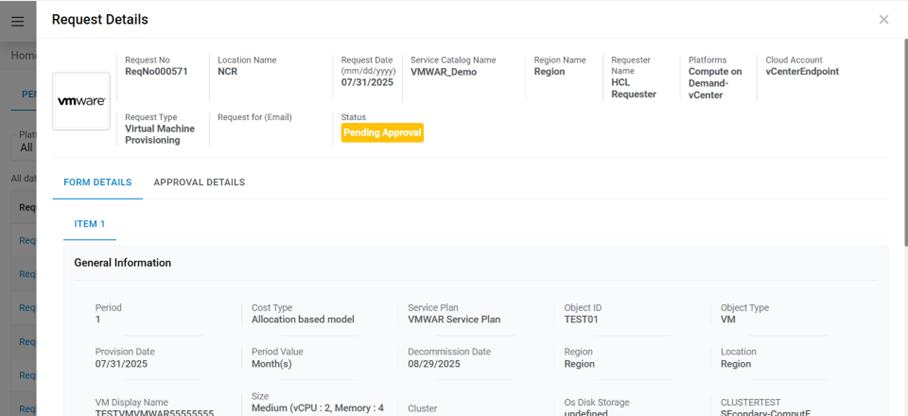
Refer to the table below to understand the fields mentioned in the above figure.
Table 2. My Pending Approval Fields Description Provision Date Date on which resource has been requested Period The lease period for which a resource is required Period Value Time period for the selected resource i.e., months, days, weeks, or years Region Lists the Geographical presence of native cloud providers Location Data center location associated with request Service Plan Resource category created by the provider i.e., platinum, gold, or bronze Cost Type Cost model as Pay as you go, or allocation based VM Display Name Name to be displayed against the Resource being created Remarks Additional information provided by the requester Size Compute the size of requested resource Cluster List the vCenter cluster Storage List the data stores associated with clusters Network Lists of the network associated with cluster Remarks Provide the additional requests if any
- Click Approve (
- The selected request ID has been approved and moved from My Pending Approval to Approval History.
- A success message box appears on the screen.
Figure 7. My Pending Approval 
- Reject Request: To reject a request, perform the following steps:
- Click Reject (
 )
against the request ID.
)
against the request ID. - A window pops-up with a summarized view.
- If required, enter Remarks in remarks box and click Reject.
- Selected request ID gets rejected.
Figure 8. My Pending Approval (Cont.) 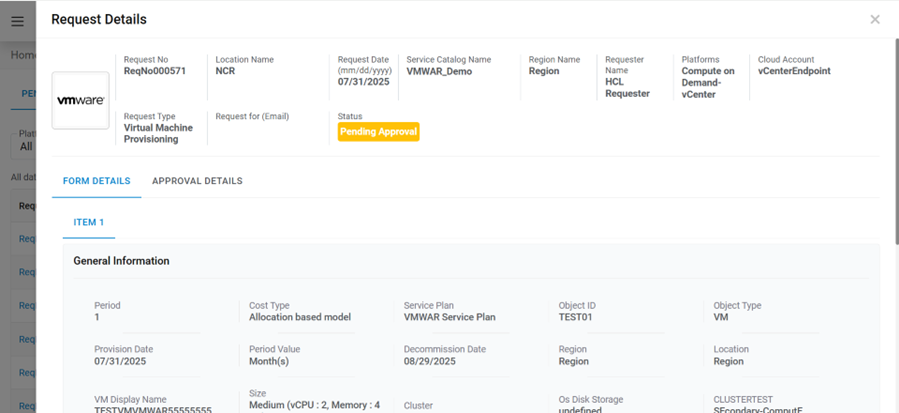
Figure 9. My Pending Approval (Cont.) 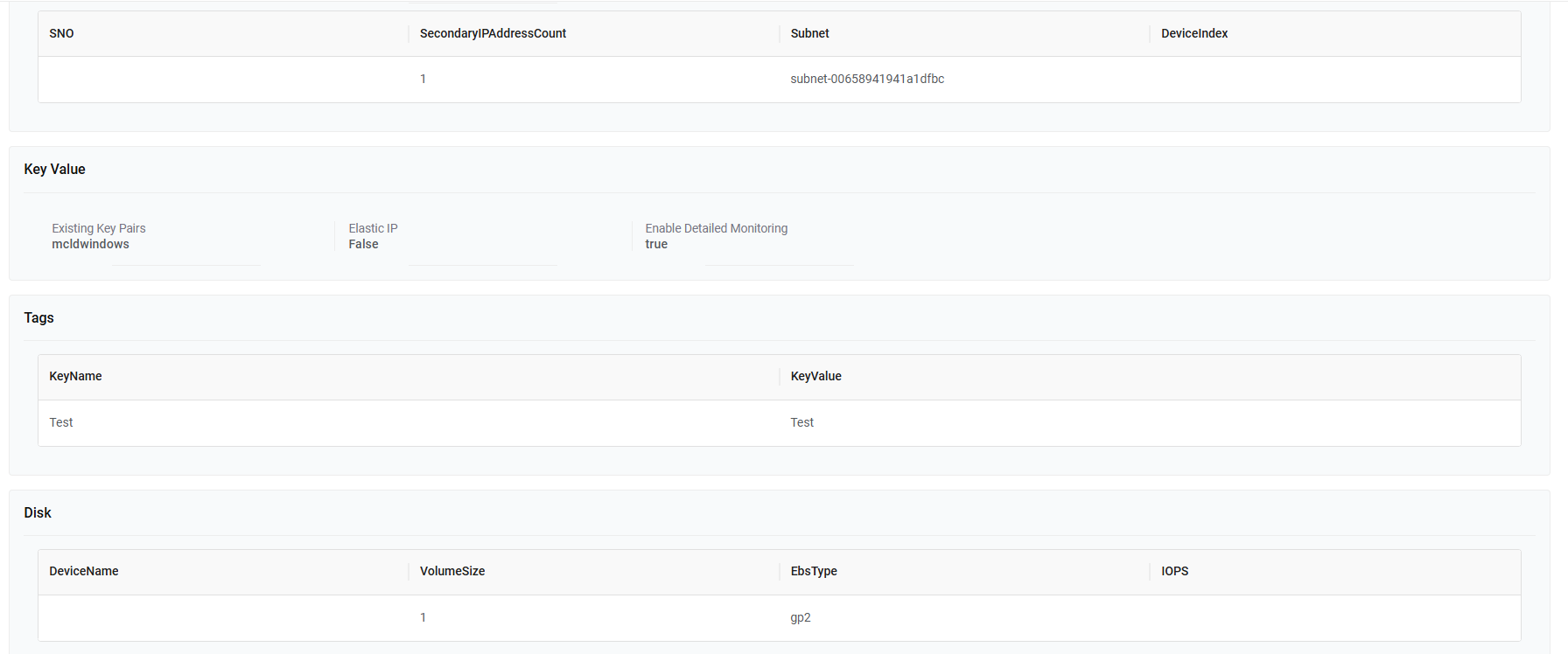
Figure 10. My Pending Approval (Cont.) 
A success message box appears on the screen.
Figure 11. My Pending Approval (Cont.) 
- Click Reject (
- Refer Requests: To refer a request, follow the below steps:
- Click Refer back (
 )
against the request ID. A window pop-up with request details.
)
against the request ID. A window pop-up with request details. - If required, enter Remarks in remarks box and click Refer back.
Figure 12. My Pending Approval (Cont.) 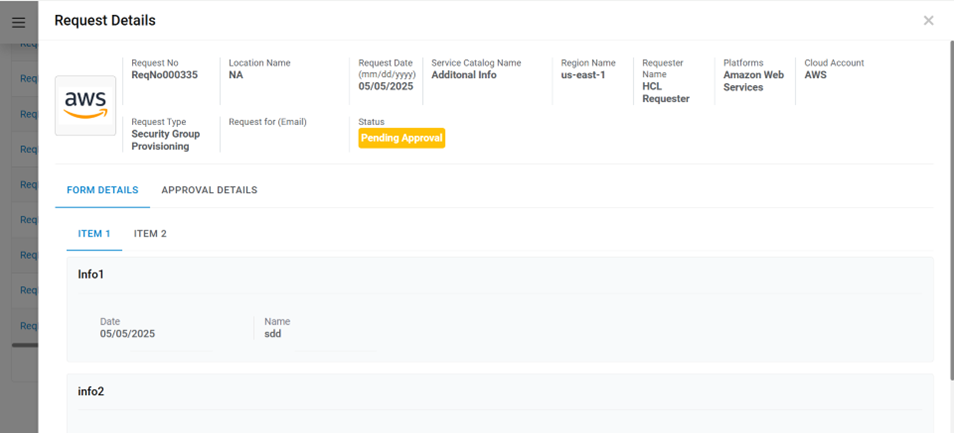
Figure 13. My Pending Approval (Cont.) 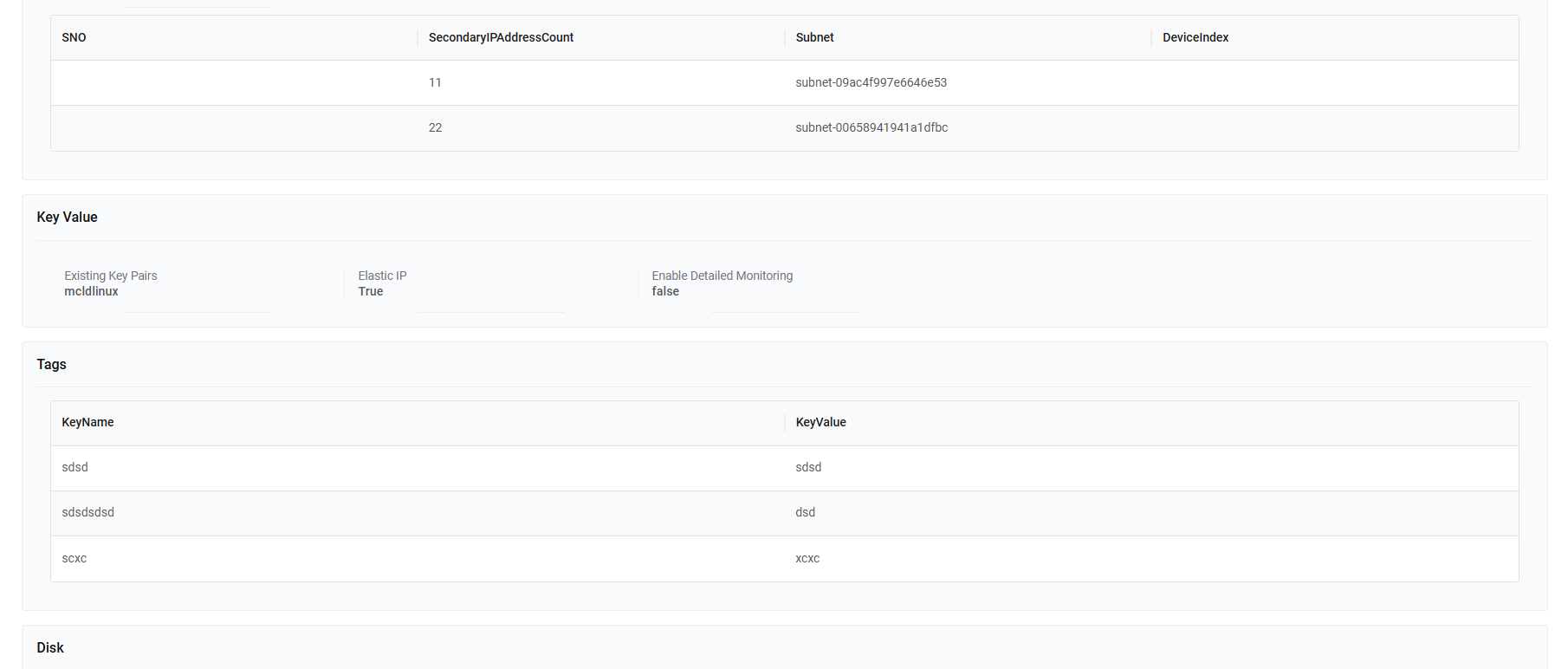
Figure 14. My Pending Approval (Cont.) 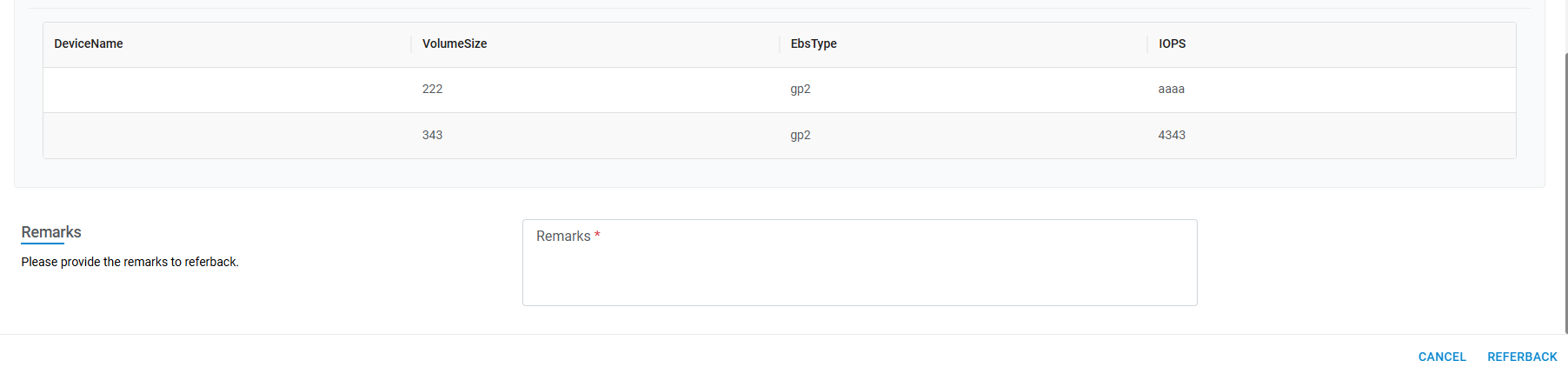
- Click Refer back (
- Selected request Id has been referred to and the requester gets a notification with the remarks for further action to be taken on it.
- A success message box appears on the screen.
Figure 15. My Pending Approval (Cont.)  Note:
Note:All fields marked with asterisk (*) are mandatory. The above process is for VMware; Fields may vary in the case of other cloud providers.
My Approval History
This section details out the steps required to view the actions that have been taken by technical Approver on the service requests.
- On the My Approval screen, click My Approval History.
Figure 16. My Approval History 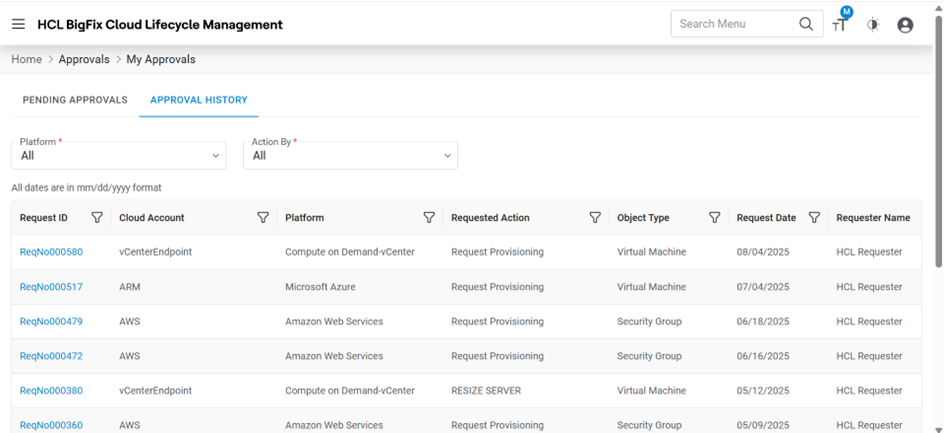
- It lists down all the approved requests approved by self or others.
- Refer to the table below to understand the fields mentioned in the above figure.
Table 3. My Approval History Fields Description Request ID ID of the request created Cloud Account Name of environment (cloud endpoint). Platform Name of Cloud service providers Requested Action Action requested by requester Object Type Type of the infrastructure resource Request Date Date on which the request has been created Requester Name Name of the person who has created the request Approval Stage Describe the name of the Approval Stage on which Approval is provided Approval Date Date on which Approval is provided Status Status of the request (username of approval) - Click on Request ID.
- The Order History window appears.
Figure 17. My Approval History (Cont.) 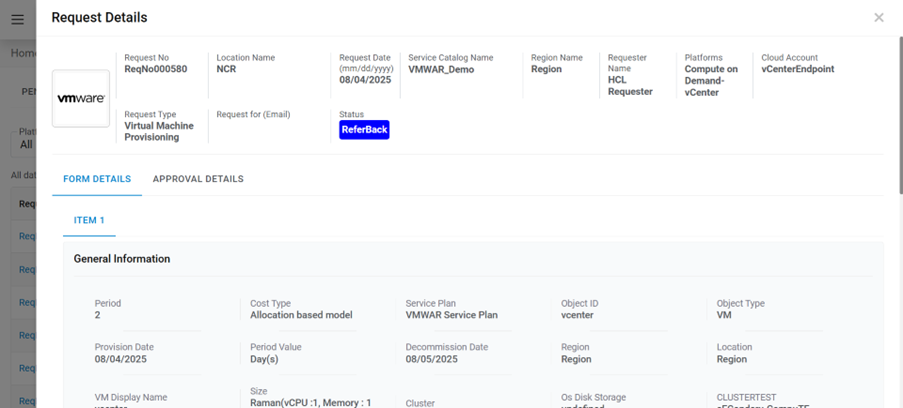
Refer to the table below to understand the fields mentioned in the above figure.
Table 4. My Approval History Fields Description Activity Activity type for the request Request ID Unique request ID Date Approval date; appears post approval Status Status of the request
IT Verification
This section provides the IT Admin to verify, approve, and request action(s) to the resources, once all the Task(s) in the request has successfully been completed.
Only those requests will be sent to IT Verification where Provider Admin has confirmed the Organization with IT Verification Enabled.
- On the main menu bar, click My Account and then click IT Verification.
- The IT Verification screen appears with the following options:
- My Pending Approvals
-
My Approval History
Figure 18. IT Approval 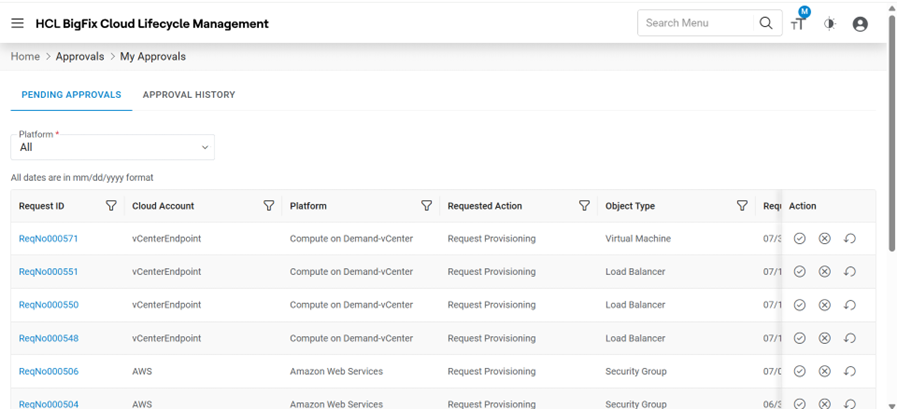
Table 5. IT Approval Fields Description Platform Name of Cloud service providers Object Type Displays the type of the infrastructure resource Request Number ID of the Service request Requester Name Name of the person who has created the request Request Date Date on which the request has been created Platform Name of Cloud service providers Entity Type Code Code of the Cloud service providers Item No Item number of the request Computer Name Name of the computer Approve Action Button – To approve the Resource Provisioning Action It allows the user to take actions. Only those actions will be listed on this screen for which Provider admin has marked “IT Verification Enabled” 
Grid Column Setting
My Pending Approval
This section explains the steps required to approve the pending requests and necessary actions that need to be taken against the requests.
- On the IT Approval screen, Click My Pending Approvals.
Figure 19. IT Verification - My Pending Approval 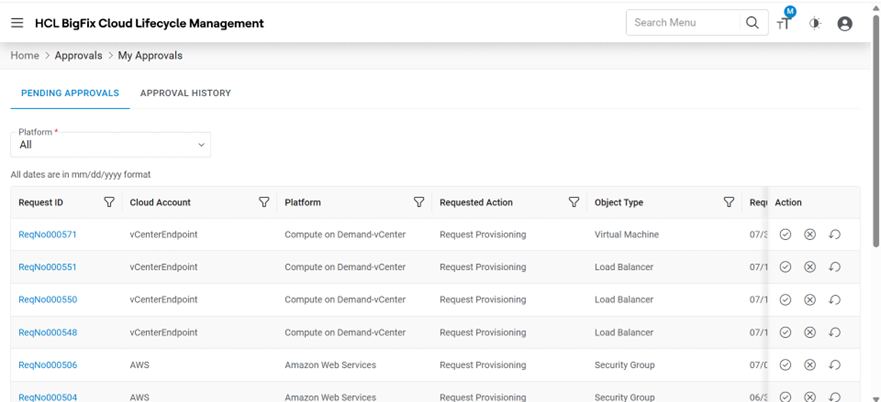
A Technical Approver performs the following actions on the pending request:
- To approve a request, the user needs to follow the steps:
- Click Approve (
 )
against the request ID.
)
against the request ID. - A window pops-up with a summarized view.
- If required, enter Remarks in remarks box.
- Click Save.
Figure 20. IT Verification – Approval Popup 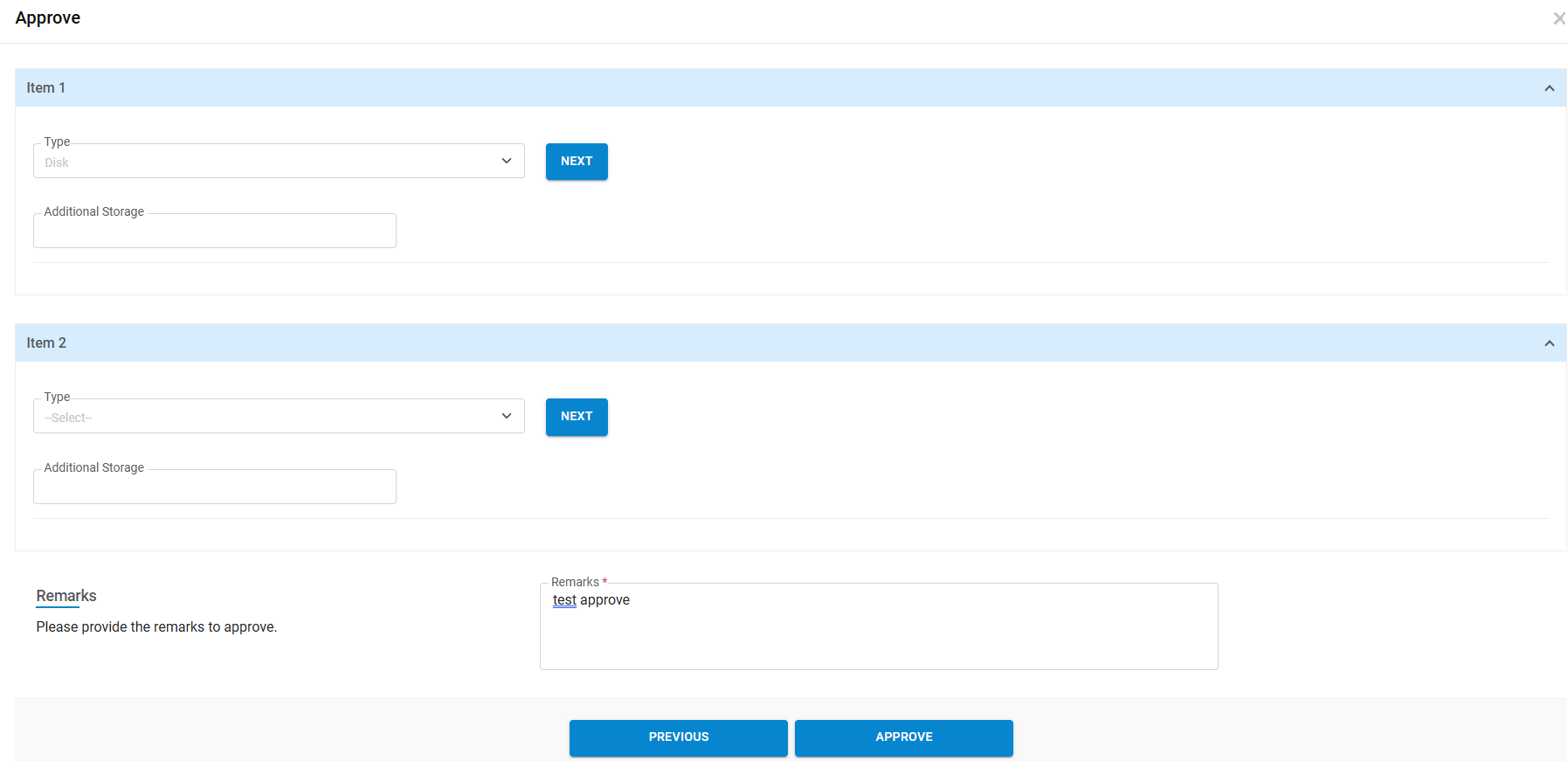
Refer to the below table to understand the fields mentioned in the above figure.
Table 6. My Pending Approval Fields Description Request No ID of the Service request Object Id Object Id, Unique Id of the object on which Action is performed. Create Date Date on which resource has been requested Requester Name Name of the person who has created the request Remarks Additional information provided by the IT Admin Save Button to complete the Approval process Cancel Button to terminate the Approval process. - Click Approve (
- The selected request ID has been approved and moved from My Pending Approval to Approval History.
- A success message box appears on the screen.
- Raise Action Requests: To raise an Action Request on the requested Resource kindly refer to Virtual Machines Actions.
My Approval History
This section details out the requests that have been approved by technical Approver on the IT Approval My Pending Approvals
- On the IT Approval screen, click My Approval History.
Figure 21. IT Approval - My Approval History 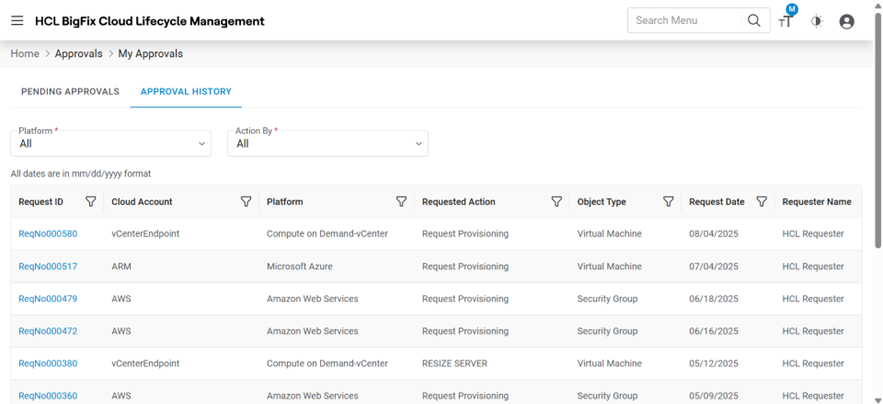
- It lists all the approved requests.
- Refer to the table below to understand the fields mentioned in the above figure.
Table 7. My Approval History Fields Description Request No ID of the request created Requester Name Name of the requester who has placed the request. Request Date Date on which the request has been created Approval Date Date on which the request has been approved. Approved By IT Admin who has approved the request Platform Name Name of Cloud service providers - Click on Request No..
- The Order History window appears.
Figure 22. IT Approval – Order History