System Optimization
Solutions involving system optimization of that type can be demonstrated here.
- When the automation module is created with “Optimization” as Solution Type, ‘it comes under the Ready to publish section.
- On clicking the Click to Publish button, the solution moves to the
Published Solution section.
Figure 1. Ready to Publish Solution Section 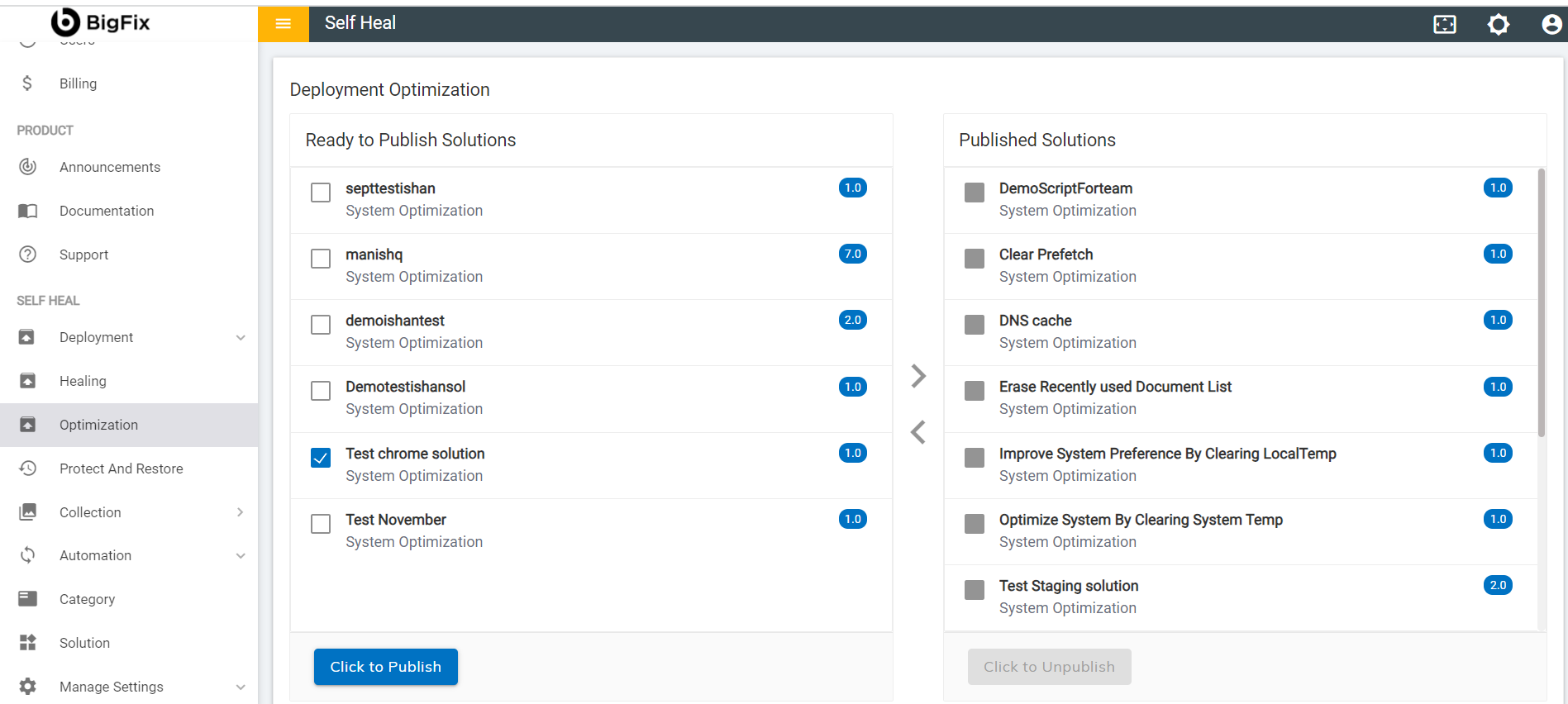
- The following success message appears:
Figure 2. Success Message .png)
- When a solution is published successfully, it moves to the Published
Solution section.
Figure 3. Published Solutions Section for Optimization 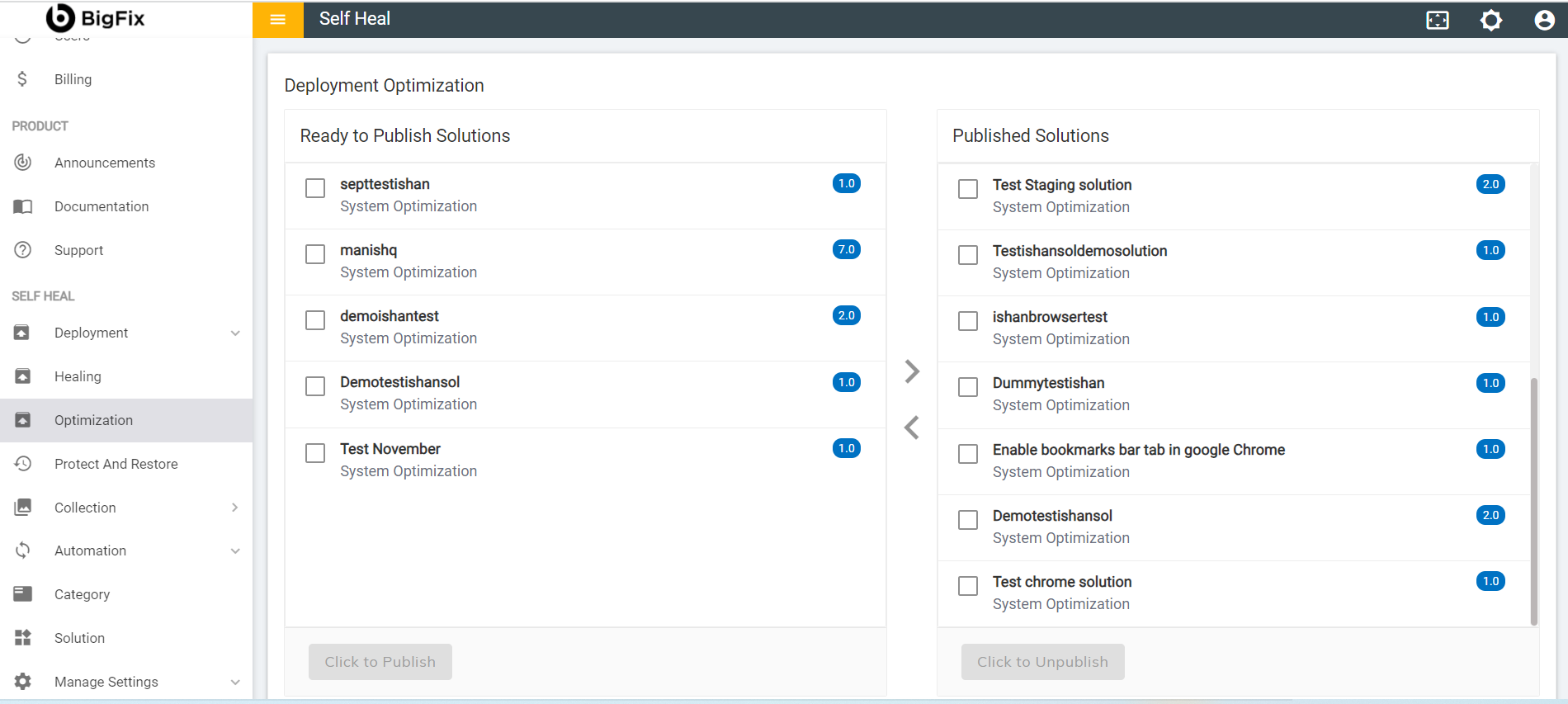
- A successfully published solution starts reflecting in the automation module with
Status as “Published”.
Figure 4. Published Status in the Automation Module 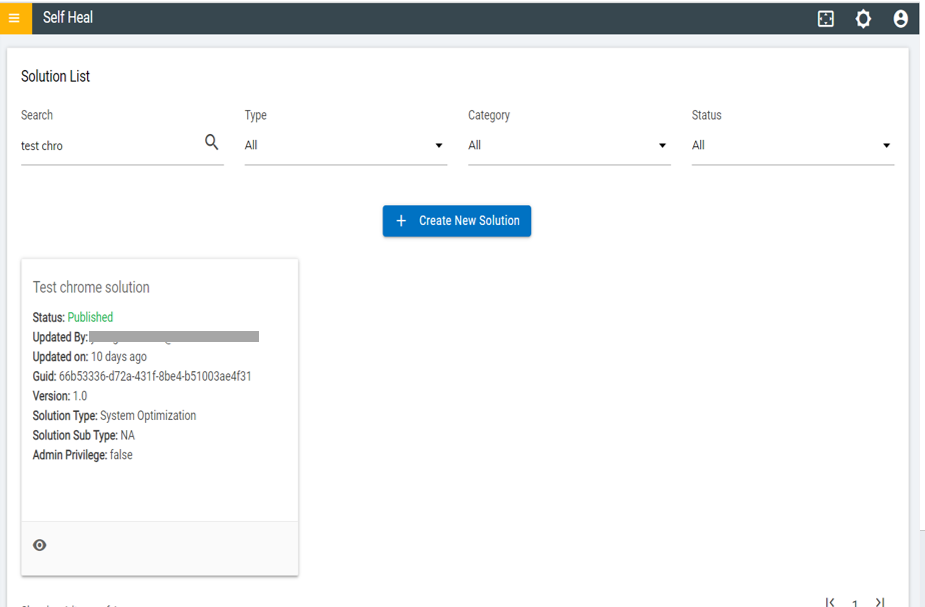
- To edit the solution, the admin must unpublish the solution, by clicking on the
Click to Unpublish button.
Figure 5. Click to Unpublish to Edit a Solution 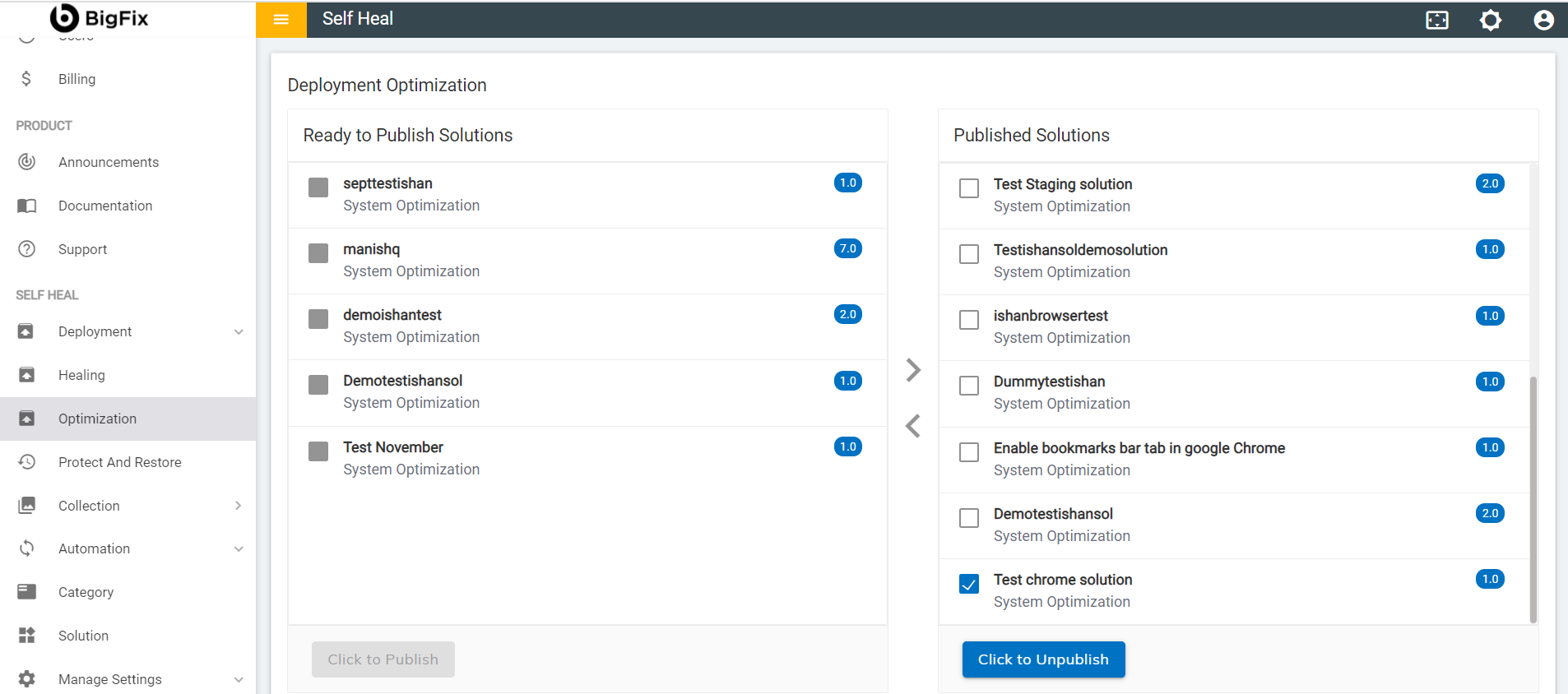
- The following message appears successfully unpublishing the solution.
Figure 6. Success Message 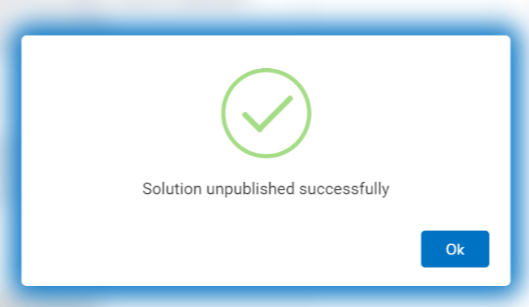
- The solution moves to the Ready to Publish Solution section.
Figure 7. Ready to Publish Solution Section for Optimization 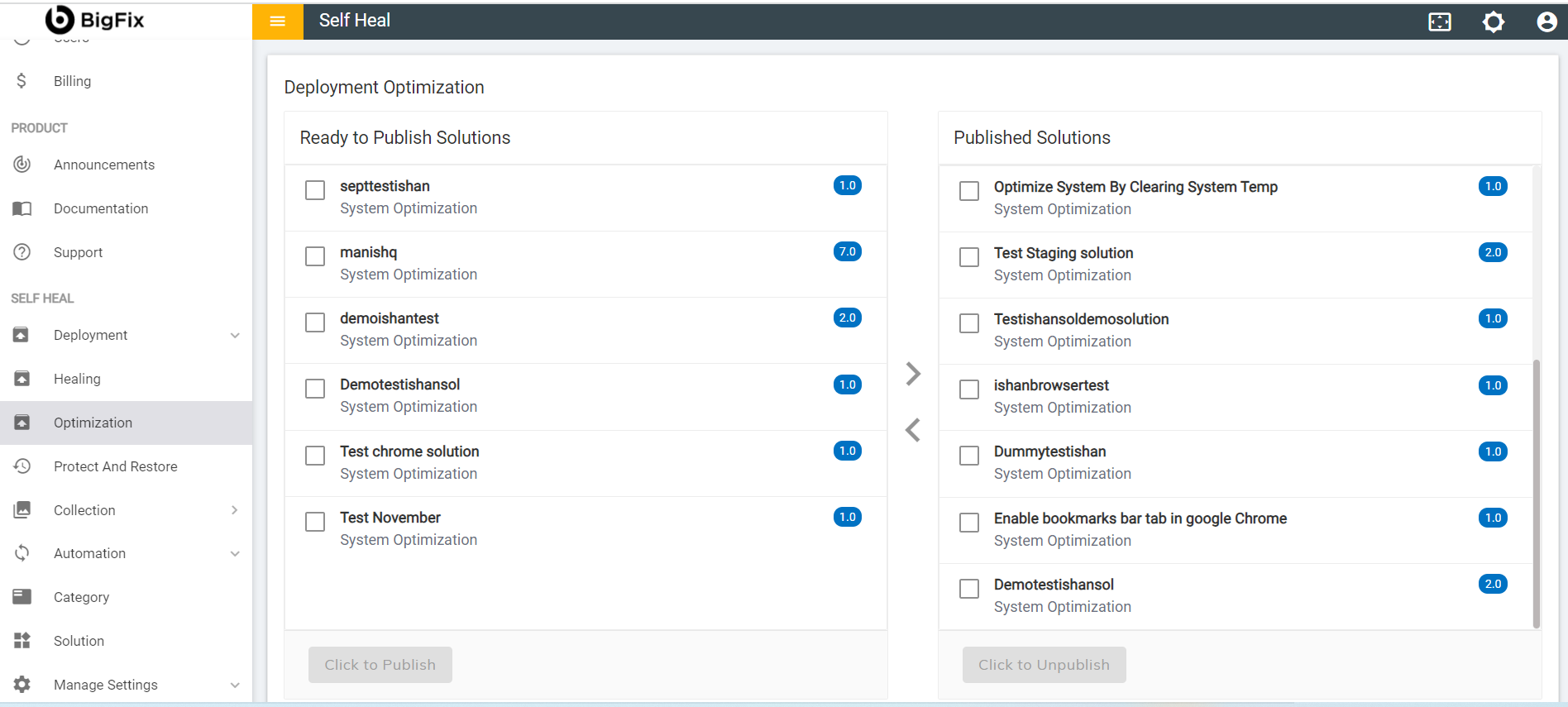
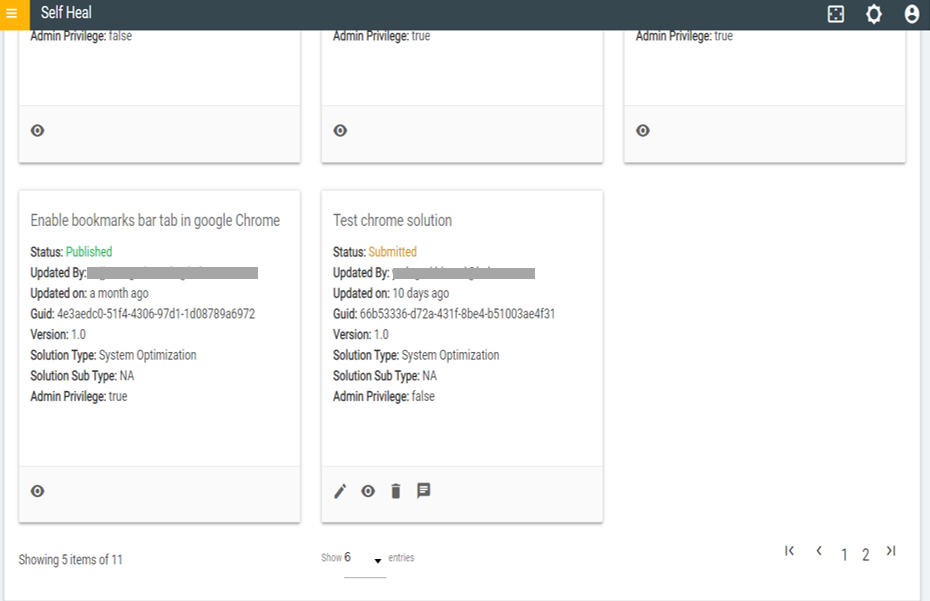
- Once the solution is unpublished successfully, it comes with the Submitted
status in the Automation Module.
Figure 8. Submitted status in the Automation Module