Quick Link
In this section, admins integrate certain URLs for client apps for users to access quickly, and these URLs are customized by admins as per user requirements.
- Admins can create URLs for client apps by clicking on the Create button on
the top right corner of the Quick Link page.
Figure 1. Quick Link 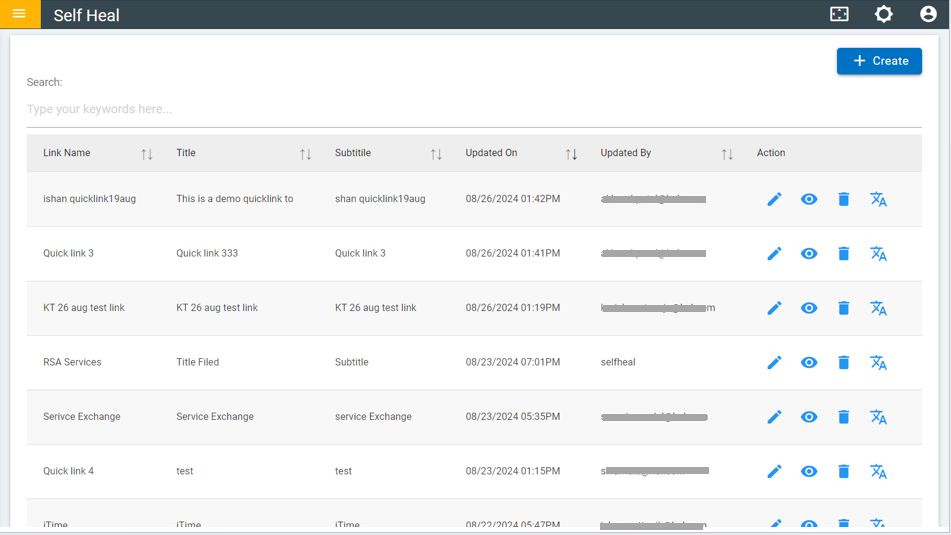
- The Create Quick Link page appears:
Figure 2. Create Quick Link 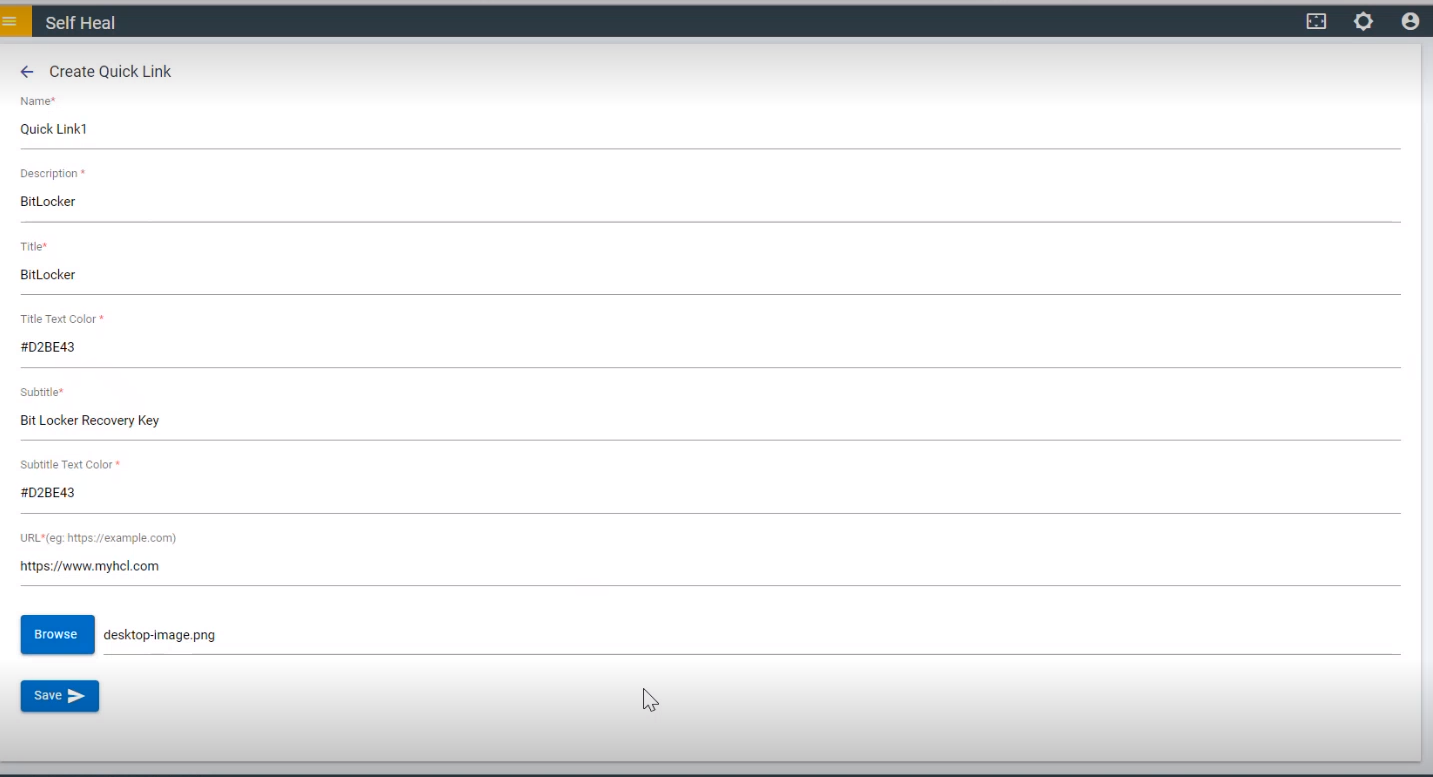
- Fill out the required fields and click Save to create a quick link. The
following success message appears:
Figure 3. Success Message 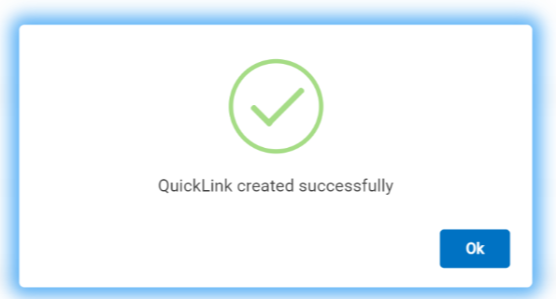
- To edit a quick link, click on the edit icon corresponding to the link that is to
be edited on the Quick Link Page.
Figure 4. Quick Link Page 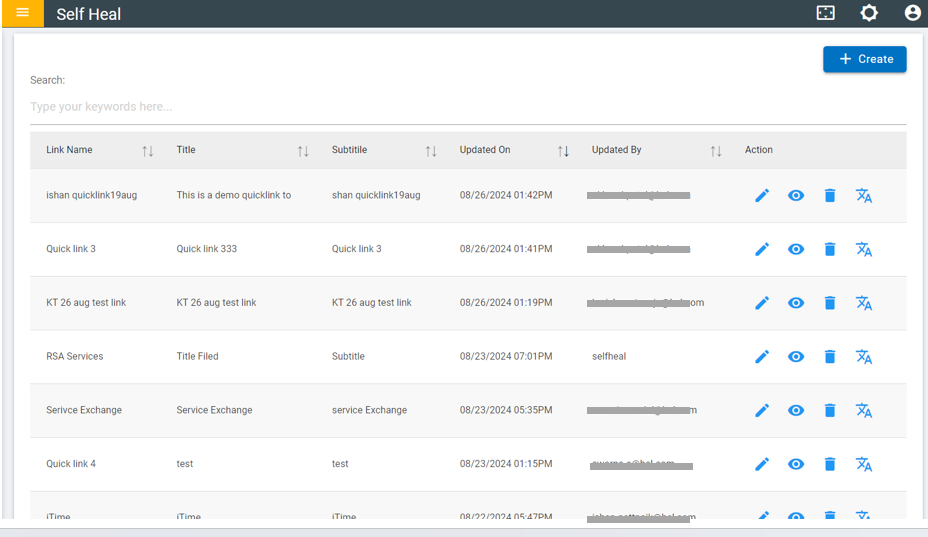
- The Edit Quick Link page appears:
Figure 5. Edit Quick Link 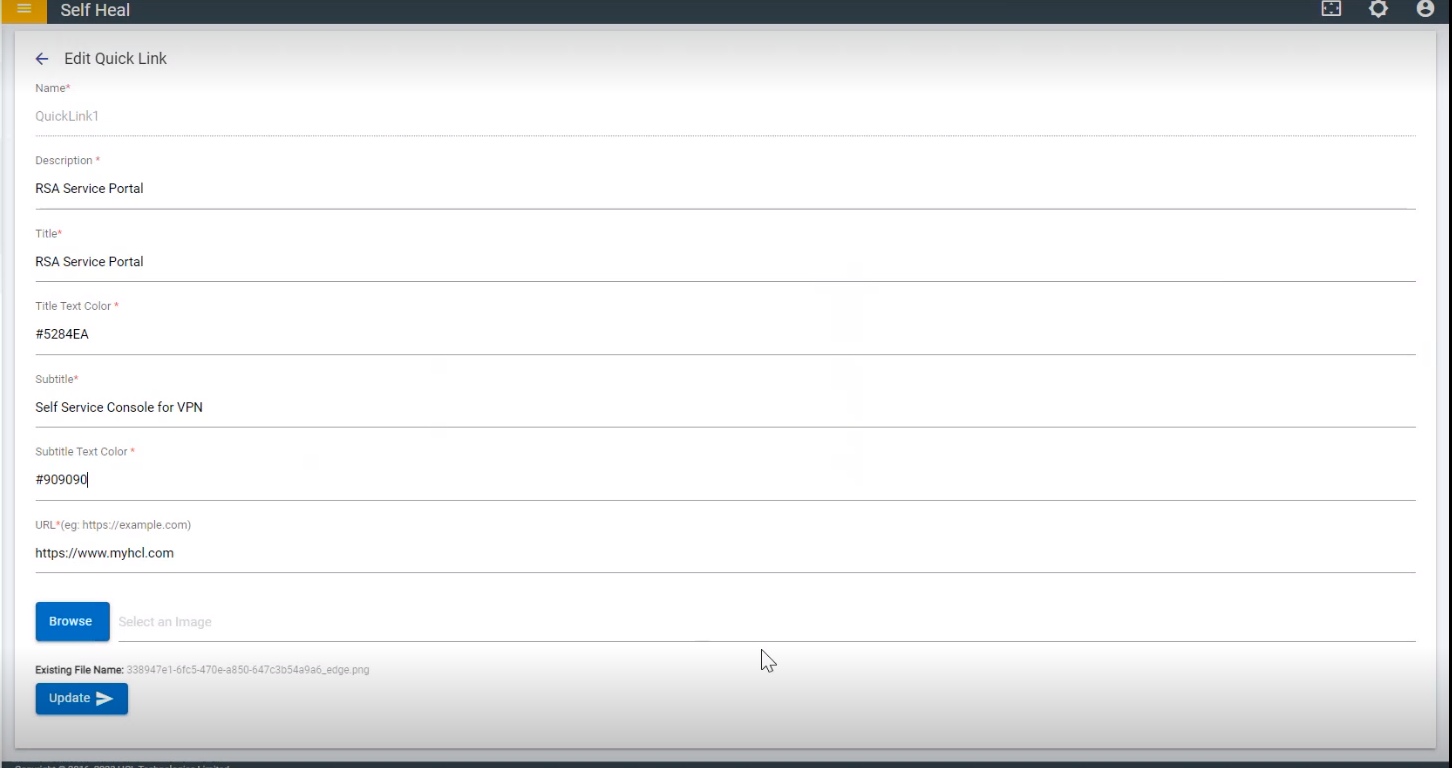
- Modify the fields as required and click Update. The following success message
appears:
Figure 6. Success Message 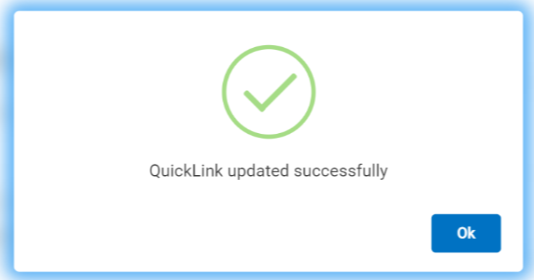
- Admin can view the details of an existing quick link by clicking on the corresponding view icon on the Quick Link page under the Actions column.
- The View Quick Link page appears where the admin can view the details of an
existing quick link.
Figure 7. View Quick Link 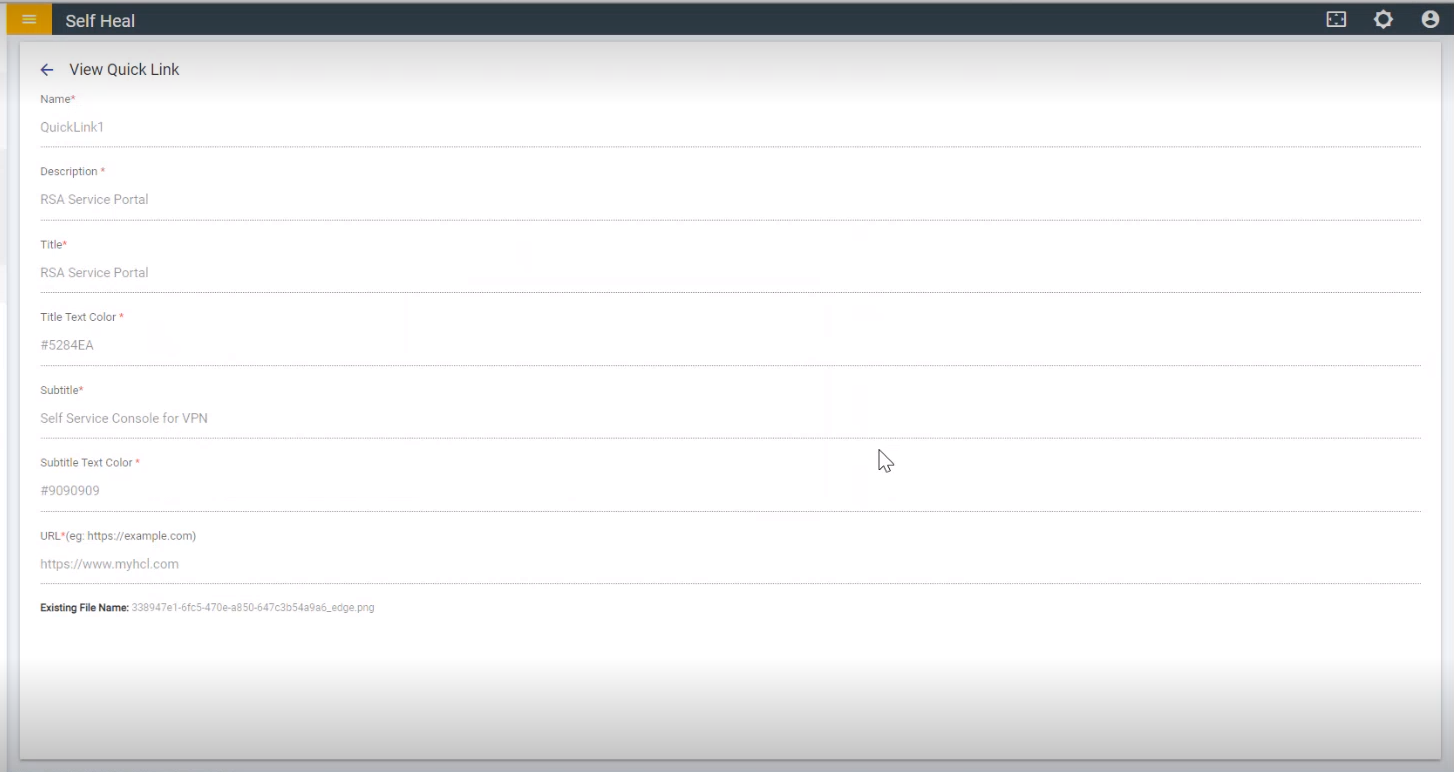
- To delete quick links, click on the delete icon.
Figure 8. delete Quick Link 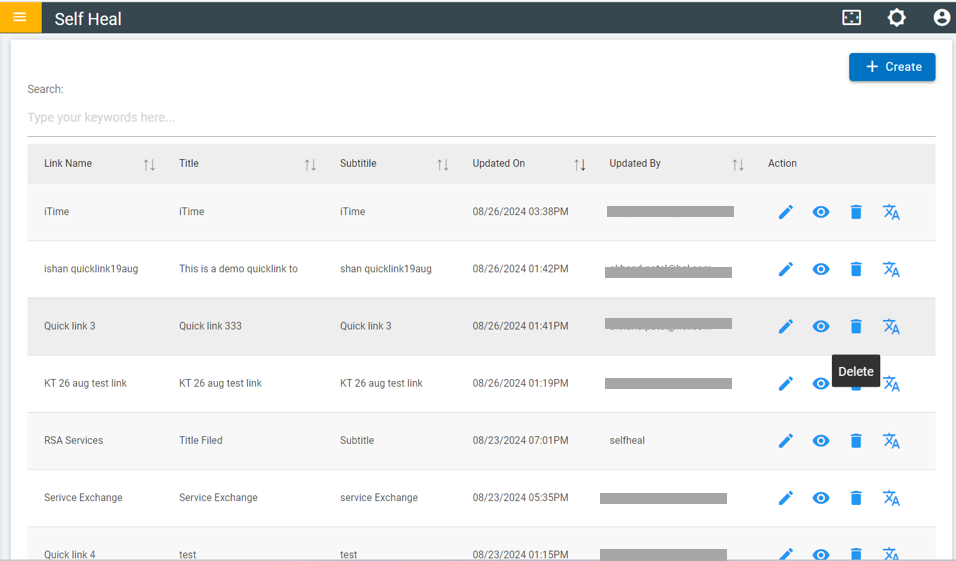
- Click OK to delete or click Cancel to cancel the delete action. On
clicking on the OK, the selected Quick link is deleted from the list.
Figure 9. Confirmation Message 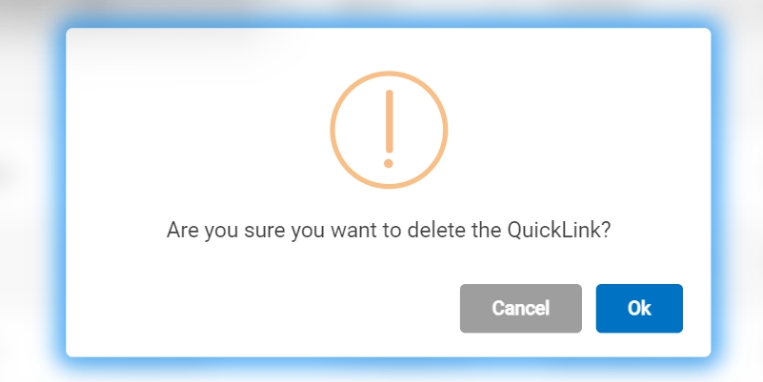
- After clicking on Save. The following success
message appears:
Figure 10. Success Message 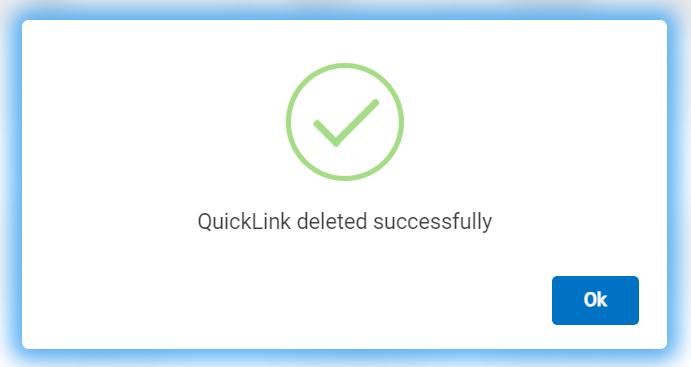
- To Translate quick links, click on the Translate icon.
Figure 11. Translate icon on Quicks Links 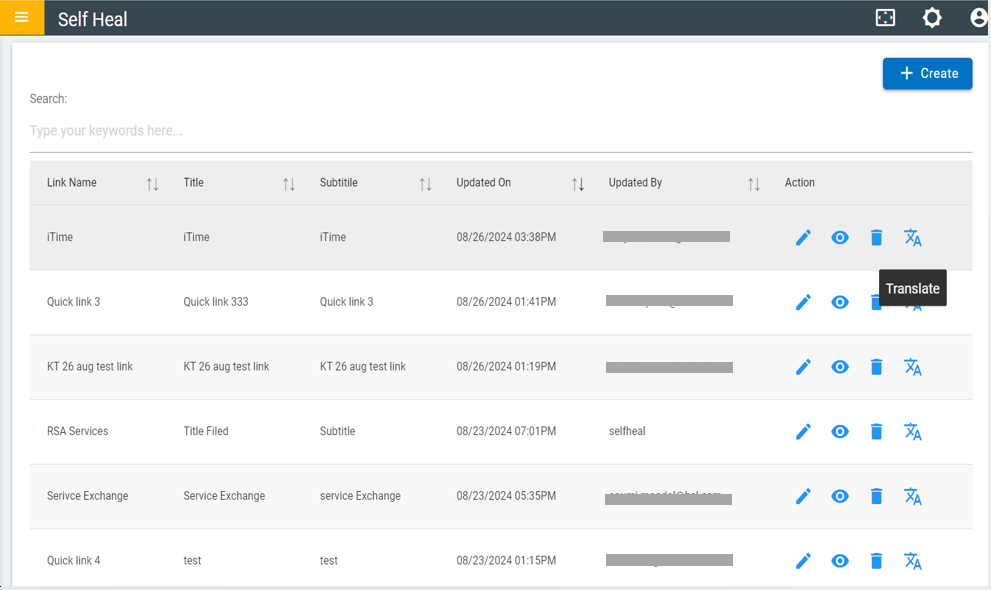
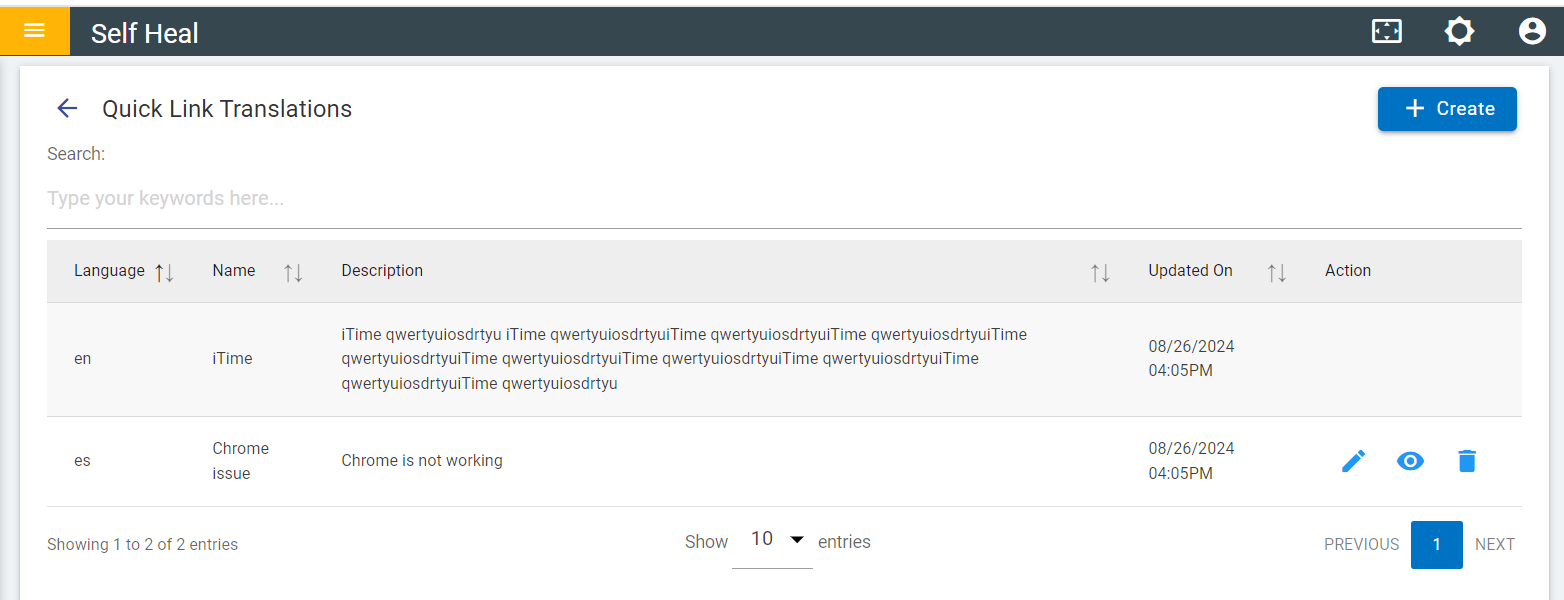
- When User click on the Translate icon, The following page appears:
- Click on the create button to create a quick link
Translation.
Figure 12. Quicks Links Translations 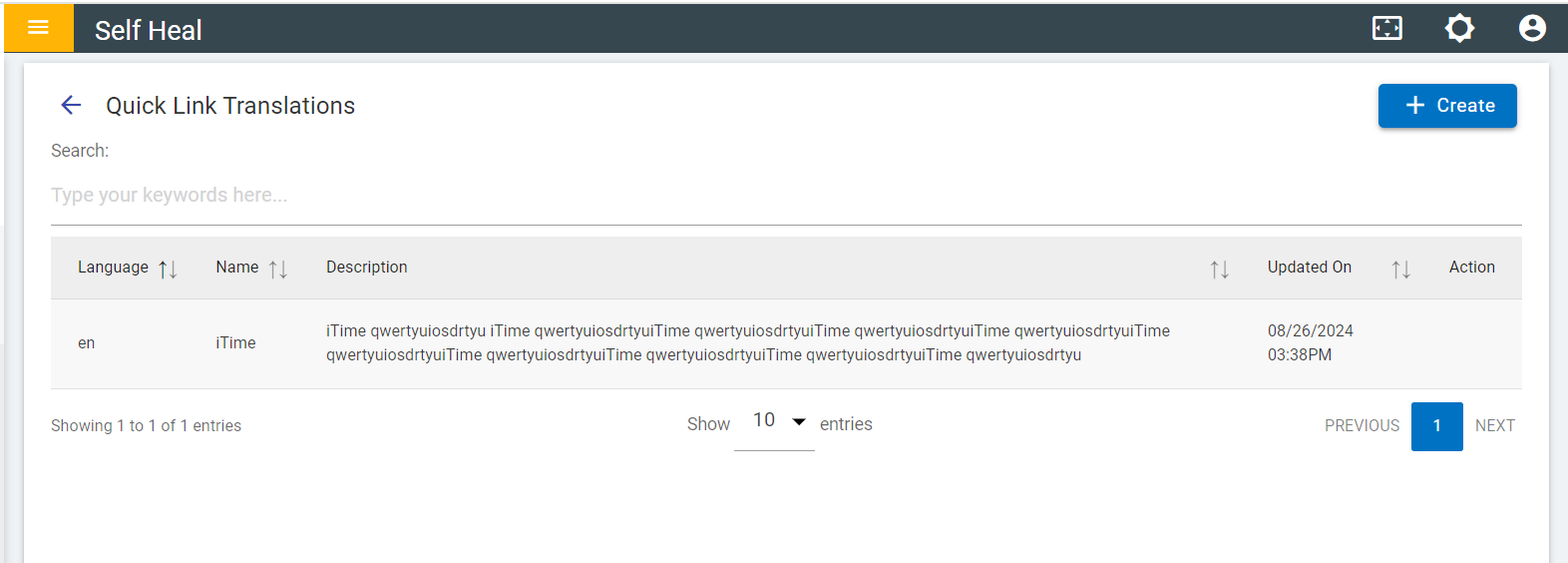
- After clicking on create the following page appears
- Fill in the required fields and click save.
Figure 13. Create Quicks Links Translations 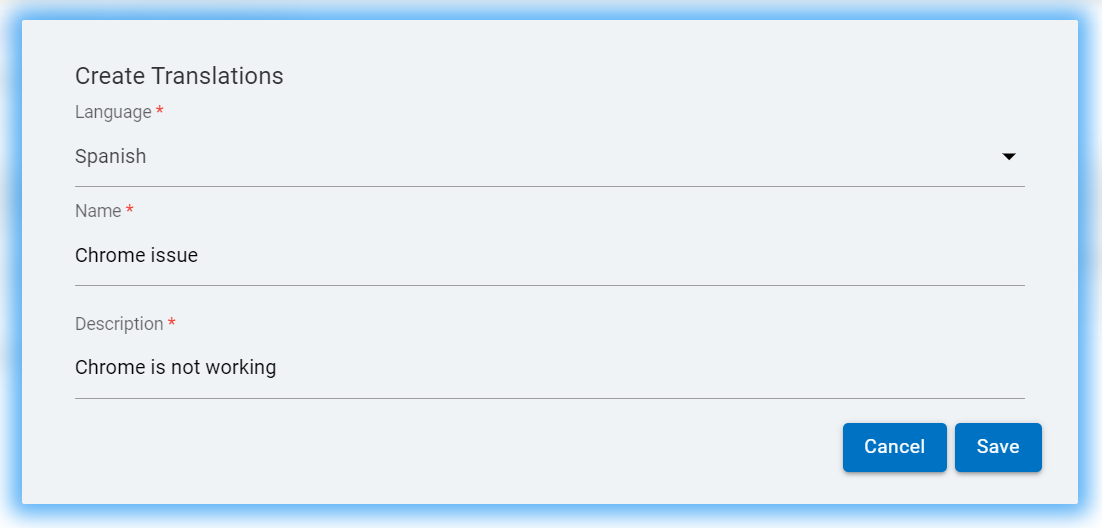
- After clicking on the save the following message appears.
Figure 14. Confirmation Message 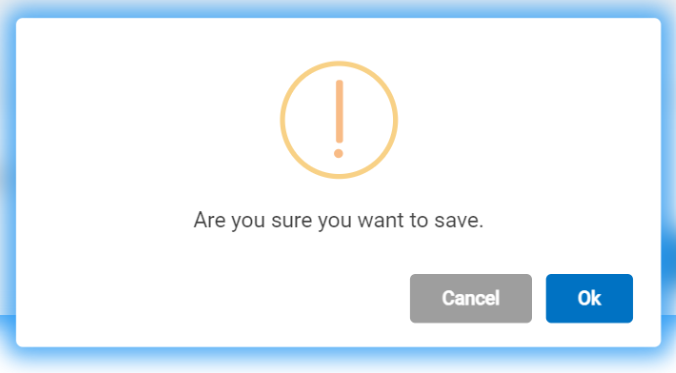
- After clicking on OK the following message appears
Figure 15. Success Message 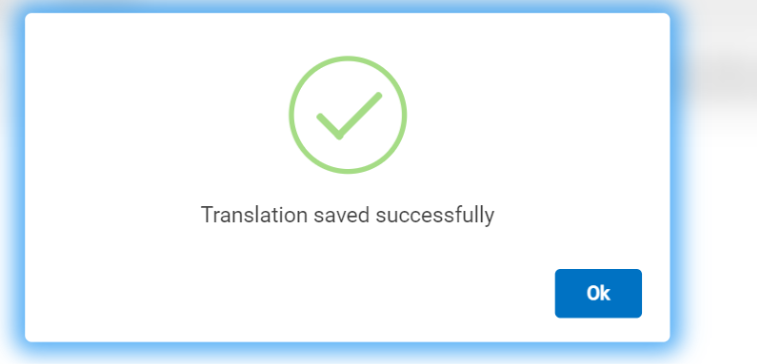
- After clicking on OK the translated quicks links is added to the list of
the quick links translation.
Figure 16. Translated Quick Links Added