Manage Content
The section has all the predefined messages stored. The user can manage the content of predefined messages from here.
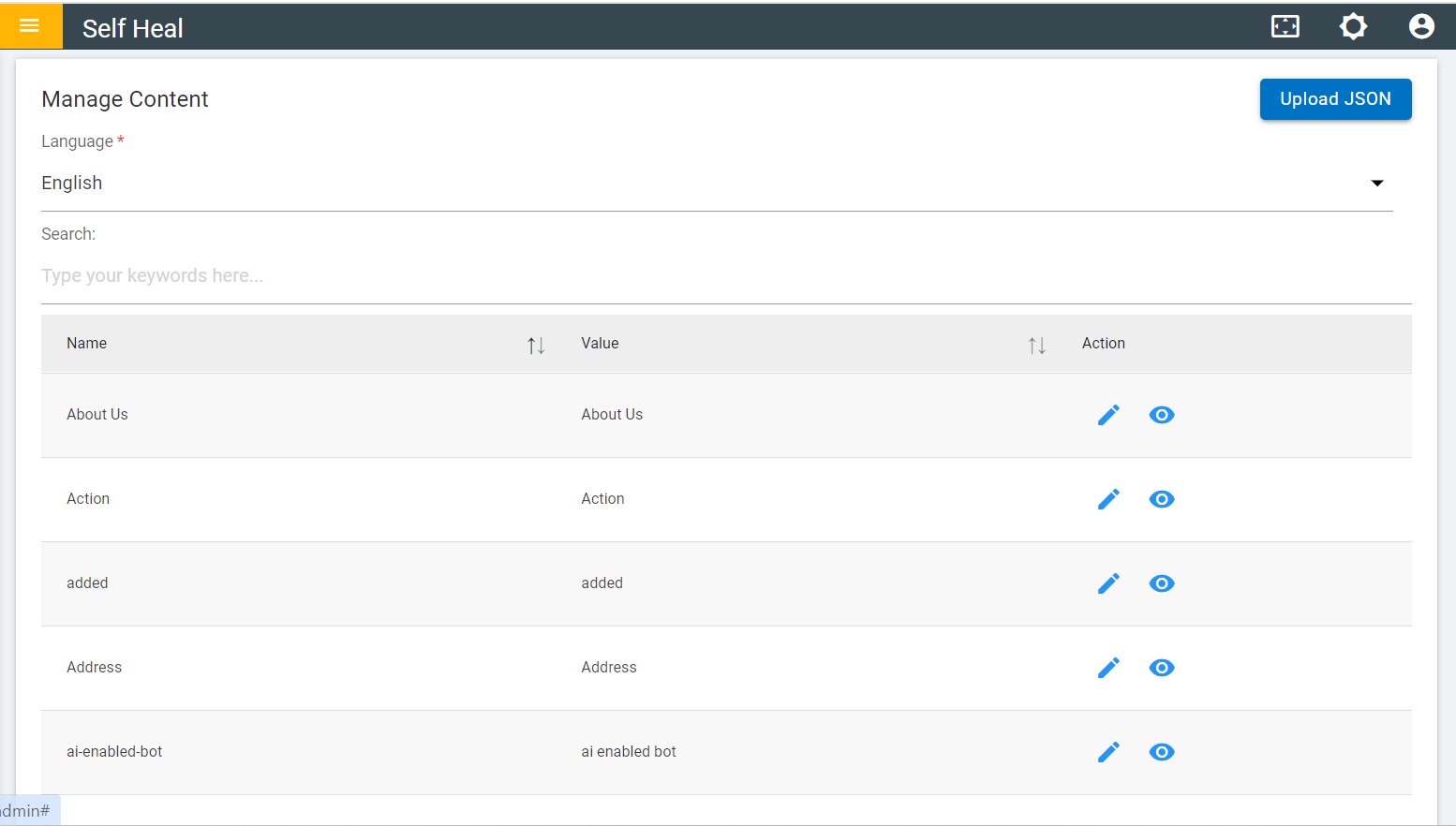
- The admin can upload JSON files by clicking on the Upload JSON button at top right corner of the manage content page.
- The Manage Content screen appears selecting the specific language and
upload JSON file and clicks on submit.
Figure 2. Manage Content 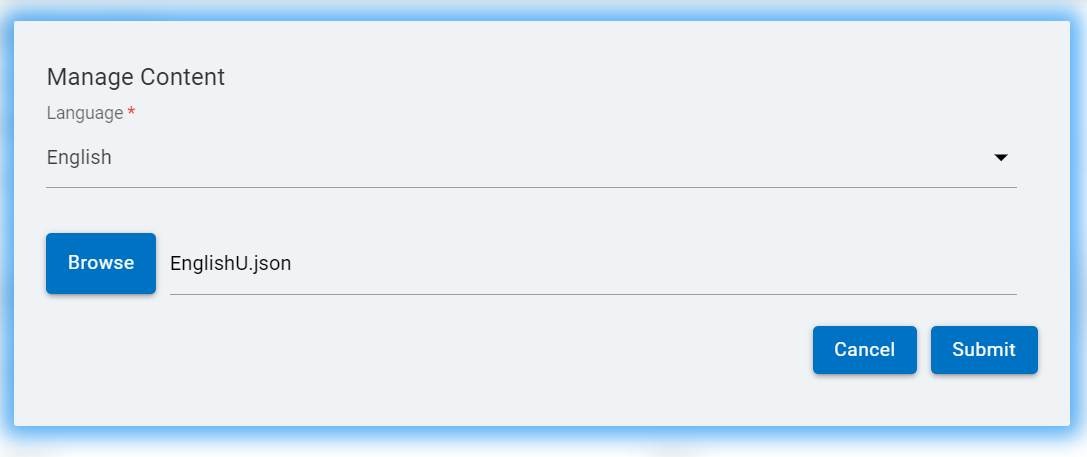
- After clicking on the submit the following success message appears:
Figure 3. Success Message 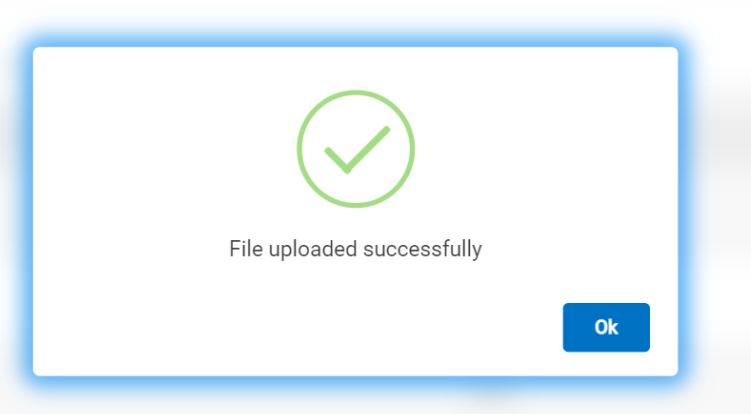
- The admin can edit the message content by clicking on the edit icon under the Action column on the Manage Content page.
- The admin must click the edit icon associated with the message that he wishes to
modify.
Figure 4. Manage Content Page 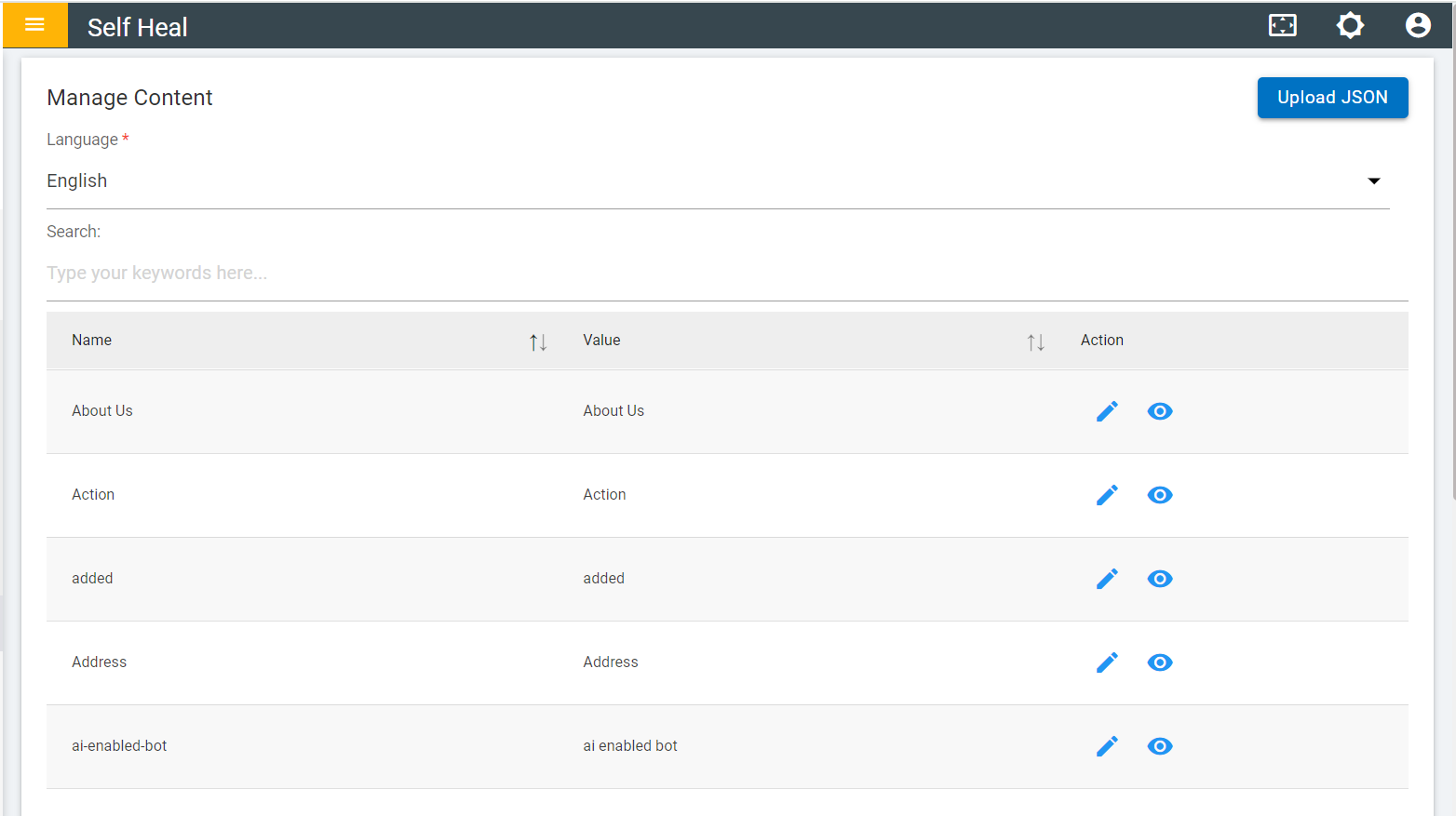
- The Edit Content screen appears:
Figure 5. Edit Content 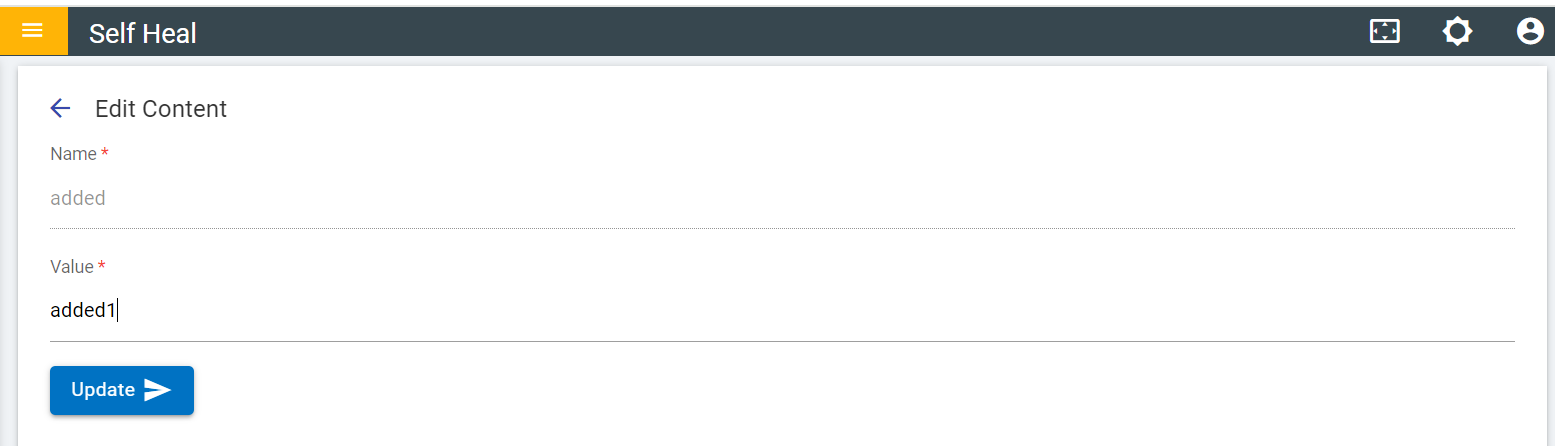
- Modify the fields as required and click Update. The following success
message appears:
Figure 6. Success Message .png)
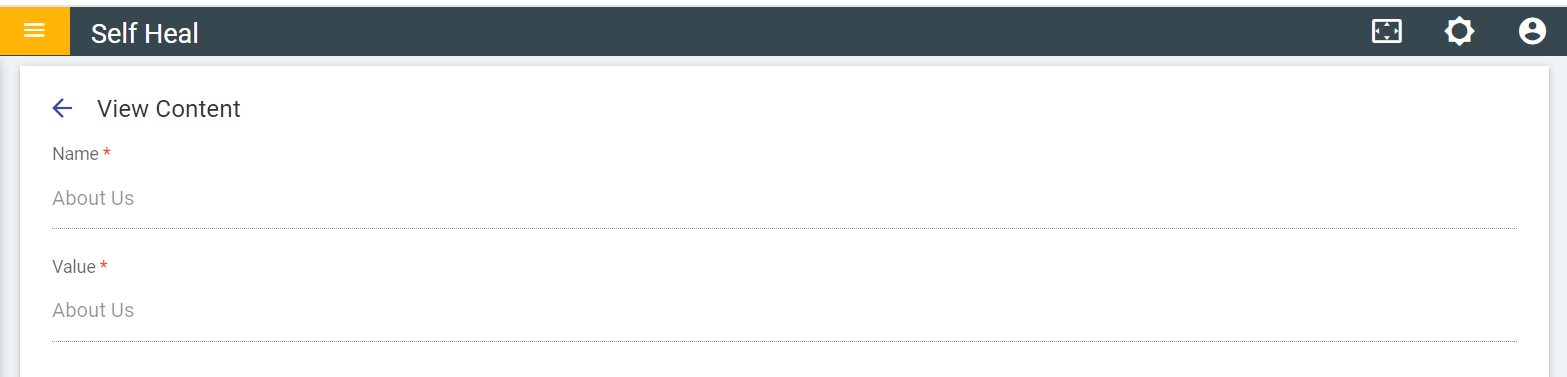
- To view the content, the admin must click the view icon under the Action column on the Manage Content page. You must click the view icon corresponding to the message that he wishes to view.
- The View Content page appears where the admin can view the content of an existing
message:
Figure 7. View Content