
Use case 3: Mailmodo's Send Campaign Email API
This page talks about how to enhance email marketing by automating personalized email campaigns using Mailmodo integration with HCL CDP.
Mailmodo simplifies email marketing with automated emails tailored to specific audiences through custom templates. It enables businesses to send interactive AMP emails, such as forms or subscription updates, while seamlessly receiving data on integrated platforms.
Integration Steps:
- Configure Mailmodo's API within HCL CDP to send personalized email engagements.
- Set up the payload at the engagement level, as each campaign requires unique data for customization.
Prerequisites
Make sure that the following things are in place, before you set up and customize Mailmodo’s API integration in HCL CDP for tailored email campaigns.
- API Documentation/Reference: Refer to Mailmodo's API documentation for sending campaign emails here. This provides details on the endpoint, payload, and other configuration requirements.
- Valid Authorization Scheme and Keys:
- Ensure you have the necessary authorization credentials (keys, tokens, or passwords) based on your account type (free/paid) or internal API implementation.
- Coordinate with your POC from the external vendor or your tech team to acquire and configure the relevant authorization mechanism.
- API URL and Payload:
- Obtain the specific API URL and payload structure from the Mailmodo team after creating your account.
- Validate the payload format against the API documentation to ensure accurate configuration.
Configuring Mailmodo' Send Campaign Email API in HCL CDP
To configure the Mailmodo' Send Campaign Email API, follow the steps below:
- Navigate to .
- Click +Add New External API , and Add Basic Details:
- Name: Enter name for the configuration as Hubspot_CreateContacts.
- Description: Enter the description of your API.
- Channel: Select the email channel to communicate with your audience.
- Add External API Details
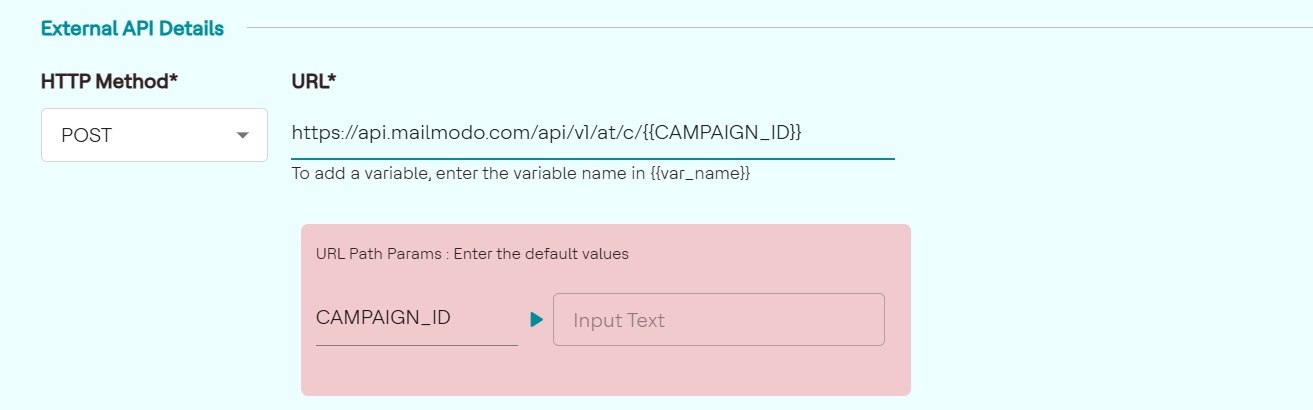
- HTTP Method: Here we select POST as the HTTP Method as the API is a post request to add contact details in the Hubspot database.
- URL: Paste the following API URL. https://api.mailmodo.com/api/v1/at/c/{{CAMPAIGN_ID}}
- You can add parameters by creating variables at the end of the URL and declaring
value inside {{value}} double curly braces. Here we added the parameter
{{CAMPAIGN_ID}}in the URL and configured its default values which can be changed
later while creating an engagement.
- Headers: Add Headers to provide the metadata about the request. Here we added the authorization and API key in the headers to authenticate the API. The API key will be provided by the Mailmodo team.
- After configuring all the fields, click Save Details.
Creating Engagement in Mailmodo's Send Campaign Email API
You can create engagement for Mailmodo's Send Campaign Email API either from Segments or Channels.
Create an Engagement from Segment
To create an engagement from segments, follow the steps below:
- Navigate to .
- Select the Segment Name, and on the left panel, click External API.
- Click +Add Engagement.
Create an Engagement from Channel
To create an engagement from segments, follow the steps below:
- Navigate to .
- On the left panel, click External API.
- Click Add Engagement, and select Segment Name from the list.
- Click Confirm And Proceed To the Next Step.
Add General details
- Engagement Name (mandatory): Enter the name of the configuration as "Mailmodo".
- API(mandatory): Select our API as Mailmodo.
- Label (mandatory): Choose a product label from the list. For more information about product labels, refer here.
Add a Goal
Goal Type: Select a goal type from the list. You can set it to none if the goal is not decided yet.
Configure Parameters
- URL path parameters: This will be updated automatically as you defined in the URL path parameter while configuring the API.
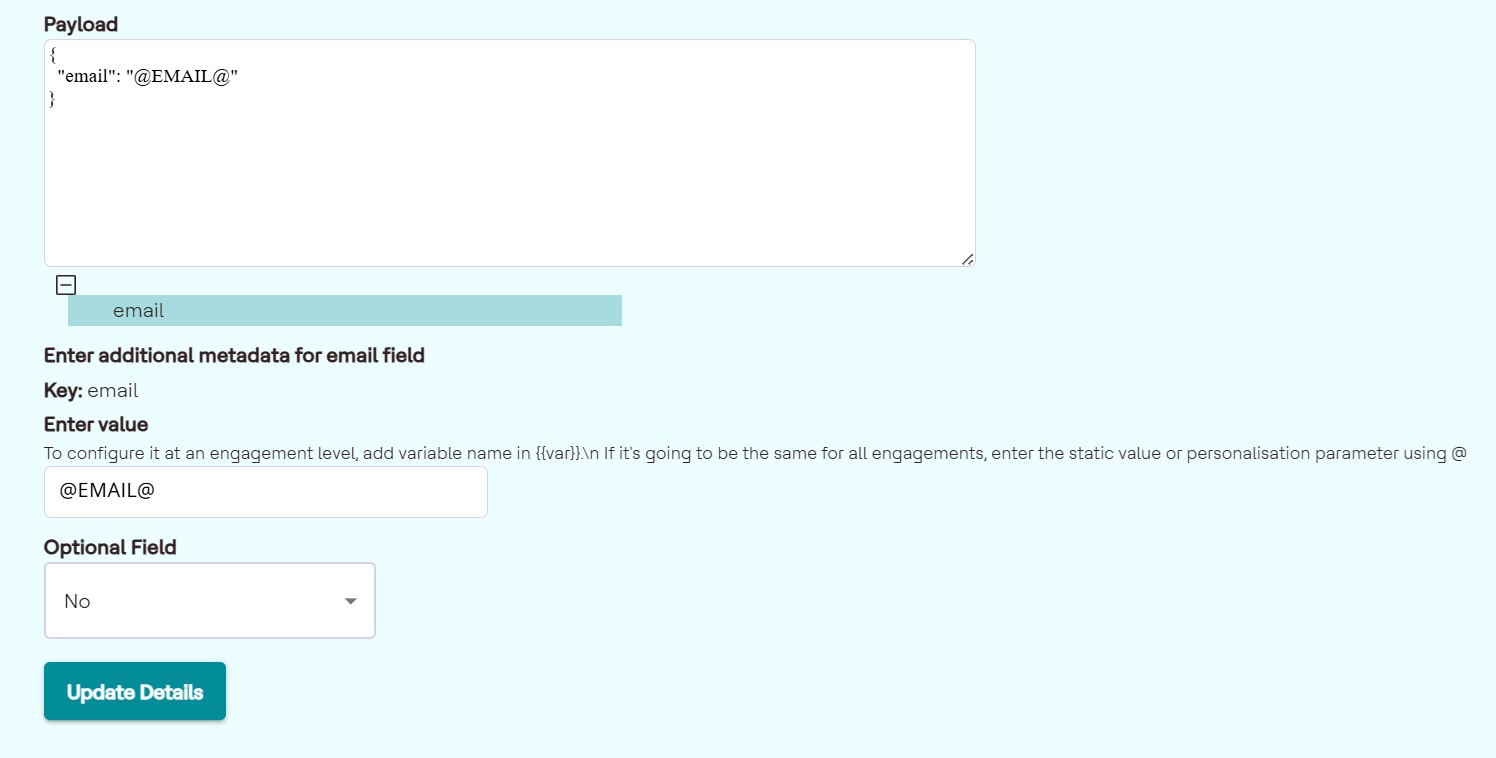
- Payload: We configured the API in engagement level, the payload will
be added in this part in every engagement.
{
  "email": "@EMAIL@",
  "data": {
    "first_name": "${LEAD_LASTNAME}"
  }
}
Add the values for the variables declared in the payload. Another payload example which varies at the engagement level is shown below.
In this following payload, the email is variable.
{
  "email": "@EMAIL@"
}
Schedule Settings
You can schedule an engagement to trigger immediately or to send later by configuring the Time and Date. Here we have selected the schedule as immediate.
Save
Click Save.