
Use case 2: Exotel's Make a call API
This page talks about how to automate voice calls to engage customers by integrating Exotel with HCL CDP.
Exotel is a leading voice communication platform that enables businesses to make automated calls, streamlining customer engagement and marketing efforts. By integrating Exotel’s API with HCL CDP, you can pass lead information directly to Exotel’s call database for efficient voice call automation.
Integration Steps:
- Configure Exotel's Make-a-call API using HCL CDP's External API feature.
- Set up the integration at the global level, as the payload remains uniform across all engagements.
Prerequisites
Make sure the following things are place, before you configure Exotel's Make-a-call API and initiate automated voice calls:
- API Documentation/Reference: Refer to the API documentation for Exotel's Make-a-call API here. This contains detailed instructions on the endpoint, parameters, and payload configuration.
- Valid Authorization Scheme and Keys:
- Obtain the required authorization credentials (keys, tokens, or passwords) based on your account type (free/paid) or internal API setup.
- Collaborate with your POC from the external vendor or your internal tech team to ensure proper configuration of the authorization mechanism.
- API URL and Payload:
- Contact the Exotel team to receive the specific API URL and payload format once your account is set up.
- Verify the payload structure aligns with the API documentation for accurate data transmission.
Configuring Exotel's Make-a-call API
To configure Exotel's make-a-call API, follow the steps below:
- Navigate to .
- Click +Add New External API, and Add Basic Details:
- Name: Enter a name for the configuration as Exotel's Make a Call API.
- Description: Enter the description of your API.
- Channel: Select the email channel to communicate with your audience.
- Add External API Details
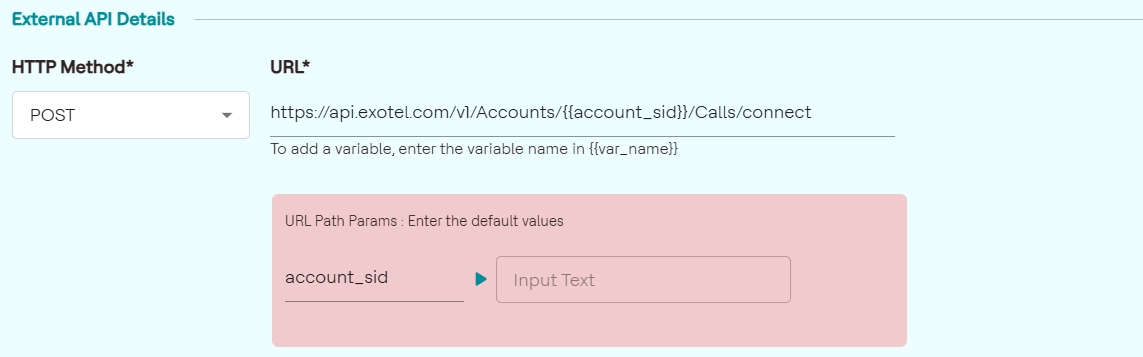
- HTTP Method: Here we select POST as the HTTP Method as the API is a post request to add contact details in the Hubspot database.
- URL: Paste the following API URL https://api.exotel.com/v1/Accounts/{{account_sid}}/Calls/connect. The API URL is from the API reference doc.
- You can add parameters by creating variables at the end of the URL and declaring
value inside {{value}} double curly braces. Here we added the parameter {{
account_sid}}in the URL and configured its default values which can be changed
later while creating an engagement.
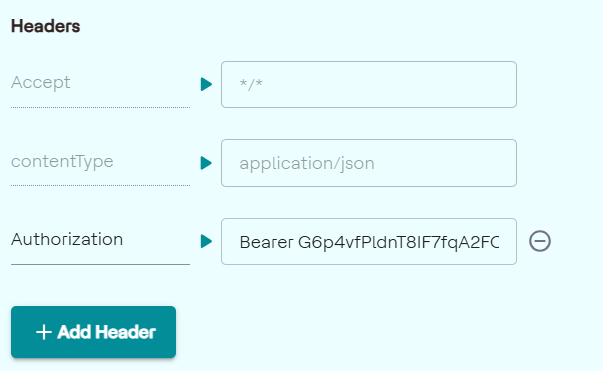
- Headers: Add Headers to provide the metadata about the request.
Here we add the authorization and API key in the headers to authenticate
the API. The API key will be provided by the Exotel team.
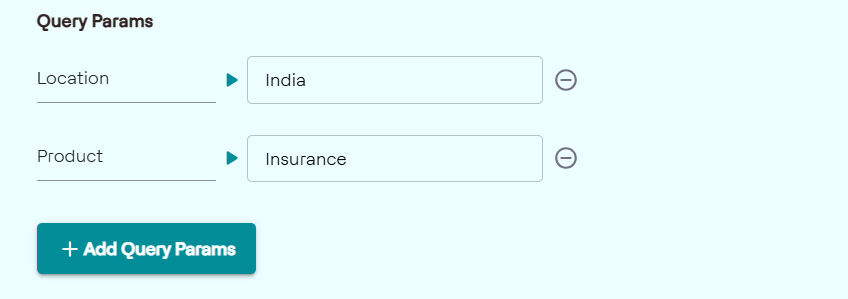
- Query parameters: Query parameters are the key-value pairs
provided at the end of the URL which gives additional information to the
web server while making the request.
- Payload: Paste the payload in the black code edit screen as shown
below. Here we set the payload at the global level as the API contains
the value which remains the same for all the engagements.
( Payload from the API reference doc)
{
  "From": "{{Phone}}",
  "To": "{{Recepient}}",
  "CallerId": "XXXXXXXXXX",
  "StatusCallback": "https://yourstatuscallbackurl.com",
  "StatusCallbackContentType": "{{Demo}}",
  "Record": "true"
}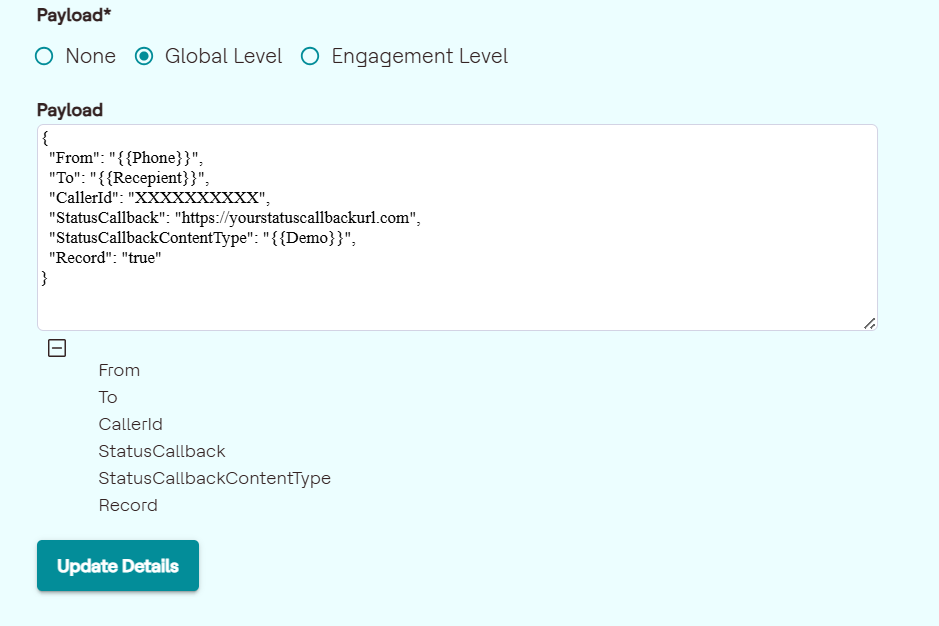
Click the Payload value and enter the values and display names in the given fields as shown below. The display name will be shown on the UI as the variable alias when you're creating engagements for the configured API.
- Default Value: The default value will be assigned to the parameter if the value is not provided by the user, or in the case of Macro when the system fails to replace it with a value.
- Optional Field: You can set the field to be optional or to be mandatory by using the optional field and by assigning a condition to the optional field. Here we set the field as mandatory. For more about optional and its conditions, click External API.
- Headers: Add Headers to provide the metadata about the request.
Here we add the authorization and API key in the headers to authenticate
the API. The API key will be provided by the Exotel team.
- After configuring all the fields, click Save Details.
Creating Engagement in Exotel's Make-a-Call API
You can create engagement for Exotel's Make-a-Call API either from Segments or Channels.
Create an Engagement from Segments
To create an engagement from segments, follow the steps below:
- Navigate to .
- Select the Segment Name, and on the left panel, click External API.
- Click +Add Engagement.
Create an Engagement from Channels
To create an engagement from segments, follow the steps below:
- Navigate to .
- On the left panel, click External API.
- Click Add Engagement, and select Segment Name from the list.
- Click Confirm And Proceed To the Next Step.
Add General details
- Engagement Name (mandatory): Enter a name for the Engagement. It should range between 6-25 characters.
- API(mandatory): Select the API as "Exotel_OutgoingCall".
- Label (mandatory): Choose a product label from the list. For more information about product labels, refer here.
Add a Goal
Goal Type: Select a goal type from the list. You can set it to none if the goal is not decided yet.
Configure Parameters
URL path parameters: This will be updated automatically based on the URL you configured while adding the external API. The parameters will be displayed here as you configured in the payload at a global level in which the value can be changed while creating an engagement.
Schedule Settings
You can schedule an engagement to trigger immediately or to send later by configuring the Time and Date. Here we have selected the schedule as immediate.
Save
Click Save.