Quick Order for Ruby storefronts (B2C and B2B)
You can place orders within the Ruby storefront using the quick order functionality without navigating through product details and listing pages. This feature enables you to add multiple items to the shopping cart and proceed with the purchase.
Enable the quick order functionality for Ruby storefronts (B2C and B2B)
You can enable the quick order functionality in the Ruby storefront. For more information, see Enabling quick order for Ruby B2B storefronts (B2C and B2B).
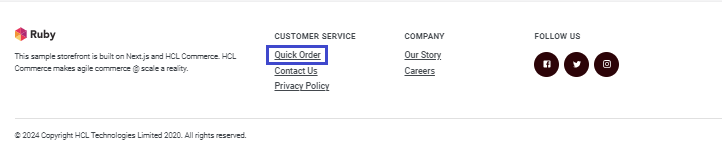
 Now you can see the Quick Order icon
on the Ruby B2B storefront landing page.
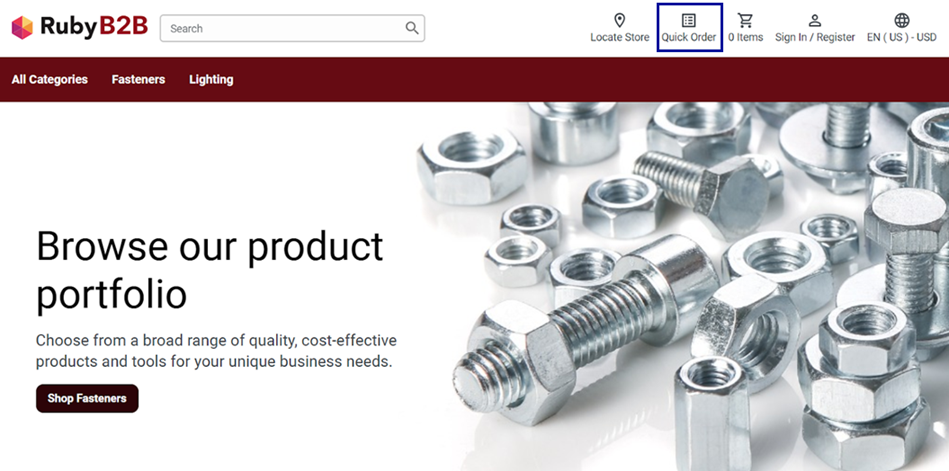
Now you can see the Quick Order icon
on the Ruby B2B storefront landing page.
- To enable guest shopping, double-click the store name, and from the
Configurations tab, select the check box to
Enable guest shopping. Click
Save. Guest shopping is enabled for your store.
See Enabling guest shopping for the Ruby storefront for more
information.Note: By default, guest shopping is enabled for the Ruby storefront.
- To enable the quick order functionality, double-click the store name, and from the Orders tab, select the check box for Quick Order. Click Save. The quick order functionality is enabled for your store.
- When the quick order functionality is enabled from the Commerce Lab, a quick order link in the image above appears for easy access to the page. Provide the SKU name and Quantity and click Order to place the order.
- If the quick order functionality is disabled, you cannot see the quick order link in the image above. If you try to access the quick order page link directly, a page with error 404 appears on the screen.
- If you have not logged in to the Ruby B2B storefront and guest shopping is not activated, the Quick Order landing page does not allow you to place an order. The existing SKU name and Quantity rows are disabled for you to enter the order information. Click Please Sign In to Order button to log in and place a quick order.
- You cannot access the Quick Order page when a quick order checkbox is not selected in the Commerce Lab and guest shopping is disabled.
Place the quick order
To place a quick order, navigate to the Ruby storefront landing page and click on Quick Order. The following image shows a Quick Order page.
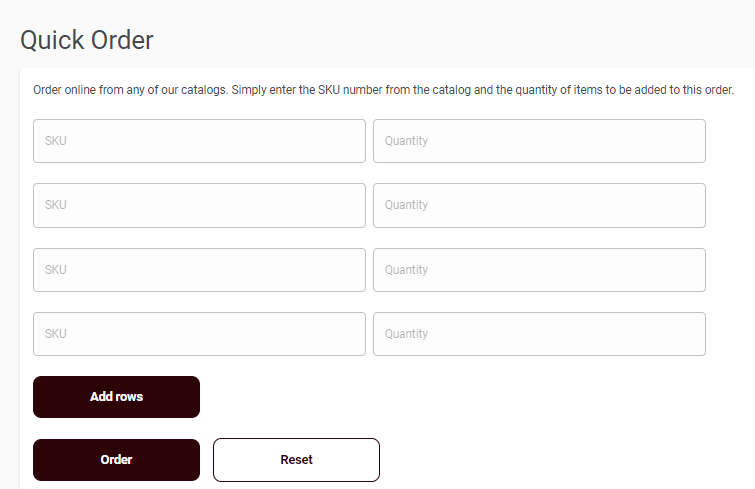
To add items, provide the SKU number and desired quantity into the quick order page. After entering the necessary details, click the Order button. Follow the checkout process to complete the order.
- Add rows: The Add rows button lets you to add new SKU rows to the default rows.
- Order: The Order button lets you to place a quick order after entering the valid SKU name and quantity.
- Reset: The Reset button lets you to delete newly added SKU rows and revert to the default rows.