Rich text editor (CKEditor)
Throughout the Management Center, some objects contain fields in which you can perform text editing and formatting. For example, you can create a bullet list or add HTML code to enhance the display of text on the storefront.
Management Center for HCL Commerce has CKEditor version 4.25.1-LTS and is available by default. However, cTinyMCEeditor.html is available for customers to use but it is not available by default. See ../refs/rdarkcodedfeatures.html for more information.
The following fields in the Management Center support rich text editing:
| Management Center tool | Fields |
|---|---|
| Catalogs tool |
|
| Marketing tool |
|
| Promotions tool |
|
| Commerce Composer tool |
|
CKEditor rich text editor
The default text editor in Management Center is the CKEditor. Management Center uses a customized version of CKEditor 4.2.2.1. The following image displays the available editing options with CKEditor: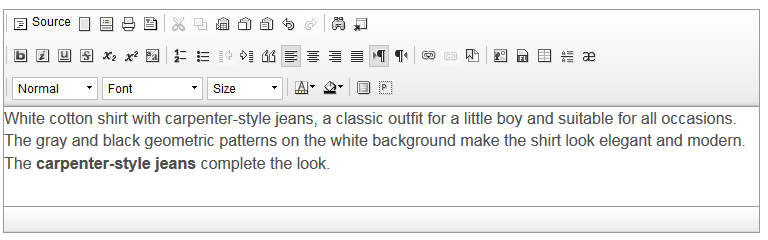
For more information about the various options in the toolbar, see Editing text in CKEditor.
CKEditor supports two modes for editing content: editor mode and
source mode.
- Editor mode: Edit content with the options in the toolbar and view the changes as you make them.
- Source mode: Add custom HTML code to edit content.
Important: CKEditor ensures that
proper HTML is generated. As a result, when you use CKEditor to
edit content that contains HTML code, CKEditor might correct or
remove code that the editor cannot interpret. This behavior rarely occurs but
can produce unexpected results. It is recommended that you back up content that
you think might be affected before you use CKEditor. If you
continuously encounter issues where CKEditor modifies HTML code,
an IT developer can customize CKEditor to prevent the correction
or removal of code. For more information, see CKEditor Developers Guide.
Advantages of CKEditor
CKEditor includes the following features:- Edit content by using Undo, Redo, and Paste special options.
- Import different elements, such as tables, lines, and special characters.
- Use templates to provide a quick start for standardized content.
- Automatically correct broken HTML code to ensure that proper HTML is generated.
For example, a store developer might provide HTML code to add to a rich text
field. If the code contains a missing closing bold tag
(
</b>), CKEditor automatically inserts the missing tag.
The following table lists the capabilities of the CKEditor.
| Editor features | CKEditor |
|---|---|
| Edit/View source code | ✓ |
| ✓ | |
| Start from template | ✓ |
| Cut | ✓ |
| Copy | ✓ |
| Paste | ✓ |
| Paste as plain text | ✓ |
| Paste special | ✓ |
| Undo | ✓ |
| Redo | ✓ |
| Find and replace | ✓ |
| Replace | ✓ |
| Select all | ✓ |
| Bold | ✓ |
| Italic | ✓ |
| Underline | ✓ |
| Strikethrough | ✓ |
| Subscript | ✓ |
| Superscript | ✓ |
| Remove format | ✓ |
| Numbered list | ✓ |
| Bulleted list | ✓ |
| Increase indent | ✓ |
| Decrease indent | ✓ |
| Block Quote | ✓ |
| Align left | ✓ |
| Align center | ✓ |
| Align right | ✓ |
| Align justified | ✓ |
| Text direction from left to right | ✓ |
| Text direction from right to left | ✓ |
| URL link | ✓ |
| Remove link | ✓ |
| Insert document bookmark | ✓ |
| Insert image | ✓ |
| Insert Flash movie | ✓ |
| Insert table | ✓ |
| Insert horizontal line | ✓ |
| Insert special character | ✓ |
| Style (for example Coding, Red title) | ✓ |
| Paragraph format | ✓ |
| Font | ✓ |
| Font size | ✓ |
| Text color | ✓ |
| Background color | ✓ |
| Maximize editor window | ✓ |
| Show block | ✓ |
| Spell check | ✓ |