

Notification Center
The Notification Center is a central place to view, filter, and manage the real-time notifications that BigFix UI raises when a report is generated. You open it from the bell icon in the upper-right corner of the screen.
BigFix UI raises a notification when a report is generated, so that you do not need to watch the Reporting module to know when your report is ready. A bell icon in the upper-right corner of the screen, next to the Help Center (?) icon and your profile icon, gives you access to these notifications from anywhere in the application. When you have unseen notifications, a badge on the bell shows how many there are.
To open the Notification Center, select the bell icon. The Notification Center slides out from the right side of the screen and lists your notifications, with the most recent at the top. After you open the Notification Center, the unseen badge on the bell clears. To close it, select the close (X) icon.

Each notification appears as a card. A card shows a status icon for the notification's severity, the title, a short message, and the name of the module that raised it. A card can also include a link, such as View Report, that opens the related item. The card shows how long ago the notification arrived as elapsed time, such as 30 seconds ago or 2 minutes, rather than a fixed date and time. Unread notifications are marked with a dot. When no notifications match the current view, the Notification Center shows No notifications to show.
A notification can also appear briefly as a pop-up message in the corner of the screen when it arrives. Every notification is also collected in the Notification Center, so you can review it there later even if you miss the pop-up.

Notification severity
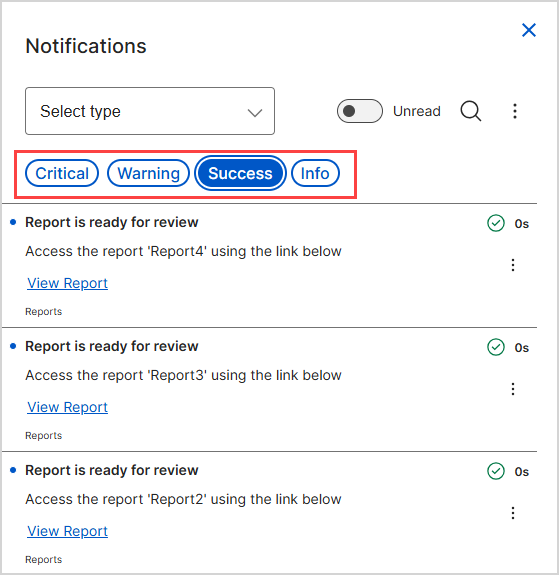
Each notification has a severity, shown by a status icon on the card, that indicates how much attention it needs. You can filter the list by severity using the chips at the top of the Notification Center.
| Severity | Description |
|---|---|
| Critical | A problem that needs your immediate attention, such as a report that failed to generate. |
| Warning | A condition that might need your attention. |
| Success | Confirmation that an operation finished successfully, such as a report that is ready to view. |
| Info | General information, such as a report that is being generated. |
Read and unread notifications
BigFix UI marks a notification that you have not yet read with a dot. When you open the Notification Center, the unseen badge on the bell clears, but each notification keeps its dot until you read it. How a notification becomes read depends on its type:
- A notification that contains a link, such as View Report, becomes read when you select the link, which also opens the related item.
- A notification that has no link stays unread until you mark it read.
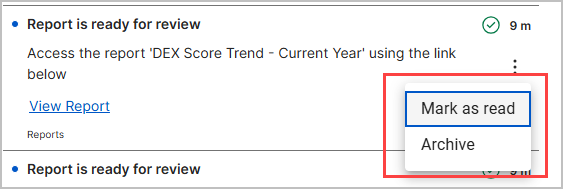
To act on a single notification, select the more-options (three-dot) menu on its card, and then select one of the following:
- Mark as read or Mark as unread to change whether the notification counts as read.
- Archive to move the notification out of the active list without
deleting it.
Filter notifications
You can narrow the list by module, by severity, and by keyword, and you can combine these filters.
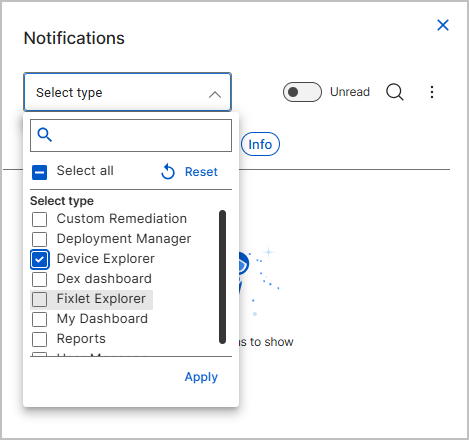
To filter by the module that raised the notification:
- Select the Select type list.
- Select the checkbox for each module that you want to include, such as Deployment Manager, Device Explorer, or Reports. To find a module quickly, enter its name in the Search box. To include every module, select Select all; to clear your choices, select Reset.
- Select Apply.
The Notification Center shows only notifications from the modules that you selected.
To filter by severity, select one or more of the Critical, Warning, Success, and Info chips at the top of the Notification Center. The list shows only notifications of the selected severities. Select a chip again to clear it.
To show only notifications that you have not yet read, turn on the Unread toggle.
Search notifications
To find a specific notification by keyword:
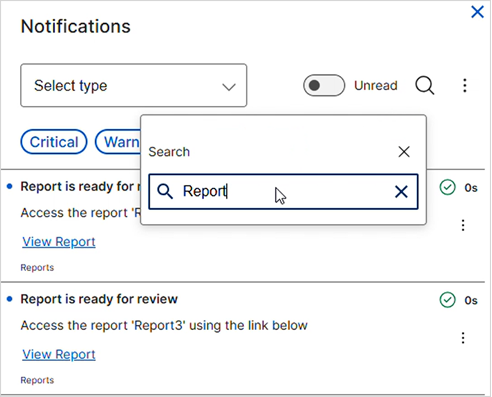
- Select the Search icon.
- In the Search box, enter a word or phrase from the notification title or message. The list updates to show only notifications that match.
Mark and archive all notifications
Use the more-options (three-dot) menu at the top of the Notification Center to act on all notifications at once. The menu provides two actions and a link to the archive:
- Mark all as read marks every notification in the list as read.
- Archive all moves every notification out of the active list. Archiving removes notifications from the Notification Center without deleting them.
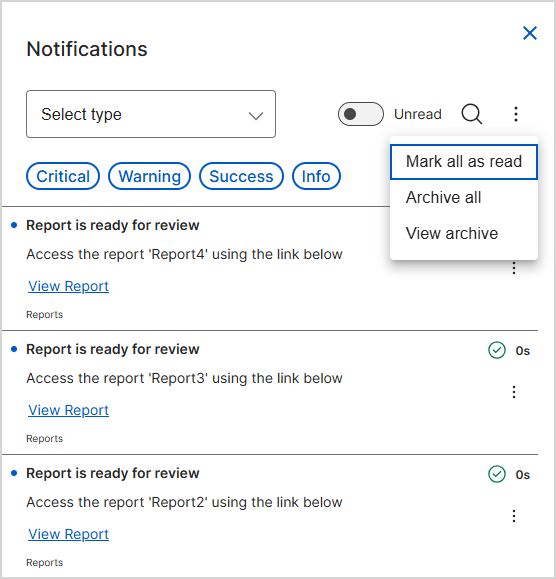
When the list is long, select More at the bottom of the Notification Center to load additional notifications.
View archived notifications
To review notifications that you archived earlier:
- Select the more-options (three-dot) menu.
- Select View archive.
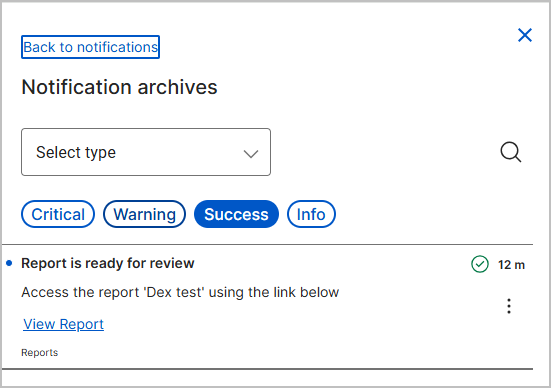
BigFix UI opens the Notification archives page, which lists the notifications that you archived. You can filter the archive by module and severity and search it by keyword, the same way you work with the Notification Center. To go back, select Back to notifications.
Notification Center controls
| Control | Description |
|---|---|
| Select type | Filters the list by the module that raised each notification. Includes a search box, Select all, Reset, and Apply. |
| Severity chips | Filter the list by Critical, Warning, Success, or Info. |
| Unread | Shows only notifications that you have not yet read. |
| Search | Finds notifications by a keyword in the title or message. |
| Panel more-options menu | Provides Mark all as read, Archive all, and View archive. |
| Notification card more-options menu | Provides Mark as read, Mark as unread, and Archive for a single notification. |
| More | Loads additional notifications when the list is long. |
| Close (X) | Closes the Notification Center. |