DEX score Remediation
To remediate issues related with scores, DEX provides methods of remediations. Using the remediation methods, you can bridge the gap between performance anomalies and targets by allowing you to fix them.
Workflow
The workflow for suggested remediation begins with DEX identifying the issues, the Admin creating custom Fixlets and then deploy the strategies using a policy. Once a remediation is selected or created, it follows standard deployment procedures, allowing users to schedule actions and submit them for agents.

Create
remediation using the existing options
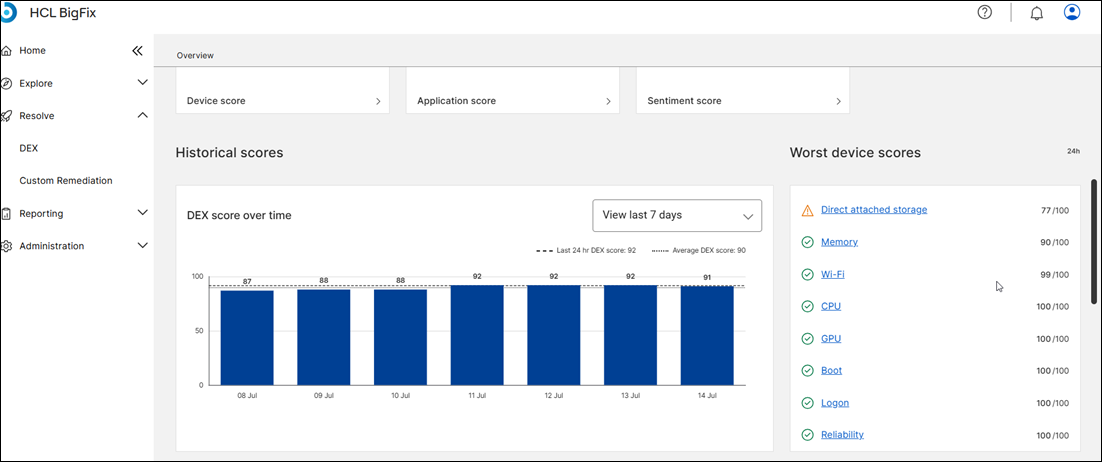
- Click on the Worst Device Score to identify the score that you need to remediate.
- Select the score type.
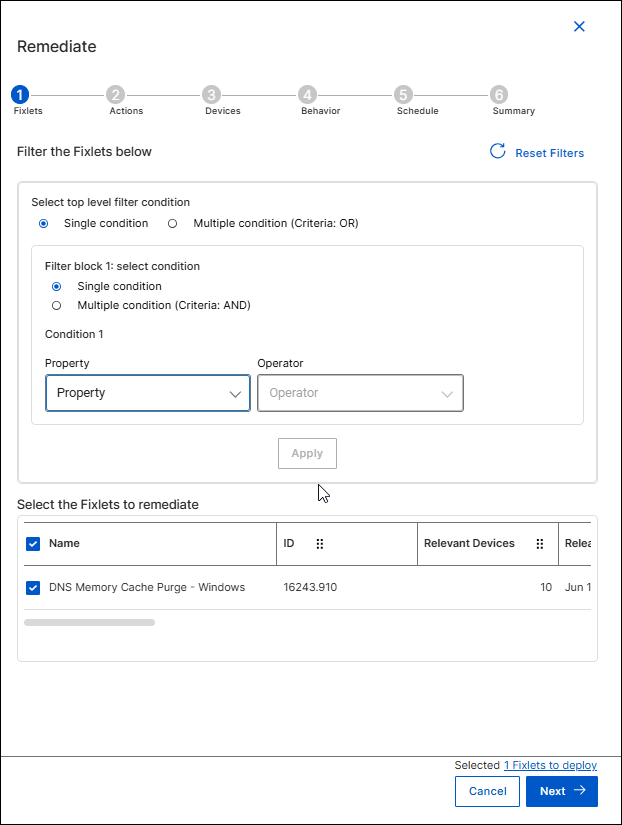
- Select the remediation type and click on Remediate. A Remediate dialog box appears.
- In the Remediate dialog box, the filters for Fixlet is automatically selected. Click Next.
- In the Actions tab, select the required options.
- In the Devices tab, select the memory score and click Apply. Click Next.
- In the Behaviour tab, select the preferred options. Click Next.
- In the Schedule tab, select the preferred options. Click Next.
- In the Summary tab, select the preferred options. Click Deploy.
- Click OK.
The remediation is deployed.
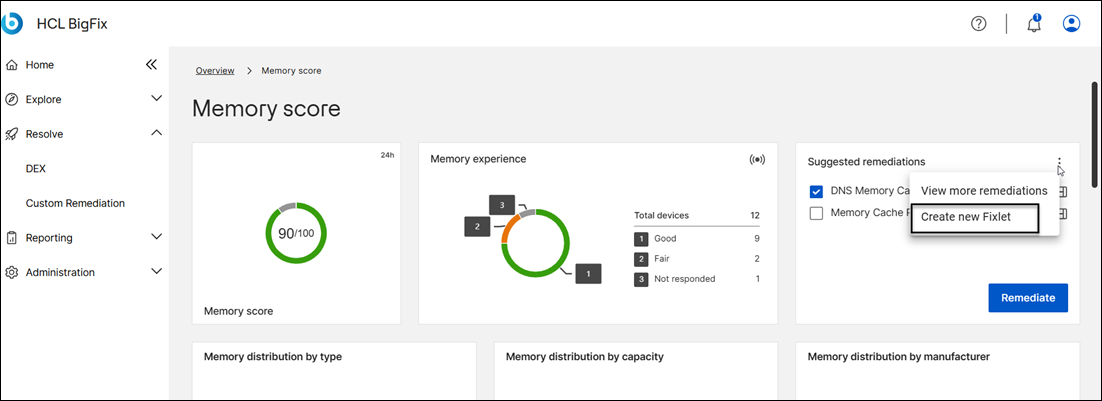
Create custom remediation Fixlet
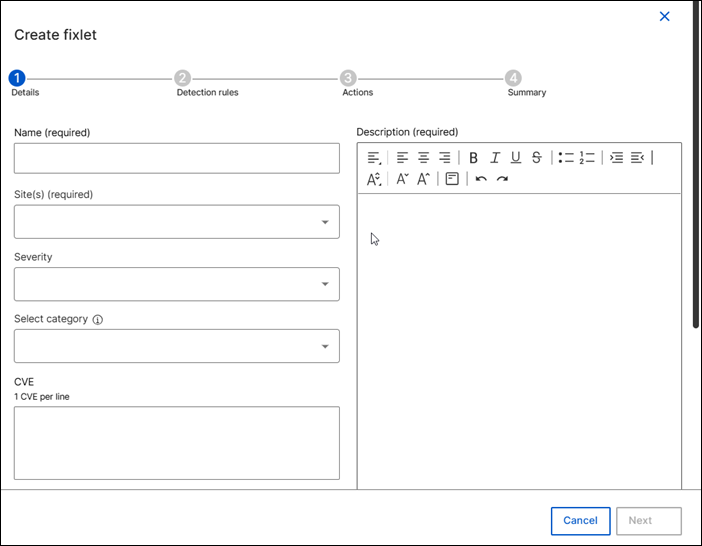
- Click on Create new Fixlet. A Create Fixlet dialog box appears.
- Provide the Fixlet details, detection rules, actions, and the summary.
- The Fixlet appears in the list of remediations.