
Managing the IVR configuration
Learn about updating the IVR configuration settings.
After IVR is configured, click the Integrated Vulnerability Remediation tile in Administration > Application Configuration to review or change its settings. The IVR Configuration page opens.
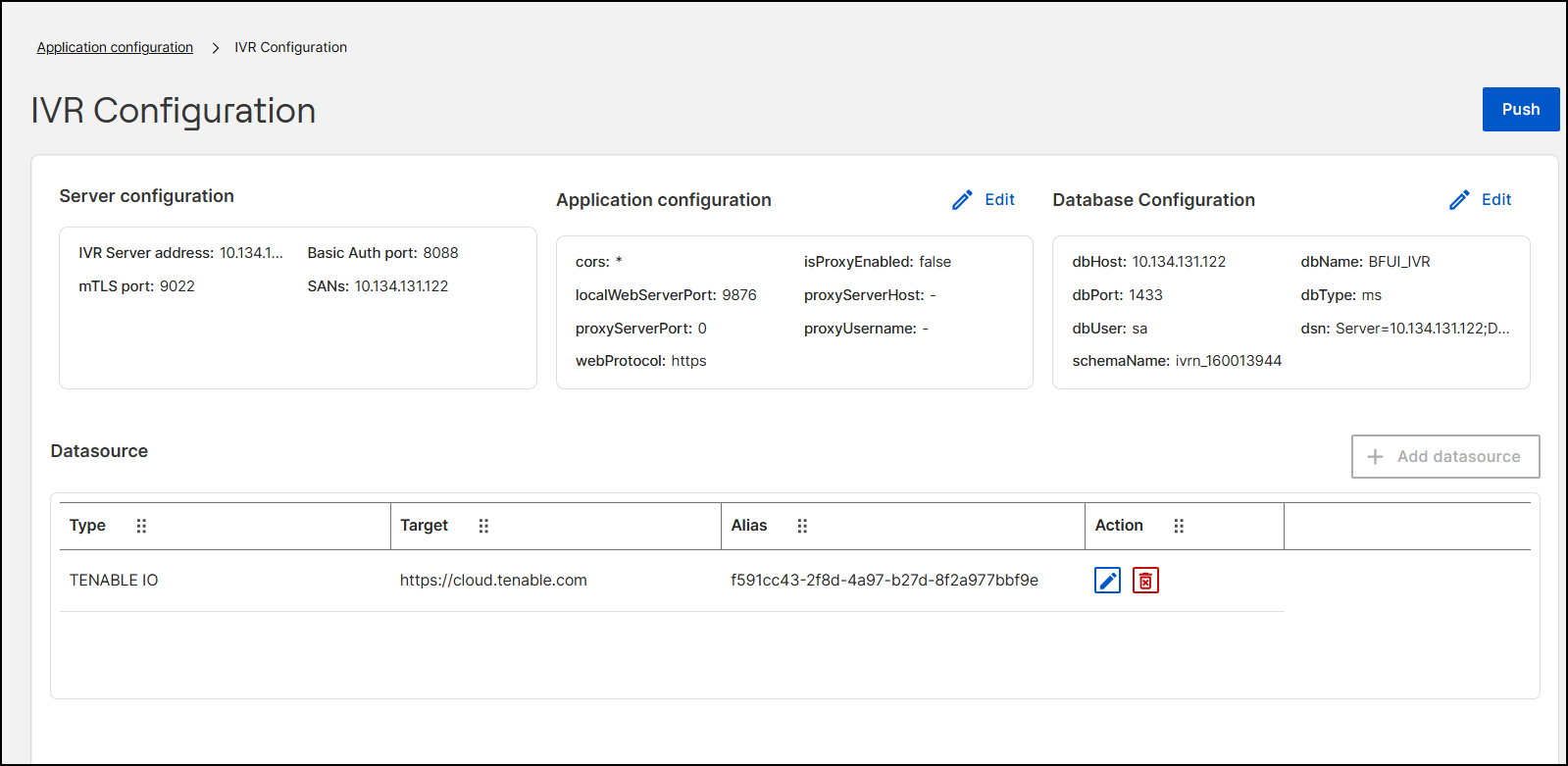
| Area | What you can do |
|---|---|
| Server configuration | View the IVR server address, Basic Auth
port, mTLS port, and SANs. These values are set by the
--configure-ivr command. You can't edit them
here. |
| Application configuration | The web protocol, local web server port, CORS allowed origins, and proxy settings. |
| Database Configuration | The connection to the BigFix UI database. |
| Datasource | The Tenable data source, with its Type, Target, and Alias. Use the icons in the Action column to edit or delete it. |
| Push | Applies your configuration changes to the IVR service. |
To change a configuration
- On the card or data source that you want to change, click Edit (or the edit icon in the Action column).
- Change the values in the dialog box, click Verify
Connection, and then click Update. The
Database Configuration, Application configuration, and
Update datasource dialog boxes have the same fields as the matching
steps in Task 2:
Configure IVR in Application Configuration.
Figure 2. Edit Database Configuration dialog 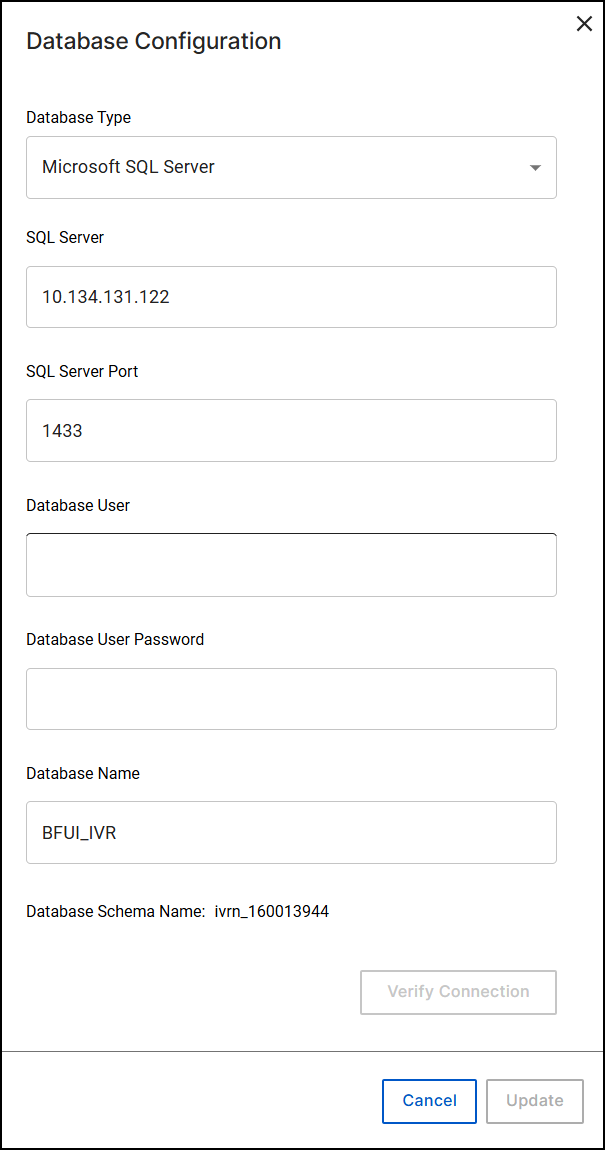
Figure 3. Edit Application configuration dialog 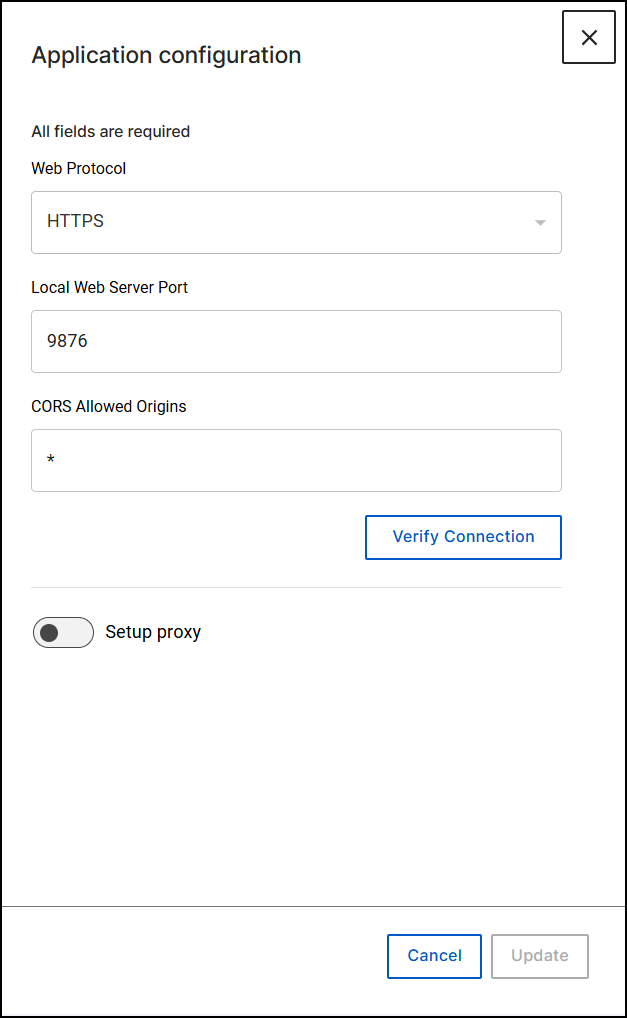
Figure 4. Update datasource dialog 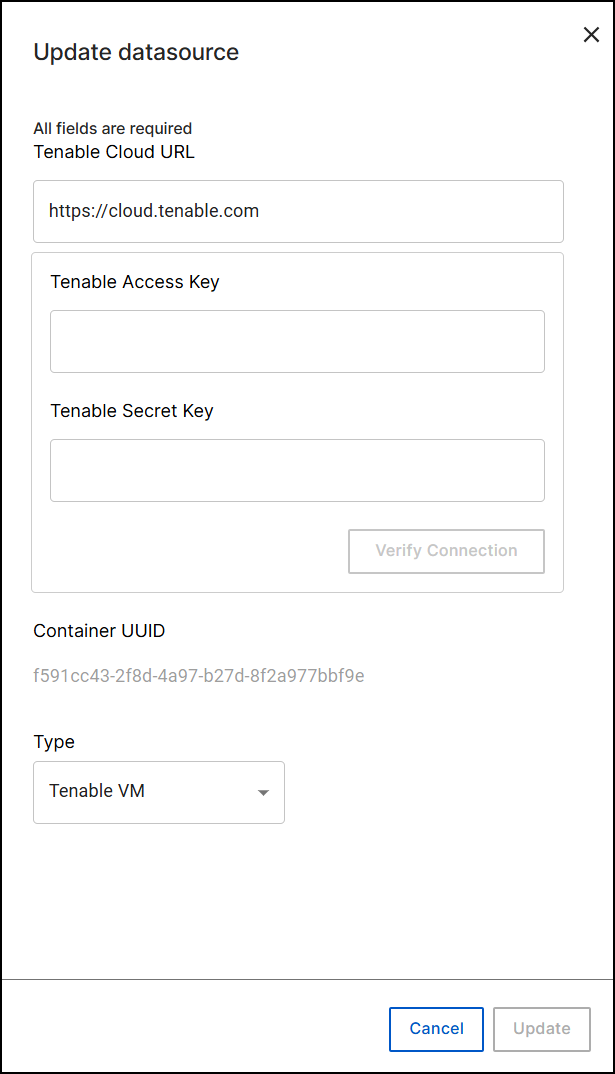
- Click Push.
- Restart the IVR service so that the changes take effect: open services.msc, right-click BES IVR Retriever Service, and then click Restart. A restart is required after any change to the application configuration, the database configuration, the data source, or the proxy.
Note:
To use different Tenable credentials, edit the
existing data source. For data source limits, see Known limitations.
Note:
If you delete a data source and the BigFix
UI can't update the service status, a message asks you to check the logs.
Re-create the data source, and then click Push to continue
using IVR.