
Product overview
IVR v.5 connects vulnerability detection to remediation. It retrieves vulnerability findings from your scanner, matches them with BigFix Fixlets and devices, and lets you deploy the fix from the same screen where you review the finding. You do all of this in the BigFix UI.
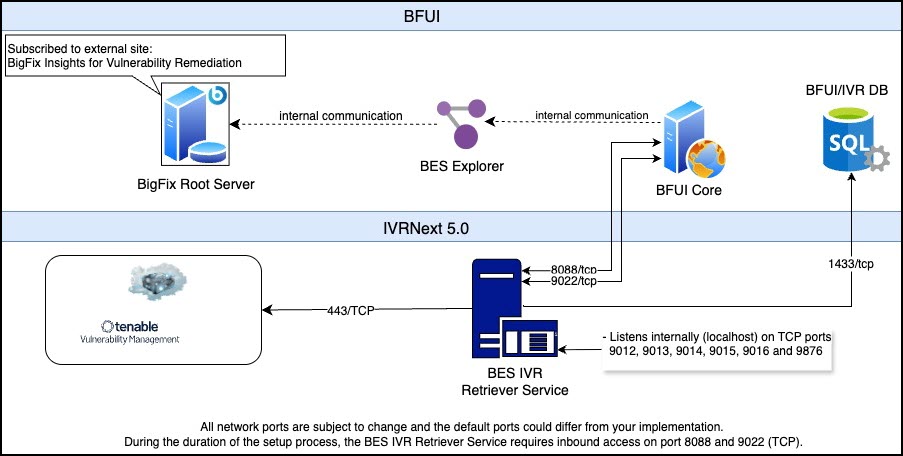
How IVR v.5 works
IVR v.5 has two layers: the BigFix UI layer, which you already run, and the IVRNext 5.0 layer, which the Download Task adds.
| Component | Layer | Role in IVR |
|---|---|---|
| BigFix Root Server | BigFix UI | Subscribed to the BigFix Insights for Vulnerability Remediation external site. It provides the Fixlet content and device data, and runs the remediation actions. |
| BES Explorer | BigFix UI | Connects the BigFix UI to the BigFix Root Server. |
| BFUI Core | BigFix UI | Hosts the Integrated Vulnerability Remediation application, the configuration wizard, and remediation. It communicates with the BigFix Root Server through BES Explorer. |
| BFUI DB | BigFix UI | The SQL Server database of the BigFix UI. IVR stores its data in an IVR schema in this database. |
| BES IVR Retriever Service | IVRNext 5.0 | Retrieves vulnerability findings from Tenable, correlates them with BigFix Fixlets and devices, and writes the results to the IVR schema. |
| Tenable Vulnerability Management | External | The vulnerability scanner that provides findings and assets. |
End-to-end workflow
- Install. You enable the BigFix Insights for Vulnerability Remediation site and deploy the Download Task. The BES IVR Retriever Service is installed and starts automatically. See IVR v.5 Fixlets and Tasks.
- Register. On the BigFix UI server, you run
BFUI.exe
                        --configure-ivr
to register the IVR Retriever with the BigFix UI. You enter the IVR server address, the basic authentication and mTLS ports (defaults 8088 and 9022), and the IVR user credentials from the Download Task. See Task 1: Register IVR with the BigFix UI. - Configure. In Administration > Application Configuration, you enter the BFUI database, application, and Tenable data source settings. IVR creates its schema in the BFUI DB. See Task 2: Configure IVR in Application Configuration.
- Retrieve and correlate. The IVR Retriever pulls findings from Tenable over port 443 and correlates them with BigFix content and devices. It stores the results in the BFUI DB over port 1433. This automation runs every 12 hours by default.
- Review. In Resolve > Integrated Vulnerability Remediation, you review vulnerabilities by vulnerability or by device. See IVR v.5 on BFUI.
- Remediate. You deploy the correlated Fixlets from the BigFix UI. The deployment reaches the BigFix Root Server through BES Explorer, and the Root Server runs it on the target devices.
IVR v.5 keeps the core capabilities of IVR v.4:
- Vulnerability-to-remediation correlation. IVR correlates scanner findings with BigFix content through a rule-based system. The system uses scanner plugin attributes as well as CVE IDs. The BigFix team maintains a continuously updated, pre-correlated map from scanner plugins to BigFix Fixlets.
- Asset correlation. IVR matches scanner assets with BigFix devices through unique scanner asset identifiers rather than IP addresses, MAC addresses, or host names. Correlation therefore stays accurate for virtual machines and devices with dynamic or multiple network connections.
- Reduced infrastructure. The IVR Retriever service runs independently of BigFix Insights, so you don't need the Insights database or ETL configuration.
What's new in IVR v.5
| Area | IVR v.4 | IVR v.5 |
|---|---|---|
| User interface | BigFix WebUI IVR app, opened from the Apps menu | Integrated Vulnerability Remediation in the BigFix UI, opened from the left navigation pane under Resolve |
| Setup | ivrNext.exe --setup
command and the IVR Configuration Manager page |
BFUI.exe
                                    --configure-ivr
registration command on the BigFix
UI server, followed by the configuration wizard in
Administration >
Application Configuration |
| Database | A dedicated database or schema that you create during setup | An IVR schema created in the existing BigFix UI database |
| Server configuration | Entered on the setup page | Entered once in the
--configure-ivr command, and shown read-only
in the BigFix UI |
| Starting the service | Manual start after setup | Starts automatically after installation with the Download Task |
| Access control | WebUI permissions | BigFix UI roles in Administration > Identity and Access |
| Device view | WebUI Device Centric view | Device view tab, with grid search and links to Device Explorer |
| Automation status | Log entry "Automation completed" | Last Automation Run and Next Expected Automation Run shown on the dashboard |
| Configuration reset | ivrNext.exe --reset |
Not applicable. Change the configuration in the BigFix UI. |