
Uploading packages
Use the Upload package function to update the antivirus definition of the antivirus product.
Procedure
Perform the following steps to upload a package:
-
In the individual vendor dashboard, click the vertical ellipsis in the
Antivirus definition updates tile and click Upload
package.
Figure 1. Antivirus definition updates 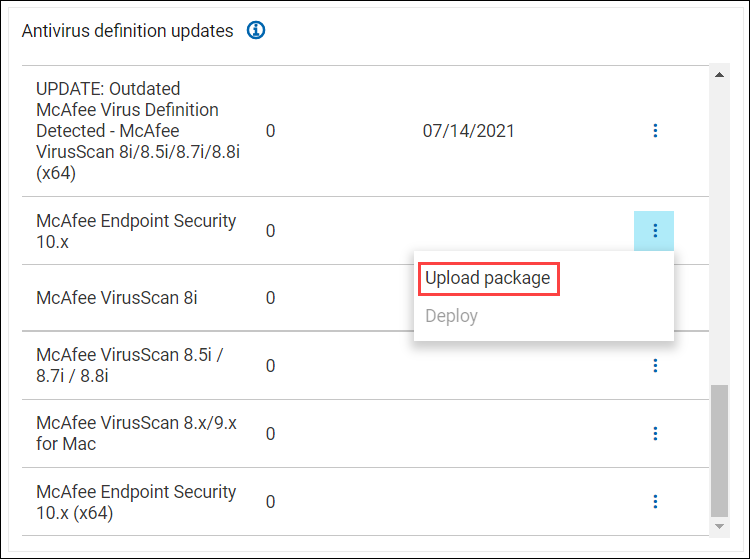
Note: Upload package is available only for a selected antivirus product that is currently in the CMEP Application. Also, you must have permission to create custom content. -
Select one of the following options to download an antivirus definition
package:
- From a local folder: Check From a local folder
and then click Browse to select an antivirus
definition package from a local folder. Click
Upload.
Figure 2. Upload package From a local folder 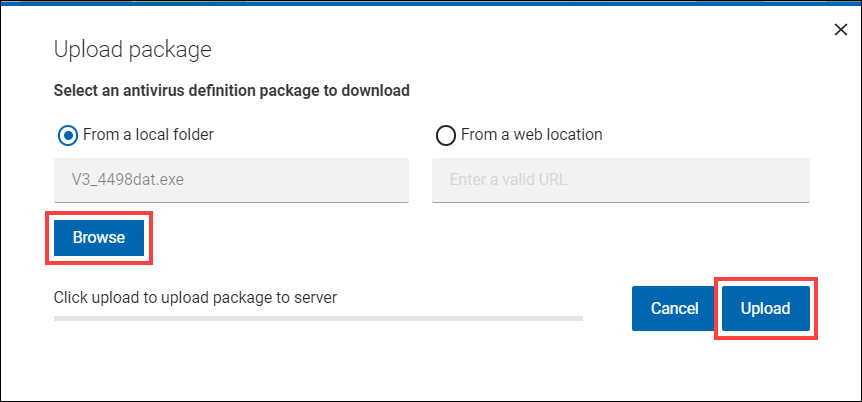
- From a local folder: Check From a local folder
and then click Browse to select an antivirus
definition package from a local folder. Click
Upload.
Figure 3. Upload package From a local folder
- From a web location: Check From a web location
and then enter the URL of the antivirus definition package. Click
Upload.
Figure 4. Upload package From a web location 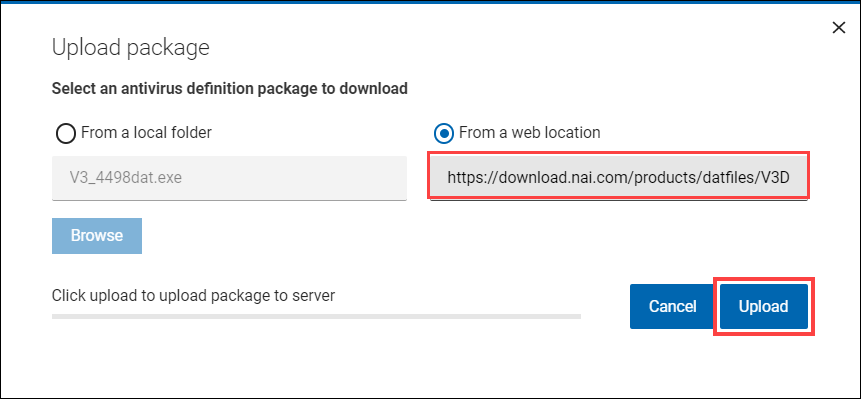
- For Windows Defender x64 and x86 versions, the upload From a local
folder and From a web location feature is disabled. Click
Upload from the Upload package window to
download the most recently released spyware signature update from
Microsoft and then cache the update on the BES Sever for
deployment.
Figure 5. Windows Defender - Upload package 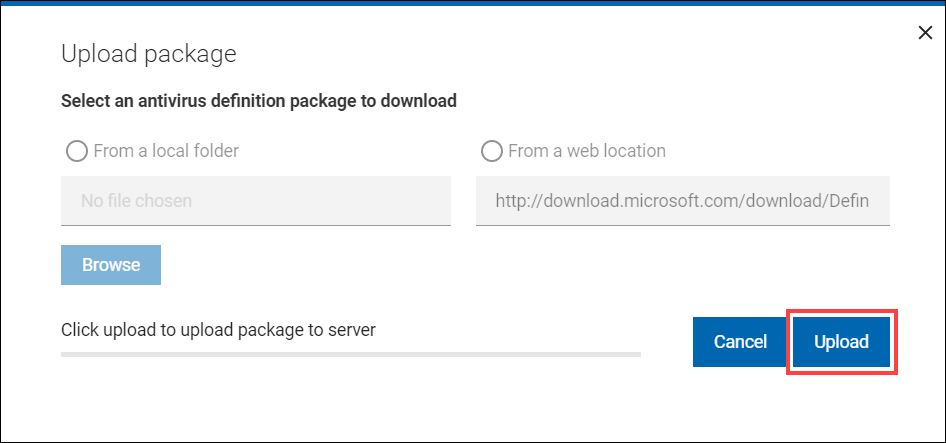
- From a local folder: Check From a local folder
and then click Browse to select an antivirus
definition package from a local folder. Click
Upload.
-
When the antivirus definition package is uploaded, you are redirected to the
Custom Content Creation Wizard page.
Note: The Custom Content Creation Wizard page gives an overview of the Fixlet and its relevance and action.
Figure 6. Custom Content Creation Wizard 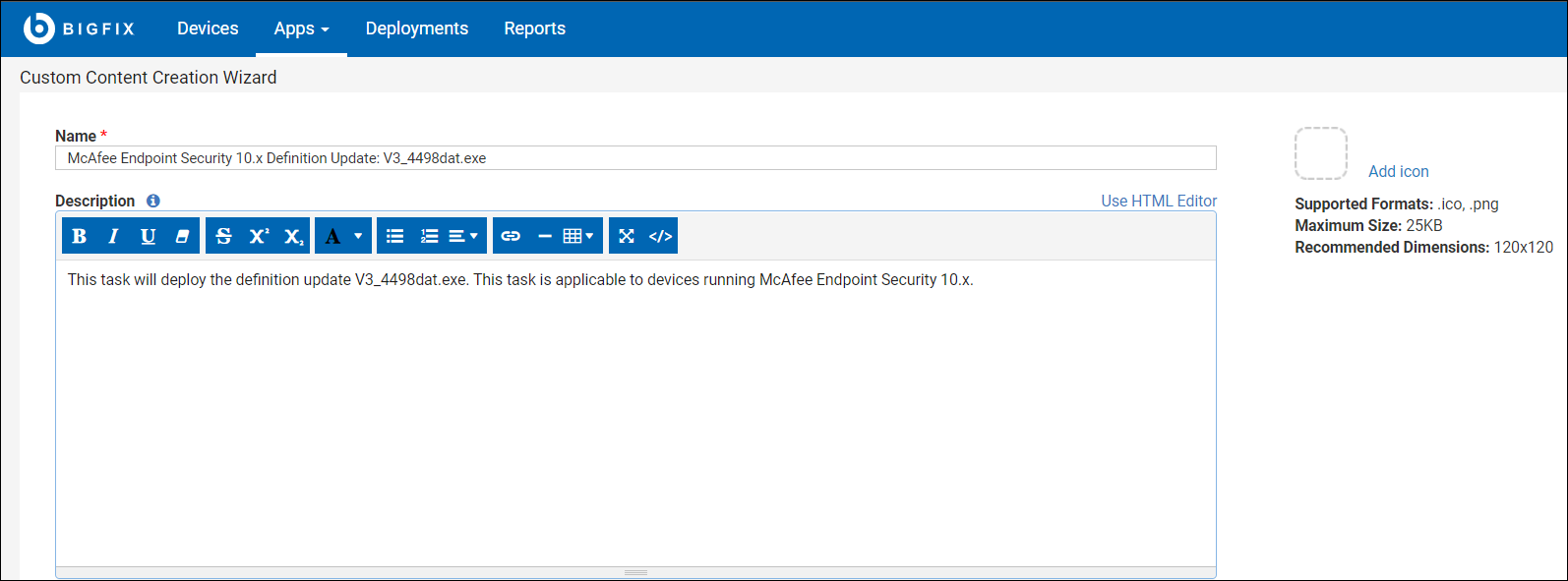
-
Select Source Release Date and the
Site where you want to save the custom content. Click
Save.
Figure 7. Source Release Date 
The Fixlet overview is displayed as shown:Figure 8. Fixlet overview 
- To deploy Custom Content, see Deploying Latest Antivirus Definitions.