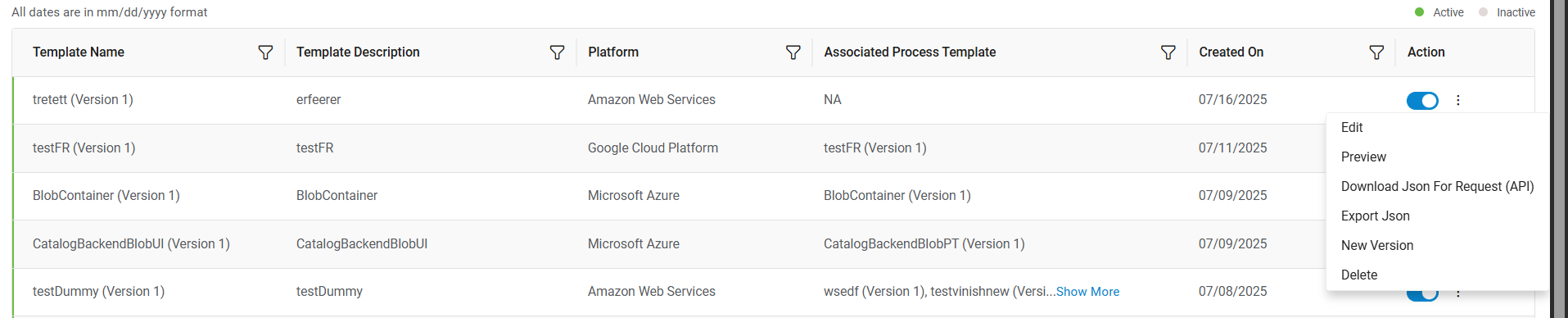
Reusable JS Library
By using this functionality, the Provider User can add and reutilize custom functions in the ‘Write Control Level Script’ in the UI template screen.
For Example: When a function is to be used in multiple UIs, the provider user must write the same function in each UI. To avoid this rework, we need to provide a JS script library, where provider can add function(s) and can reuse them in any UI.
.png)
- On clicking the (
 ), the Provider user can
filter the records based on Tags and Function names and can sort the records by using the
Sort By column. Note:
), the Provider user can
filter the records based on Tags and Function names and can sort the records by using the
Sort By column. Note:The list displays the Master JS function(s), and Custom JS function(s) where Master functions are not editable.
- The Sort By column will have the following options:
Figure 2. Sorting Functions 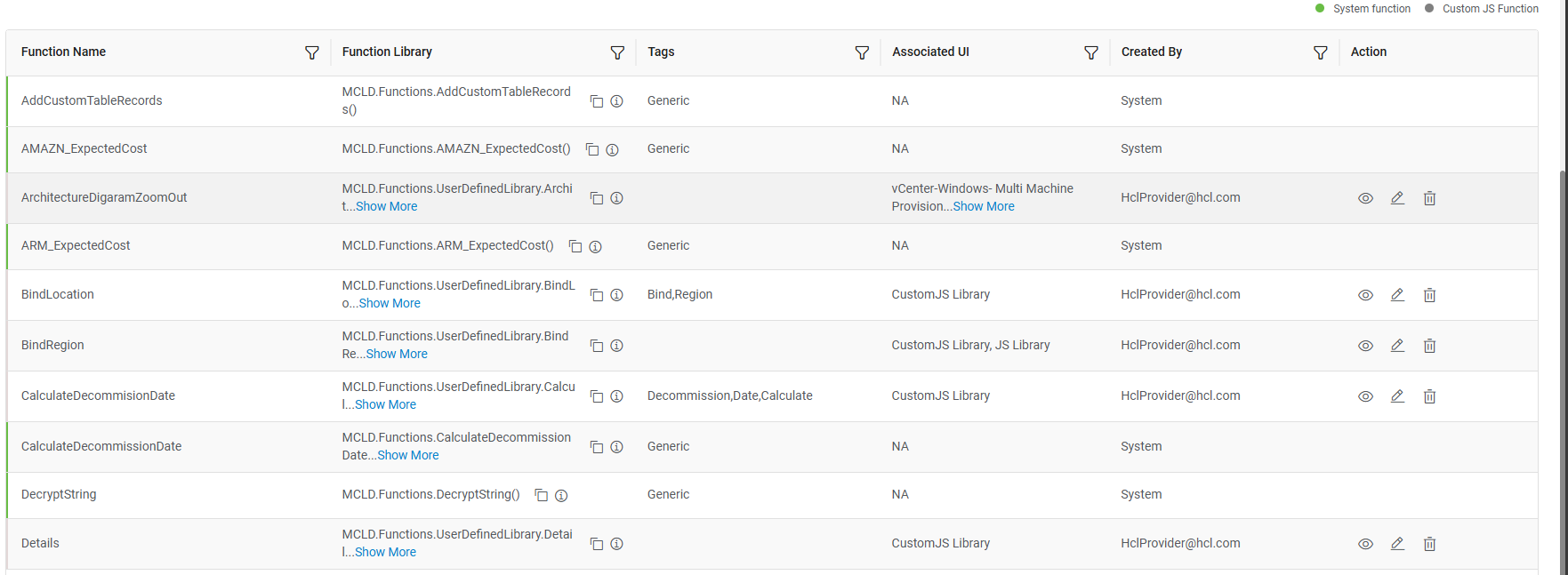
- Newest First: Newest records will come on top.
- Oldest First: Oldest records will come on top.
- Alphabetically By Ascending: Function name in ascending order by alphabetical order.
- Alphabetically By Descending: Function name in descending order by alphabetical order.
- Frequently Used: The most used function will come on the top.
- To create a new JS function, click on the Create JS Function tab.
Figure 3. Create JS Function 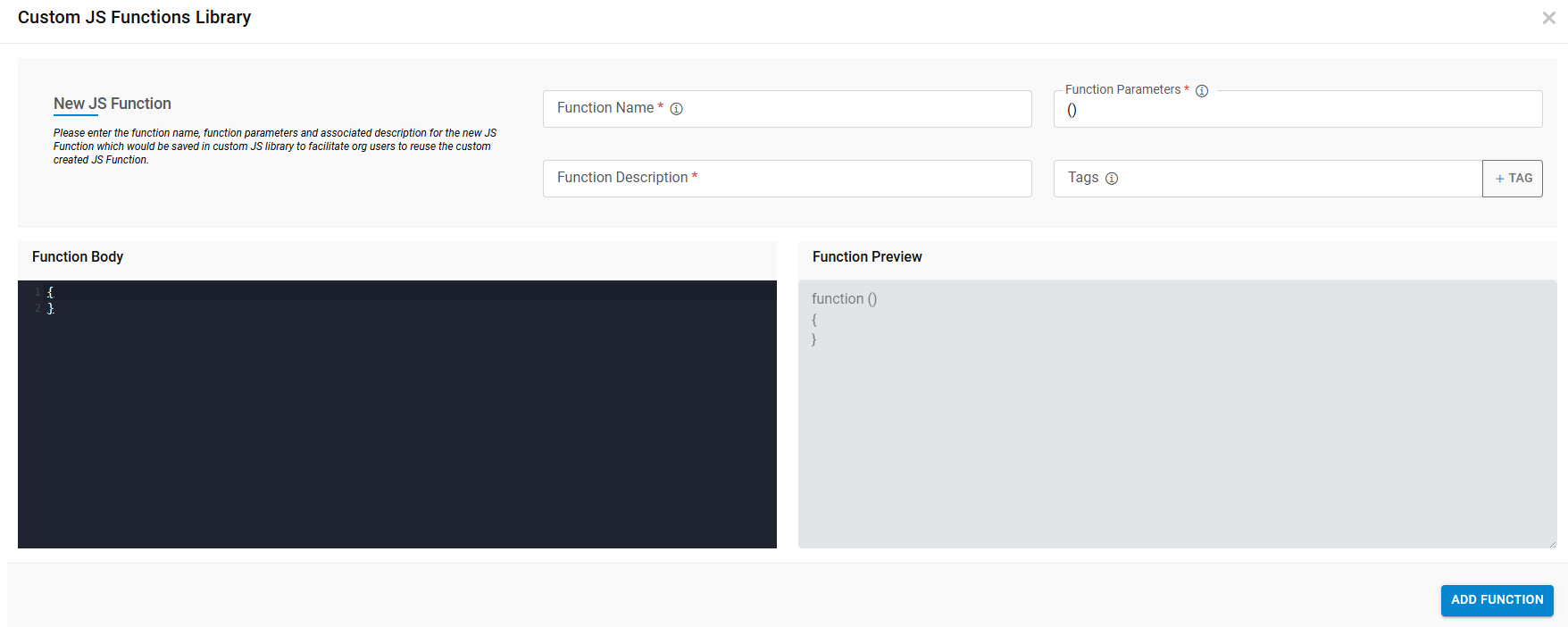
- The following fields need to be populated:
- Function Name: A unique function name.
- Function Parameters: The default value will be (). If user wants to add parameters, then it can be modified like (param1, param2….)
- Tags: Add Tag for each function to search/filter the functions.
- Description: A brief description of the function.
- Function Body: A definition for the function.
- Function Preview: It displays the preview of the actual function.
- On clicking the Save button, the function will be saved, and an alert message will
be displayed. At the same time, a function name will also be added in
MCLD.Function.CustomFunctionLibrary, so that same function will be available on the current
screen without refreshing the page.Note:
Function will be available only after getting a successful message.
- On clicking the Cancel button, popup will close. Note:
The combination of “Function name” and “Function parameter” for a provider must be unique. For Example, BindRegion() and BindRegion(a, b) are two different functions.
All the existing and newly added functions will be available on the below screens:
Figure 4. Write Control Level Script Here Screen 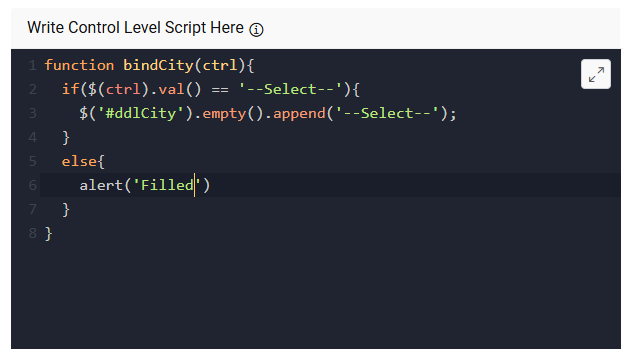
-
User can add functions from script library that is MCLD.Function.CustomFunctionLibrary.XXX () where XXX() is the function name. If the function name has any parameter(s) then function name will be displayed as MCLD.Function.CustomFunctionLibrary.XXX(a,b).
Note:Functions used from Script Library will be part of UI Template.
Figure 5. Manage UI Template