
Notify Success
In case of integration with third party ITSM tools, you can configure success of each task to make it ITIL compliant integration process.
Notify Success function will help to notify the enterprise tool (e.g., ITSM tool) about the success /failure of the task.
Notify success will notify ITSM tool that the task is successfully executed by HCL BigFix CLM and can be closed by ITSM.
By selecting the checkbox, it will get executed on the successful completion of the task in orchestrator engine of HCL BigFix CLM.
- Click on the Notify Success icon (
 ).
). - The following window pops up where a user can configure the request and response in JSON
through which HCL BigFix CLM notifies the ITSM tool regarding the completion of a specific
task.
Figure 1. Notify Success 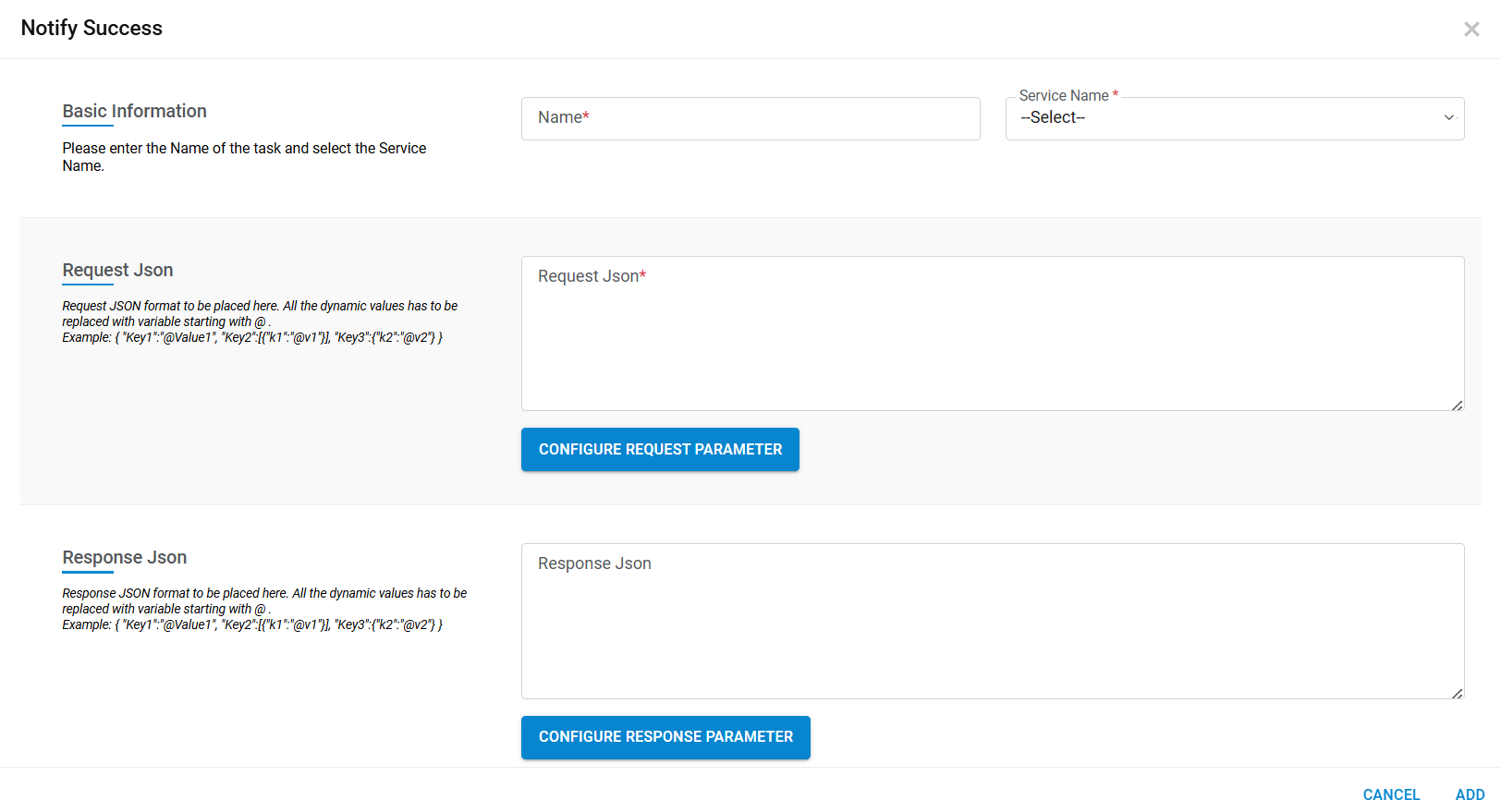
- Enter the Name of the configuration.
- Select the Service Name from the drop-down.
- The drop-down lists all the ITSM configuration end points.
- Request JSON: Populate the field with a valid Request JSON.
- It is a mandatory field and accepted by ITSM tool to close the task at its end. If it is a dynamic value (dynamic UI and captured by requester) then it needs to get communicated between HCL BigFix CLM and ITSM tool. In such a case, request JSON values need to be mentioned with prefix “@”.
- Request JSON format example:
{ "Kye1":"@Value1", "Key2":[{"k1":"@v1"}], "Key3":{"k2":"@v2"}, "Key4":"@OperationRequestDetailId" } - After adding Valid Request JSON, click on Configure Request Parameter.
- All dynamic parameters will get displayed under Request Parameter Mapping.
Figure 2. Dynamic Parameters 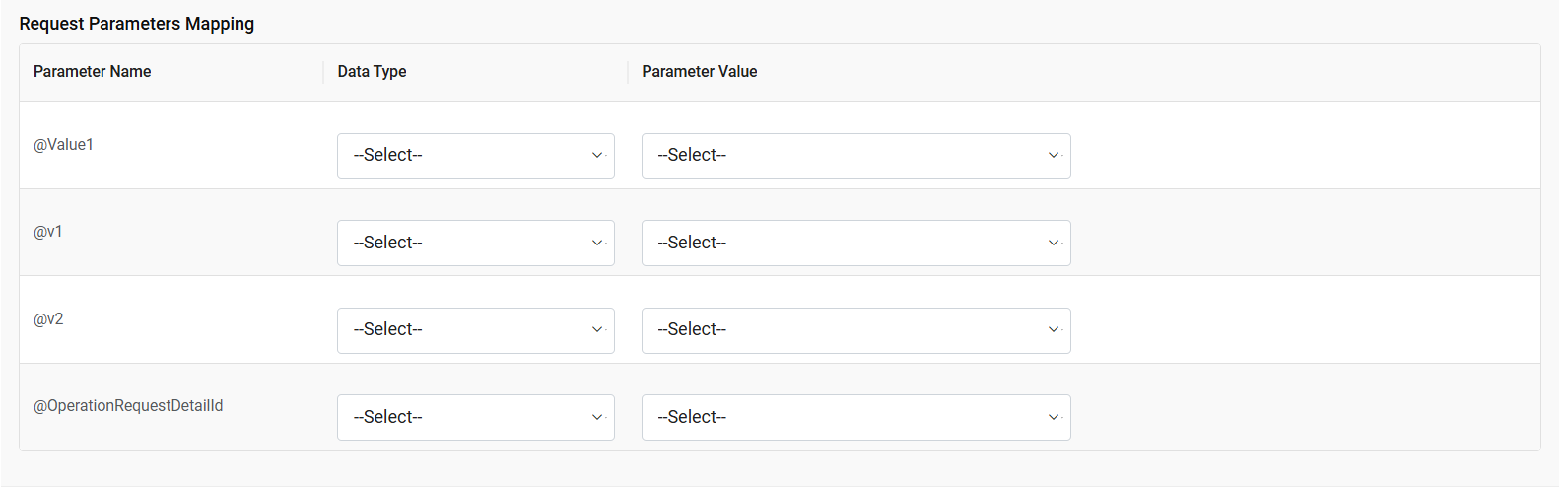
- Configure the Parameter Values.
- Response JSON: Populate the field with a valid Response JSON.
- It is an optional parameter and provided by ITSM tool (JSON) to HCL BigFix CLM. Through this HCL BigFix CLM understand whether a task has been completed or not.
- Example of Response JSON:
{ "Kye1":"@Value1", "Key2":[{"k1":"@v1"}], "Key3":{"k2":"@v2"} } - Click on Configure Response Parameter.
Figure 3. Configure Response Parameter 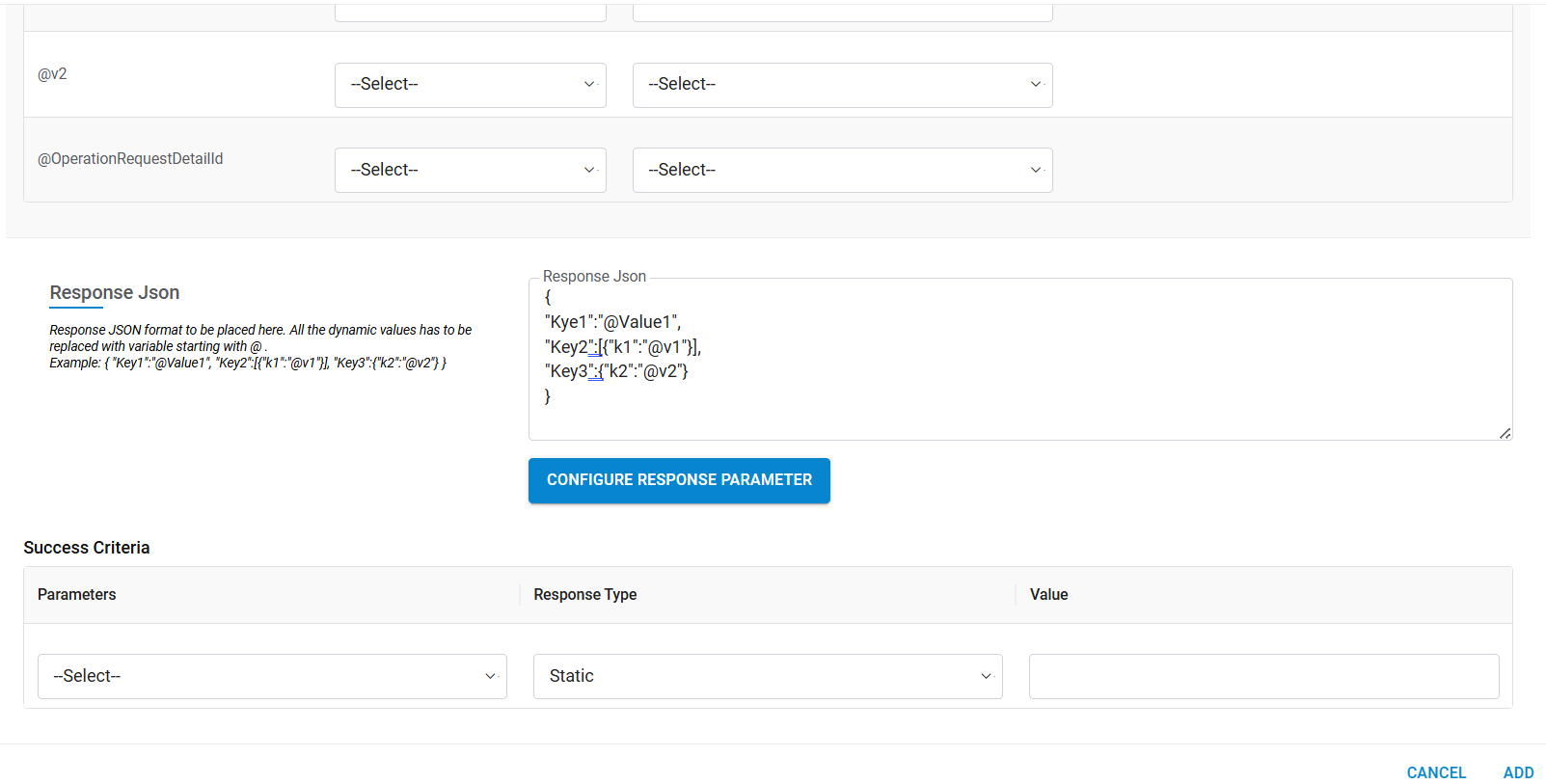
- Clicking on Configure Response Parameter button displays the Success Criteria section and all the dynamic parameter prefix with “@” in response JSON display under Parameter Mapping.
- Success Criteria: In this section, user defines n which parameter and corresponding value of HCL BigFix CLM can mark task as completed from ITSM engine response.
- Response Type: There are two types of response:
- Static: In case of Static response, predefined key and its value for e.g.,“Status” =” OK” of ITSM engine response will communicate to HCL BigFix CLM to mark ITSM task (success/Failure) in HCL BigFix CLM to close the task.
- Dynamic: In case of Dynamic response, ITSM tool will use the incident number to communicate with HCL BigFix CLM for marking the ITSM task as closed.
- Value: Enter the Parameter Value.
- Click Submit.