
Copy Task
- Click Copy Task (
.png) ) to a window pops up to
Manage Task.
) to a window pops up to
Manage Task.Figure 1. Copy Task 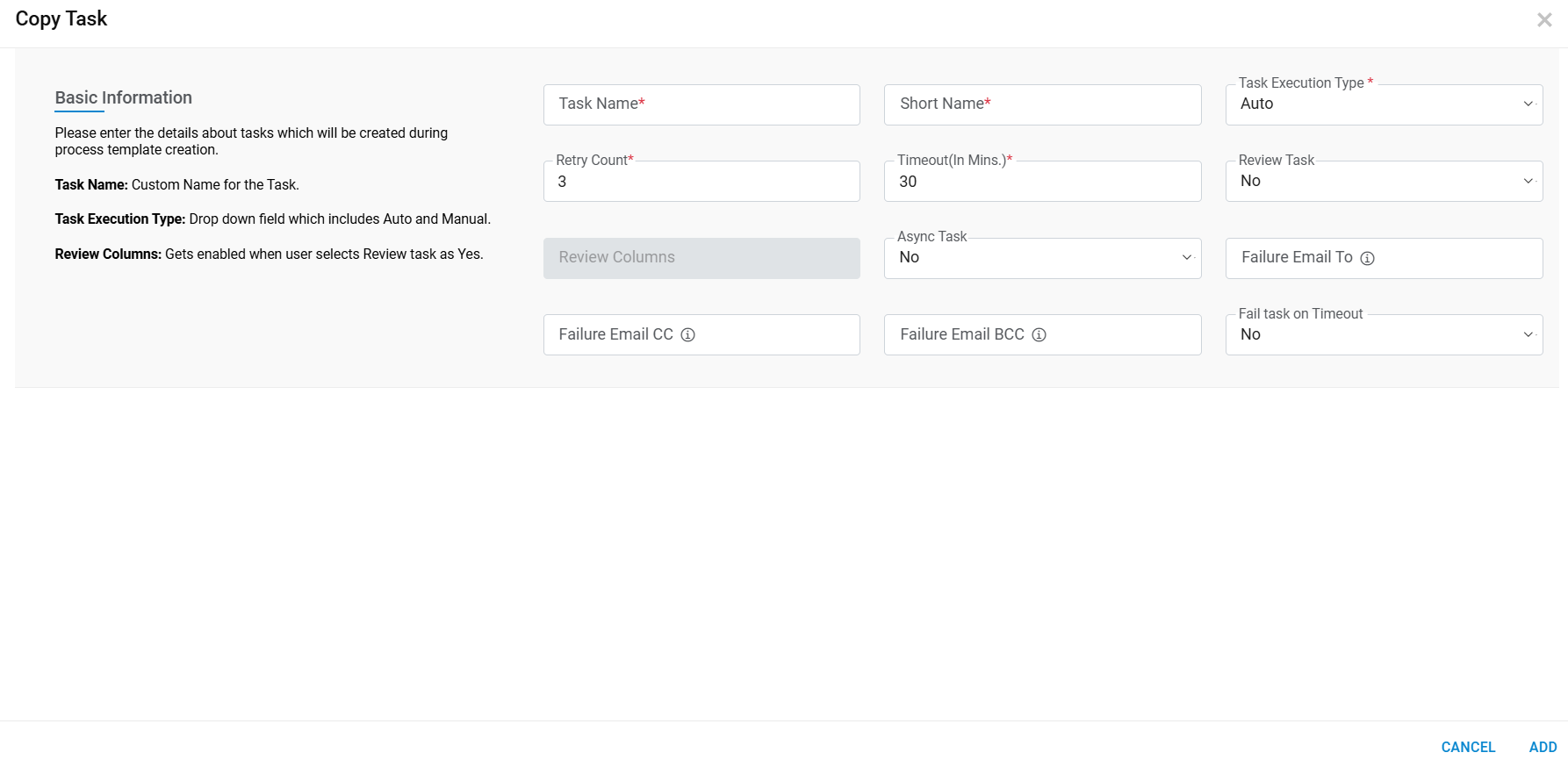
- Refer to the below table to understand the fields mentioned in the above figure:
Table 1. Copy Task Task Name It highlights the name of the task and use with ITSM tool for integration purpose. All the task details shown on hover of task name inside table help icon ( .png) ) like short name,
execution type etc.
) like short name,
execution type etc.Short Name Provide a short name for the ease of usage Task execution Type Defines execution type of tasks. This can be auto or manual,
Auto: Auto task execution type executed by orchestrator engine in HCL BigFix CLM for submitted service requests
Manual: Manual task execution will be executed by respective support team manually and update the status in ITSM tool. Simultaneously, ITSM tool will notify HCL BigFix CLM and update the status of task.
Retry Count Number of times a task will be retried for execution upon getting failed. Timeout (In Mins) Time limit before the task becomes inactive. Review Task In Process Workflow if user wants UI Templates columns to be reviewed before marking that task as completed, user can opt for Review Task option and Mark the columns to be reviewed. In Request Task Tracking Report user can validate the Pending Review task
for the Request and perform appropriate action. Review Task -Yes (signifies user opts in for Review) Review Task -No (signifies user opts out for Review)
Review Columns Define the list of columns from UI Template chosen to create Process Workflow. (Enable only when Review Task marked as Yes otherwise disable. Async Task Using this task type we can configure task that need to be execute asynchronously. At the time of execution HCL BigFix CLM triggers the task and save the acknowledgement no. once task is completed third party tool will invoke HCL BigFix CLM API to close the task success/failure. Failure Email To This field will be used to send "To" Email notification, in case of Task Failure. Please use comma (,) to add multiple emails in this fields. Failure Email CC This field will be used to send "CC" Email notification, in case of Task Failure. Please use comma (,) to add multiple emails in this fields. Failure Email BCC This field will be used to send "BCC" Email notification, in case of Task Failure. Please use comma (,) to add multiple emails in this fields. Fail task on Timeout this is to be used in case of timeout whether task needs to be marked as failed or not. - Enter the Task Name and Short Name and click Add Button.
- The following success message appears
Figure 2. Success Message 
- Clicl on OK button.
- Copy Task added in list of task details.