
Custom Task
If a provider user selects the task type as Custom
- Click on (
.png) ) icon. A window pops up where
provider user writes the PowerShell or Python Script to execute a task.
) icon. A window pops up where
provider user writes the PowerShell or Python Script to execute a task.Figure 1. Script Writing 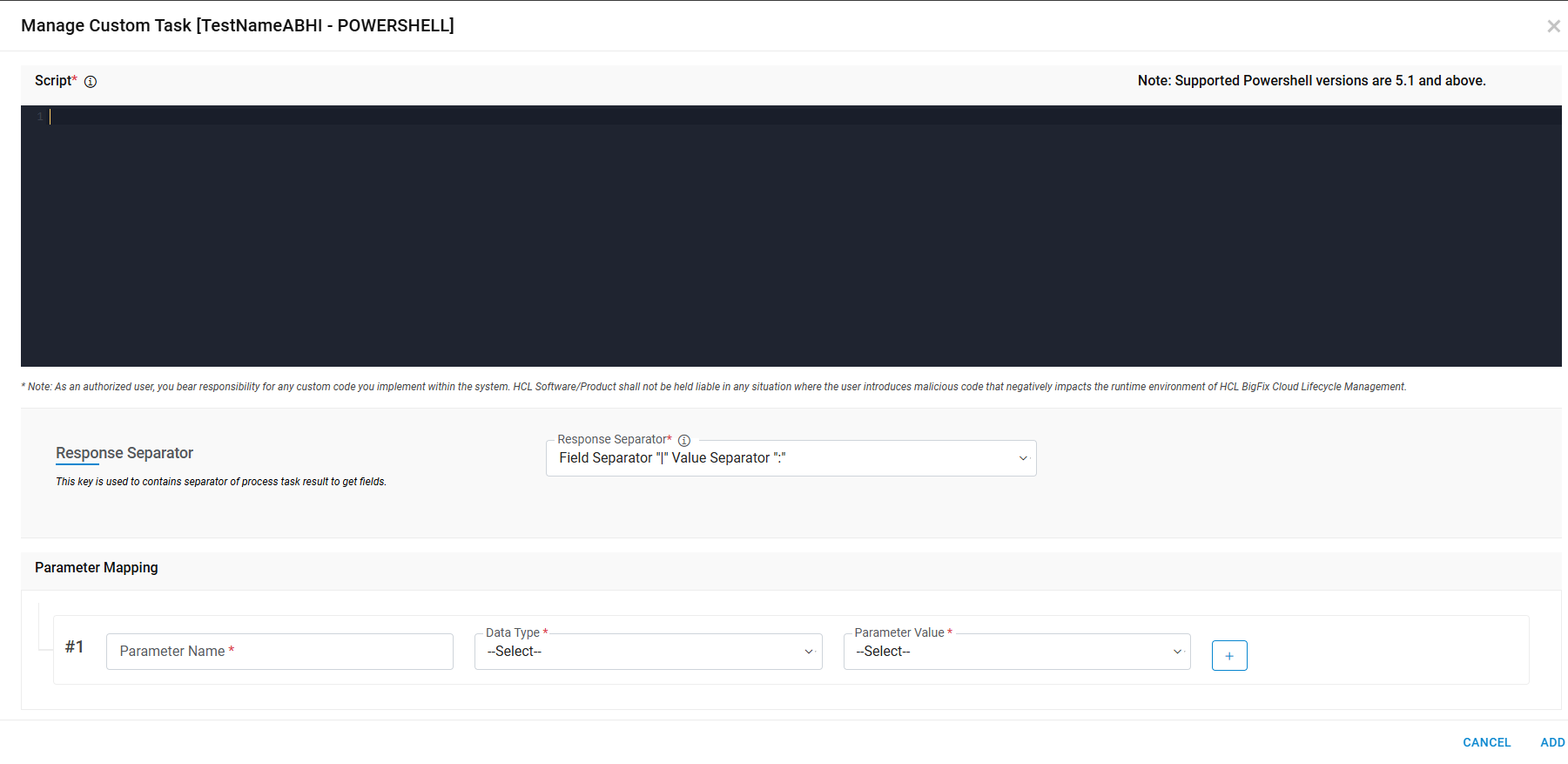
- With the help of (
 ) Provider user
adds all the dynamic variables of PowerShell with dynamic UI control values and
HCL BigFix CLM Predefined SQL Function List.
) Provider user
adds all the dynamic variables of PowerShell with dynamic UI control values and
HCL BigFix CLM Predefined SQL Function List.Figure 2. Script Writing (Cont.) 
- Click Submit to save the details. Click Close to discard the changes.
Figure 3. Response Parameters Mapping 
- A success message box appears if you choose to discard the changes. Click Ok.
Figure 4. Confirmation Message 
- On clicking Submit, the following screen appears. Click Save.
Figure 5. Task View 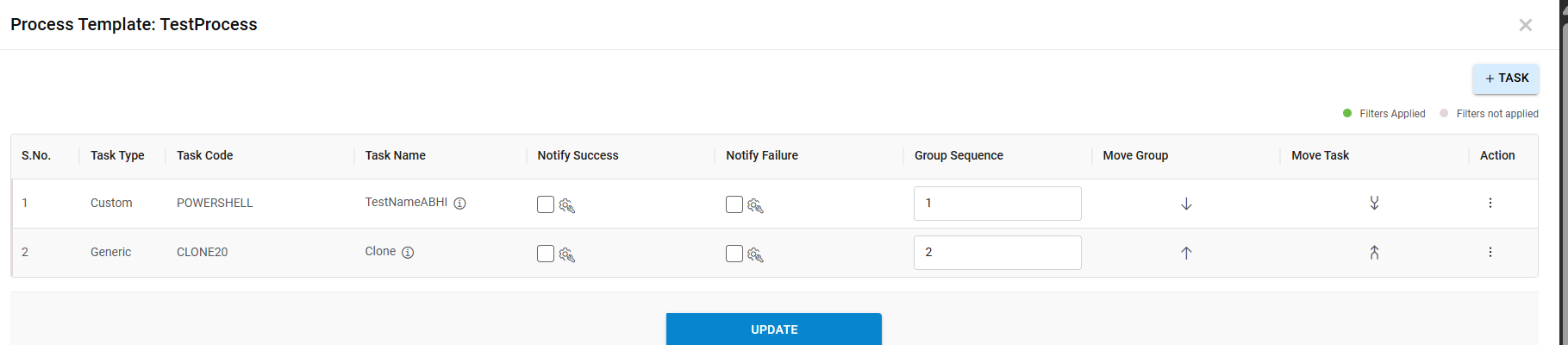
-
A confirmation message appears as below:
Figure 6. Task Confirmation Message 
- Click OK.
Note:
All the fields marked with asterisk (*) are mandatory.