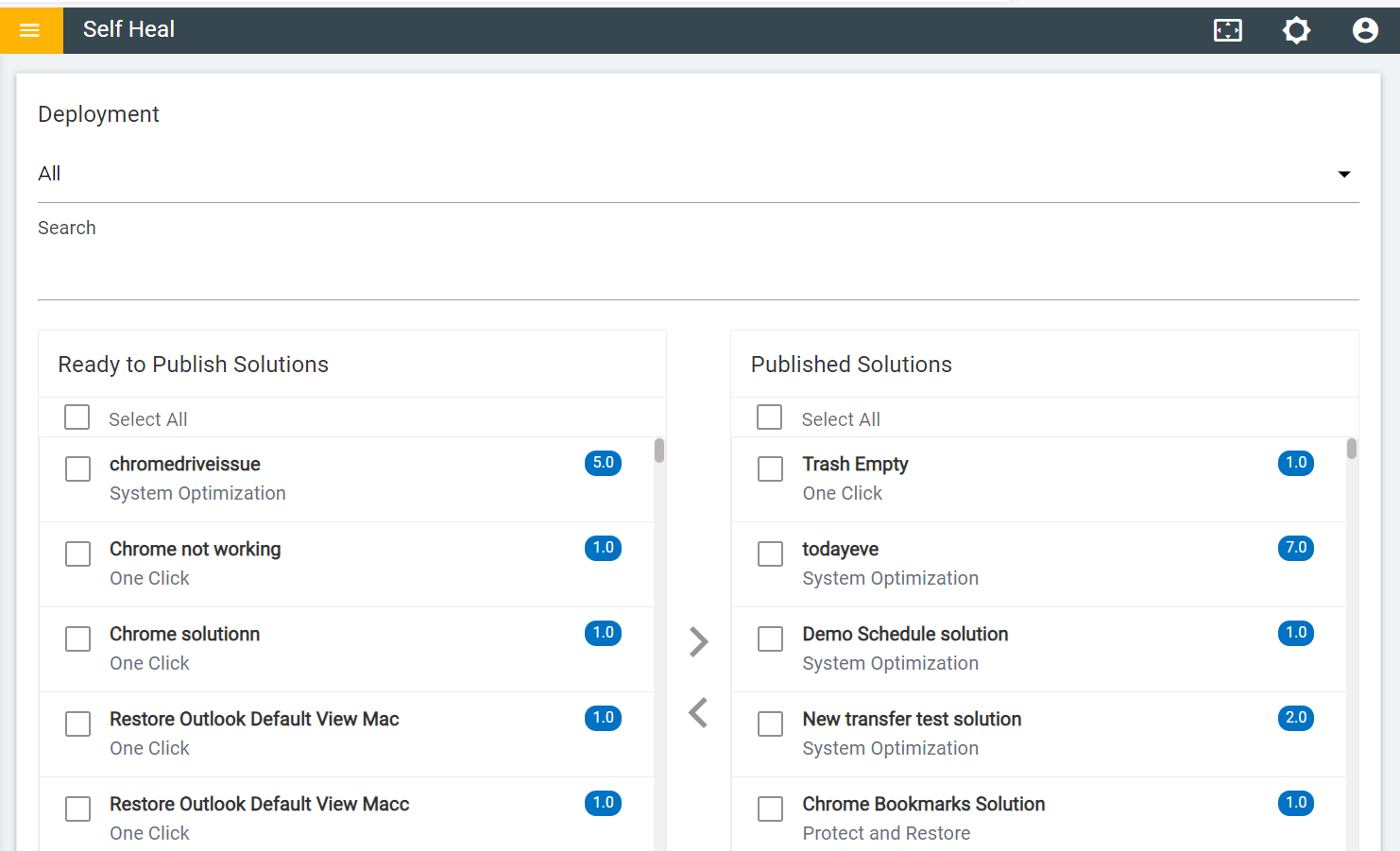
Deployment
The deployment section is used to publish and unpublish different types of solutions. Once a solution is published, admins will not be able to edit or modify it. After publishing the solution, if an admin wants to make any changes to a particular solution, he needs to unpublish that solution.
The following solutions are available:
- Healing: Healing is a solution where the user can click and run the solution on their own.
- System Optimization: Solution which has system optimization of that type that can be shown here.
-
Protect and Restore: This type of solution can help users to create back-up copies of
their browser favorites / bookmarks and restore them in case these get inadvertently removed
/ deleted. Using this tab, Users can protect and restore their favorite webpages as
bookmarks on Google Chrome, Internet Explorer, Microsoft edge, etc. This feature helps users
to create back-up copies of the browser.
Figure 2. Solution Types 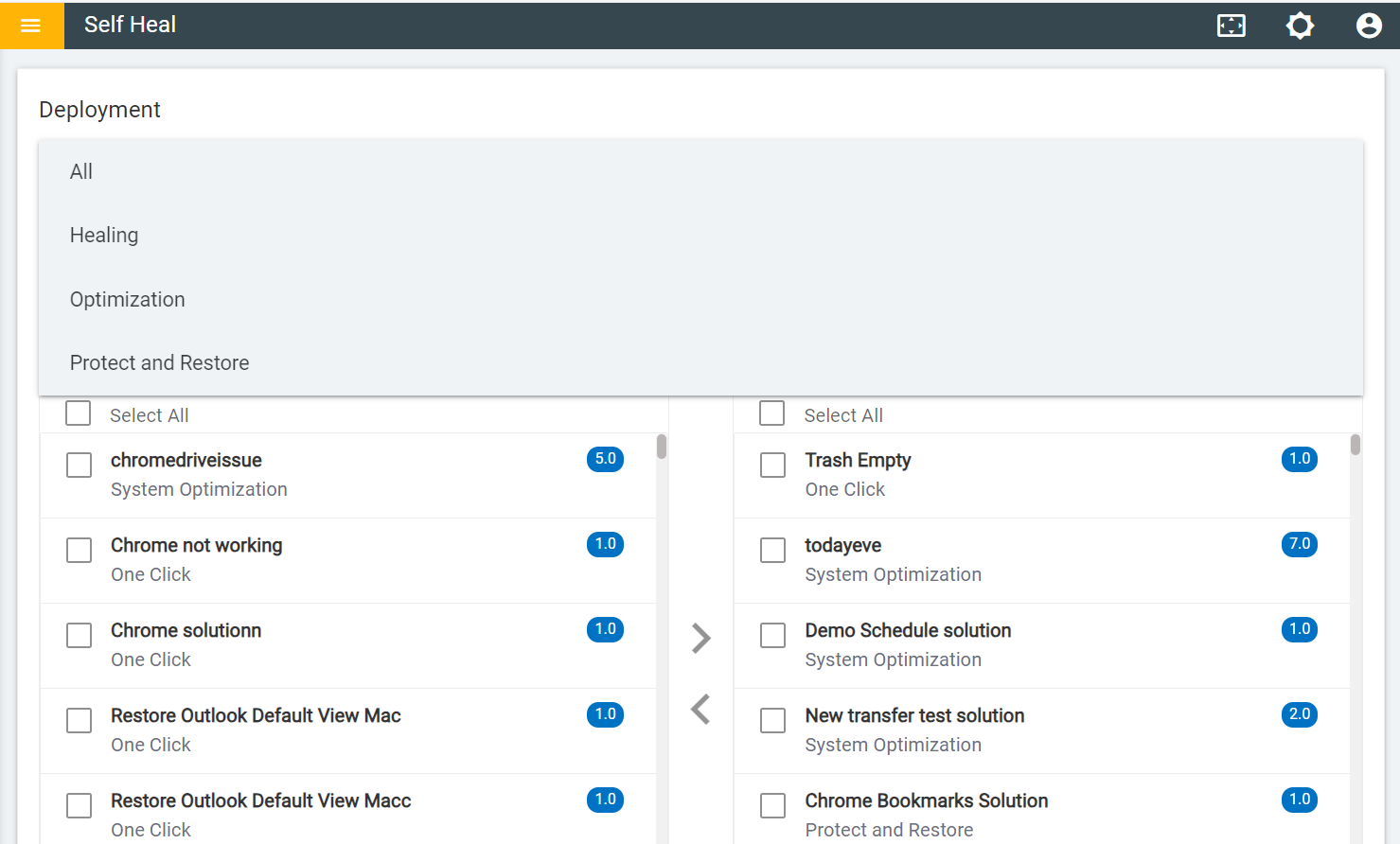
- When the automation module is created with a Solution Type, it appears in the
Ready to Publish section. To publish the solution, click the "Click to Publish"
button.
Figure 3. Ready to Publish 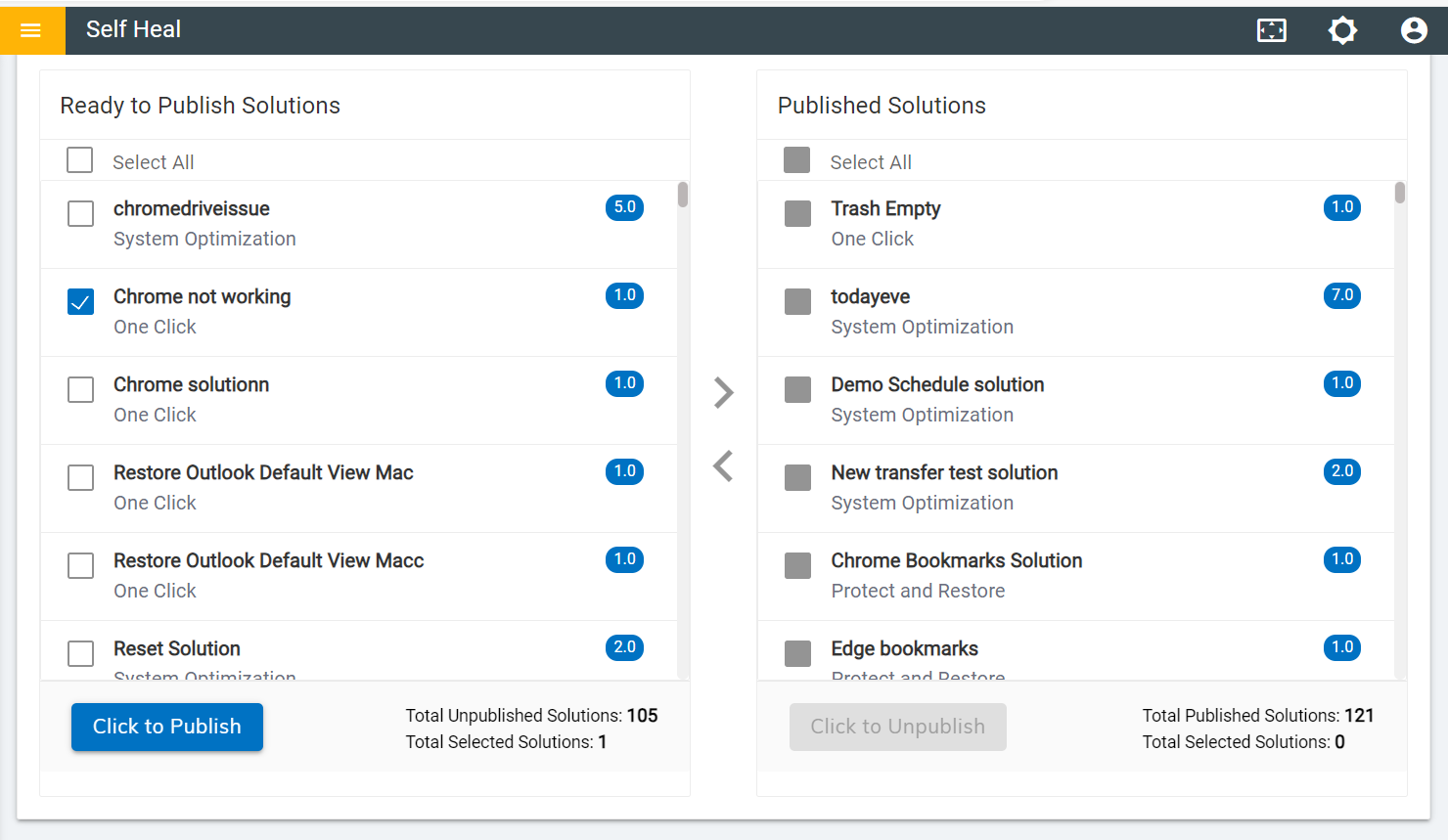
- The following success message appears:
Figure 4. Success Message 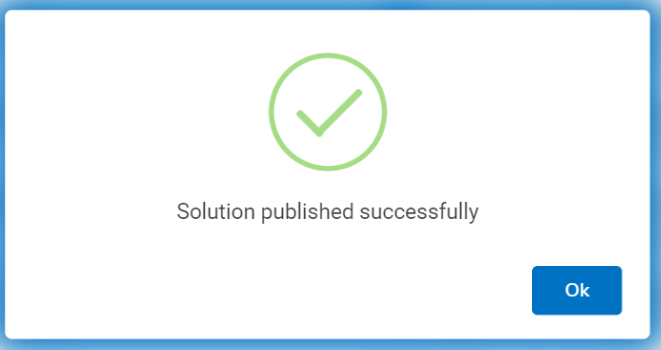
- When a solution is published successfully, it moves to the Published
Solution section.
Figure 5. Published Solutions 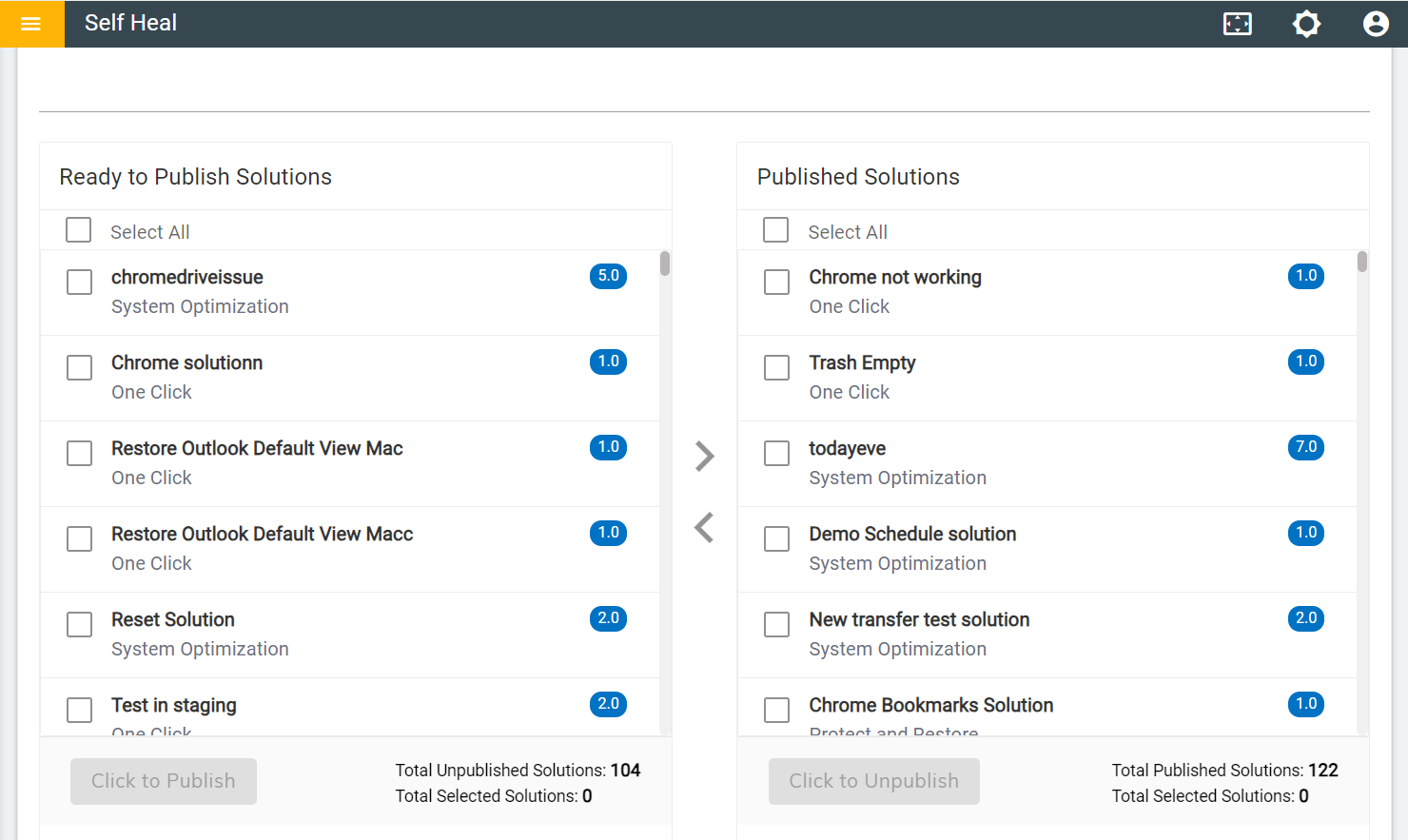
- A successfully published solution starts reflecting in the automation module with
Status as “Published”.
Figure 6. Published Status 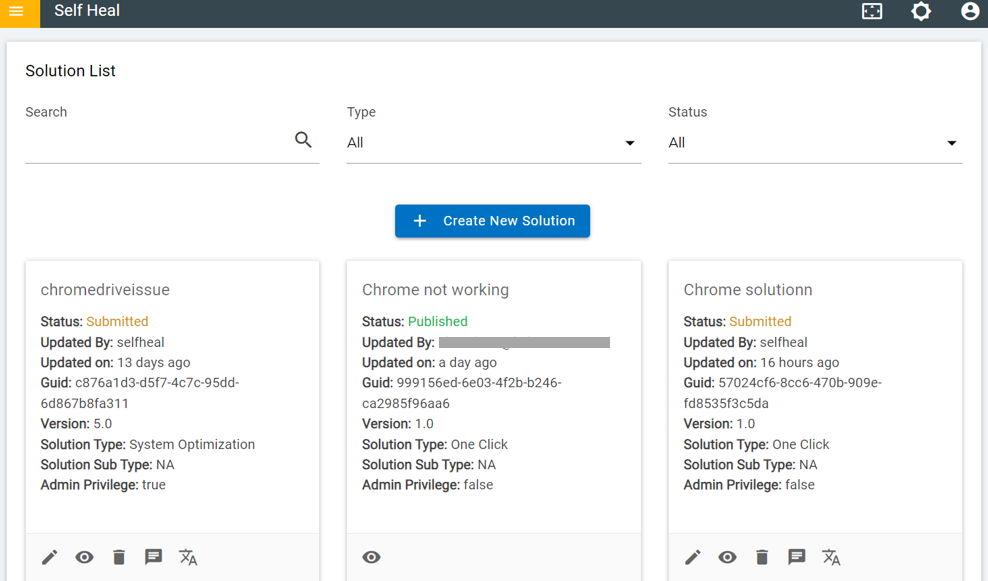
- To edit the solution, the user needs to unpublish the solution, by clicking on the
Click to Unpublish button.
Figure 7. Unpublishing a Published Solution 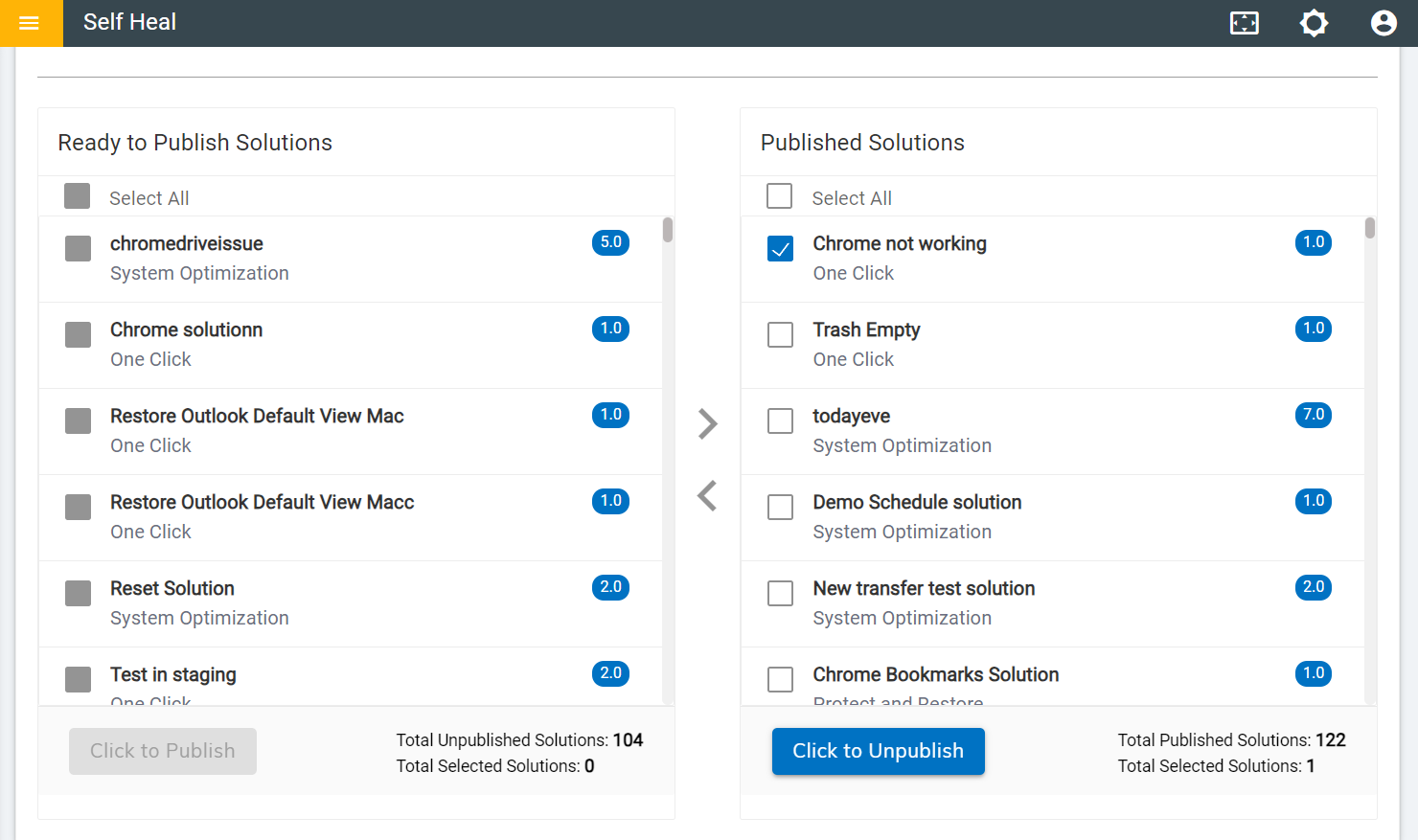
- The following message appears successfully unpublishing the solution.
Figure 8. Success Message 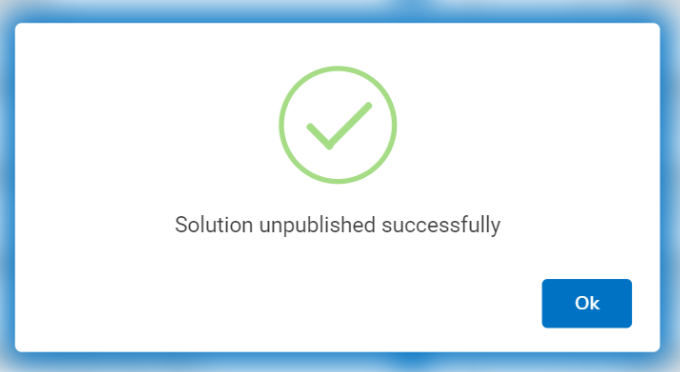
- The solution moves to the Ready to Publish Solution section.
Figure 9. Ready to Publish 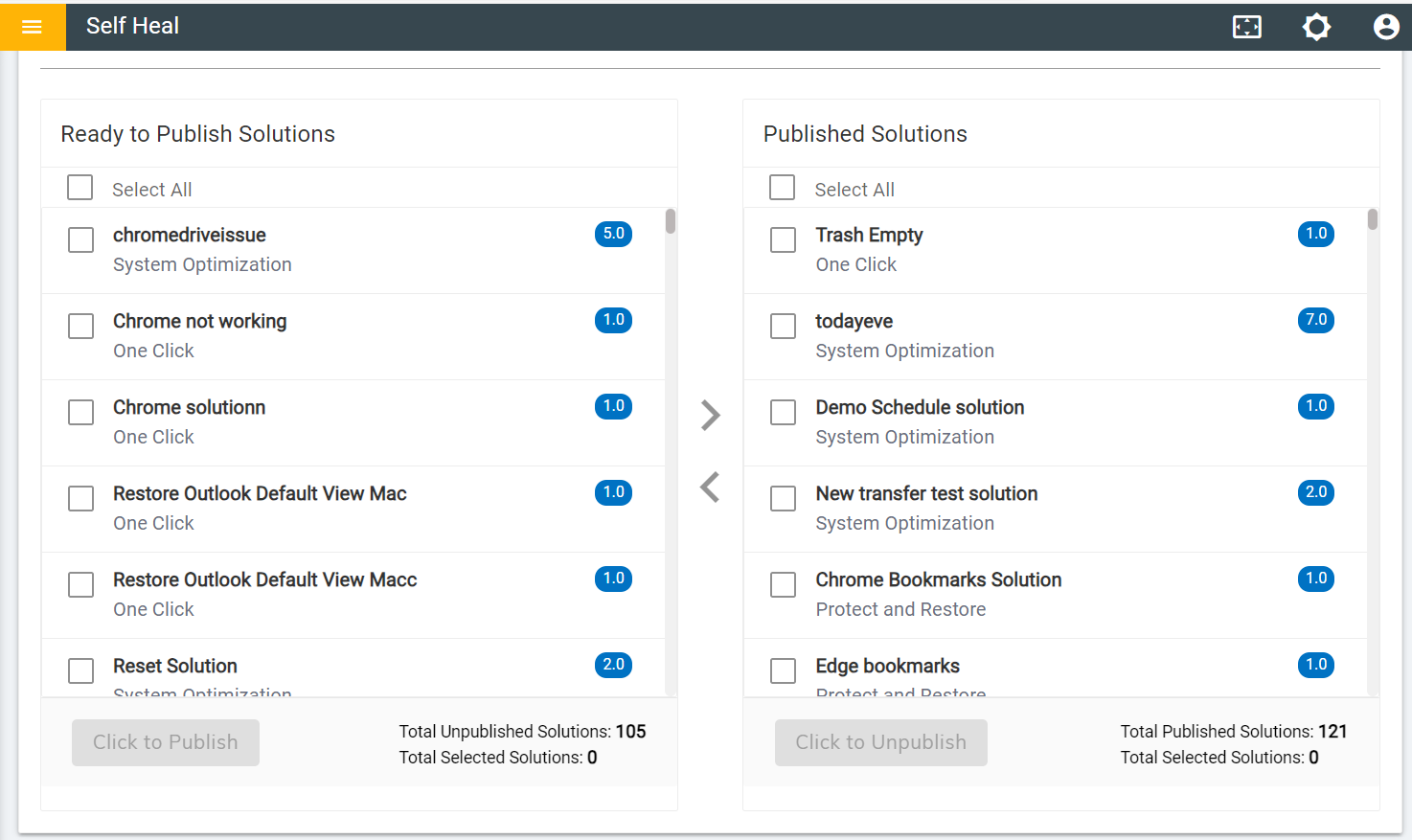
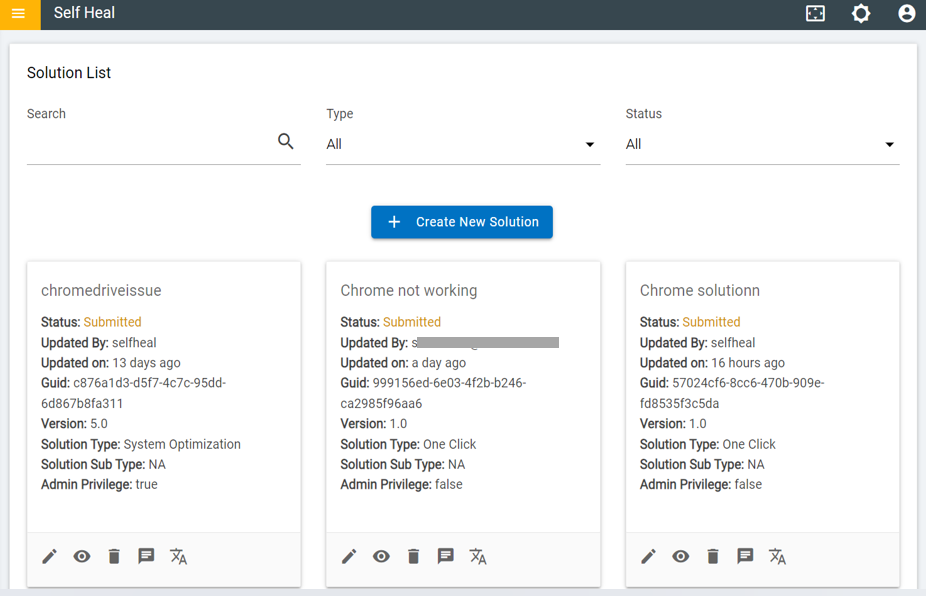
- Once the solution is successfully unpublished, it will show a "Submitted"
status in the Automation Module.
Figure 10. Submitted Status