Using the Multiple Payment option
The multiple payment option allows the shopper to select multiple payment methods for a given cart amount for Next.js Stores. In this document, the multiple payment option for the Ruby Store is used as an example.
Procedure
- Open the store landing page.
- Add the desired items in the cart and click on the cart icon at the top-right side of the screen.
-
Click the View Full Cart button.
A shipping cart page opens.
- Click the Checkout button.
-
Select the shipping address and shipping methods.
Note: You can also use the multiple shipment option with multiple payment order. Refer to Multiple Shipment for Ruby storefronts (B2C and B2B) for more details.
-
Click the Continue to Payment Details button.
The Payment Details screen opens.
-
Click the Use multiple payment methods toggle button
given beside the Payment Details menu.
Note: The following message will appear when you click on the Confirm and Review button.
- At least one payment method is required.
This will show a prompt to add at least one payment method. - Click the Add a payment method button.
- Select a payment method. For example, the Cash on delivery method.
- Enter the amount to be paid in cash during the delivery in the Amount to pay option.
- Select the billing address or enter a new address by clicking the Create a New Address button.
-
Click the Done button. This will add the payment method
as Payment Method 1 and the mode of payment will also be
displayed, as shown in the below example:
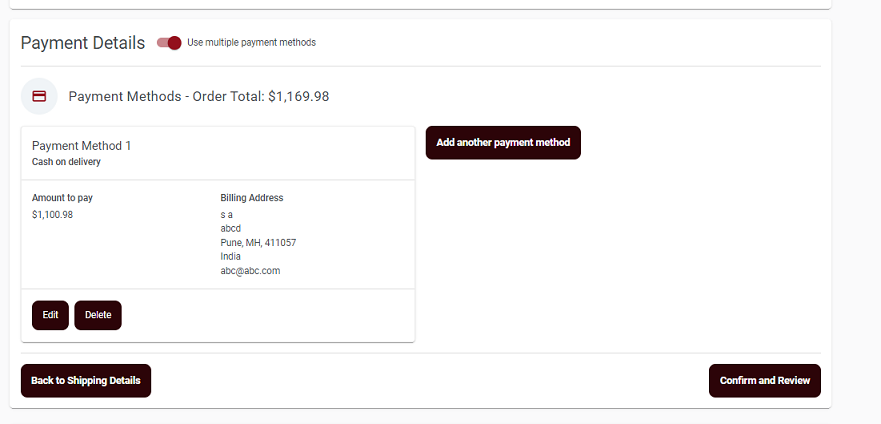 Note: Here the total cart value is $1169.98 and the amount paid by Cash on delivery mode is $1100.98.
 -
Click the Add another payment method button.
The Payment Method page appears, where you must select the desired payment methods for the remaining amount.
-
Add another payment method and select the desired billing address or enter a
new delivery address. For example, Bill me later is selected as another mode of
payment in the image shown below.
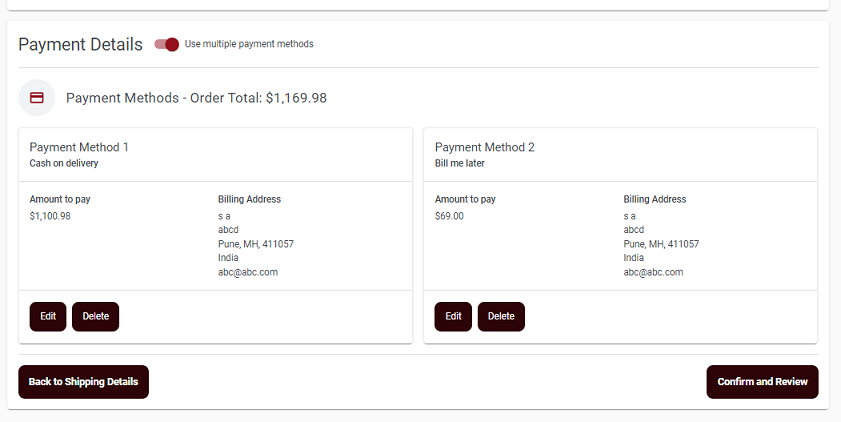
- Enter a new billing address.
-
If you select VISA Credit Card the payment method, the
following credit card details must be entered:
- Credit Card Number
- CVV Code
- Expiry Date
-
Click the Confirm and Review button to review the order
details.
Note:
- Click Delete button to delete the already added payment method.
- Click Edit button to edit the already added payment method.
-
Click the Place Order to confirm the order.
A confirmation message appears stating, We've received your order.