
Prepare Google Admin Console
Once you have a Google Workspace (GWS) Admin user account, follow these steps to set up the environment for Chrome OS device and policy management using a custom EMM/MDM solution:
Create & Configure Google Cloud Project for MDM
- Go to Google Cloud Console → https://console.cloud.google.com
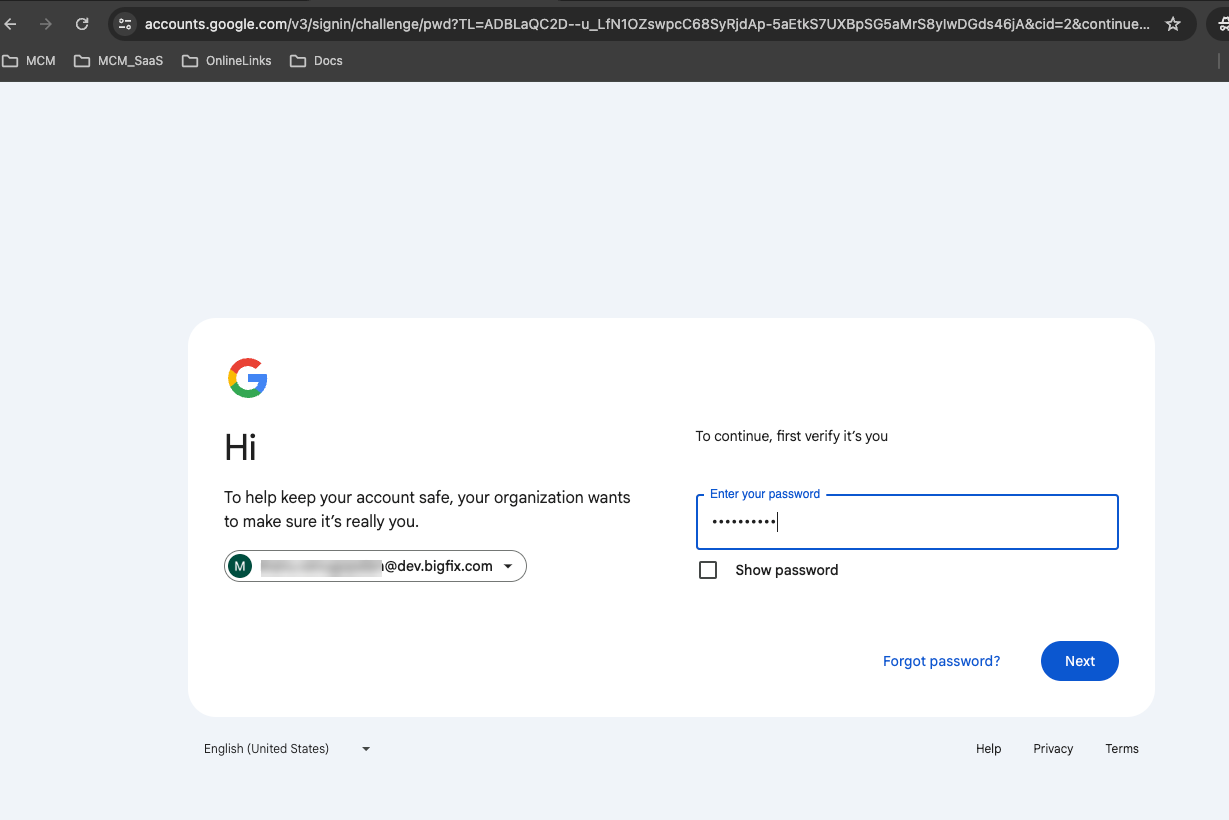
- You will see an agreement pop-up to agree and proceed.
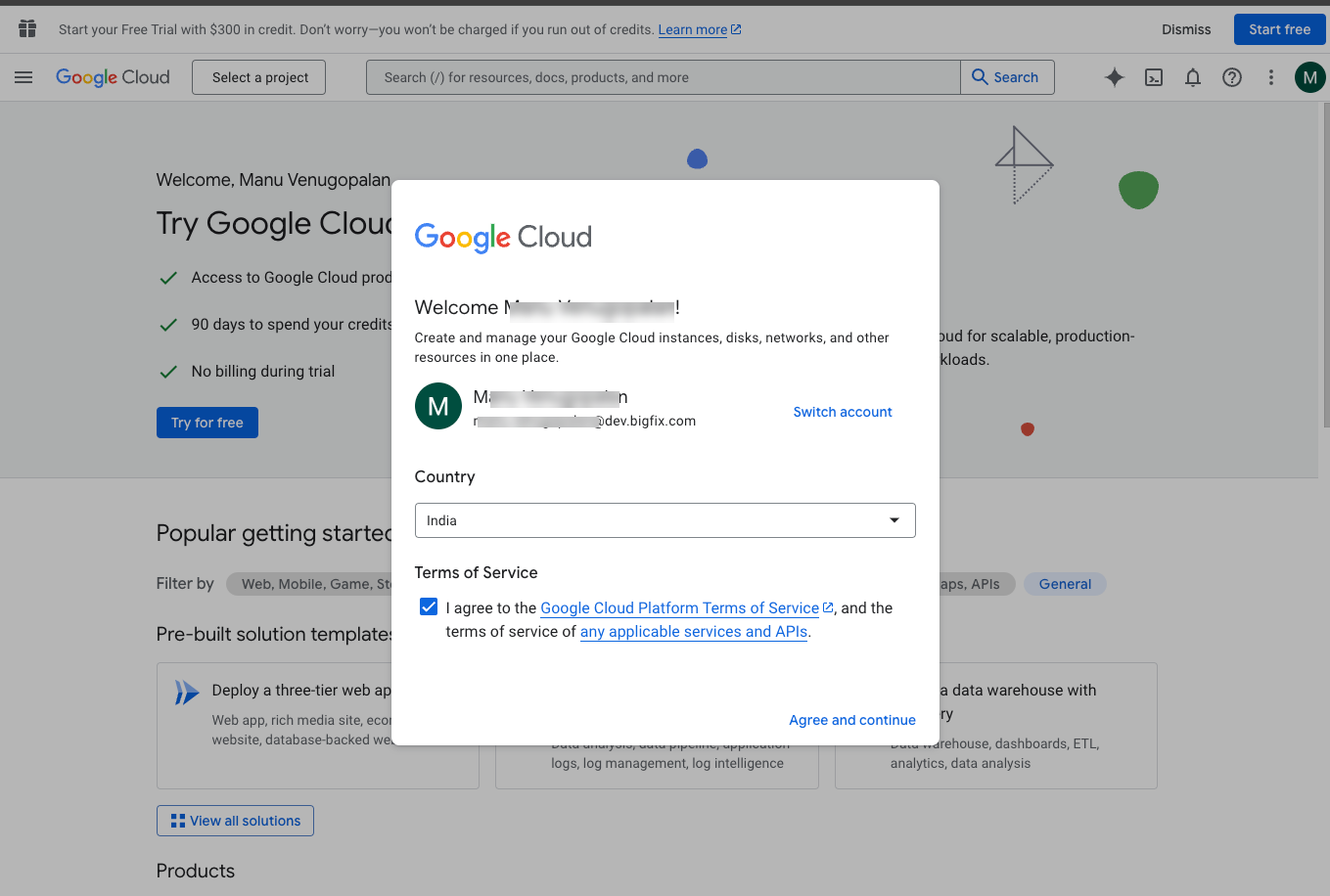
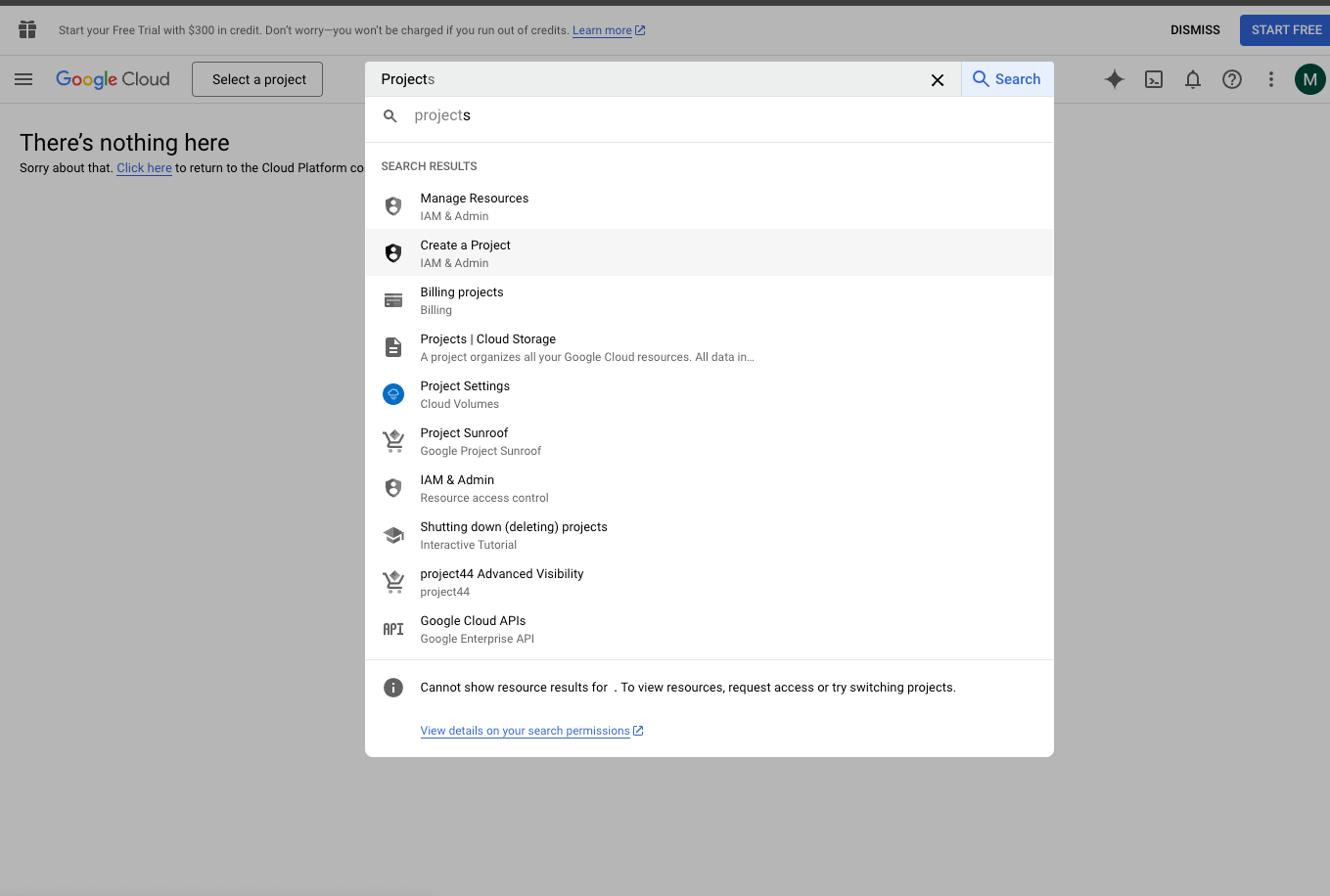
- Create a new Google Cloud Project for managing Chrome OS devices.
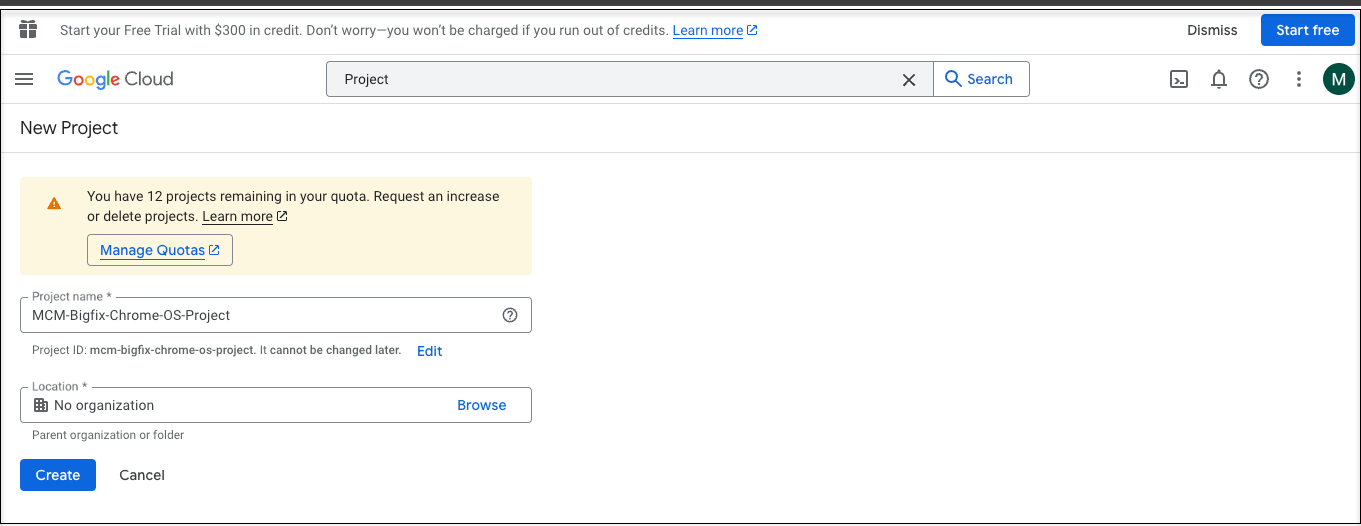
- Enter Project name and click on “Create”.
- Enable the Chrome Management API:
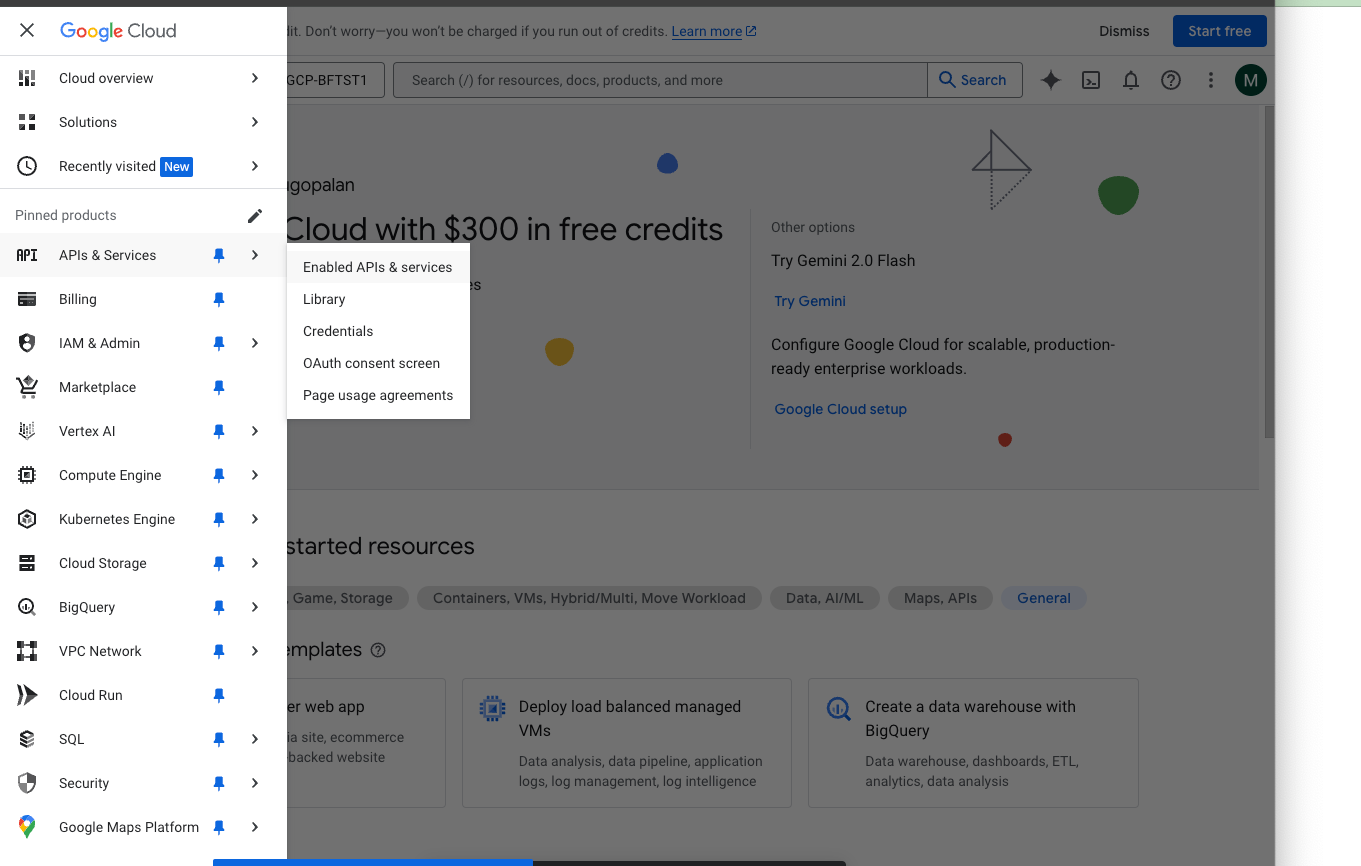
- Navigate to APIs & Services → Enable APIs &
Services.
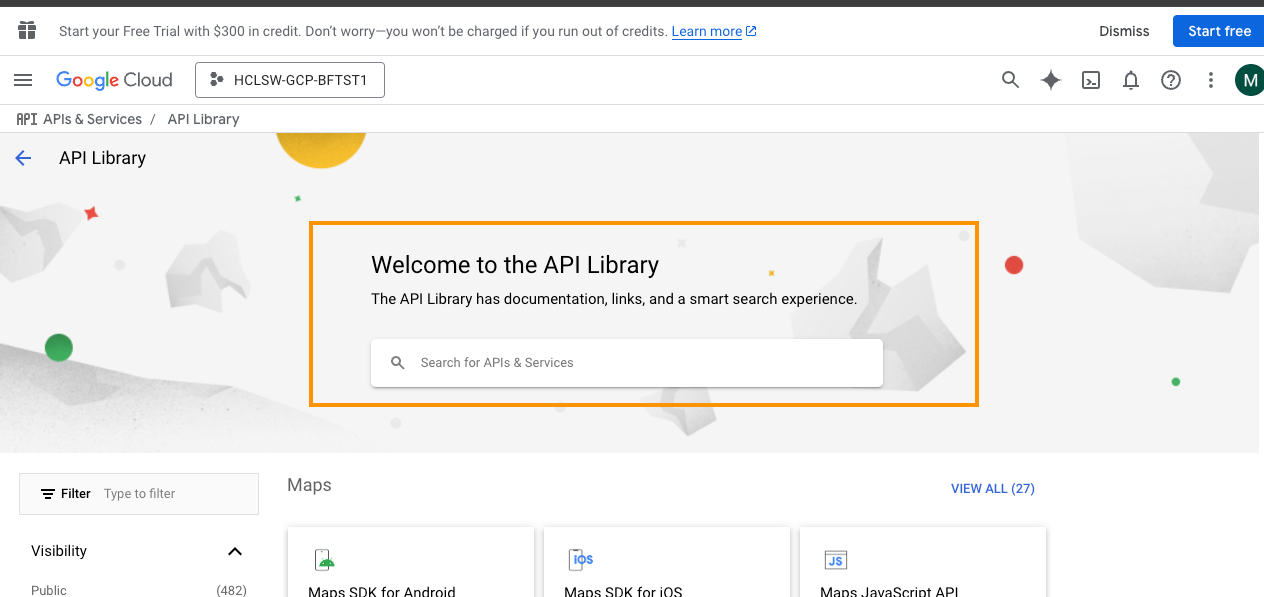
- Search for Chrome Policy API & Chrome Device Management
API → Enable both.
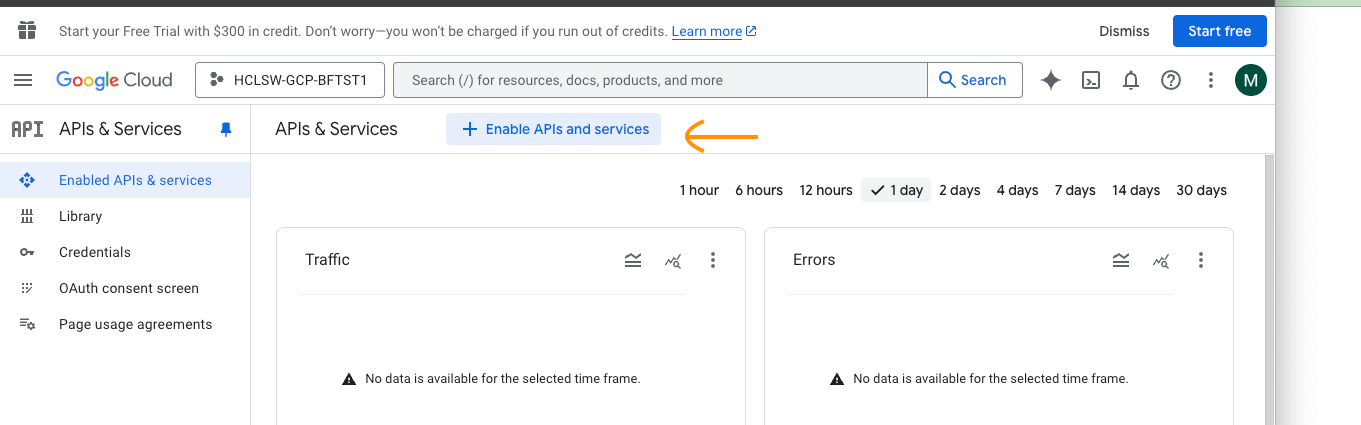
- Navigate to APIs & Services → Enable APIs &
Services.
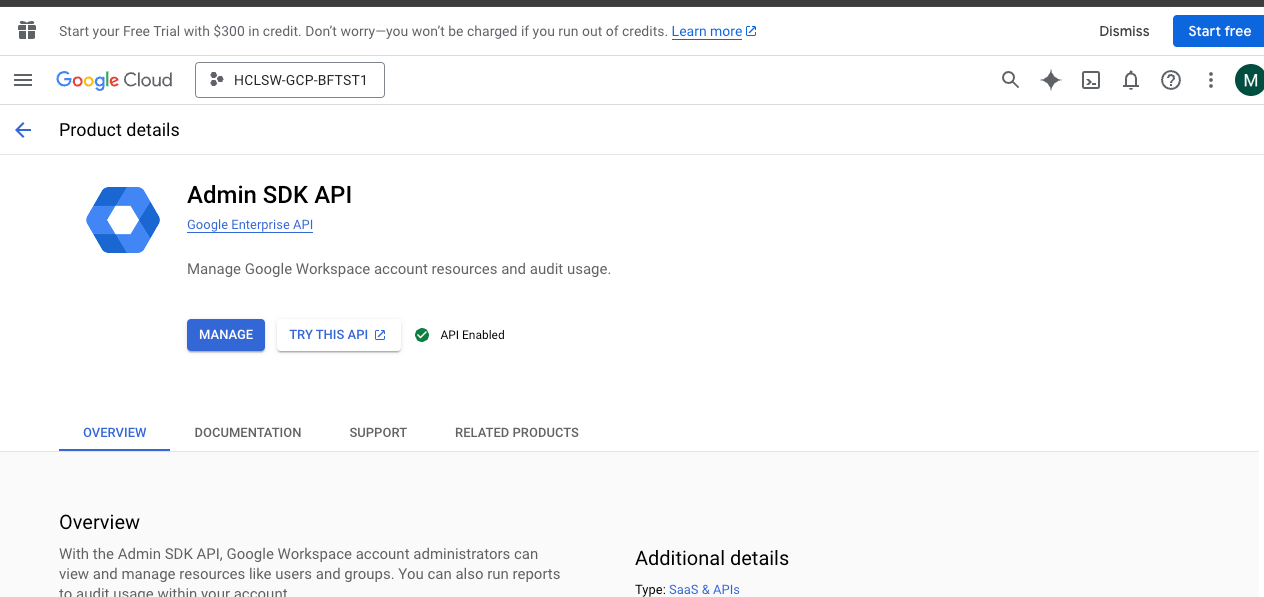
- Enable Admins SDK API.
- Enable Chrome Policy API.
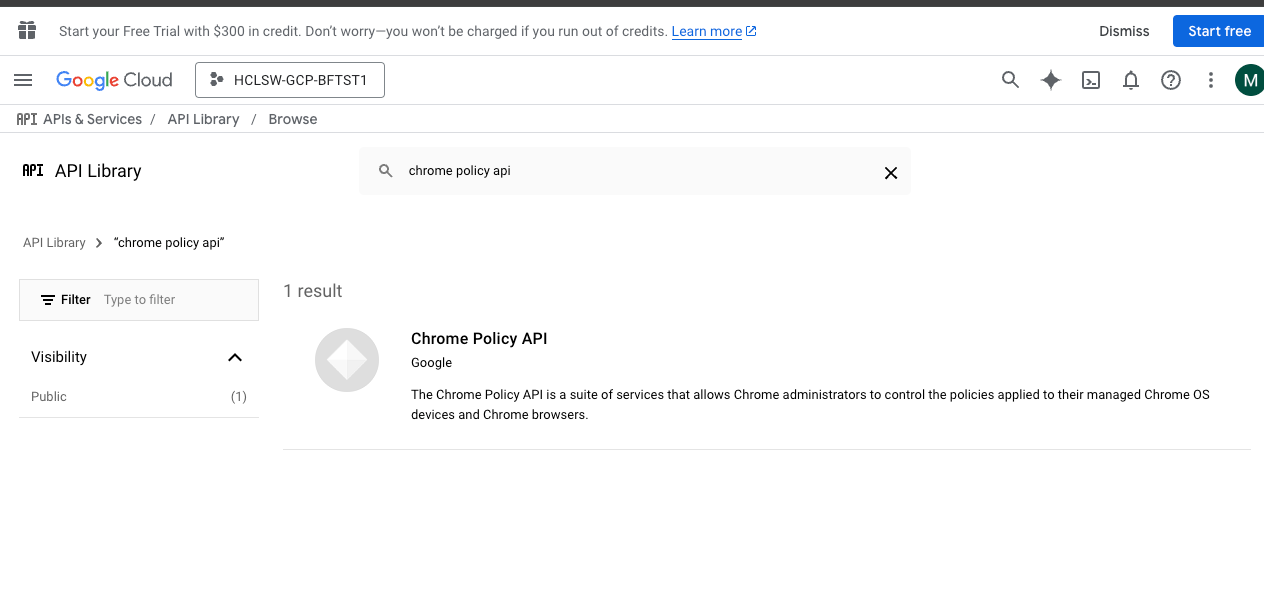
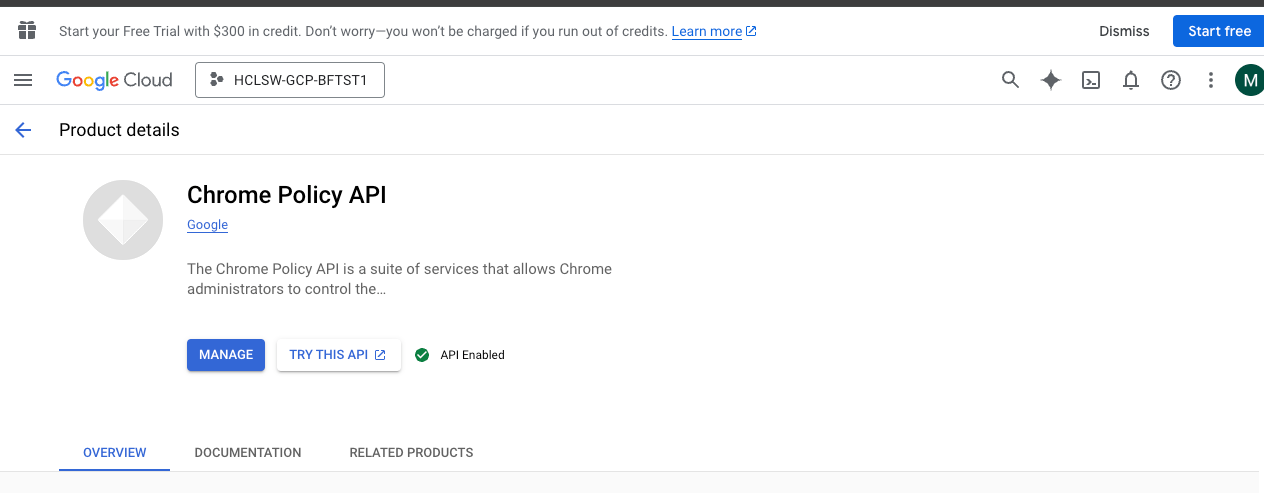
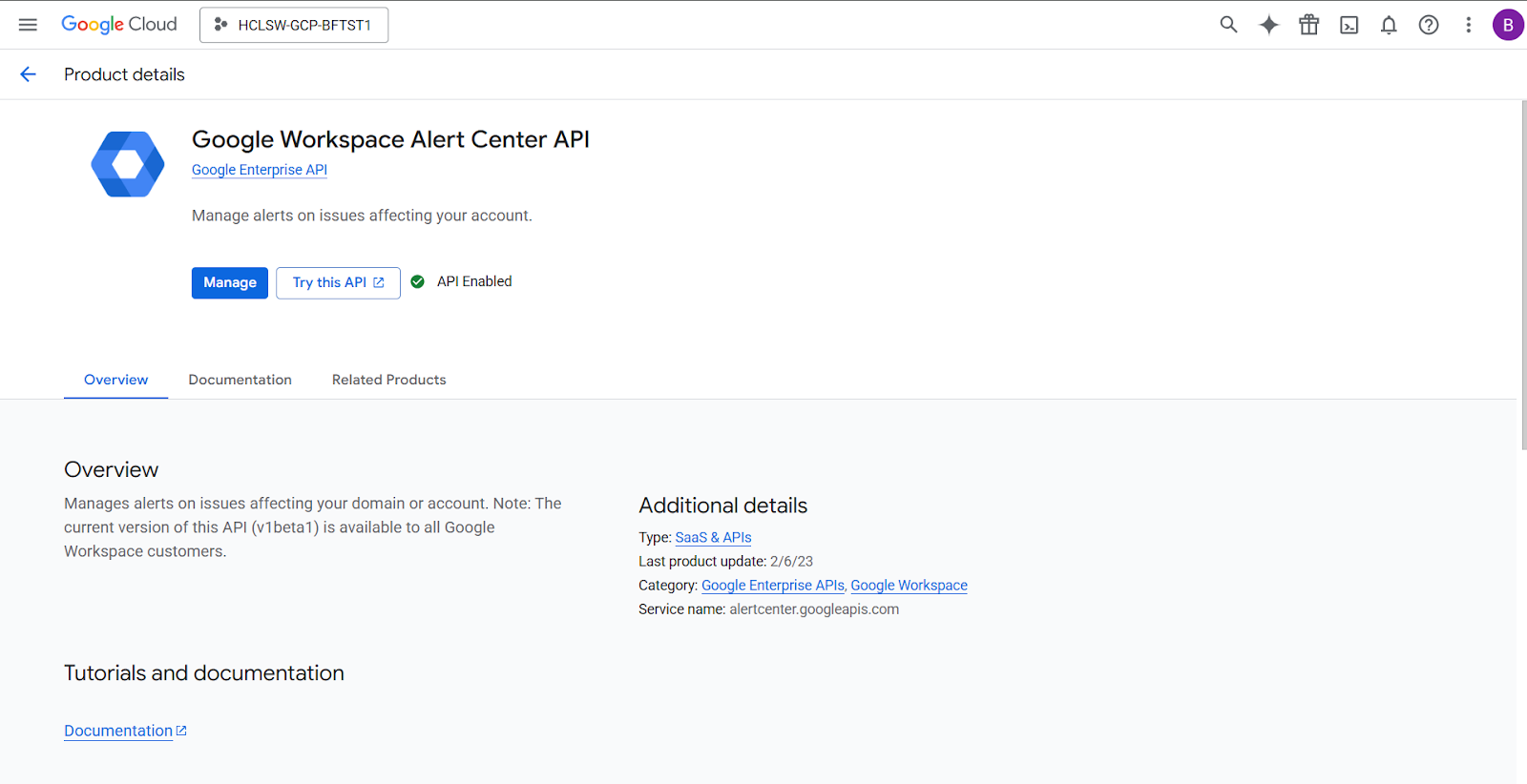
- Enable the Google Workspace Alert Center API.
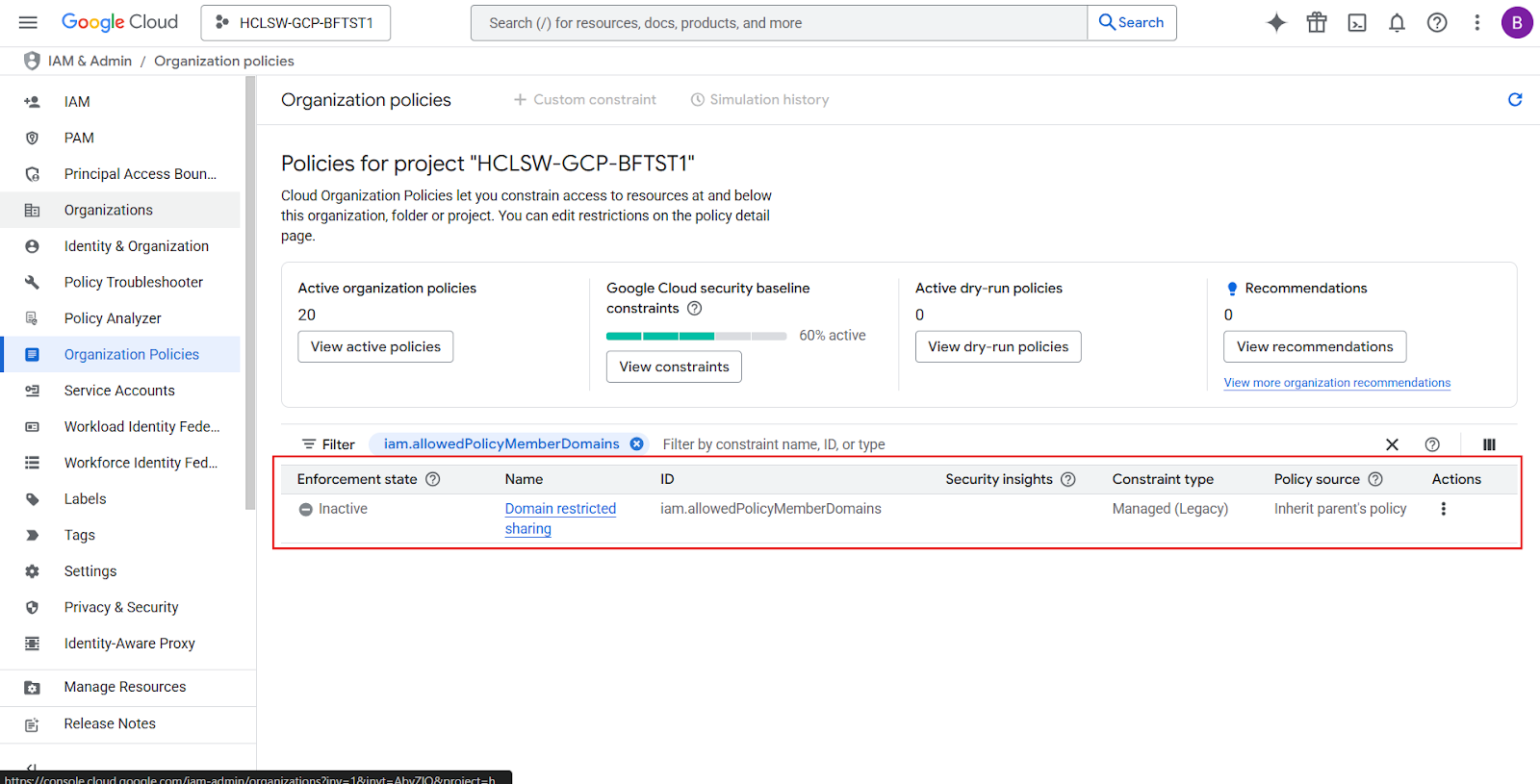
- On the IAM & Admin > Organization policies, disable the
iam.allowedPolicyMemberDomains policy by selecting Policy Source to Inherit
parent’s policy.
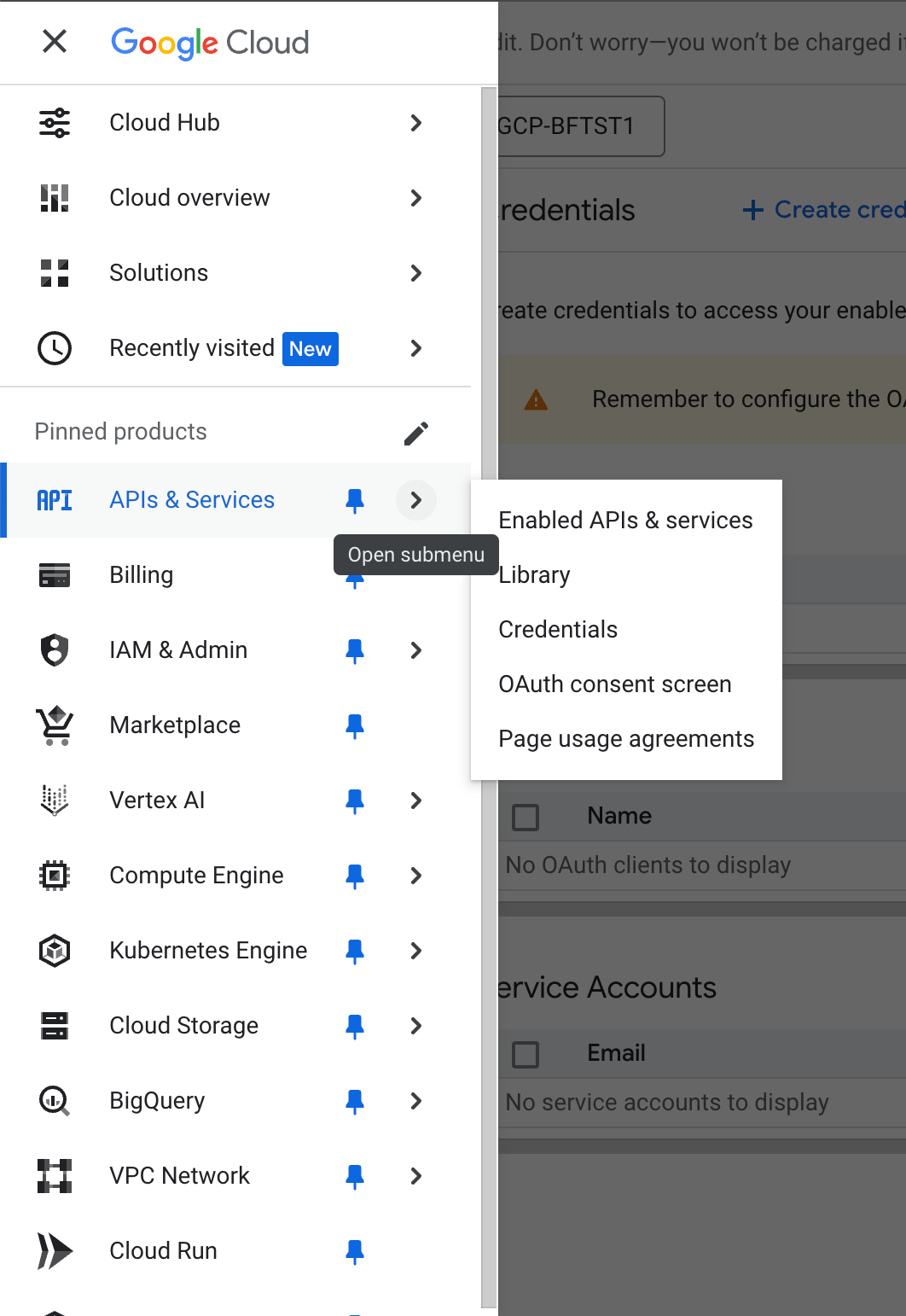
- On the APIs & Services page, in the left navigation bar, click
Credentials.
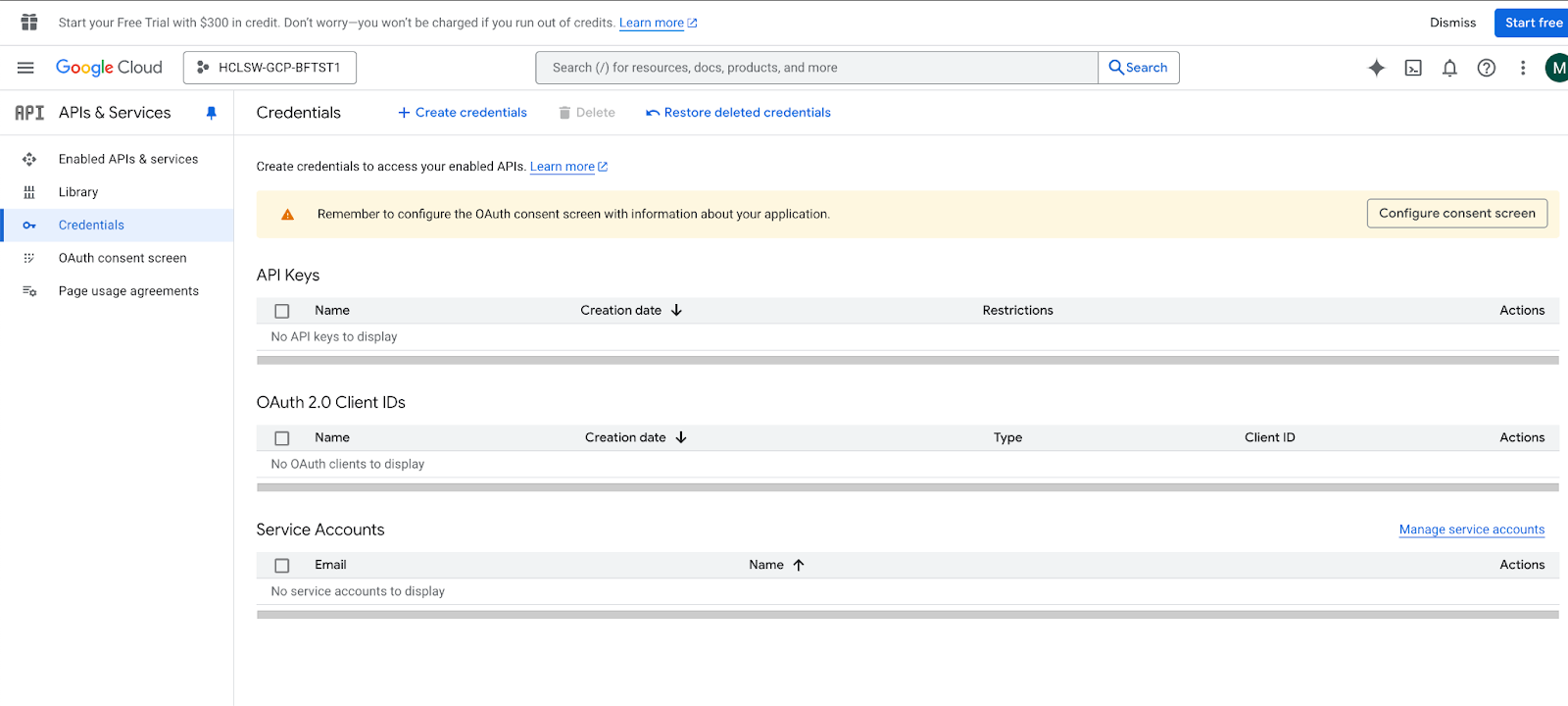
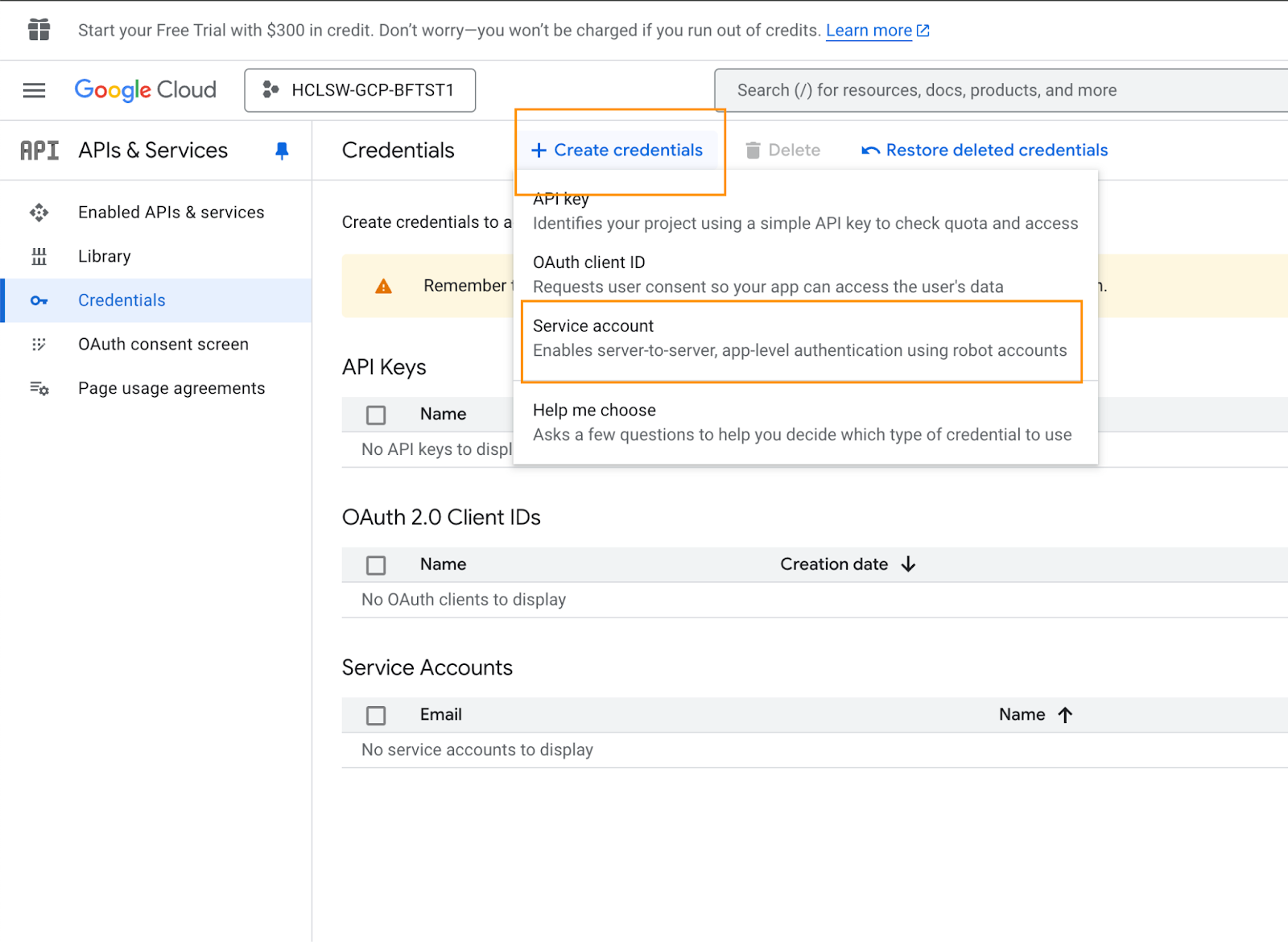
- On the next page that appears, click + CREATE CREDENTIALS, then select
Service account.
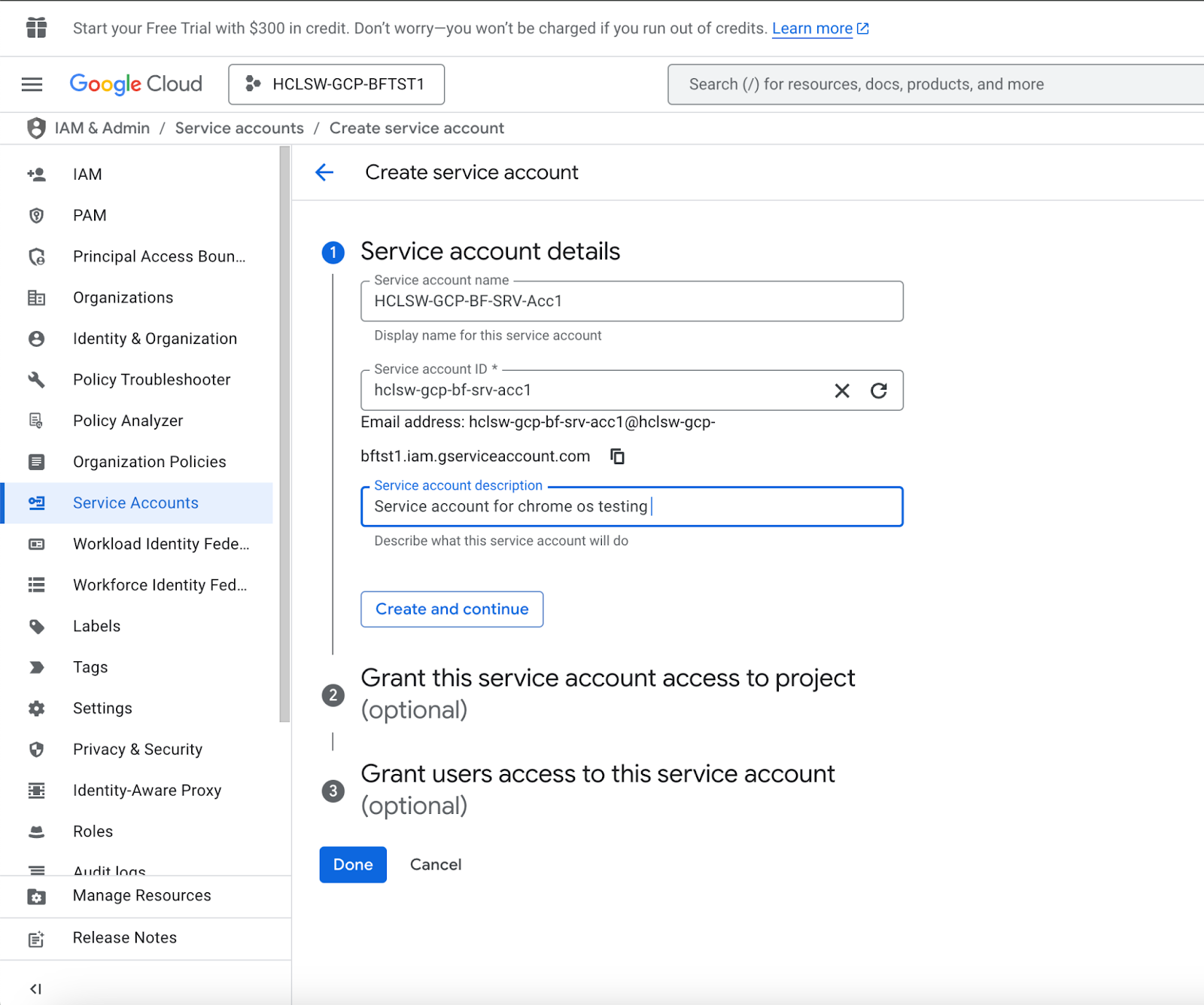
- Enter the information below, then click CREATE AND CONTINUE.
- Click the Role drop-down, then select below role.
- Cloud Pub/Sub Service Agent
- Create Service Accounts
- Delete Service Accounts
- Editor
- Pub/Sub Admin
- Pub/Sub Publisher
- Pub/Sub Subscriber
- Security Admin
- Service Account Key Admin
- Viewer
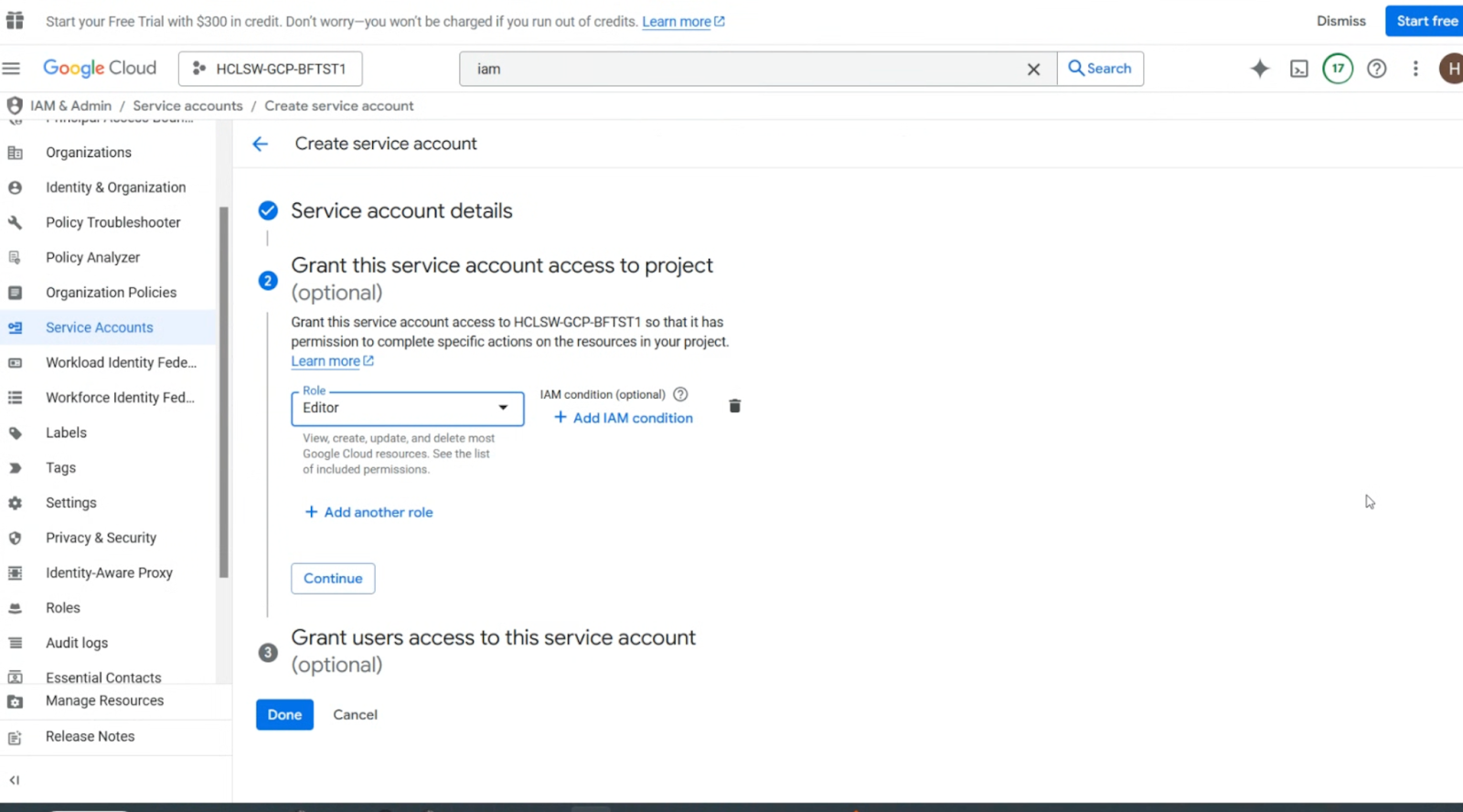
- Click DONE.
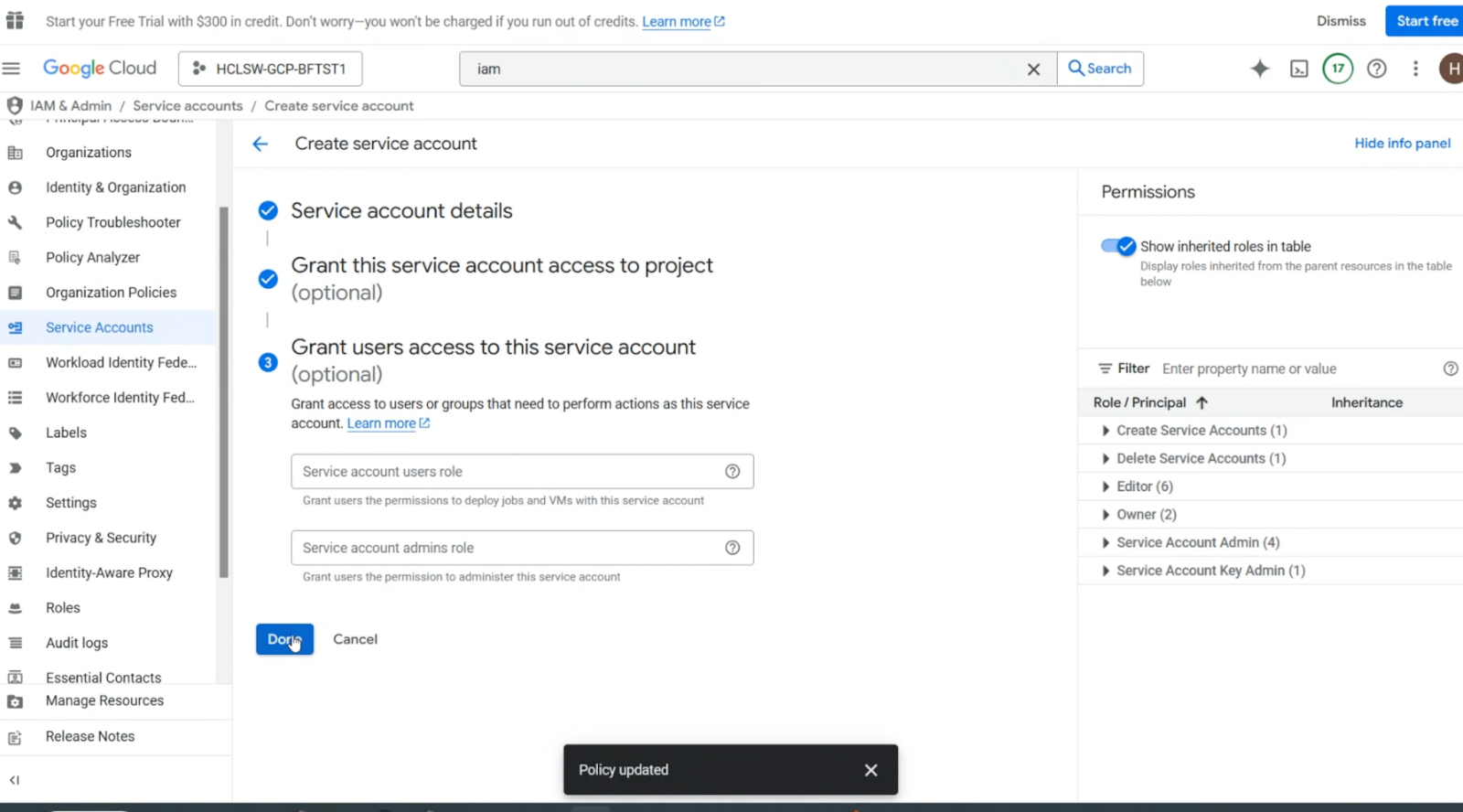
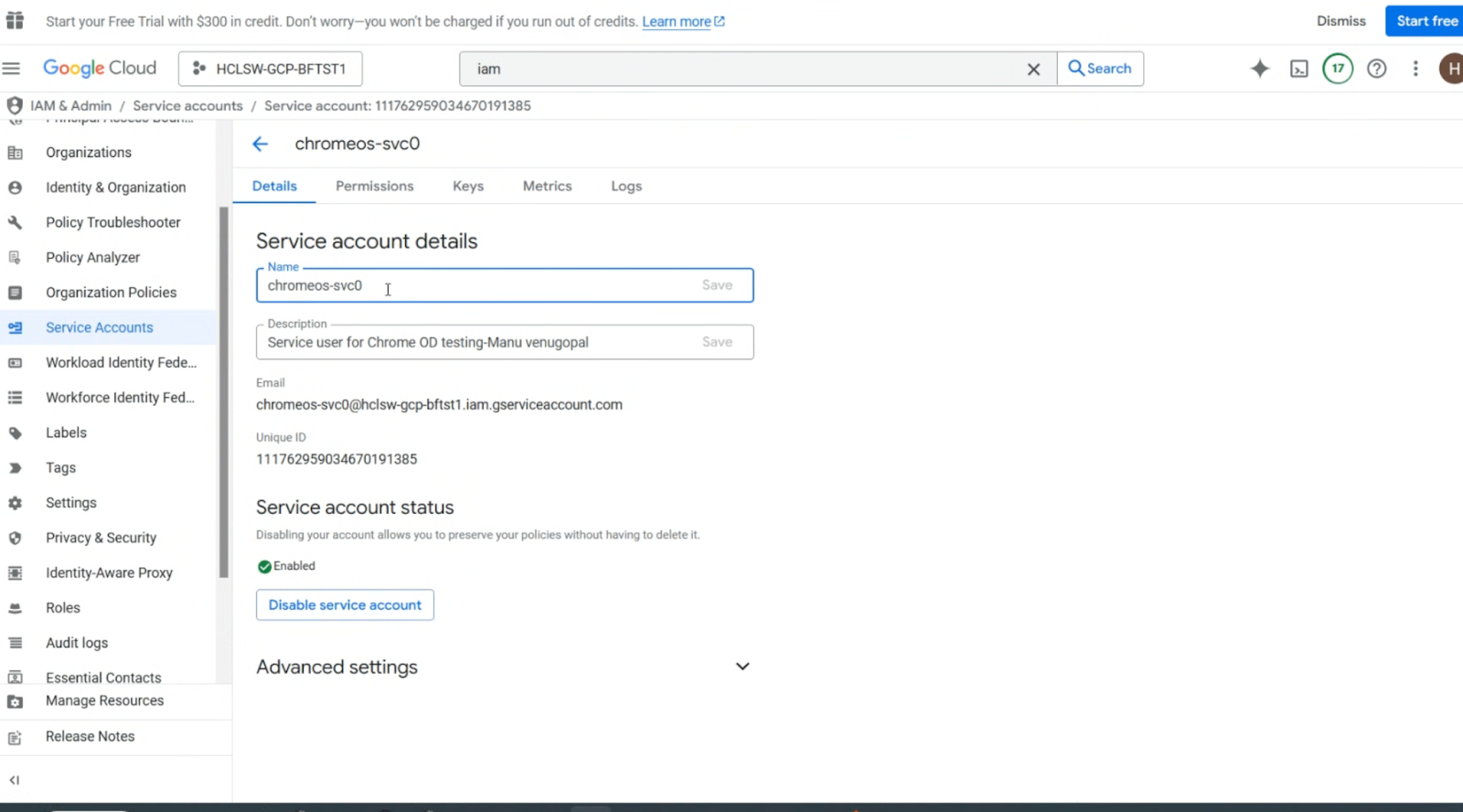
- On the Service Account page, record the Unique ID value for later use, then
click the KEYS tab.
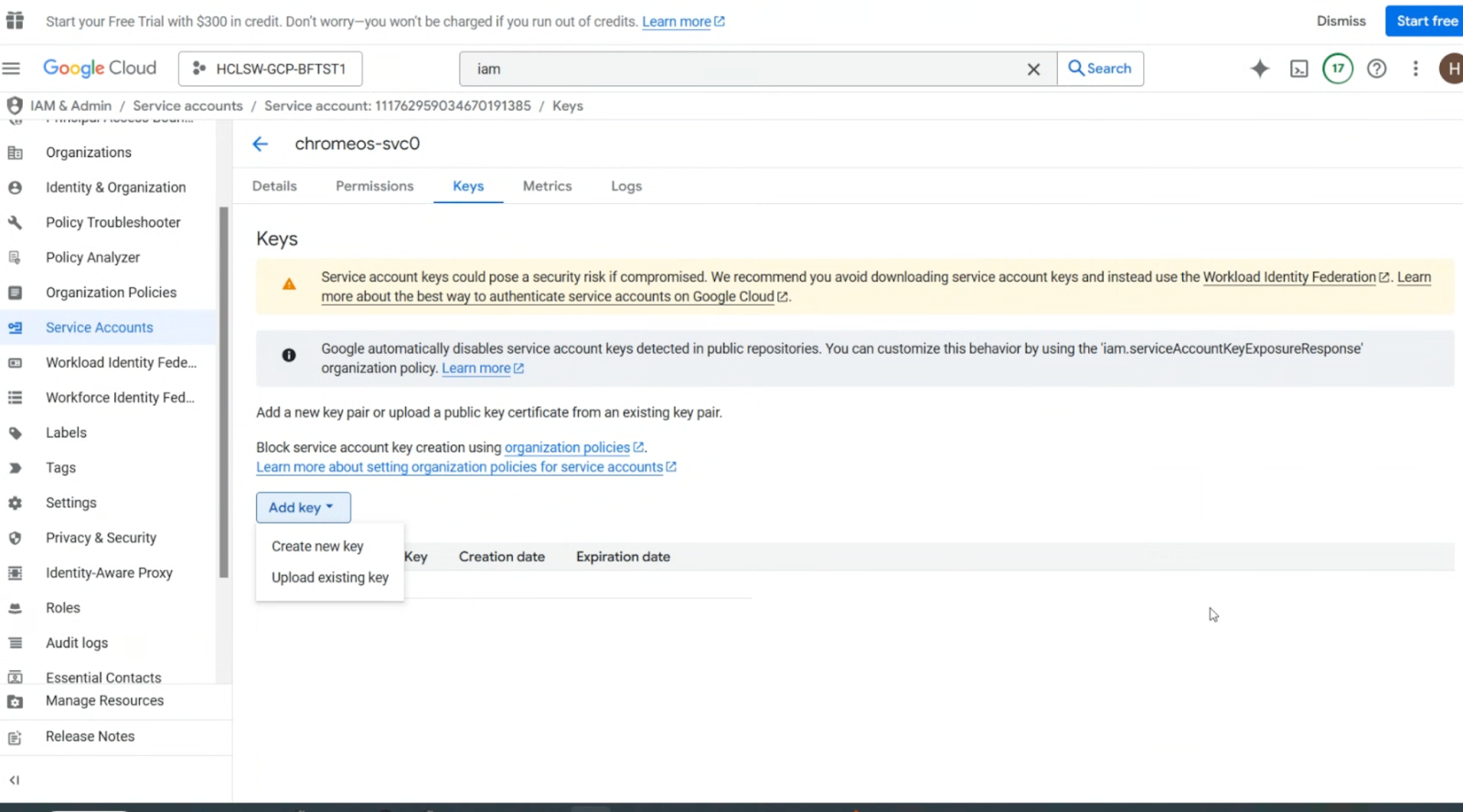
- In the Keys section, click the ADD KEY drop-down, and select
Create new key.
- In the pop-up, select the JSON option, then click CREATE.
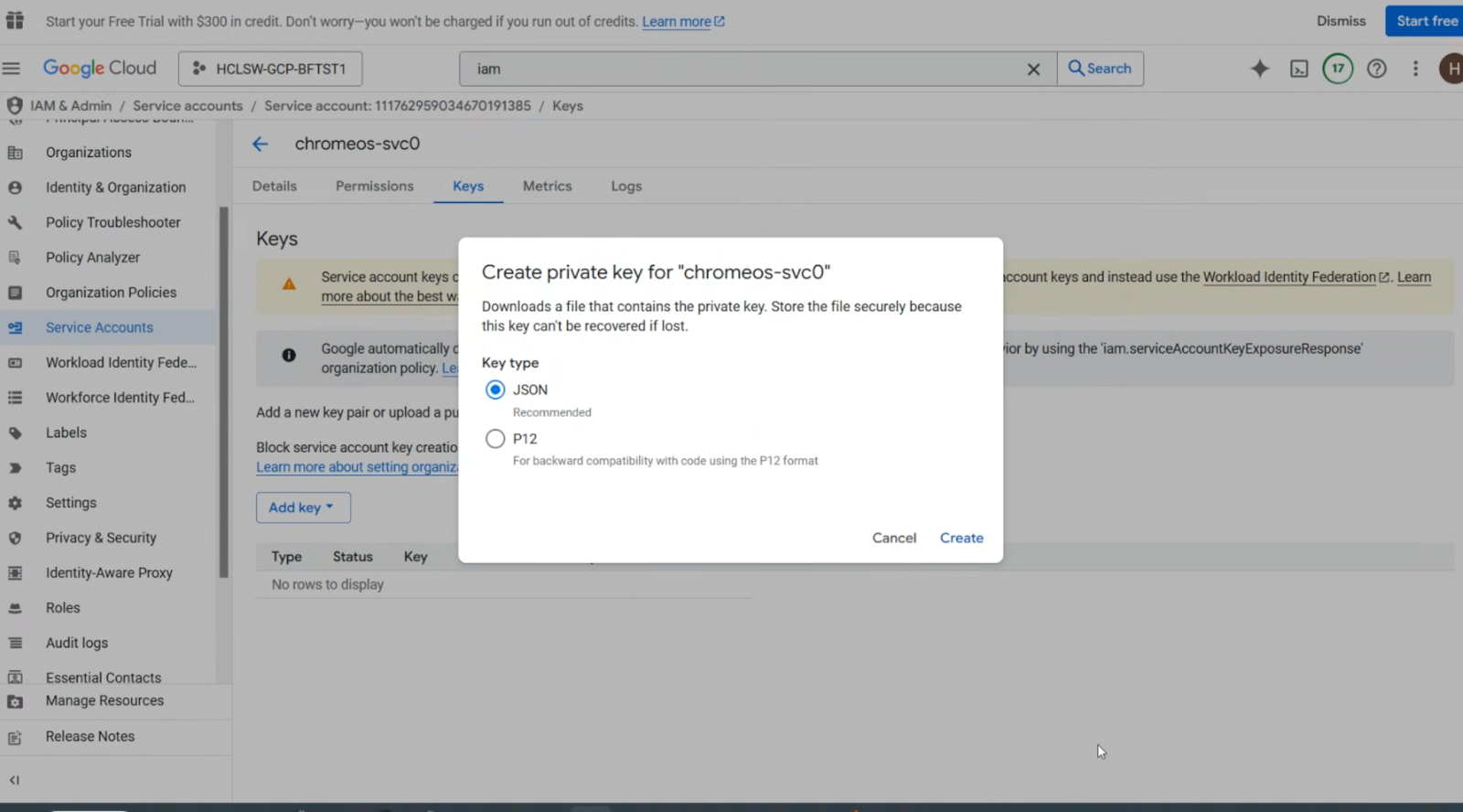
- The JSON key file downloads, and the following pop-up appears.