
Remote access
The Remote Access feature in BigFix Modern Client Management (MCM) allows administrators to access the screen of managed mobile devices through the BigFix WebUI for troubleshooting and support purposes.
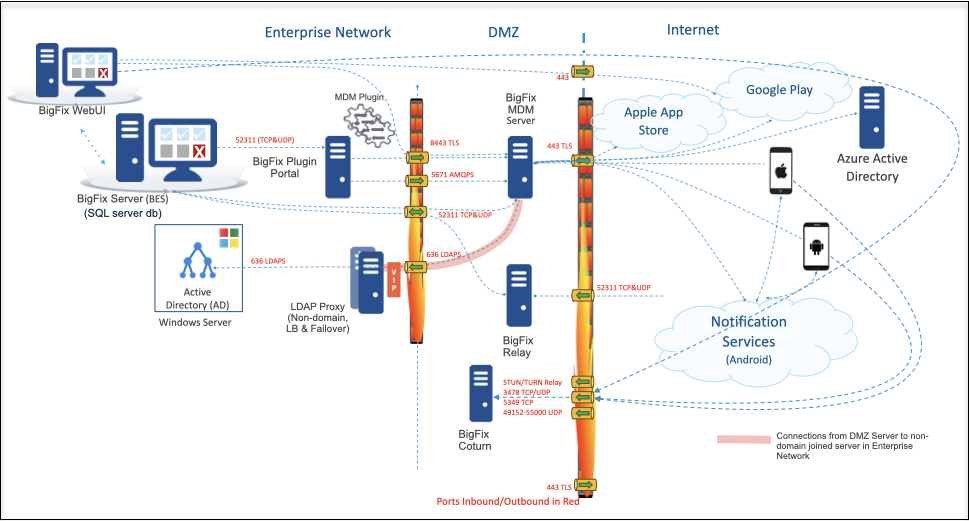
Remote Access works through a TURN server to ensure connectivity even in restricted network environments.
Key capabilities
- Remotely access end user device screen in real time
- Work across restricted networks using TURN server
- Secure session with user permission
Device compatibility matrix
The MCM Remote Control feature provides screen visibility and remote input capabilities for enrolled enterprise devices. Feature support varies based on the device enrollment mode due to operating system privacy controls.
| Feature / Capability | BYOD Enrolled Devices | Fully Managed & Dedicated Devices |
| Remote View (Screen View) | Supported | Supported |
| Remote Control (Interactive Input) | Not Supported | Supported |
| WebUI "Request Control" Button | Disabled1 | Enabled (during active View Mode) |
| WebUI Hover Message | "BYOD remote control is not supported for BYOD enrolled device" | N/A |
Remote control workflow
- Initiate Request from WebUI: The administrator selects the target device in the WebUI and sends a remote access request.
- Enable from App: The end-user accepts/enables the session directly within the client app on the target device.
- View Mode Initialization: The session starts in View Mode, providing live screen streaming without input capabilities.
- Trigger Request Control: The administrator clicks the Request Control button in the BigFix WebUI.
- End-User Approval: A consent popup is displayed on the device. The end-user
approves the remote control request.Note:
- The end user must be on the Remote View app to receive the confirmation pop-up.
- If accessibility permission has not been granted already, the user will be redirected to the Accessibility Settings screen. The user must enable accessibility for the BigFix UEM app and then press the Back button twice to return to the Remote View app. Once the user returns to the Remote View app, the remote control session will be established.
- Control Mode Active: The WebUI transitions to Control Mode, enabling interactive remote management.
Remote control architecture
Supported remote control actions
Once Control Mode is enabled, administrators can execute interactive management actions on the target device in real time with minimal latency:
- System Navigation Controls:
- Back Button: Simulates the system back button.
- Home Button: Returns the device to the home screen.
- Recent Apps: Triggers the system recent/multitasking apps view.
- Touch Gestures:
- Tap & Selection: Clicking elements on the WebUI streams tap gestures directly to the target device.
- Swiping & Scrolling: Performing click-and-drag gestures executes swipes on the target device.
- System Settings adjustments:
- Brightness Control: Adjusting brightness sliders in system menus.
- Text Input & Search:
- Typing keyboard input through WebUI fields and performing text searches on the remote device.
Revoking and terminating control
- Revoking Control via Device App: The end-user can tap the Revoke Control button on the device at any time. Tapping this button terminates Control Mode immediately while leaving the live View Mode session active.
- Ending Control via WebUI: Administrators can click the End Control button to drop back to View Mode or click End Session to terminate the connection entirely.
Timeouts & session log history
- Request Timeout Behavior
-
- Unanswered Requests: If the administrator clicks Request Control and the end-user ignores or fails to respond to the device prompt, the WebUI displays the status: "Request control is in progress".
- Automatic Timeout: If the request is not accepted within 1 minute, the request times out automatically, rejects, and returns a "Session Terminated" or timeout notification to the admin.
- On-Device Session History Log
-
- Session Records: The client application stores session logs locally on the device.
- Capacity:
- The interface defaults to displaying the top 5 most recent sessions.
- The user can select "View More" to expand and review up to a maximum of 30 past sessions.
- Session Badge Types:
- Monitored: Session included Remote View access.
- Controlled: Session escalated to include interactive Remote Control.8
Limitations
- Voice/audio is not supported
- User permission is required to start session
Remote Access requires additional infrastructure components and network configuration before it can be used. Complete the following prerequisites during installation.
System Requirements and Permissions