Monitoring deployments
Track the progress and results of a workflow deployment on the Deployments tab, and interpret the exit code that shows exactly why the workflow stopped on a device.
The Deployments tab
After you deploy a workflow, switch to the Deployments tab to track its progress and results per device.
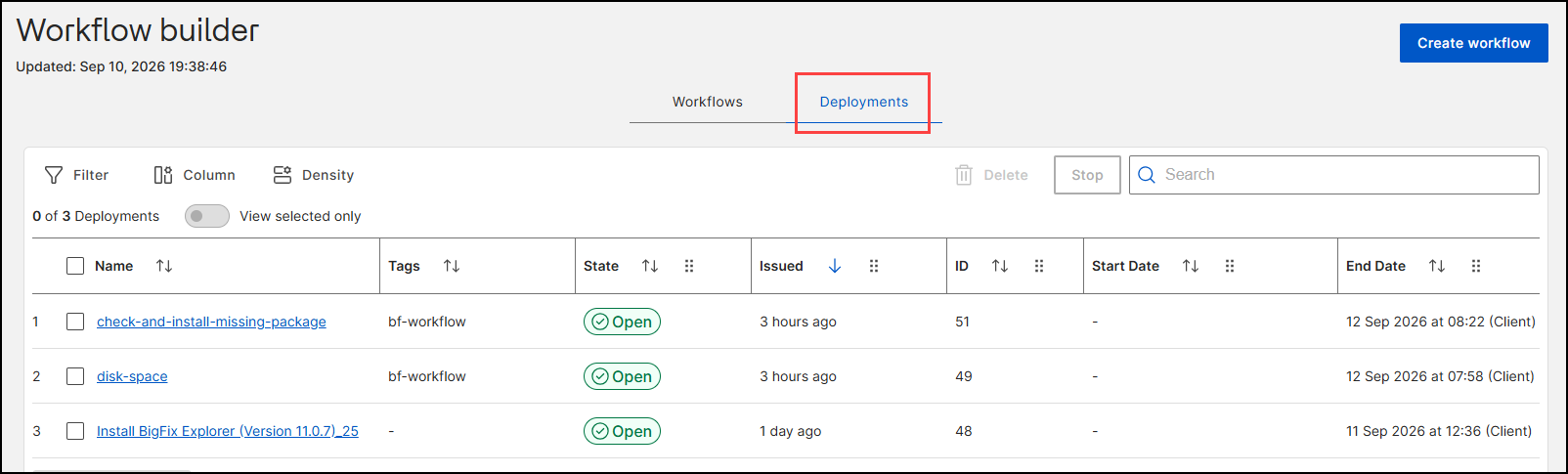
By default, the Deployments grid displays the following columns:
| Column | Description |
|---|---|
| Name | The name of the deployment. Select it to open the deployment details. |
| Tags | The tags of the underlying Action. Workflow deployments are
tagged bf-workflow. |
| State | The current state of the deployment, for example
Open. Deployment states are the standard
BigFix Action states (open, stopped,
expired); for details, see Deployment Details
page. |
| Issued | How long ago the deployment was issued. |
| ID | The numeric identifier of the deployment. |
| Start Date / End Date | The start and end date and time of the deployment (client time). |
List controls on the Deployments tab:
- Filter: builds filter conditions on properties such as
Name, State,
Issued, ID,
Start Date, End Date,
BigFix operator, and Tags.
Date properties support the operators Equals,
After, Before,
On or after, and On or
before.
Figure 2. Filter panel on the Deployments tab with date operators 
- Column: shows or hides columns. Up to 53 columns are available,
including State, Issued,
Start Date, End Date,
BigFix operator, Tags,
Issuer full name, % Complete,
Failure Rate, Reported Count,
Source Fixlet's Site, Source
Type, and detailed per-state result counters
(
ResultCount_*) such as Running, Fixed, Failed, Pending Downloads, Pending Restart, Waiting, Expired, Not Relevant, and Timeout Reached.Figure 3. Column selection panel on the Deployments tab 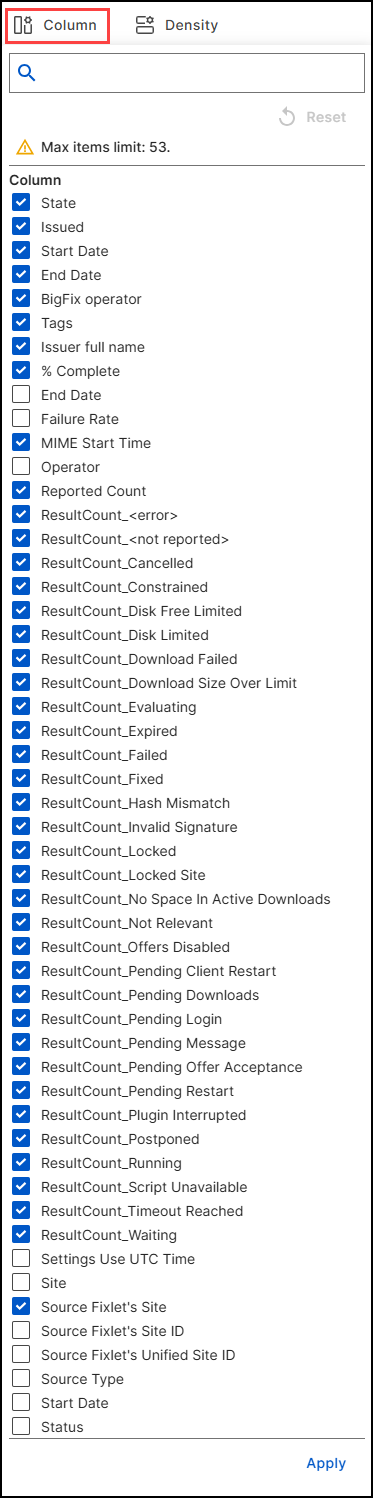
- Density: switches the row height between Compact, Standard, and Comfortable.
- Stop: stops the selected deployment. Stopping deployments of other operators requires the Stop Other Operator's Actions permission.
- Delete: deletes the selected deployment records. Deletion follows the standard BigFix UI deployment rules, with no additional Workflow Builder requirement: you cannot delete an open deployment, so stop it first. For details, see Deployments in the BigFix UI documentation. In the Workflow Builder database, the deletion is a soft delete kept for auditing.
- Search: filters the list as you type.
Viewing deployment details
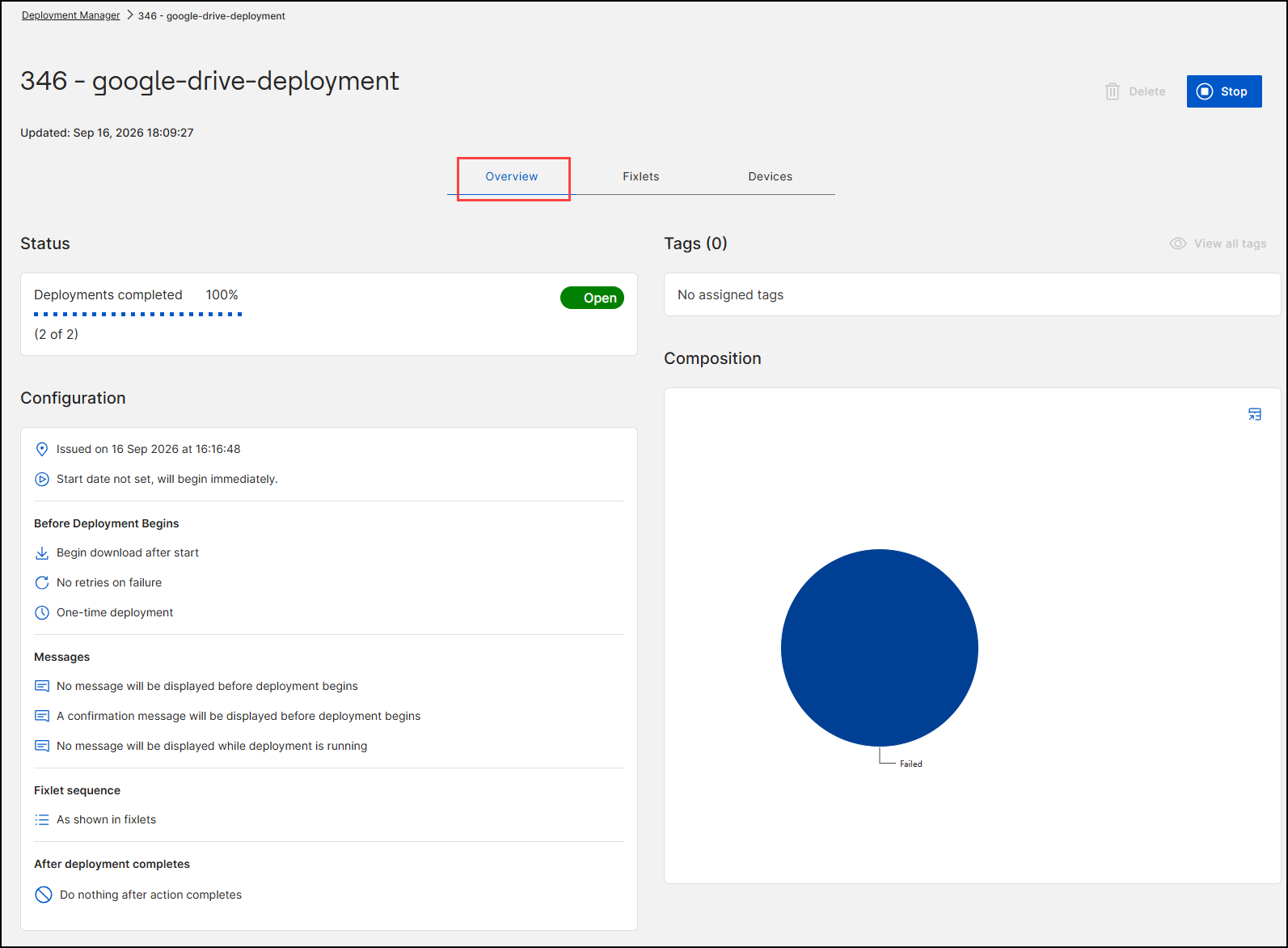
Select the name of a deployment to open its details page in Deployment Manager. The page title shows the deployment ID and name (for example, 346 - google-drive-deployment) with the Updated timestamp, the Stop button to stop the deployment, and the Delete button. The page contains three tabs: Overview, Fixlets, and Devices. For the general description of this page, see Deployment Details page in the BigFix UI documentation.
| Tab | Content |
|---|---|
| Overview | The Status card shows the completion percentage, the completed count (for example, 2 of 2), and the state (for example, Open). The Configuration card summarizes the deployment settings: when it was issued, the start behavior, the pre-deployment behavior (download, retries, one-time or recurring), the configured user messages, the Fixlet sequence, and the post-deployment behavior. The Tags card lists assigned tags, and the Composition chart visualizes the device results by status (for example, Failed). |
| Fixlets | Lists the content that the deployment executes, with filter, column, density, and search controls. |
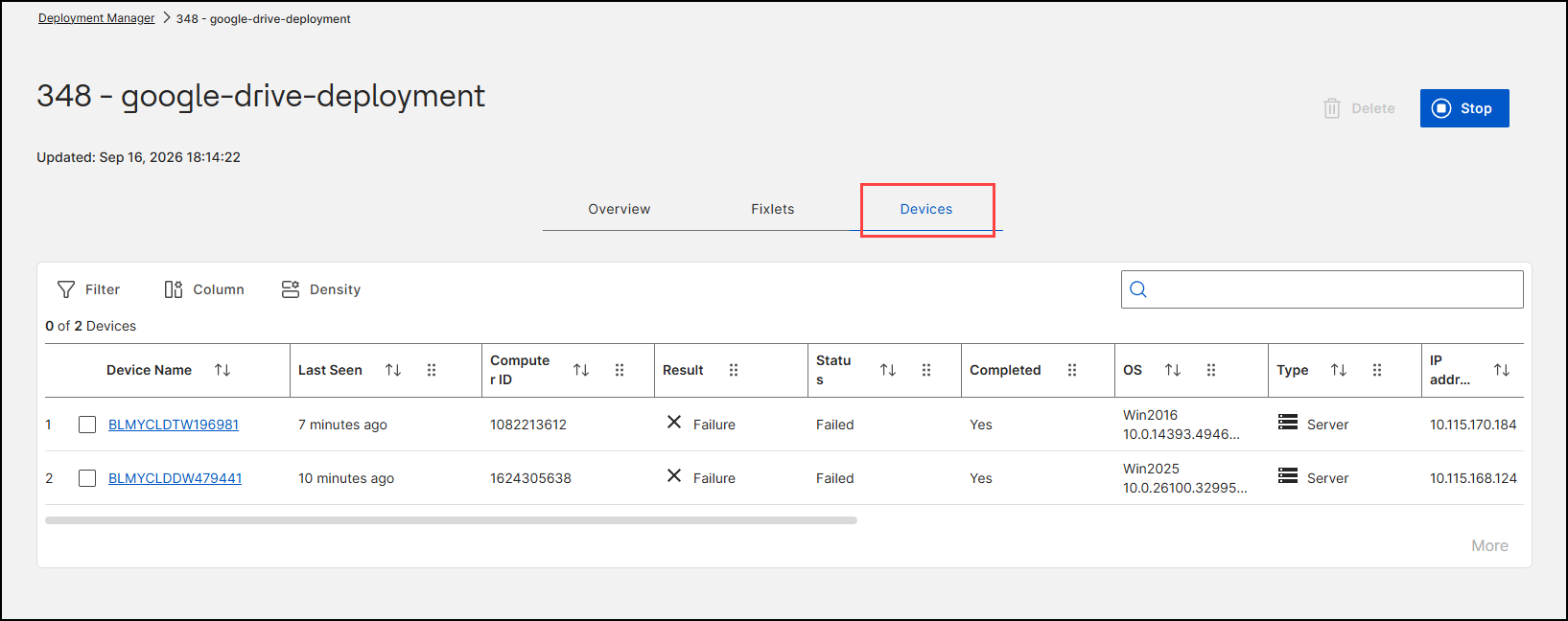
| Devices | Lists the per-device results with the columns Device Name, Last Seen, Computer ID, Result (for example, Failure), Status, Completed, OS, Type, and IP address. Select a device name to investigate the result on the device details page. |
Use the Devices tab to identify which devices failed and why before you redeploy.
Interpreting execution results
The Devices tab of the deployment details shows the per-device Result and Status. To understand why a workflow ended on a device, use the exit code: the workflow executes as a generated BigFix ActionScript in which every step occupies a block of lines, and the exit code identifies the step and reason where the execution ended — either a code built into the step (with an explanatory comment in the generated script) or the code and message you configured on a Stop step.
In version 1.0, inspect the line-level detail in the BigFix Console: open the
deployment's Action (tagged bf-workflow), select the
Reported Computers tab to see the per-computer
Status and Exit Code, and open
View Action Info for a computer to see the per-line
Completed/Failed status of the
generated ActionScript. The first Failed line marks exactly
where the workflow stopped, and the adjacent comment states the reason. For
example, a Package Uninstall step that finds more matching packages than
expected_instances allows ends with exit code 14 at the line
commented Package match count outside allowed range.