Deploying workflows
Deploy a Ready workflow to target devices through the four-step Deploy workflow wizard.
Before you deploy
- Deploying a workflow requires the Can Create Actions platform permission. If the deploy control is not available to you, contact your BigFix Administrator.
- The workflow must have the status Ready on the Workflows tab. For a Draft workflow, the Deploy icon is not available.
- In version 1.0, workflows are executed manually against a selected target list: a single device, a set of devices, or computer groups. The same targeting as for Fixlets and Tasks applies to workflows.
- Workflow deployments behave like Fixlet deployments with one difference: workflows cannot be reapplied when they become relevant again — there is no relevance concept for workflows, and the reapplication option is disabled in the deployment settings.
On the Workflows tab, locate the workflow and, in the Actions column, select the Deploy (rocket) icon. The Deploy workflow wizard opens and guides you through four steps: Devices, Behavior, Schedule, and Summary. The footer of every step shows how many devices the deployment currently applies to; select Next to advance, Back to return, or Cancel to abandon the deployment.
Step 1: Devices
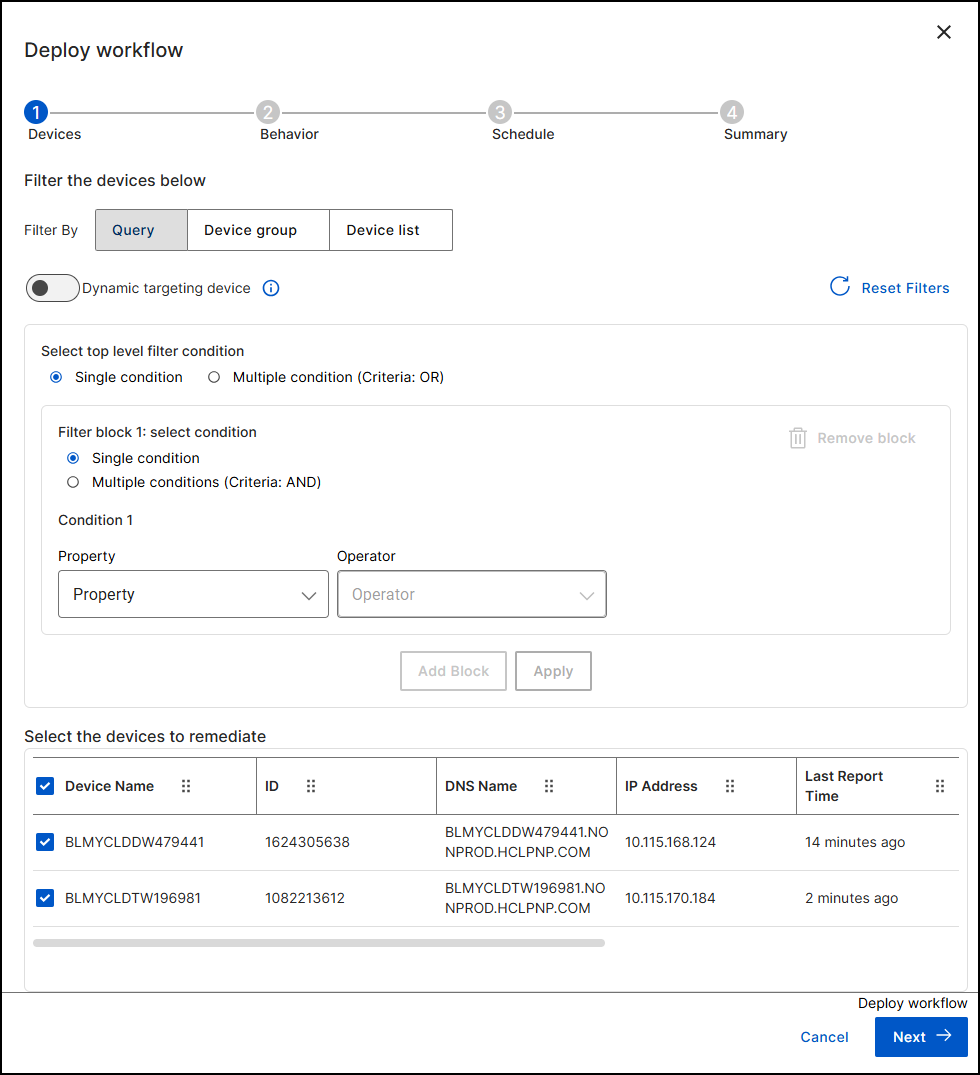
- In Filter By, choose how to target: Query (property-based filter), Device group, or Device list. These targeting options work as in every BigFix deployment; for device groups, see Creating and Managing Device Groups.
- For a query, select the top-level filter condition:
Single condition or Multiple condition
(Criteria: OR). Within a filter block, choose
Single condition or Multiple conditions
(Criteria: AND), then select a Property
and an Operator. Available properties include BIOS, CPU,
Device ID, Device Name, OS Name, OS Family, DNS Name, Computer Group, Active
Directory Path, IP Address, Agent Type, Agent Version, Device Type, Computer
Type, RAM, Relay, Free Space on System Drive, Total Size of System Drive,
Subnet Address, and MAC Address. Select Add Block to
combine blocks, Apply to run the filter, or
Reset Filters to start
over.
Figure 2. Property list of the device filter 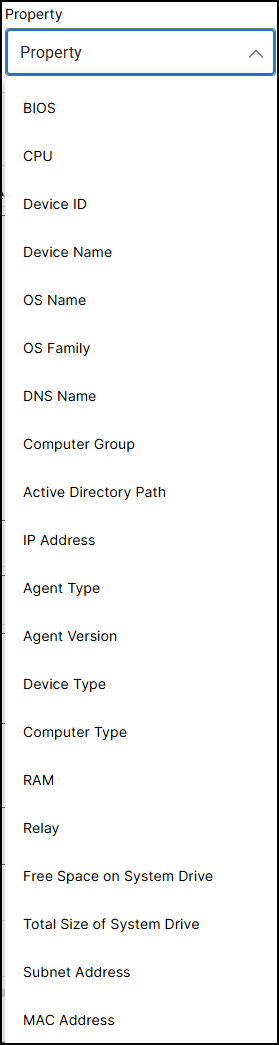
- Optional: turn on Dynamic targeting device to keep the target set dynamic instead of a static device list. This is standard BigFix deployment behavior.
- In the Select the devices to remediate grid (Device Name, ID, DNS Name, IP Address, Last Report Time), select the check boxes of the target devices, then select Next.
Step 2: Behavior
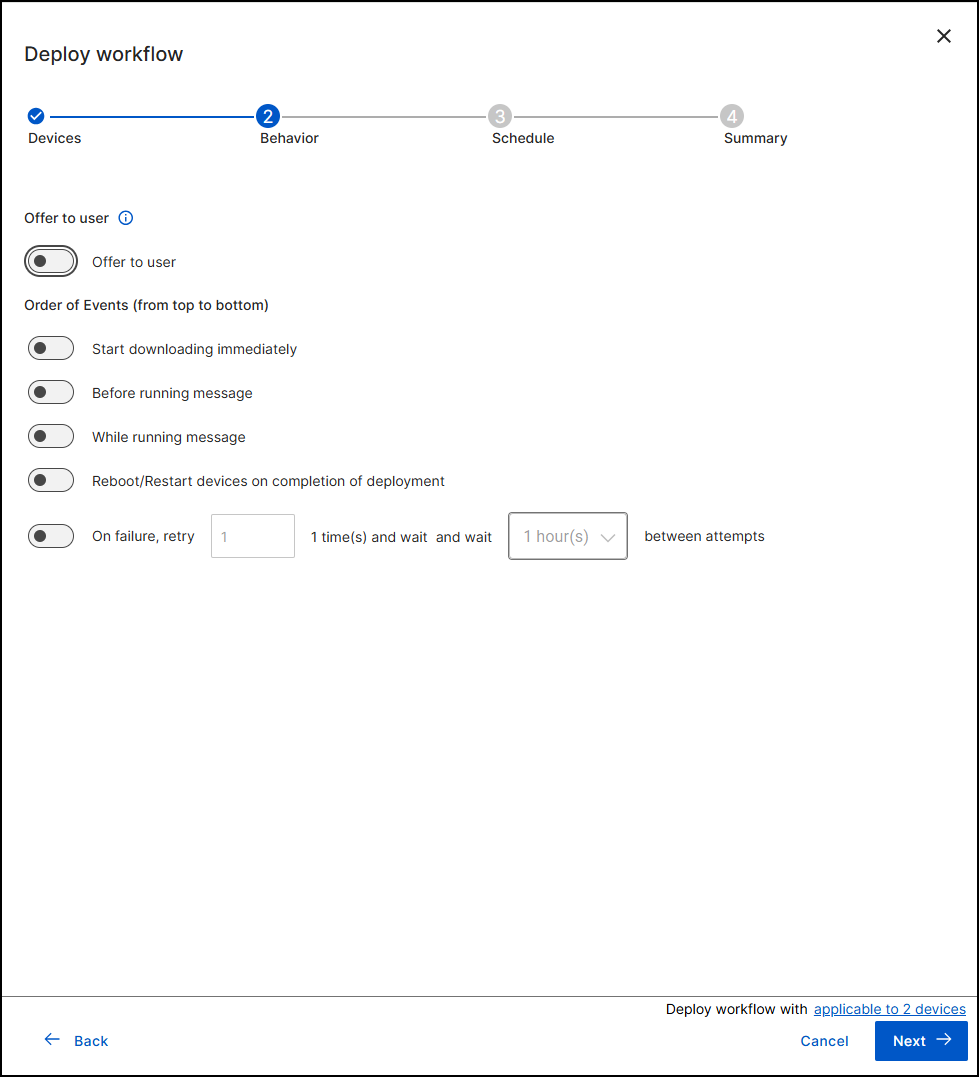
- Optional: turn on Offer to user to publish the
deployment as an offer that the device user accepts. You can select
Notify device owner of offer availability and
provide a Title, Category, and
Description for the
offer.
Figure 4. Offer to user options with notification, title, category, and description 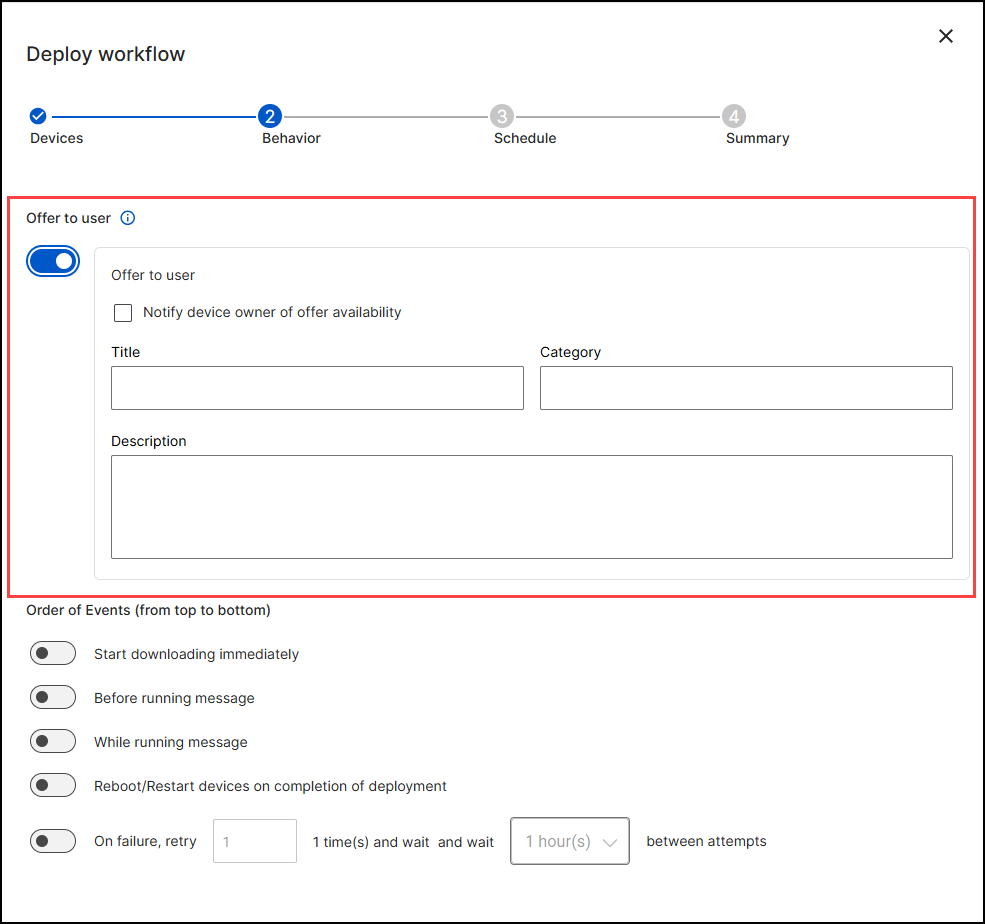
- Under Order of Events (from top to bottom), turn on the
behaviors you need:
- Start downloading immediately: pre-download the payload before the action starts.
- Before running message: display a message to the
device user before the action runs. Set Notify user
for a duration and what happens next (for example,
Run action immediately), and optionally
Allow user to
cancel.
Figure 5. Before running message options with notification duration and Allow user to cancel 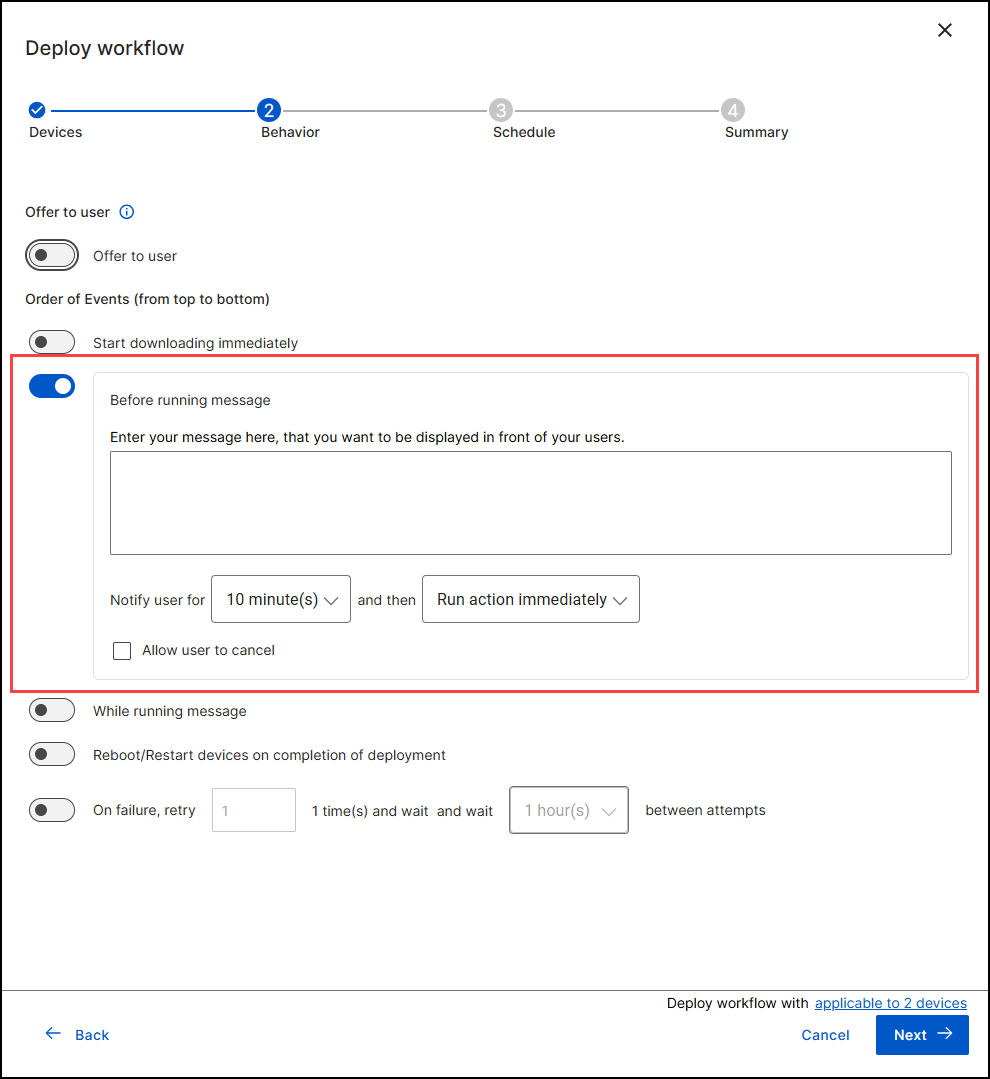
- While running message: display a message while the deployment is running.
- Reboot/Restart devices on completion of deployment.
- On failure, retry n time(s) and wait a selected interval between attempts.
- Select Next.
Step 3: Schedule
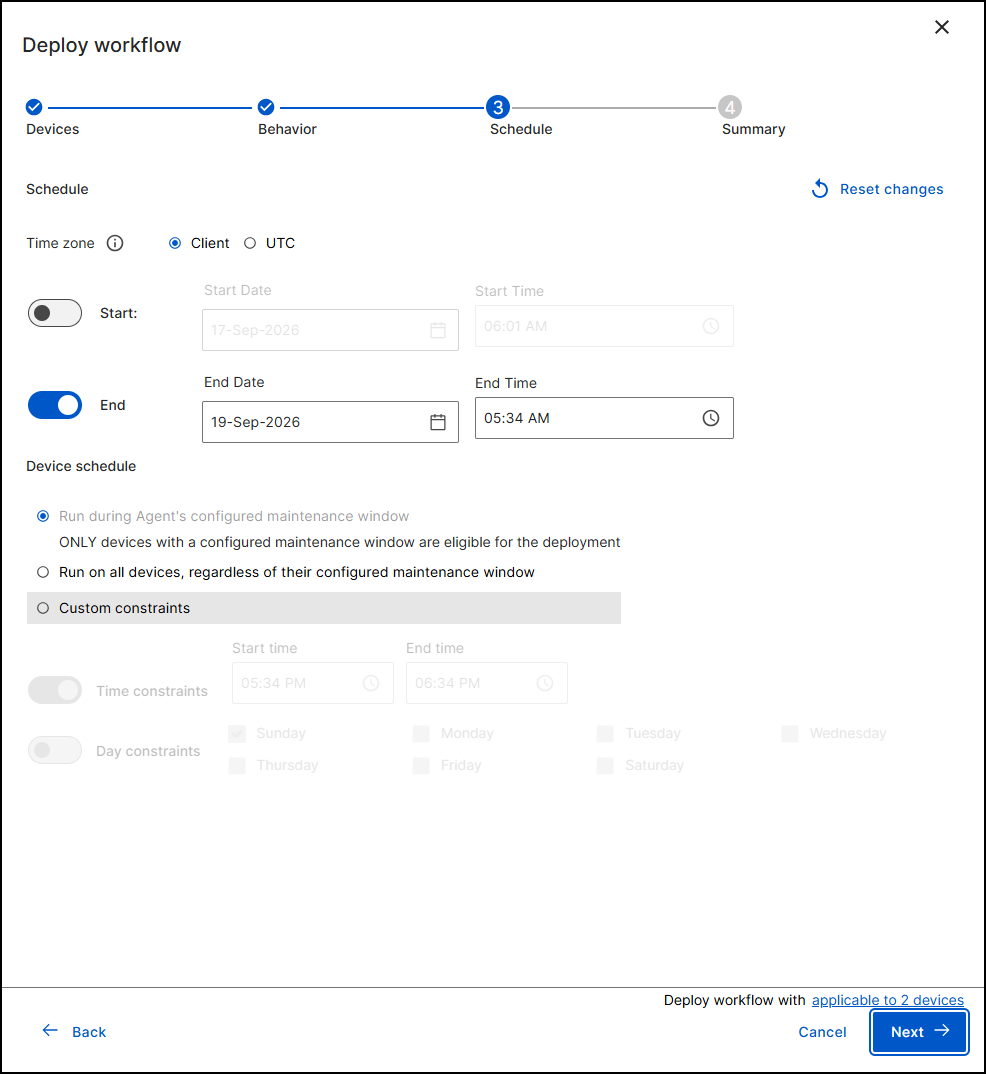
- Select the Time zone for the schedule: Client or UTC.
- Optional: turn on Start and set the start date and time; turn on End and set the end date and time. Without a start, the deployment begins immediately.
- Under Device schedule, choose
one:
- Run during Agent's configured maintenance window: only devices with a configured maintenance window are eligible for the deployment.
- Run on all devices, regardless of their configured maintenance window.
- Custom constraints: turn on Time
constraints (start and end time) and Day
constraints (days of the week) to limit when the
workflow may
run.
Figure 7. Custom constraints with time and day constraints enabled 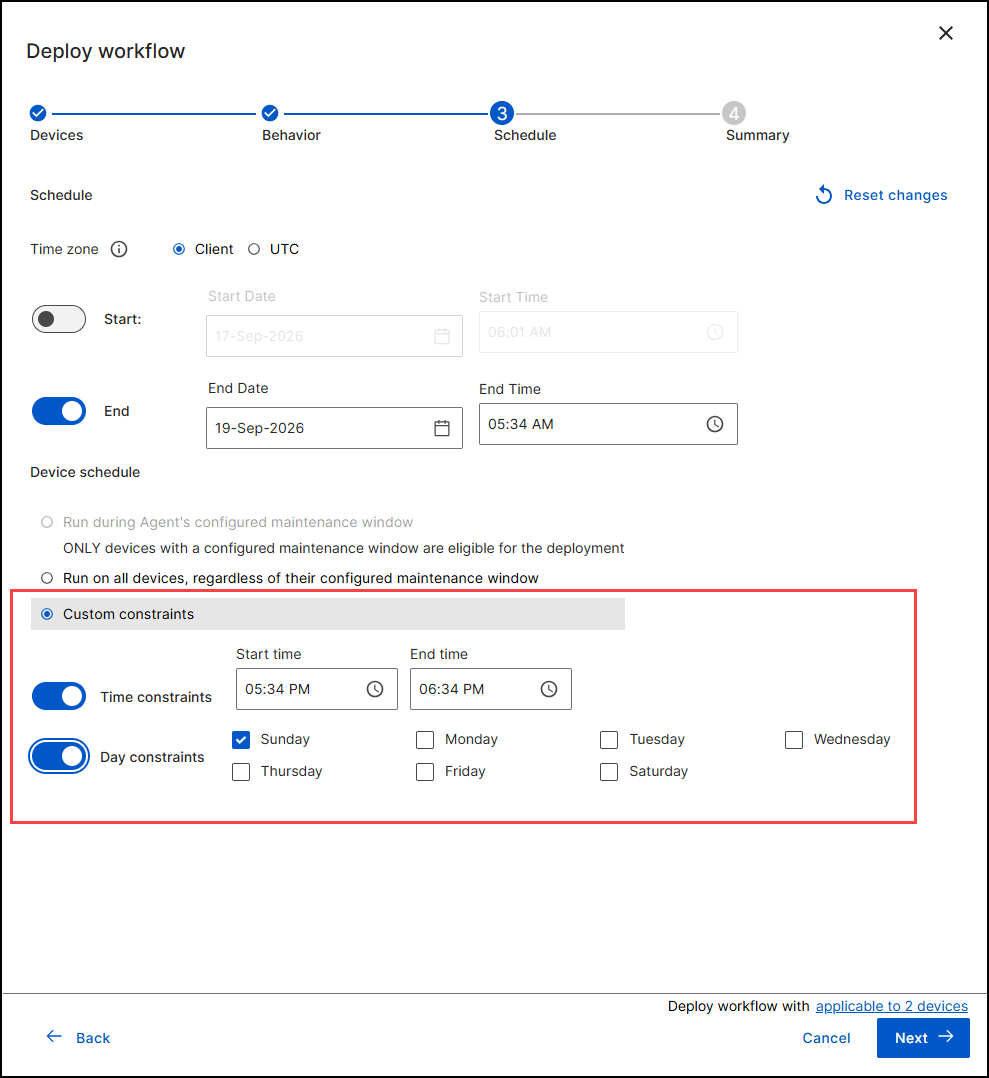
- Select Next. Use Reset changes to discard schedule edits.
Step 4: Summary
- In Action name, keep or edit the name of the BigFix Action to be created; it defaults to the workflow name.
- Review the summary: the workflow, the number of targeted devices, the schedule, the pre-deployment behavior (download, retries, recurrence), the user messages, the time constraints, and the post-deployment behavior.
- Select Deploy.
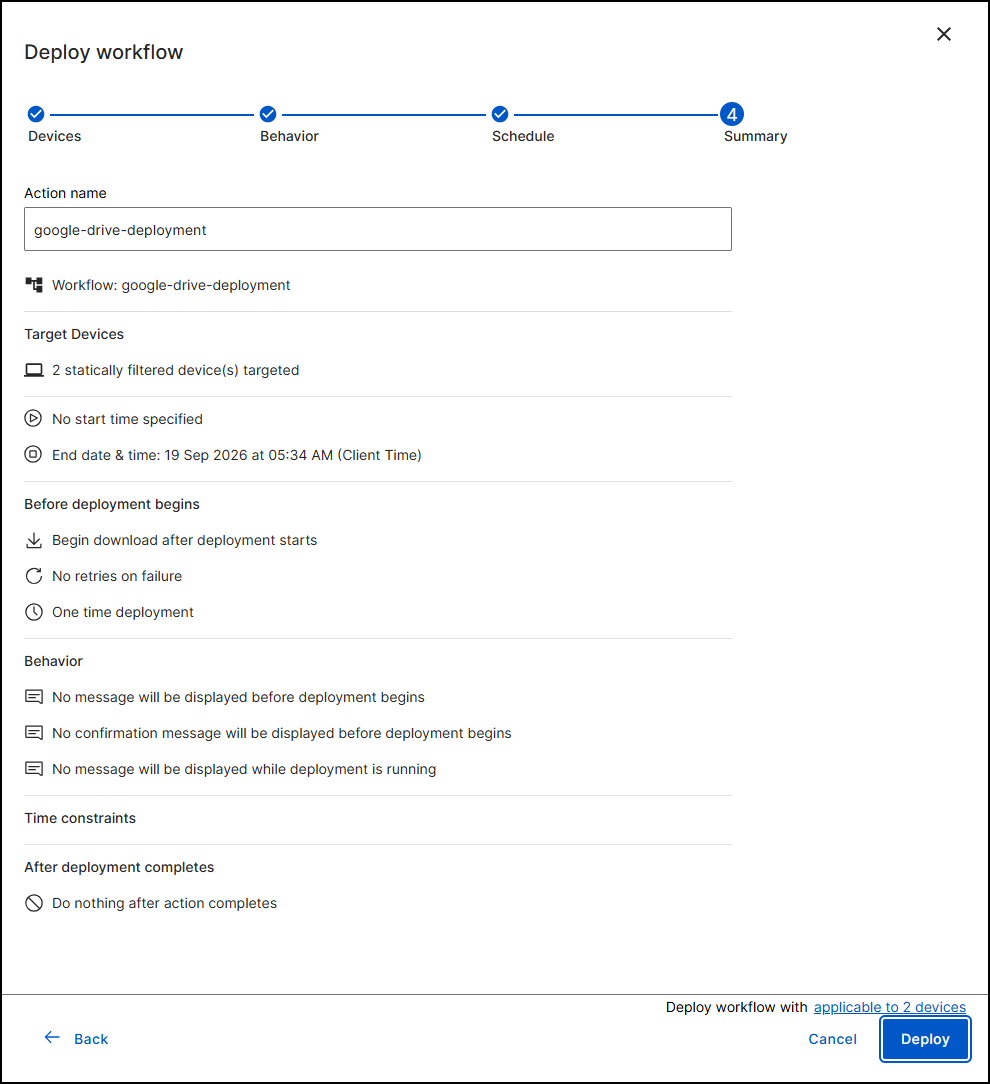
The deployment creates a BigFix Action tagged bf-workflow. It is
visible on the general Deployments view of the BigFix UI as well as on the
dedicated Deployments tab in Workflow Builder — continue
with Monitoring
deployments to track it.