Workflow Builder
Workflow Builder is an application within the BigFix UI that lets you automate multi-step device tasks in a drag-and-drop visual editor, without writing a complete Fixlet or Task.
What Workflow Builder does
You chain predefined steps, such as checking free disk space, evaluating a Relevance expression, managing a service, or installing a package, into a single workflow that runs on target devices through the BigFix Platform execution engine. Version 1.0 automates tasks per device and provides an alternative method to creating standard BigFix content such as Tasks and Fixlets.
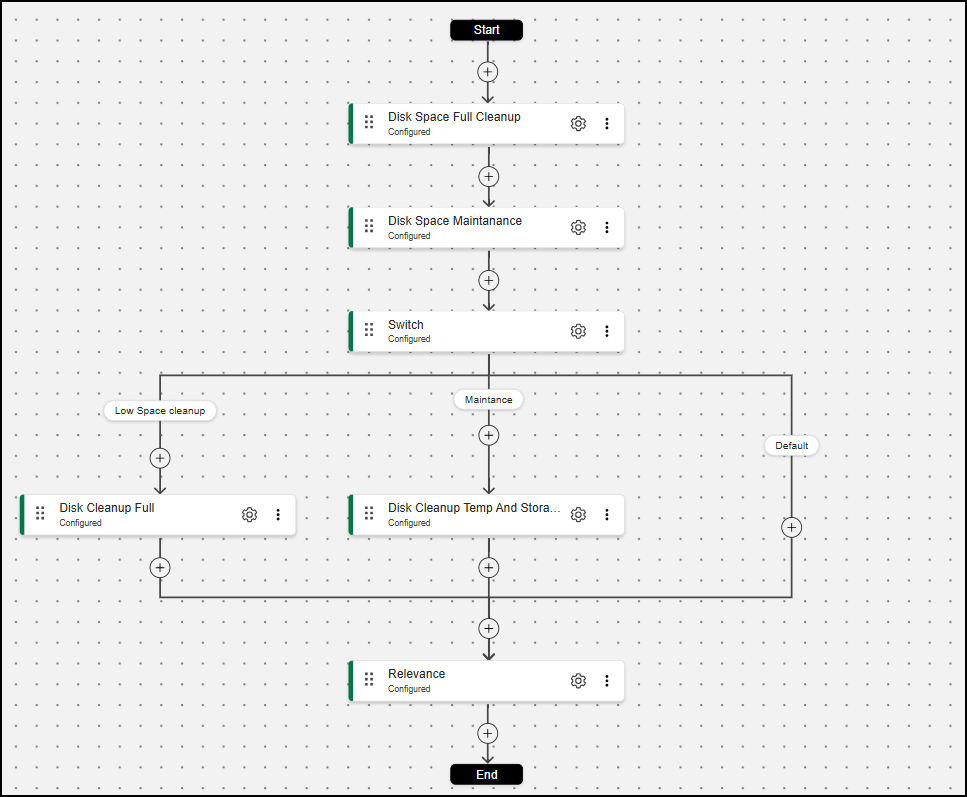
The following example shows what a finished workflow looks like: two configured Disk Space checks feed a Switch that routes execution into a Low Space cleanup branch, a Maintance branch, or the Default branch, and the flow closes with a Relevance check before the End node.
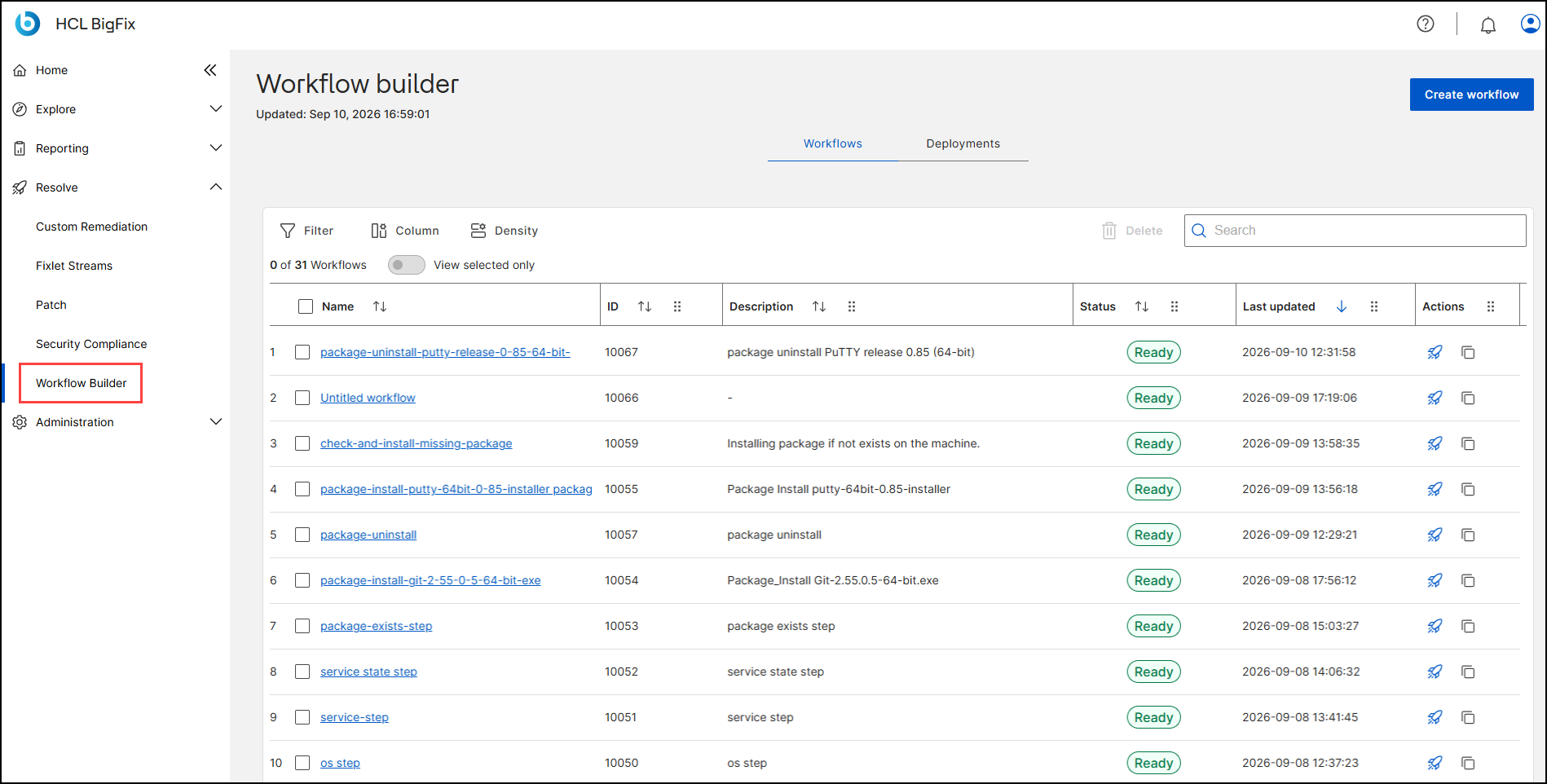
To open the application in the BigFix UI, expand Resolve in the navigation pane and select Workflow Builder. The link appears only if the application is assigned to your user or role; if you do not see it, contact your BigFix Administrator (see Stage 6: Grant user access).
Key concepts and terminology
Become familiar with the following terms before you continue; the rest of this guide uses them without further explanation.
| Term | Meaning |
|---|---|
| Workflow | An ordered sequence of steps that starts at the Start node and finishes at the End node on the editor canvas. Each workflow has a name, an ID, a description, a status (Draft or Ready), and an underlying JSON document. |
| Step | A reusable building block from the Action library. Steps belong
to one of three kinds: action (changes the state of the
device and returns whether the change was successful),
check (inspects the state of the device and, depending
on the execution_strategy parameter, ends the
execution or returns the evaluated value for use in a Switch), and
flow (controls the execution, for example Switch and
Stop). |
execution_strategy |
A parameter available on most check steps. Set it to
return to pass the evaluated value to a later
Switch step, or to exit to end the workflow
immediately when the condition is not met. |
| Deployment | Deploying a workflow creates a BigFix Action tagged
bf-workflow. The deployment is visible both on
the dedicated Deployments tab in Workflow
Builder and in the general BigFix UI Deployments view. The
bf-workflow tag is the official standard
adopted for actions originating from Workflow Builder; it
distinguishes them from actions originating from Fixlets and
appears in action logs for traceability. |
| BigFix Workflow Service (internally: acceptor) | The Workflow Builder backend service. It is installed
separately from the BigFix UI as the Windows service
BigFixWorkFlow, serves the BigFix UI over a
mutual-TLS (mTLS) connection, and stores workflows and their
versions in its own database schema, wrkflw, in
the BigFix Platform database (BFEnterprise). |
| Version | Every save of a workflow creates a new version of its document. The version history is retained indefinitely in this release and is not yet exposed in the UI. |
| DSL | The workflow definition language. Every workflow is stored as a
JSON document that declares its DSL version (for example, 1.0.3)
and lists the steps in a do array. |
How workflows differ from Fixlets and Tasks
A Fixlet or Task that is not relevant on a device is only reported as not
relevant — you never learn more. A workflow behaves differently: the
Action is executed, and when a check step ends it early, the report shows the
exact line at which execution stopped, which tells you the precise reason why it
did not continue on that device. To use this to your advantage, start every
workflow with a check step whose execution_strategy is
exit, so that devices in an unexpected state end early with a
clear reason. For where to read the stop line, see Interpreting execution results.
Supported target devices
Workflow Builder version 1.0 targets Windows devices only, with BigFix Agent version 9.5.11 or later. HCL recommends BigFix Platform 11 with version 11 Agents.
Quick start
If Workflow Builder is already installed and assigned to you, this is the shortest path from zero to a monitored deployment:
- Open Resolve > Workflow Builder and explore an example workflow on the Workflows tab (see The Workflow Builder page).
- Select Create workflow, name it, and add a check step
(for example, OS or Disk Space) with
execution_strategy =
                        exit
(see Building workflows). - Add your action steps, configure each one, and select Save workflow. The workflow is saved as Draft.
- Change the workflow status to Ready. Workflow Builder validates every step; only Ready workflows can be deployed.
- Select the Deploy (rocket) icon and walk through the four-step wizard (see Deploying workflows).
- Track the result on the Deployments tab (see Monitoring deployments).
Known limitations
Review these limitations before you plan a rollout; they apply to version 1.0.
- Windows only: only Windows devices are supported as workflow targets in version 1.0.
- No reapplication: workflows have no relevance concept, so they cannot be reapplied when a device becomes relevant again; the reapply when relevant again option available for other actions is disabled for workflow deployments. This is by design, not a defect.
- Version history retention: the history of workflow versions is kept forever in this release.
- Concurrent edits: there is no merge of concurrent edits — the first save wins, and later saves fail with an error and must be repeated.
- No per-workflow permissions: every user assigned the Workflow Builder application can manage all workflows, including the sample workflows, which have no protection.
- Nested Switch nodes: partially supported. If you add a Switch node inside another Switch node, the layout may initially render misaligned. Workaround: add the nested Switch node first, and then add the steps under its branches — the layout is then generated correctly.
- Ports fixed after installation: the basic authentication and mTLS ports are chosen at installation and cannot be reconfigured afterwards in this release.
- No backup and restore; uninstallation loses access to existing workflows: backup and restore of the BigFix Workflow Service is not available in this release. Uninstalling the service removes the HMAC key that protects the stored workflows, so previously saved workflows can no longer be accessed — even from a restored database backup. If an installation is broken and must be set up from scratch, export the existing workflows as JSON files first (see Working with the Live JSON editor) and import them into the new installation.
- Action Script parameters must be unique: the Action Script you provide in an Action Script step is embedded as-is into the target action. Use parameter names that are unique across all nodes of the workflow.
- BigFix engine compatibility: Workflow Builder generates standard BigFix ActionScript and packages the entire visual flow into a single action. Because it runs on the native BigFix engine, workflows are subject to standard ActionScript rules, such as global parameter scoping and native parser behavior.