Step Library Reference
Every step available in the Action library: its purpose, kind, input parameters, and output. The same information is available in the product on the Help tab of the Configure panel of each step. All steps use DSL version v1.
The parameter names in the tables below are the identifiers used in the workflow JSON
document. In the Configure panel, the same parameters appear
with friendly labels — for example, os_kind appears as
Os Kind, requiredGB appears as
Required GB, and execution_strategy
appears as Execution Strategy. Every panel also offers the
Save node result check box, which stores the step output so
that a later Switch step can evaluate it; keep it selected — clearing it has no
special use in version 1.0.
| Category | Step | Kind | Summary |
|---|---|---|---|
| BigFix | Action Script | Action | Runs a provided BigFix ActionScript. |
| BigFix | Relevance | Check | Evaluates a Relevance expression. |
| BigFix | Script | Action | Runs a provided Bash, PowerShell, or Batch script. |
| File System | File Copy | Action | Makes a copy of a file. |
| File System | Directory | Action | Creates or removes a directory. |
| File System | Dir Exists | Check | Checks directory existence. |
| File System | Disk Space | Check | Checks available disk space. |
| File System | File Exists | Check | Checks file existence. |
| File System | Path Exists | Check | Checks path existence and type. |
| Flow Control | Stop | Flow | Stops the execution with an optional exit code. |
| Flow Control | Switch | Flow | Splits the execution into branches. |
| Maintenance | Disk Cleanup | Action | Frees disk space by running cleanup operations. |
| Operating System | OS | Check | Checks if the OS matches a given condition. |
| Operating System | Service | Action | Manages the service status and startup type. |
| Operating System | Service State | Check | Gets the current state of a service. |
| Package | Package Exists | Check | Checks whether matching packages are within the allowed limit. |
| Package | Package Install | Action | Installs software using an MSI or EXE silent installer. |
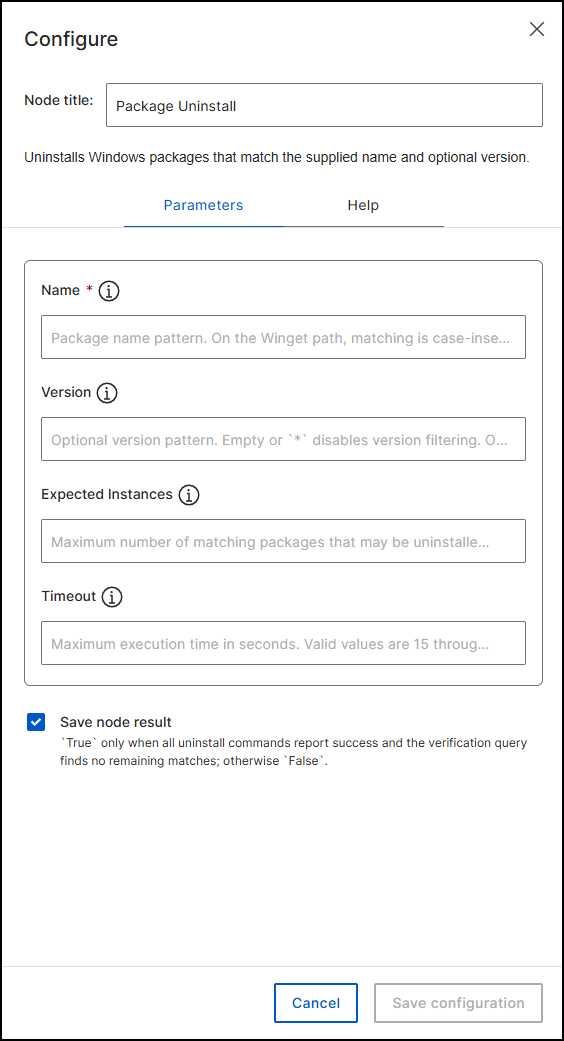
| Package | Package Uninstall | Action | Uninstalls matching Windows packages. |
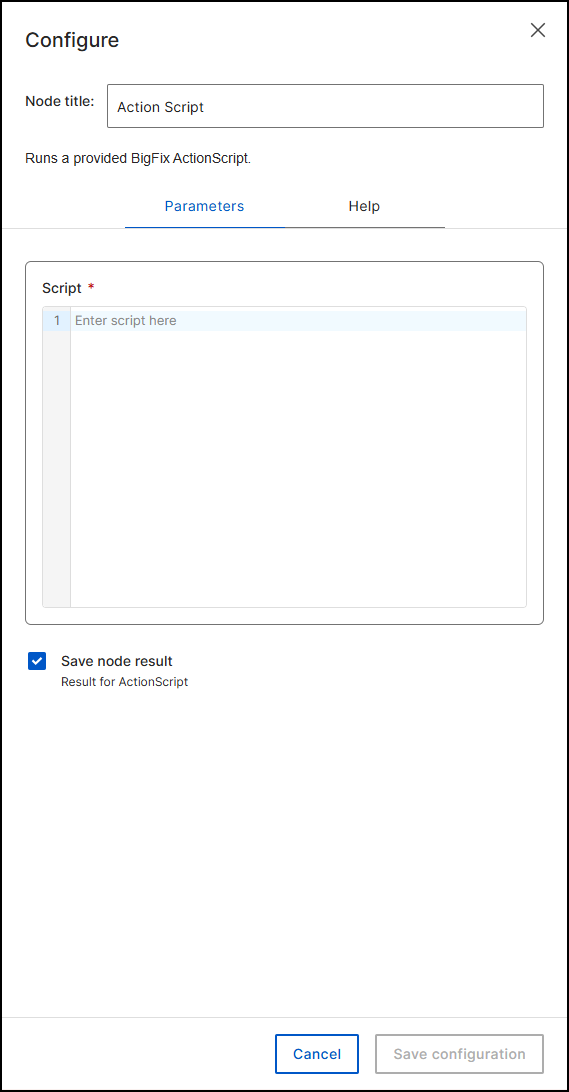
BigFix: Action Script (Action)
Runs any BigFix ActionScript code inside the workflow as-is. If the execution of the provided ActionScript fails, the workflow ends with the exit code provided within the ActionScript.
| Parameter | Type | Mandatory | Description |
|---|---|---|---|
script |
multiline | Yes | Script content to be executed. |
Output: this step does not return any value.
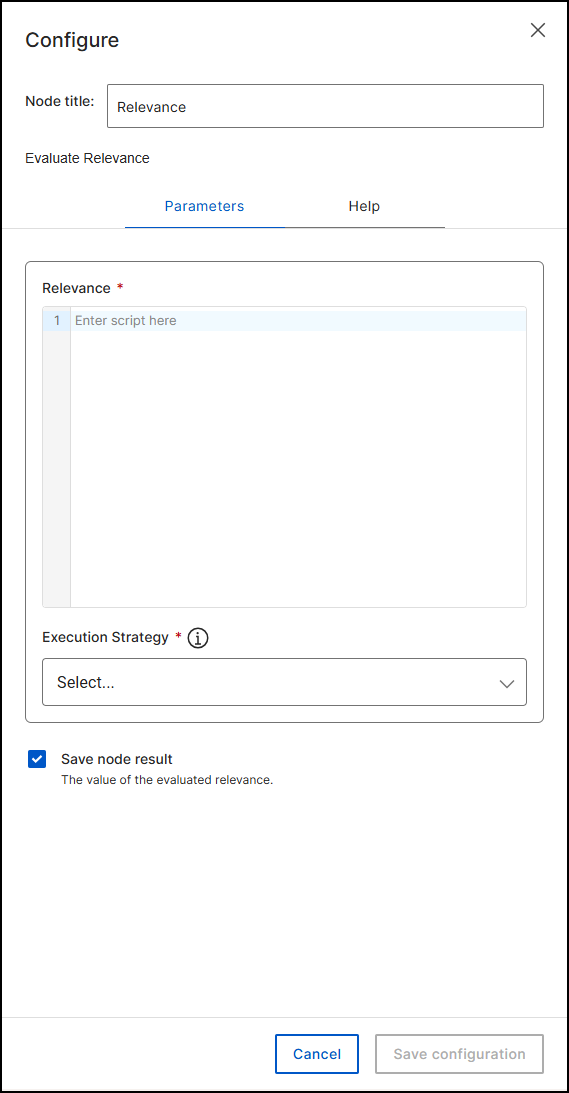
BigFix: Relevance (Check)
Evaluates Relevance and either returns its value (with the return
execution strategy) or breaks the workflow when the expression evaluates to false.
To use the exit execution strategy, the Relevance must evaluate to
a boolean value; if it evaluates to a non-boolean value, the workflow returns the
value. For example, product info string of operating system
requires return (not boolean), while
exists service "acmesrv" works with both
return and exit.
| Parameter | Type | Mandatory | Description |
|---|---|---|---|
relevance |
relevance | Yes | Relevance to be evaluated. |
execution_strategy |
enum | Yes | return returns the evaluated Relevance;
exit immediately exits the workflow when the
Relevance evaluates to false. Options: return,
exit. |
Output: boolean — the value of the evaluated Relevance.
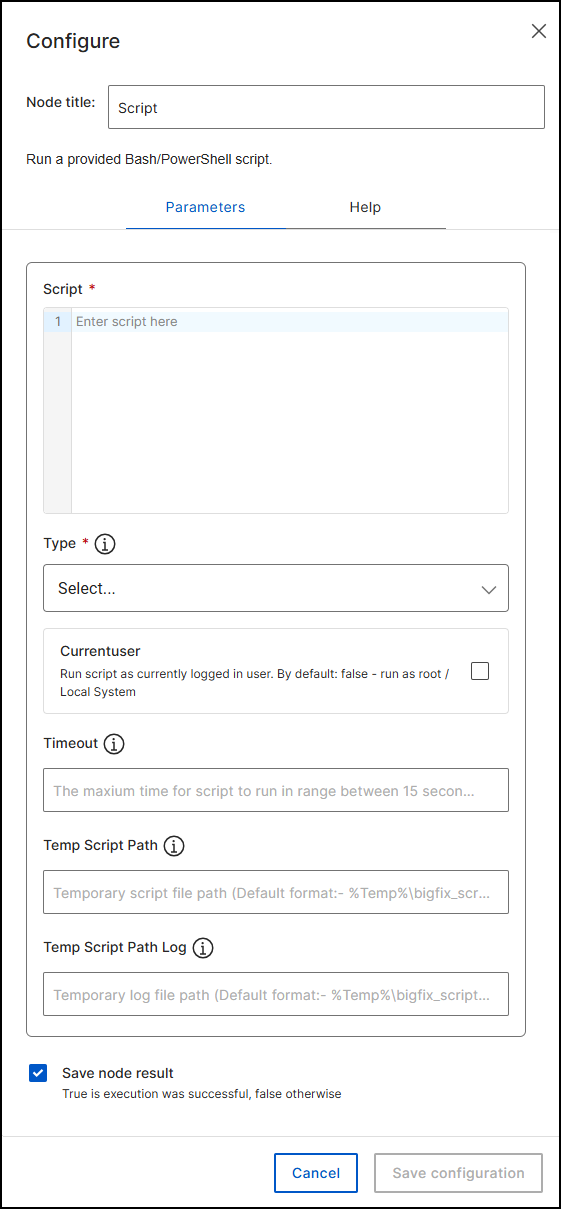
BigFix: Script (Action)
Runs a provided Bash, PowerShell, or Batch script.
| Parameter | Type | Mandatory | Description |
|---|---|---|---|
script |
multiline | Yes | Script to be executed. |
type |
enum | Yes | The type of the script. Options: Bash, PowerShell, Batch. Use PowerShell or Batch; Bash is not supported on the Windows targets of version 1.0. |
currentuser |
boolean | No | Run the script as the currently logged-in user. Default: false — run as root / Local System. |
timeout |
integer | No | Maximum run time, 15 to 1800 seconds (30 minutes). Default: 300 seconds. |
tempScriptPath |
string | No | Temporary script file path. Default format: %Temp%\bigfix_script_$random$.ps1 |
tempScriptPathLog |
string | No | Temporary log file path. Default format: %Temp%\bigfix_script_$random$.log |
Output: boolean — true if the execution was successful, false otherwise.
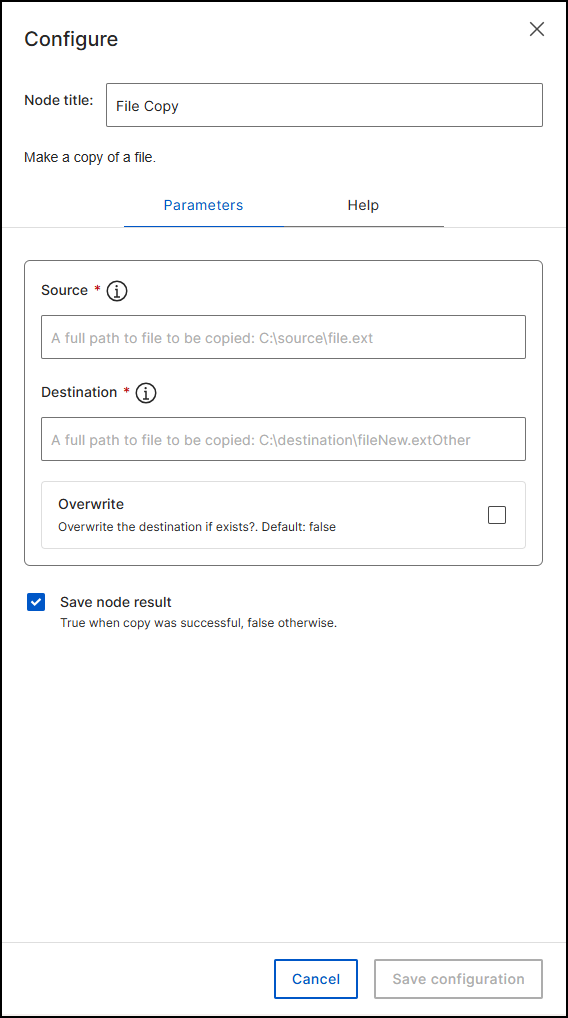
File System: File Copy (Action)
Copies the given file to the destination, with the option to overwrite. If the operation fails, the workflow is interrupted.
| Parameter | Type | Mandatory | Description |
|---|---|---|---|
source |
path | Yes | Full path to the file to be copied, for example C:\source\file.ext. |
destination |
path | Yes | Full path to the destination file, for example C:\destination\fileNew.extOther. |
overwrite |
boolean | No | Overwrite the destination if it exists. Default: false. |
Output: boolean — true when the copy was successful, false otherwise.
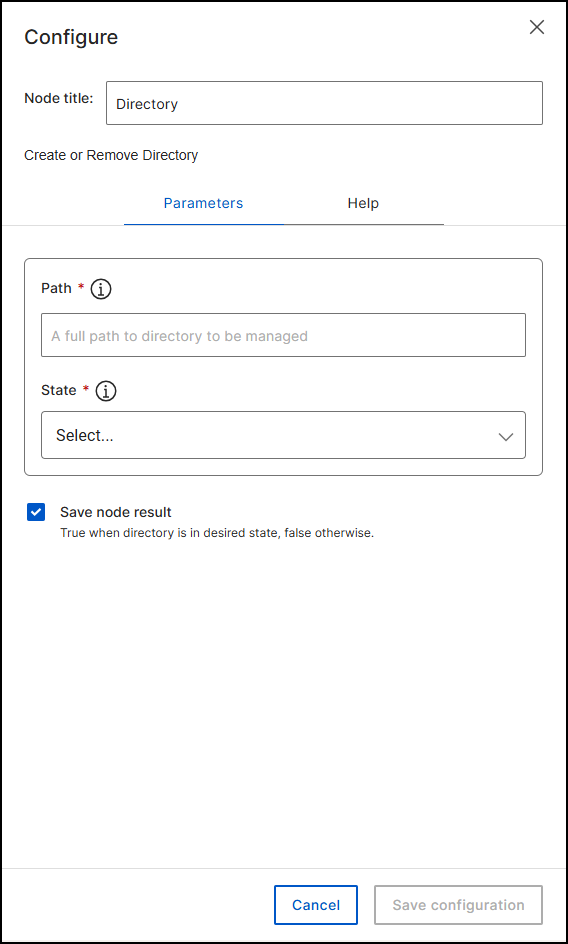
File System: Directory (Action)
Creates or removes a directory.
| Parameter | Type | Mandatory | Description |
|---|---|---|---|
path |
path | Yes | Full path to the directory to be managed. |
state |
enum | Yes | Desired state. Options: exists,
absent. |
Output: boolean — true when the directory is in the desired state, false otherwise.
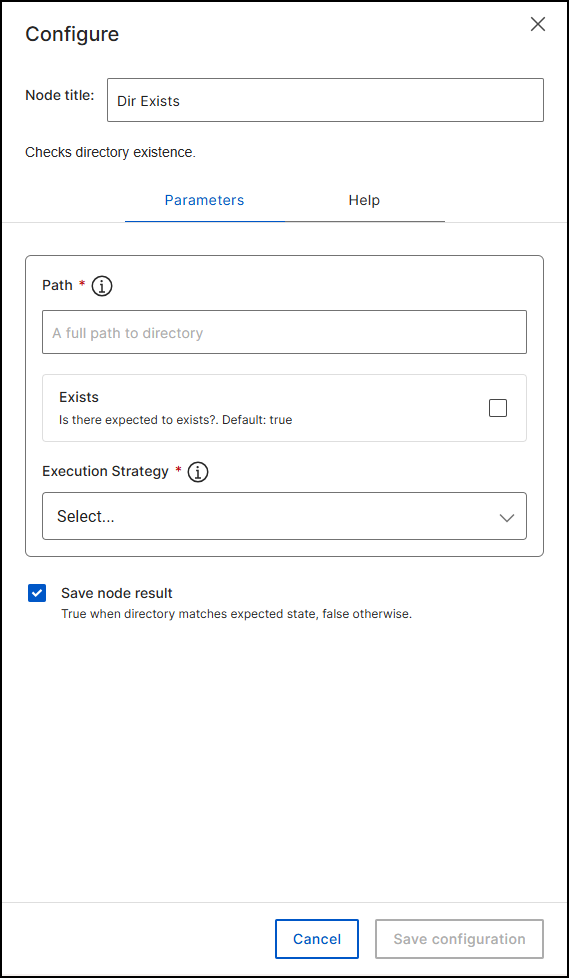
File System: Dir Exists (Check)
Checks whether the given directory exists or does not exist.
| Parameter | Type | Mandatory | Description |
|---|---|---|---|
path |
path | Yes | Full path to the directory. |
exists |
boolean | No | Whether the directory is expected to exist. Default: true. |
execution_strategy |
enum | Yes | exit ends the workflow immediately if the path
does not match the exists condition;
return passes the result to a Switch. Options:
return, exit. |
Output: boolean — true when the directory matches the expected state, false otherwise.
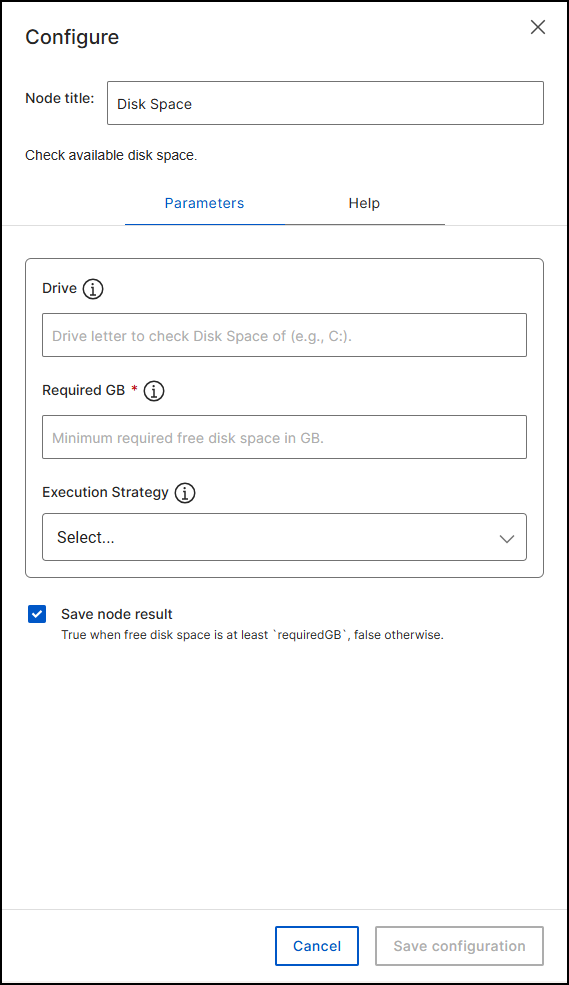
File System: Disk Space (Check)
Checks the free disk space on the system drive and reports whether it meets a required threshold.
| Parameter | Type | Mandatory | Description |
|---|---|---|---|
drive |
string | No | Drive letter to check (for example, C:). |
requiredGB |
integer | Yes | Minimum required free disk space in GB. |
execution_strategy |
enum | No | exit ends the workflow immediately if the
condition is not met; return passes the result to
a Switch. Options: return,
exit. |
Output: boolean — true when the free disk space is at least
requiredGB, false otherwise.
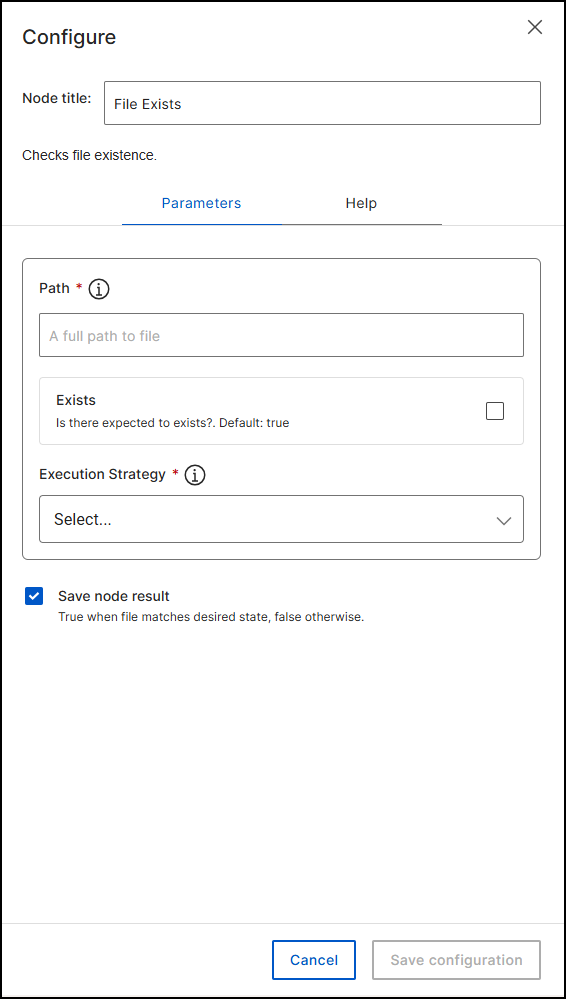
File System: File Exists (Check)
Checks whether the given path points to the file and the state matches the
exists parameter.
| Parameter | Type | Mandatory | Description |
|---|---|---|---|
path |
path | Yes | Full path to the file. |
exists |
boolean | No | Whether the file is expected to exist. Default: true. |
execution_strategy |
enum | Yes | exit ends the workflow immediately if the file
does not match the exists condition;
return passes the result to a Switch. Options:
return, exit. |
Output: boolean — true when the file matches the desired state, false otherwise.
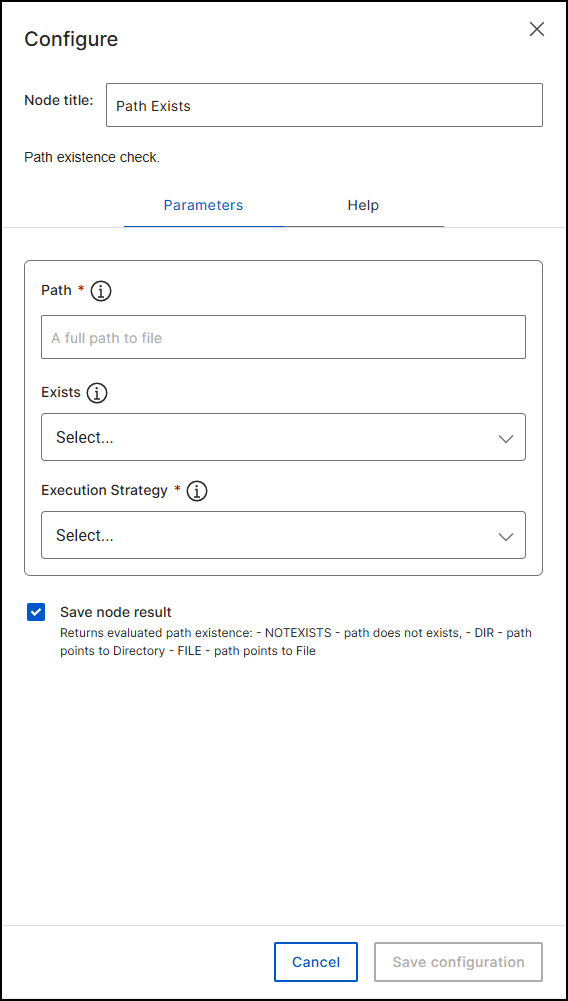
File System: Path Exists (Check)
Checks whether the given path exists and returns whether it points to a directory or a file.
| Parameter | Type | Mandatory | Description |
|---|---|---|---|
path |
path | Yes | Full path to the file or directory. |
exists |
enum | No | Expected state. Options: NOTEXISTS,
DIR, FILE. |
execution_strategy |
enum | Yes | exit ends the workflow immediately if the path
does not match the exists condition;
return passes the result to a Switch. Options:
return, exit. |
Output: enum — NOTEXISTS (the path does not exist),
DIR (the path points to a directory), or FILE
(the path points to a file).
Flow Control: Stop (Flow)
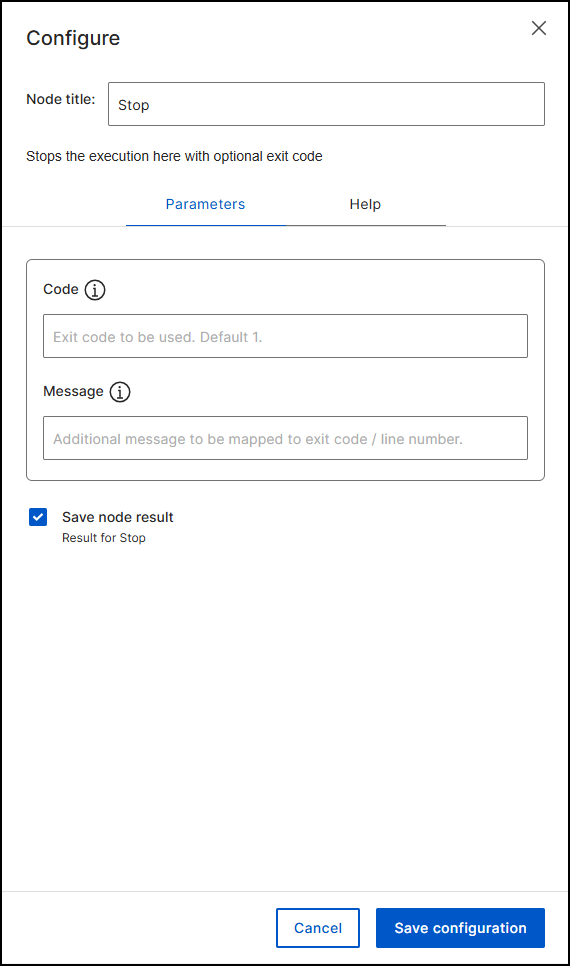
Ends the workflow in a Switch branch immediately, keeping the workflow short and clean. You can also provide an explanatory message about the reason.
| Parameter | Type | Mandatory | Description |
|---|---|---|---|
code |
integer | No | Exit code to be used. Default: 1. |
message |
string | No | Additional message to be mapped to the exit code / line number. |
Output: ends the workflow execution with the provided exit code.
Flow Control: Switch (Flow)
Splits the execution into two or more flows depending on result values from
previous steps. There is always a default flow. The order of the branches is the
order of evaluation, so the flow enters the first matched branch; in each
subsequent branch, the conditions of the branches above were not met. A Switch
node cannot be the first step of a workflow. Use a check step with
execution_strategy set to exit when no
alternate flow is expected, or the dedicated Stop step to
exit the workflow at any time. For the branch configuration procedure, see Branching
with the Switch step.
Maintenance: Disk Cleanup (Action)
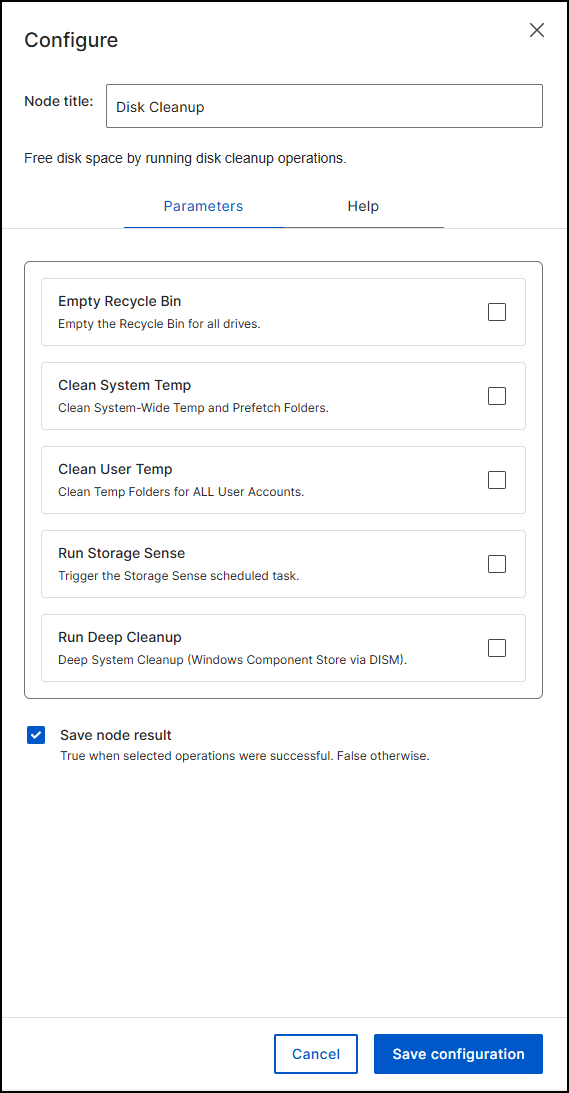
Performs modern disk cleanup on Windows using PowerShell: handles the Recycle Bin, system and user Temp folders, Storage Sense, and DISM Component Store cleanup. When no option is selected, the step still executes and only ensures that the Temp folder exists.
| Parameter | Type | Mandatory | Description |
|---|---|---|---|
emptyRecycleBin |
boolean | No | Empty the Recycle Bin for all drives. |
cleanSystemTemp |
boolean | No | Clean system-wide Temp and Prefetch folders. |
cleanUserTemp |
boolean | No | Clean Temp folders for all user accounts. |
runStorageSense |
boolean | No | Trigger the Storage Sense scheduled task. |
runDeepCleanup |
boolean | No | Deep system cleanup (Windows Component Store via DISM). |
Output: boolean — true when the selected operations were successful, false otherwise.
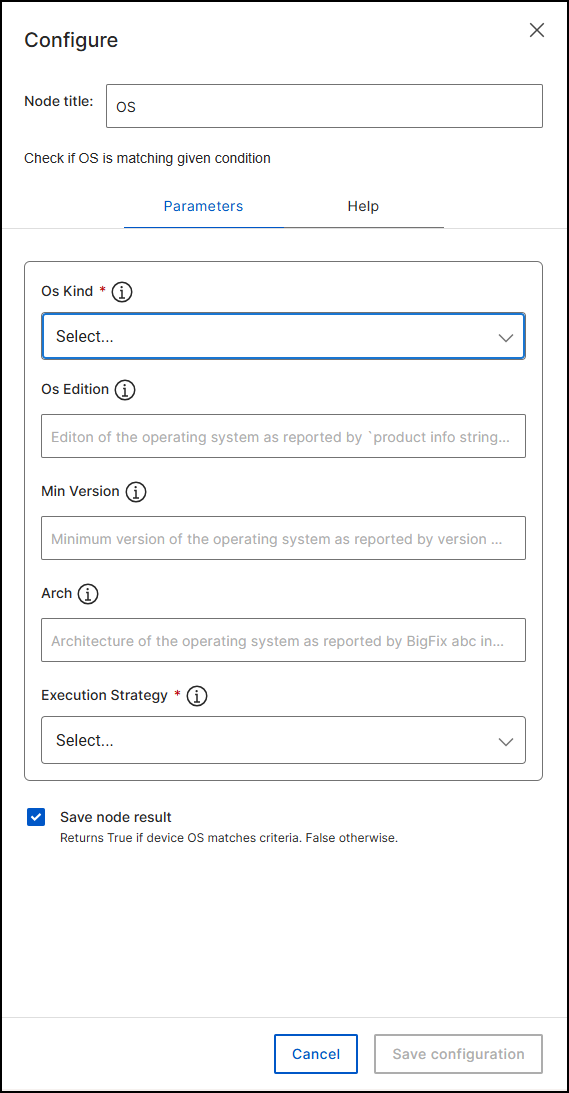
Operating System: OS (Check)
Evaluates whether the current operating system matches the provided criteria and
returns a boolean result. The step always checks os_kind, and
optionally refines the match with min_version,
arch, and os_edition. When all provided
conditions match, the output is true; otherwise it is false. With
execution_strategy set to exit, the workflow
stops immediately when the condition is false. Example: os_kind =
Windows, min_version = 10.0,
execution_strategy = return checks for Windows 10 or later and
continues with the boolean result.
| Parameter | Type | Mandatory | Description |
|---|---|---|---|
os_kind |
enum | Yes | Kind of operating system. Options: Windows, macOS, Linux, Solaris, AIX. |
os_edition |
string | No | Edition as reported by product info string of operating
system. Leave empty to match any edition. Examples:
Enterprise, Professional, Datacenter. |
min_version |
string | No | Minimum version as reported by the BigFix Relevance
version of operating system. |
arch |
string | No | Architecture as reported by the BigFix inspector arch of
operating system. Examples: x86_64, i386, i686, amd64,
ARM64, armv7l, ppc, ppc64, ppc64le. |
execution_strategy |
enum | Yes | return returns the boolean match result and
continues; exit immediately stops the workflow when
the condition is false. Options: return,
exit. |
Output: boolean — true if the device OS matches the criteria, false otherwise.
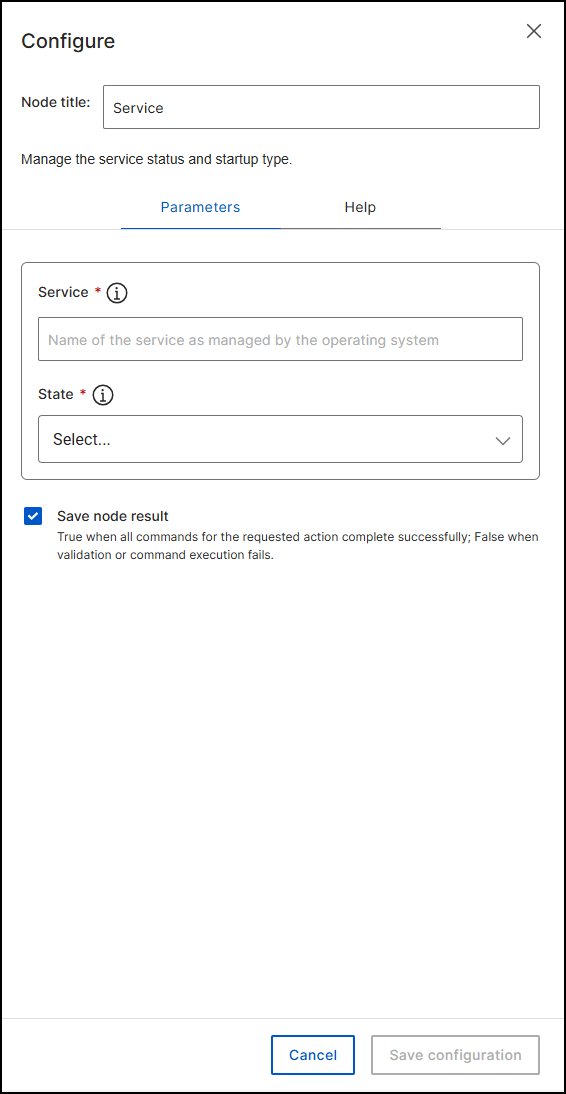
Operating System: Service (Action)
Manages the service state and startup type: start (start the
service; if disabled, first set its startup type to manual),
stop (stop without changing the startup type),
restart (restart; if disabled, first set the startup type to
manual), disable (stop the service and set the startup type to
disabled), auto (set the startup type to automatic and start),
auto_delayed (automatic delayed start, then start), and
manual (set the startup type to manual without changing the
running state). The step returns false instead of exiting when validation fails,
the service does not exist, the requested state is unsupported, or a service
command fails.
| Parameter | Type | Mandatory | Description |
|---|---|---|---|
service |
string | Yes | Name of the service as managed by the operating system. |
state |
enum | Yes | The desired service action. Options: start, stop, restart, disable, auto, auto_delayed, manual. |
Output: boolean — true when all commands for the requested action complete successfully; false when validation or command execution fails.
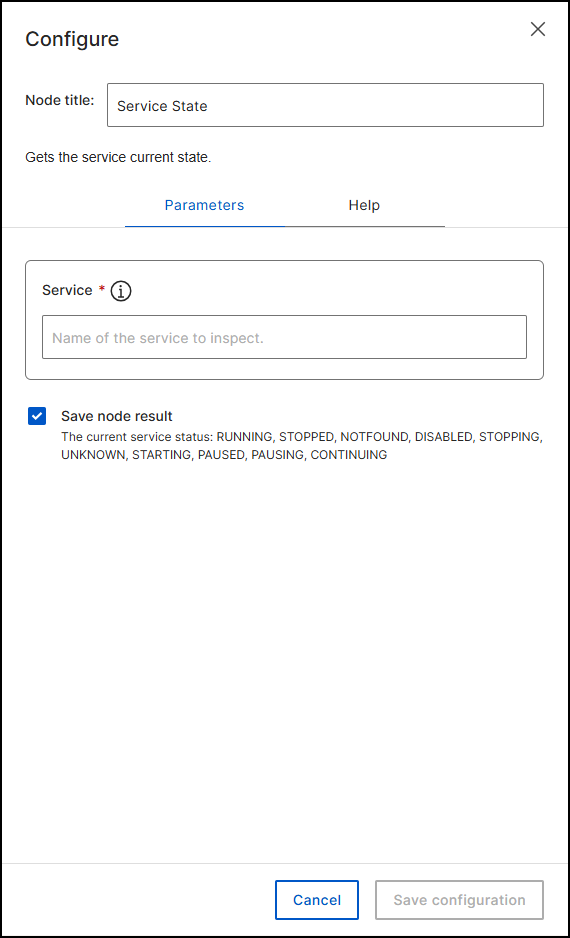
Operating System: Service State (Check)
Determines whether the monitored service is operating correctly. This check step
intentionally does not provide the execution_strategy
capability.
| Parameter | Type | Mandatory | Description |
|---|---|---|---|
service |
string | Yes | Name of the service to inspect. |
Output: enum — the current service status: RUNNING, STOPPED, NOTFOUND, DISABLED, STOPPING, UNKNOWN, STARTING, PAUSED, PAUSING, CONTINUING.
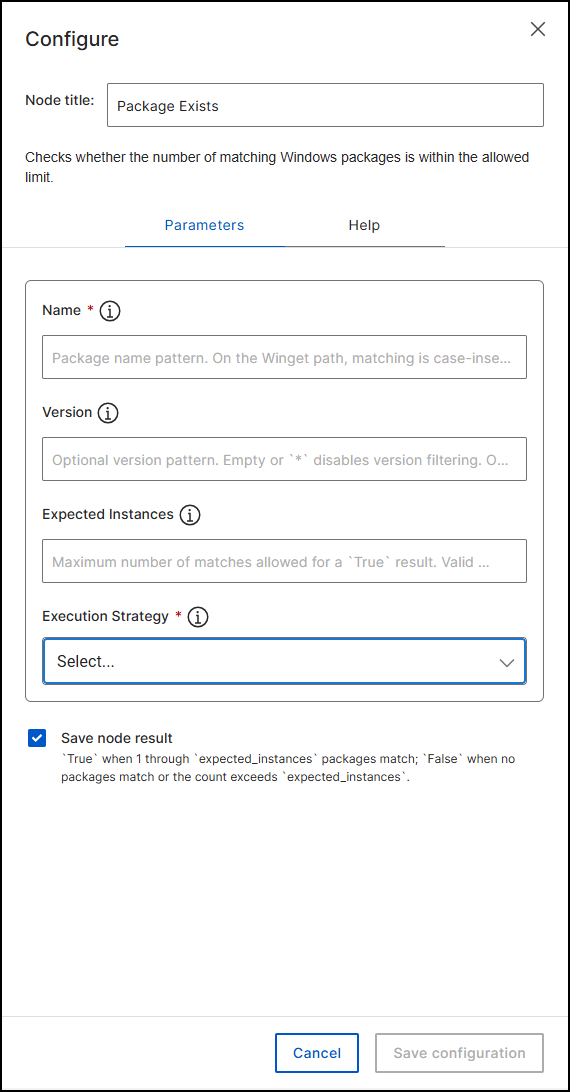
Package: Package Exists (Check)
Checks for installed packages by name and optional version. If Winget is available,
the step reads winget list and compares the supplied name and
version with each result using case-insensitive exact, wildcard, or
regular-expression matching. If Winget is unavailable, the step uses
Get-Package, passing the name to -Name and a
supplied version to -RequiredVersion. An empty version or
* disables version filtering. The output is true when the
number of matches is between 1 and expected_instances, inclusive;
false when there are no matches or the count exceeds
expected_instances. A Winget query failure, an unavailable
PackageManagement module on the fallback path, or an unexpected PowerShell exit
code fails the step instead of returning false. Examples: name: PuTTY release
0.85 (64-bit); with version: 0.85.0.0; fallback wildcard
PuTTY*; Winget regular expression
^(Notepad\+\+.*|7-Zip.*)$.
| Parameter | Type | Mandatory | Description |
|---|---|---|---|
name |
string | Yes | Package name pattern (exact, wildcard, or regular expression on
the Winget path; passed to Get-Package -Name on
the fallback path). |
version |
string | No | Optional version pattern. Empty or * disables
version filtering. |
expected_instances |
integer | No | Maximum number of matches allowed for a true result. Valid values: 1–5. Default: 1. |
execution_strategy |
enum | Yes | return returns false to the workflow;
exit ends the workflow when the result is
false. Options: return, exit. |
Output: boolean — true when 1 through expected_instances
packages match; false when no packages match or the count exceeds
expected_instances.
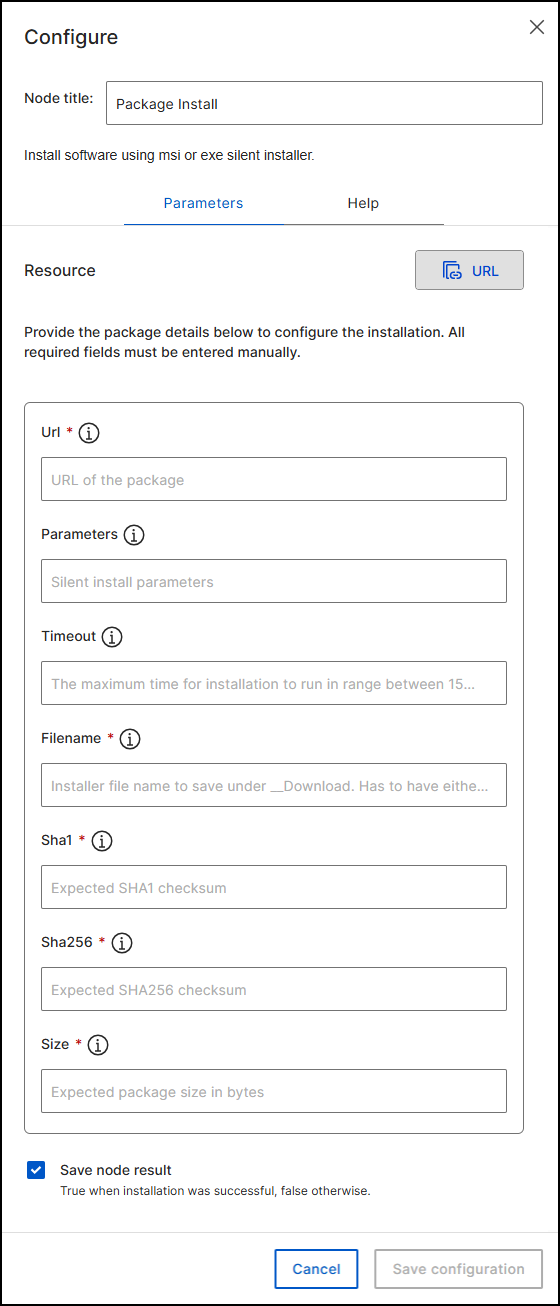
Package: Package Install (Action)
Uses the BigFix Platform to fetch the installation media from the provided URL,
push it to the device, and run the supplied installation command. You must
manually supply the size and checksums; the package is validated against the
checksum every time the URL is used, and a wrong SHA checksum fails the workflow
on the BigFix Platform side. A cached version based on the checksum is used when
already cached. Supported media are MSI and executable: for an MSI the step
executes msiexec.exe /i <filename> <parameters>; for
an executable it runs <filename> <parameters>. There
is no single standard for EXE wrappers — refer to the product documentation for
silent-install switches, prefer MSI (/quiet /norestart), and
always test the installation procedure in a lab first.
| Parameter | Type | Mandatory | Description |
|---|---|---|---|
url |
url | Yes | URL of the package. |
parameters |
string | No | Silent install parameters. |
timeout |
integer | No | Maximum installation time, 15 to 1800 seconds (30 minutes). Default: 600 seconds. |
filename |
string | Yes | Installer file name to save under __Download.
Must have the .msi or .exe
extension. |
sha1 |
string | Yes | Expected SHA1 checksum. |
sha256 |
string | Yes | Expected SHA256 checksum. |
size |
string | Yes | Expected package size in bytes. |
Output: boolean — true when the installation was successful, false otherwise.
Package: Package Uninstall (Action)
Finds and uninstalls matching Windows packages. If Winget is available, the step
reads winget list, matches by name and optional version
(case-insensitive exact, wildcard, or regular expression), and uninstalls each
match by its exact Winget package ID with silent and non-interactive options. If
Winget is unavailable, the step uses Get-Package and passes each
result to Uninstall-Package -Force. An empty version or
* disables version filtering. The step stops before
uninstalling when there are no matches or the match count exceeds
expected_instances. After all uninstall commands report
success, the step re-checks the list up to 10 times, waiting two seconds between
attempts, and reports success only when no matches remain.
| Parameter | Type | Mandatory | Description |
|---|---|---|---|
name |
string | Yes | Package name pattern (exact, wildcard, or regular expression on
the Winget path; passed to Get-Package -Name on
the fallback path). |
version |
string | No | Optional version pattern. Empty or * disables
version filtering. |
expected_instances |
integer | No | Maximum number of matching packages that may be uninstalled. Valid values: 1–5. The step fails before uninstalling when no packages match or the count exceeds this value. Default: 1. |
timeout |
integer | No | Maximum execution time in seconds, 15–1800. The PowerShell process is terminated at timeout. Default: 300. |
Output: boolean — true only when all uninstall commands report success and the verification query finds no remaining matches; otherwise false.