Adding Files to a BigFix Software Distribution Package

Upload installer binaries, configuration files, and supporting resources to the BFUI File Server to make them available for deployment tasks within a BigFix Software Distribution Package.

Before you begin

A Software entry and at least one Package must already exist before you can add files. See Adding and Deleting Software if you have not yet created a Software entry.

About this task

Files uploaded here are stored in the BFUI File Server and associated with the Package. They become selectable when creating deployment tasks. Upload all files the software lifecycle may need — installers, silent transform files, configuration profiles, license files, and supporting binaries — before creating tasks that reference them.

Procedure

  1. Navigate to Explore > Software.
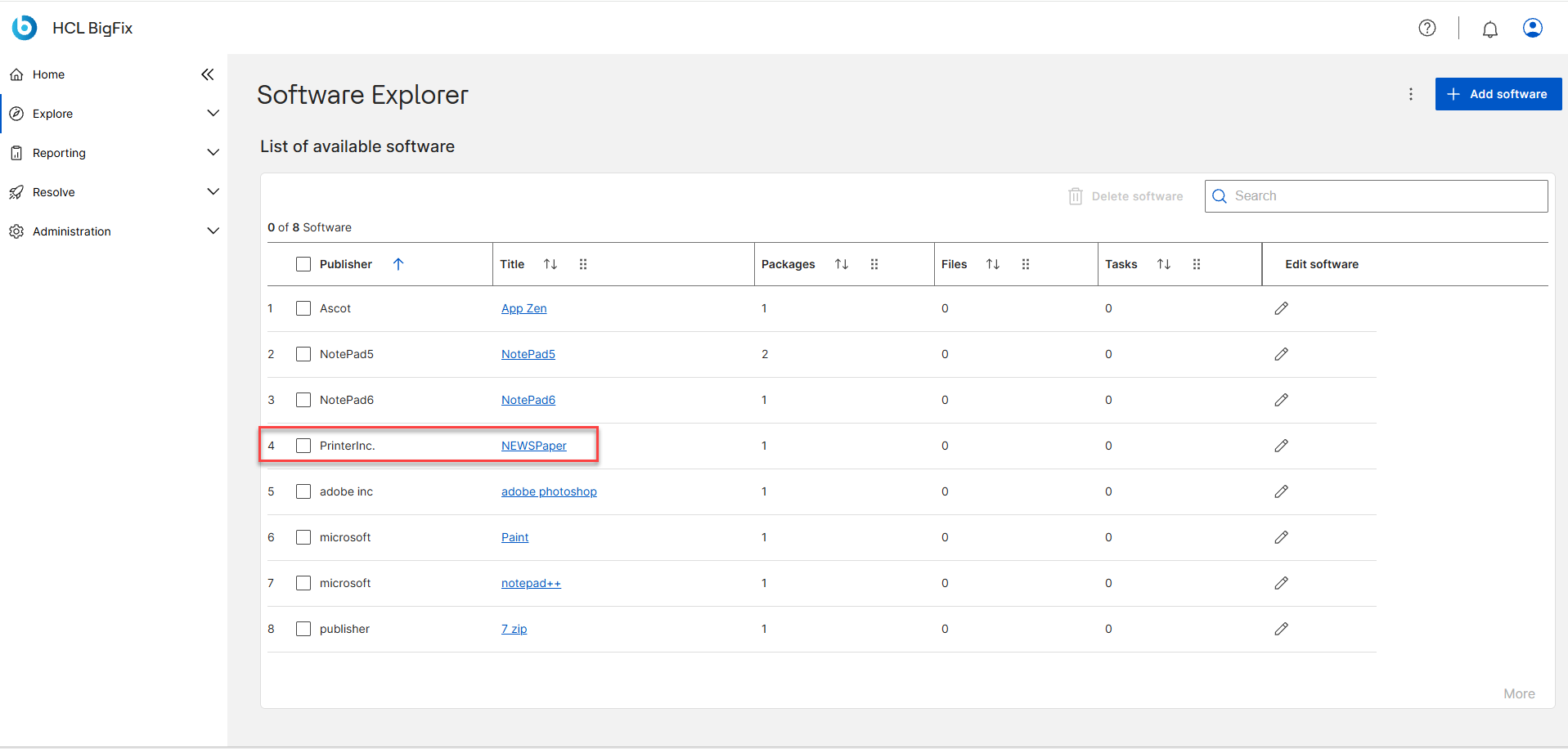
  2. Open the target Software entry by clicking the software title listed under List of available software from the Software Explorer page.
    Figure 1. Software Explorer — Selecting a Software Entry

    The BigFix UI Software Explorer page showing a list of available software entries. The cursor is positioned over a software title in the list; clicking the title opens the Software Details page for that software entry.
    The Software Details page opens.
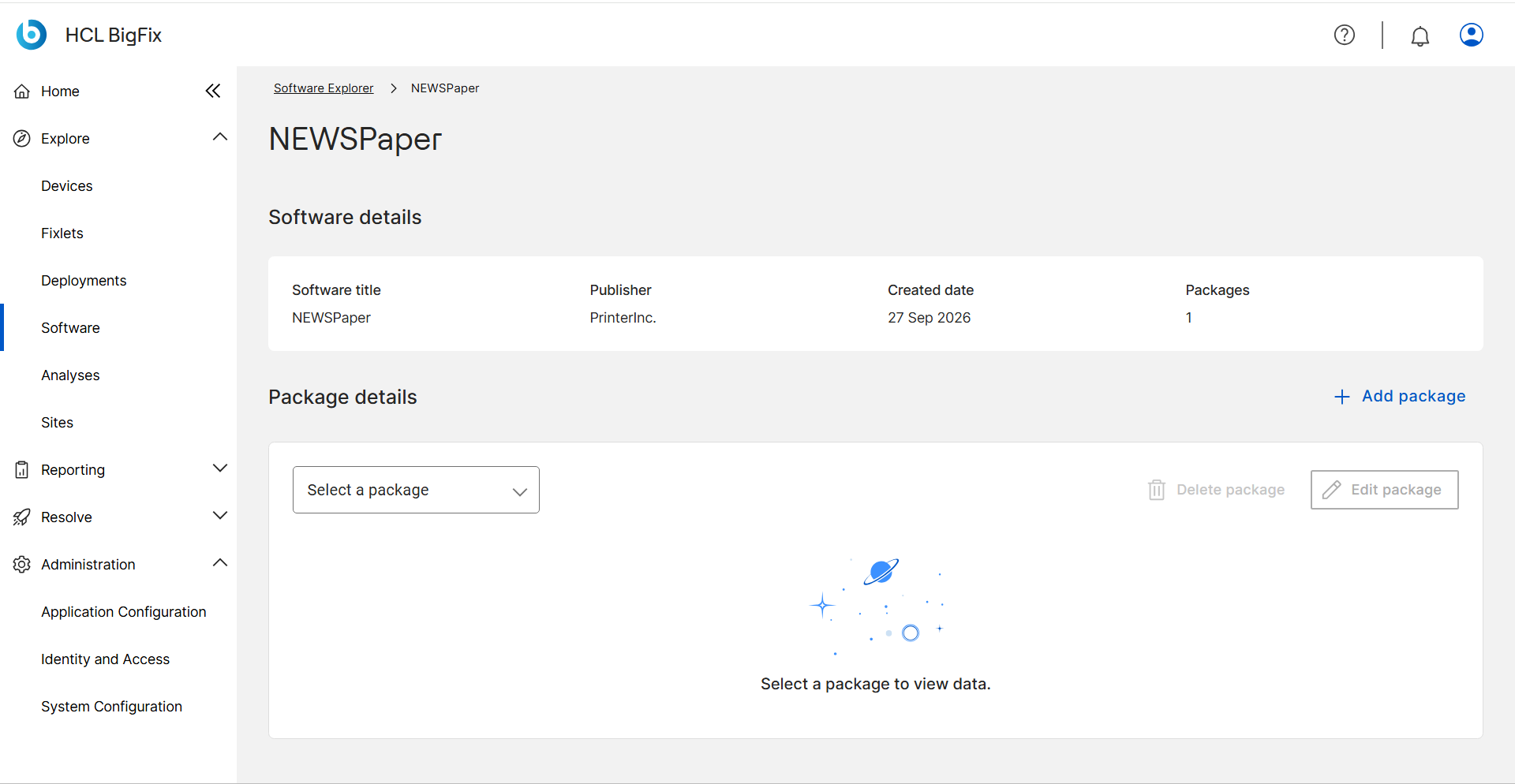
  3. On the Software Details page, to view the package details, select the required package from the drop down.
    Figure 2. Software Details Page — Package Selector Drop-Down

    The Software Details page for a selected software entry. A drop-down near the top of the Package details section lets the user switch between packages associated with this software. Tabs for Overview, Files, and Tasks appear below the drop-down.
  4. The Package details section, lists a package's details under the 3 following heads:
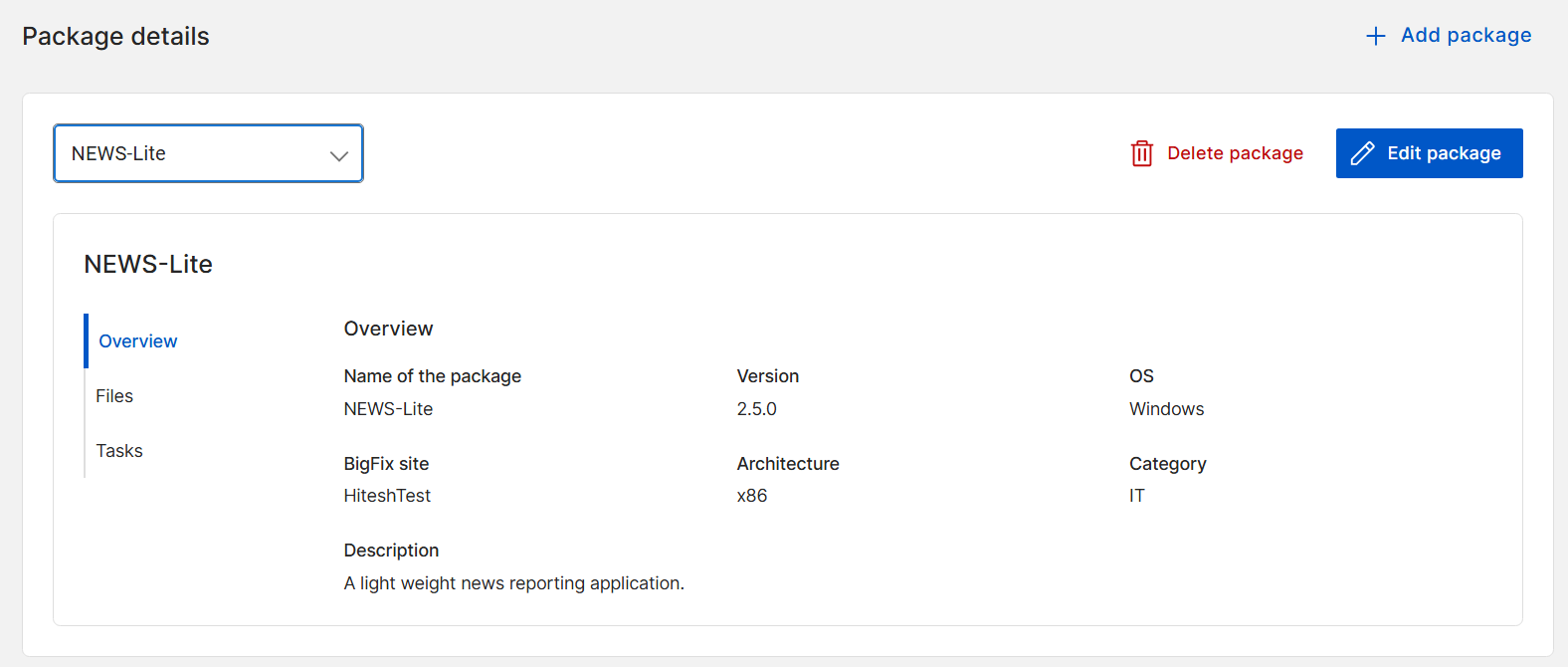
    • Overview: Displays an overview of the selected package. You can also edit or delete the package from here.
      Figure 3. Package Details — Overview Tab

      The Overview tab of the Package details section, showing the package metadata fields: name, version, OS, architecture, category, and description. Edit and Delete buttons are available in the top-right of this tab.
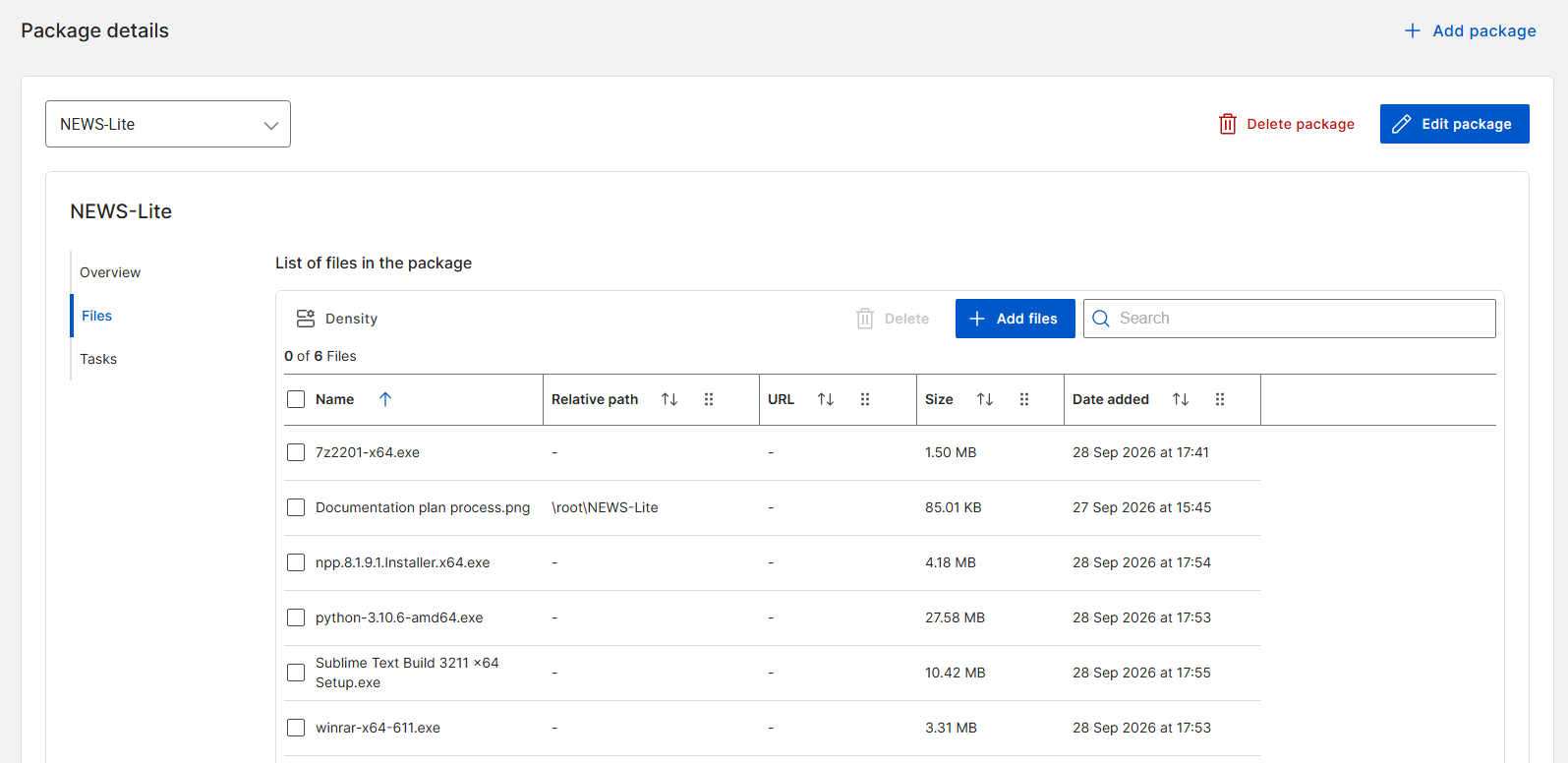
    • Files: Add files to the package.
      Tip:
      The list of supported file extensions for the automatic command creation is as follows:
      • DMG
      • MSI
      • PKG
      • RPM
      Figure 4. Package Details — Files Tab

      The Files tab of the Package details section. The tab shows either an empty file list (for a new package) or uploaded files with their names and relative paths. An Add files button in the top-right opens the upload form.
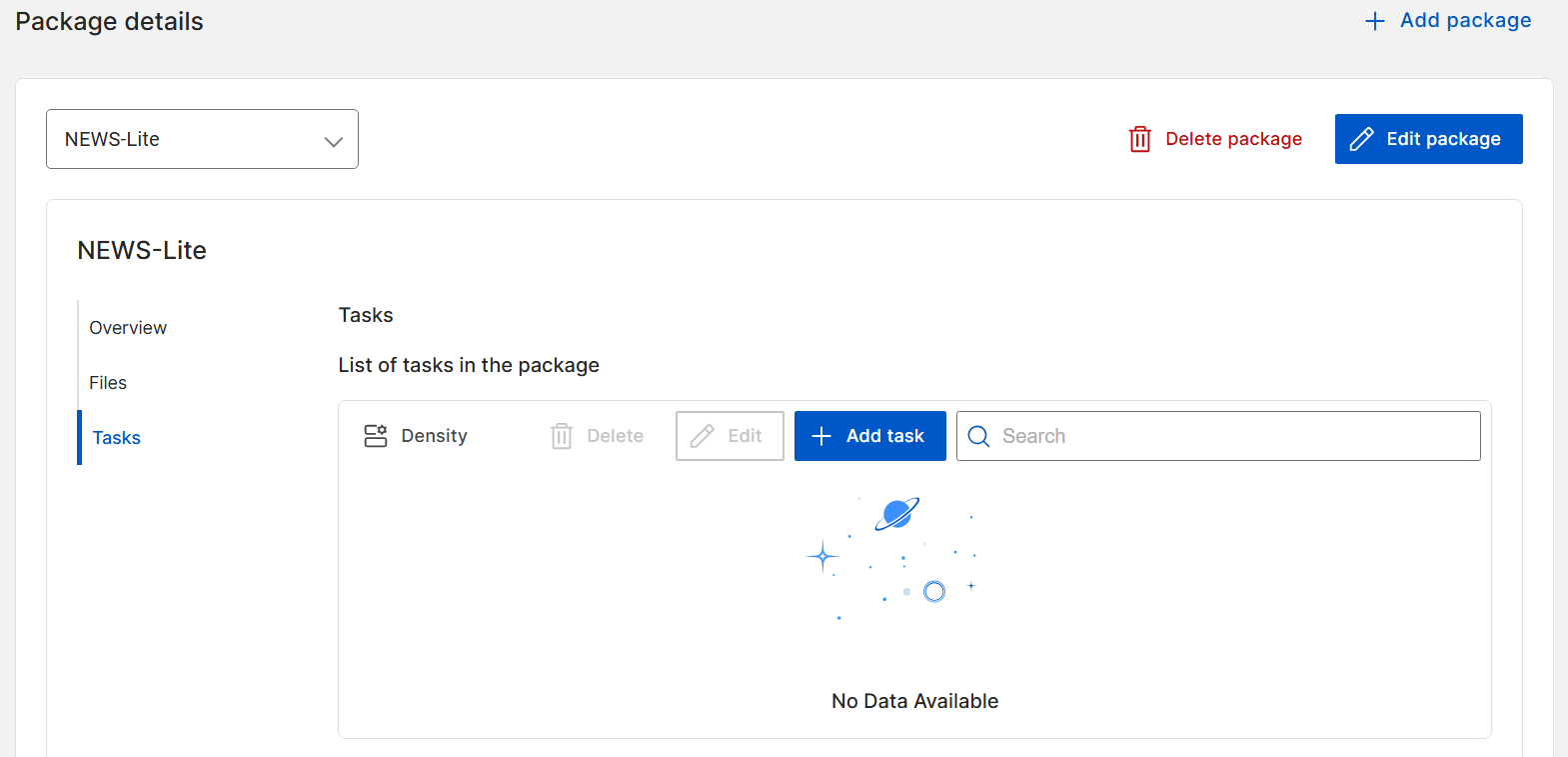
    • Tasks: Add tasks to the package.
      Figure 5. Package Details — Tasks Tab

      The Tasks tab of the Package details section, showing the list of deployment tasks (install, uninstall, repair, and similar) associated with the package. An Add task button in the top-right opens the task creation wizard.
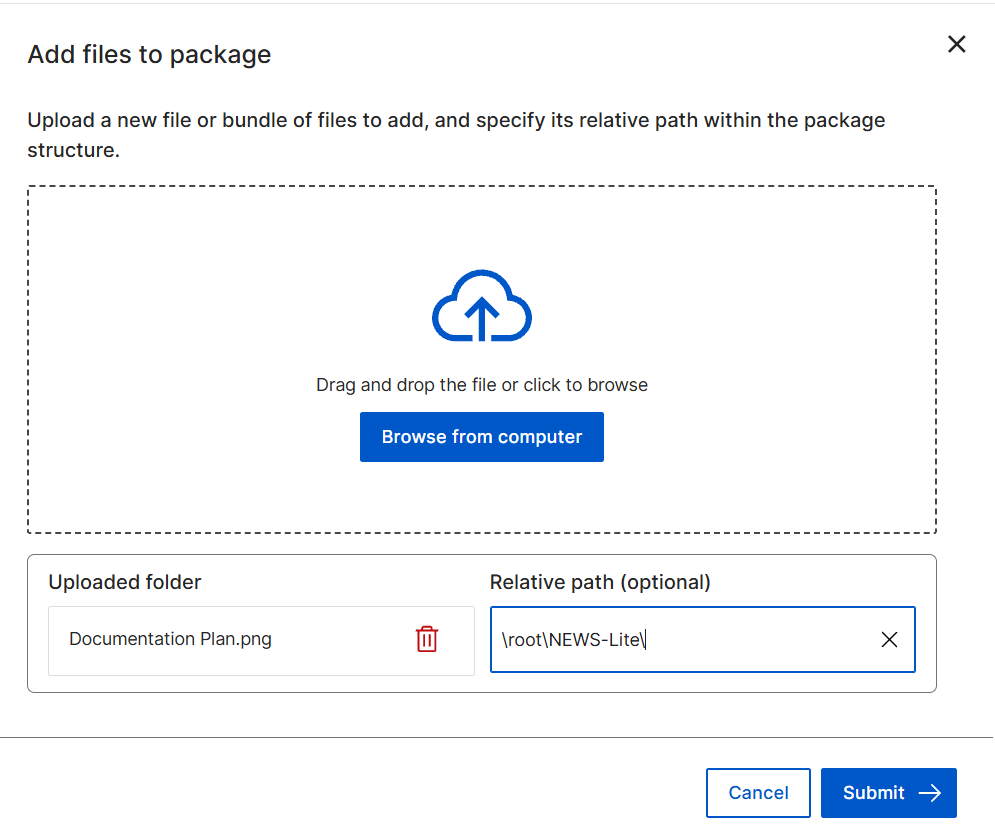
  5. To add files to the package, click + Add files. The Add files to package page opens.
    Figure 6. Add Files to Package — Upload File

    The Add files to package page. A file upload area lets the user select one or more files from the local machine. A Relative Path field below the upload area specifies the target folder path where the file will be placed on the endpoint during task execution. A Submit button confirms the upload.
    Upload a new file or a bundle of files to add, and specify its relative path within the package structure.
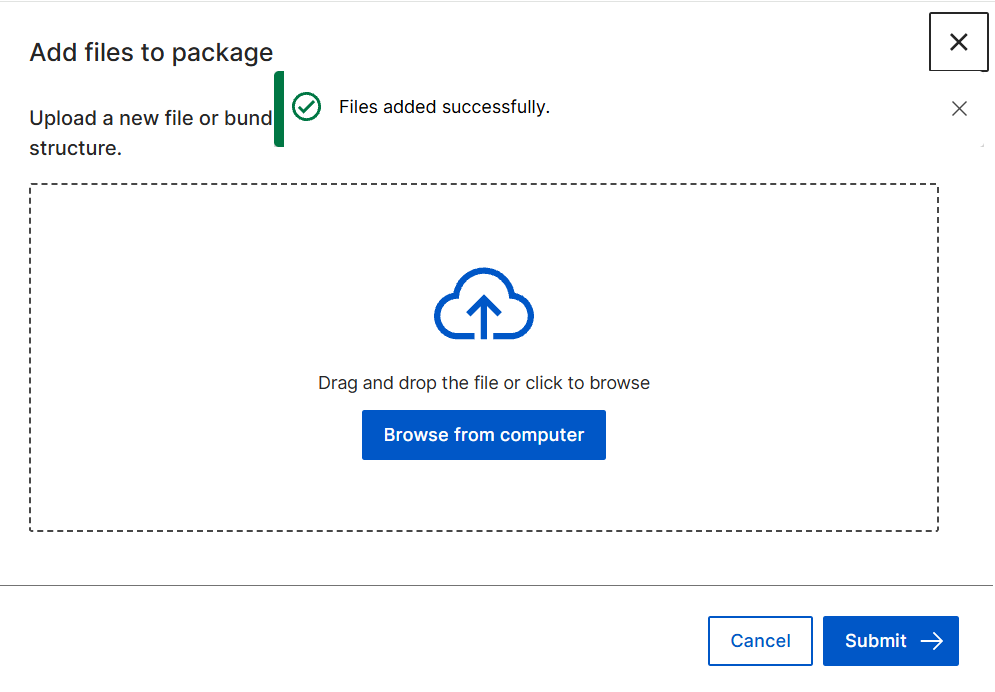
  6. Click Submit →.

Results

Figure 7. Package Files Tab — Uploaded Files Listed

The Files tab of the Package details section after a successful upload, showing the newly uploaded files listed with their file names and relative paths. The files are now stored on the BFUI File Server and available for selection when creating or editing deployment tasks for this package.
Note:
  • Examples of files typically uploaded for a package:
    • Installer binaries — setup.exe, NewsPaperCreator.msi
    • Silent transform files — NPC.mst
    • Configuration profiles — BasicProfile.bin, AdvancedProfile.bin
    • Supporting resources — resource.cfg, license.txt
  • For each uploaded file, define the Relative Path — the folder path where the file will be placed on the endpoint during task execution.
  • If no relative path is specified, the file is placed in the task's working directory on the endpoint. Use relative paths to recreate a specific folder structure required by the installer.

The uploaded files are stored in the BFUI File Server and listed under the Package's Files tab. They are now selectable when creating or editing deployment tasks for this Package.
What to do next

After uploading files, create the deployment tasks that reference them. See Creating a Deployment Task.