Adding and Deleting Software in BigFix Software Distribution
Use the Software Explorer page to add new Software entries (from a new Package or by importing a legacy package file) and to permanently delete existing Software entries along with all their associated Packages, Files, and Tasks.
About this task
From , the Software Explorer page provides the primary top-level actions for creating and removing Software entries. Both actions are available from the toolbar at the top of the page.
Procedure
-
Add a new Software entry
- Click + Add software in the top-right corner of the Software Explorer page.
- Choose how to create the Software entry:
- Start from a new Package — opens the Package creation form where you define metadata (title, publisher, version, OS, architecture, category, description), then upload files and create deployment tasks.
- Import an external Package file — imports a Package that was previously exported from the legacy BigFix Console or WebUI. During import, all files are uploaded to the BFUI File Server and new Tasks are created in the BigFix Platform. See Limitations for migration constraints.
-
Delete an existing Software entry
Warning:Deleting a Software entry is permanent and cascading. It deletes the selected Software and all Packages contained within it, including every File and Task associated with those Packages. This action cannot be undone.
Figure 1. Software Explorer — Selecting and Deleting a Software Entry 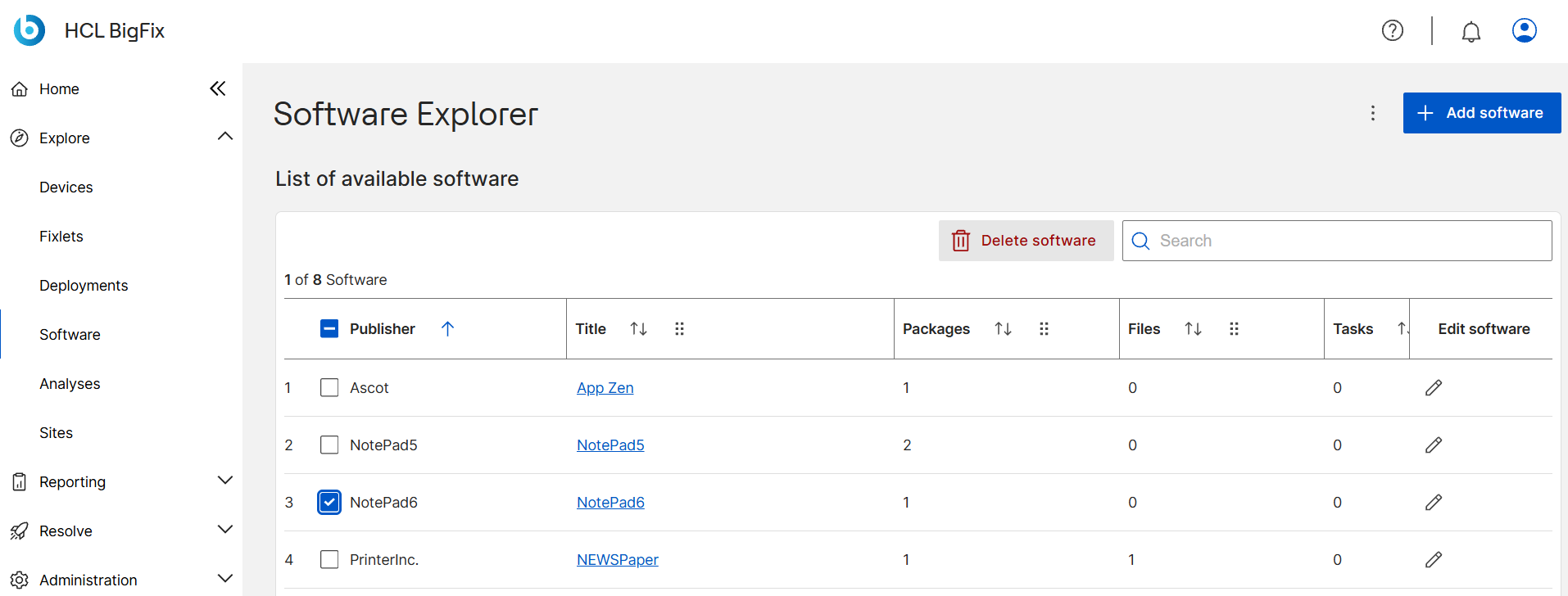
To delete Software:
- On the Software Explorer page, select the checkbox next to the Software entry you want to remove.
- Click Delete software in the toolbar.
- Confirm the deletion in the confirmation dialog.