Deploying a Software Distribution Task to Endpoints

Deploy a deployment task from a BigFix Software Distribution Package to target endpoints using the task list in the Package details view — BigFix evaluates the task's relevance on each endpoint and executes the installation command only where conditions are met.

Before you begin

Before deploying, ensure the following are in place:

About this task

BigFix Software Distribution provides two entry points for deploying a task to endpoints — directly from the task list within the Package Details view. Both paths initiate the same underlying BigFix deployment action.

BigFix evaluates the task's relevance expression against each target endpoint before executing. The installation command runs only on endpoints where the relevance condition is satisfied — ensuring the software is not deployed to endpoints that already have it installed or that do not meet the prerequisites.

Procedure

  1. Navigate to Explore > Software and open the target Software entry.
  2. From the Package task list — on the Software Details page, expand the Package, open the Tasks sub-list, and select the task you want to deploy. Click the rocket icon (Deploy) next to the task name.
    Figure 1. Package Details — Tasks Tab: Deploying from the Task List
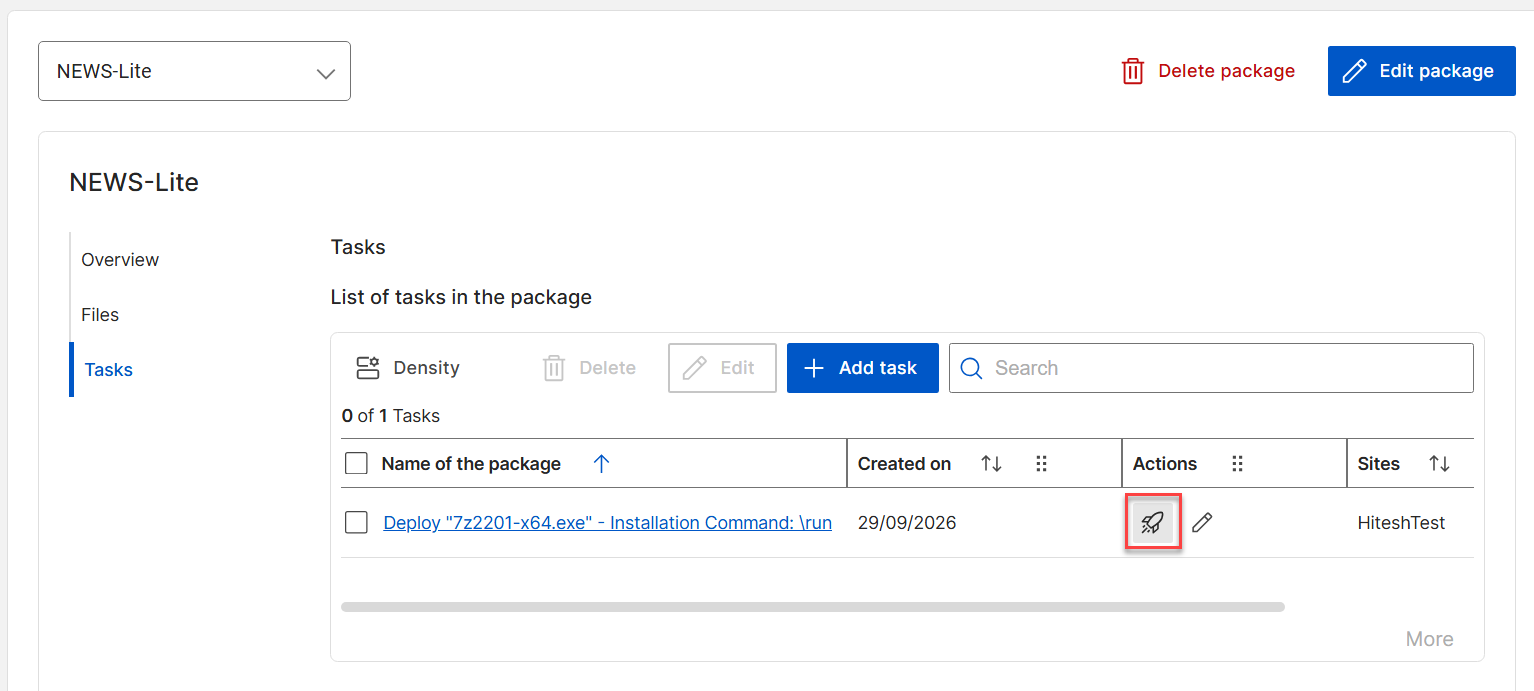
    The Tasks tab of the Package details section listing the deployment tasks associated with the package. Each task row shows the task name and task type. A rocket icon (Deploy button) on the right side of each row initiates the Deploy wizard for that task.
  3. The Deploy wizard opens. This wizard has the following six steps:
    1. Fixlets: Filter and select the Fixlets to remediate.
    2. Actions: Click the Fixlet set to review/update.
    3. Devices: Filter the devices in this step. You can filter by Query, Device group, and Device list. You can also do the following:
      • Static device filtering: Static filters define a specific set of devices to target for this deployment.
      • Dynamic device filtering: Dynamic filters define a matching criteria for devices to evaluate continuously until the deployment ends. Any device that matches this filter after the deployment has been created, will have this deployment applied.
    4. Behaviour: Enable or disable the following options from this step:
      • Offer to user: Deploying with a BigFix Offer allows end-users to choose and install software, patches, and other actions themselves through a self-service application, rather than having them automatically deployed by an administrator.
      • Order of events: This option has the following sub-options for configuring:
        • Start downloading immediately
        • Before running message
        • While running message
        • Post deployment behaviour
        • On failure, retry
        • Reapply whenever it becomes relevant again
    5. Schedule: Configure scheduling options like time zone, start and end date, and device schedule options.
    6. Summary: Review all your deployment configuration selections before deploying.
  4. Click Deploy.

Results

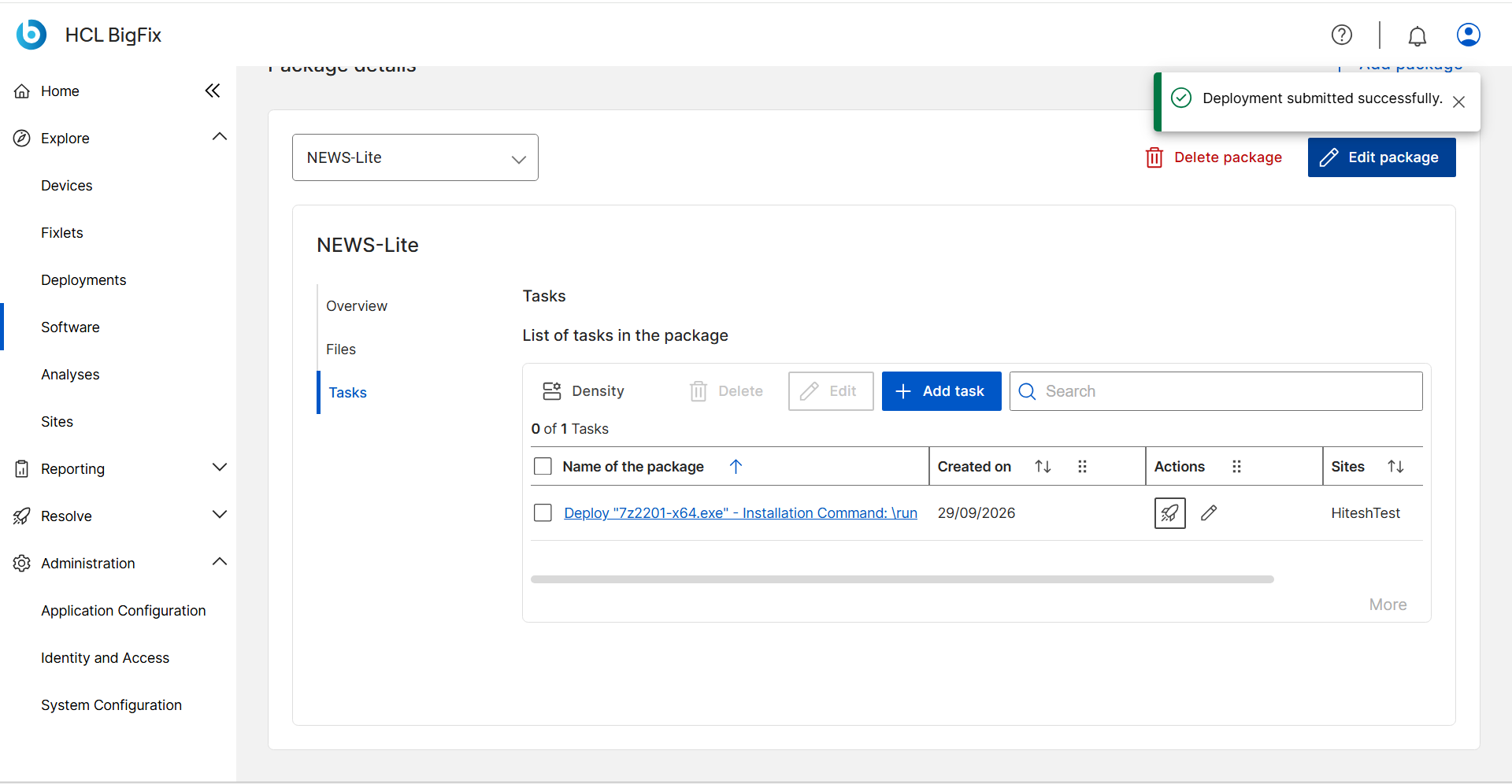
Figure 2. Deployment Submitted — Success Confirmation

A success notification confirming that the deployment has been submitted to the BigFix server. The message indicates the deployment was created successfully and is being propagated to the target endpoints for evaluation and execution.
The deployment action is sent to the BigFix server and propagated to the BigFix agents on the target endpoints. Each agent evaluates the task's relevance expression. On endpoints where the relevance condition is met, the agent downloads the required files from the BFUI File Server and executes the installation command.

What to do next

To make the software available for end users to request themselves without administrator intervention, configure the Self Service Application. See Configuring the Self Service Application.