Getting Started with BigFix Software Distribution on the BigFix UI
BigFix Software Distribution on the BigFix UI (BFUI) lets administrators deploy software to endpoints from a centralized browser interface — this section walks you through the three core steps: creating a Package, uploading the installer files, and deploying the task to target endpoints.
Software Distribution on the BigFix UI is built around three sequential activities that take you from zero to a deployed application on your endpoints. Whether you are deploying a new application for the first time or migrating from the legacy SWD Dashboard, the workflow is the same.
Prerequisites
Before you begin, confirm the following:
- You have a BigFix account with access to at least one Custom Site. Access to a Custom Site determines which packages and tasks you can see and manage. See Access Control.
- You must enable the Software Distribution site.
- The BigFix UI (BFUI) is installed and accessible from your browser.
- You have permission to create Tasks and manage Custom Sites in the BigFix Platform.
- If you have existing packages from the legacy SWD Dashboard or legacy BigFix WebUI, they must be exported from the legacy tool and re-imported into the new BFUI before use. Direct reuse is not supported. See Limitations and Legacy Compatibility.
- (Optional) Enable the Software Installer Library for Windows and/or Software Installer Library for macOS sites in your BigFix environment to access pre-built Fixlets for common software titles without building packages from scratch.
The Three-Step Workflow
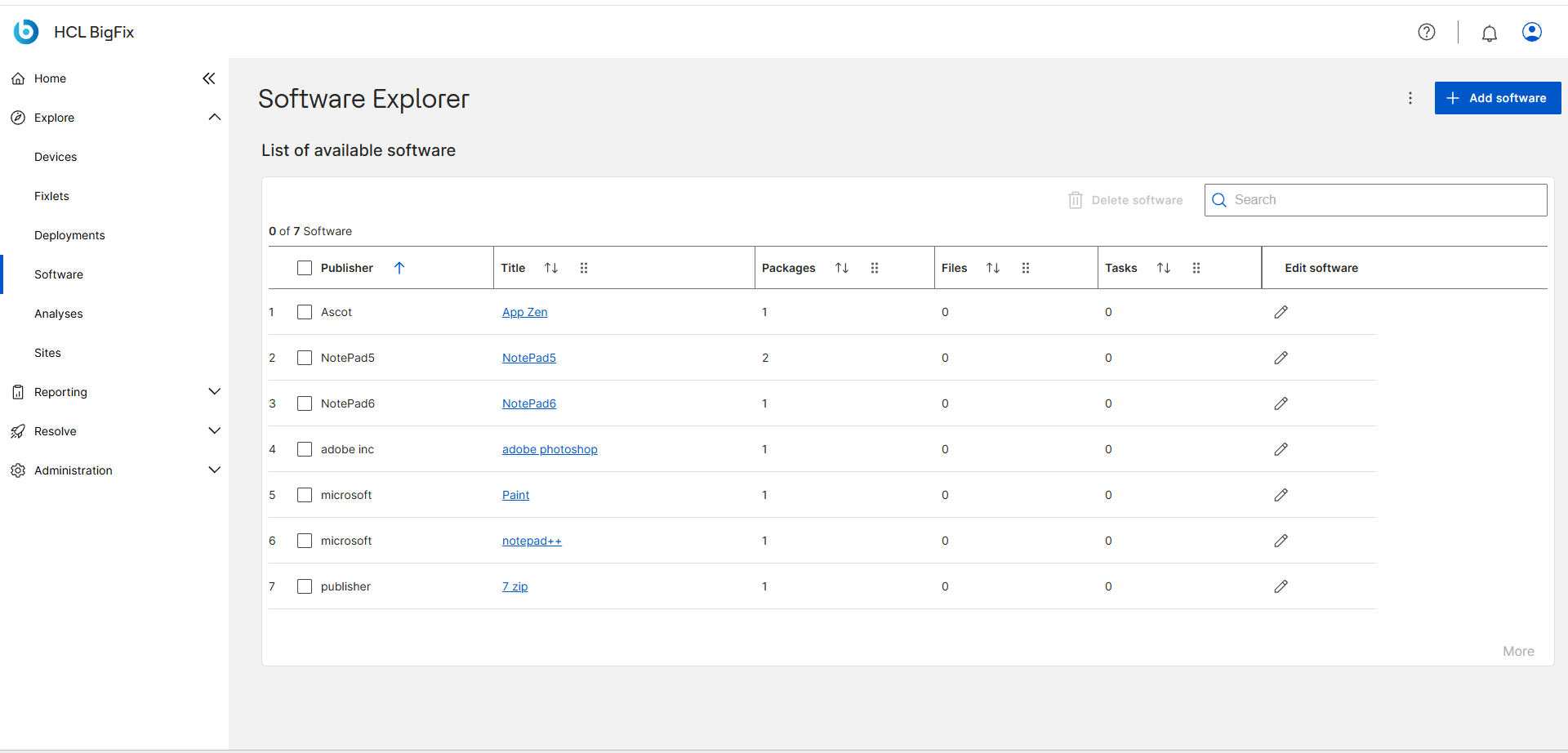
- Step 1 — Create a Package
- A Package is the fundamental unit of software in BigFix Software Distribution. Creating a Package means defining the software metadata (title, publisher, version, operating system, architecture, category) and establishing the container that will hold the installer files and deployment tasks. The Package is what the BigFix UI uses to organize and track everything associated with a software application.
- Step 2 — Add Files to the Package
- Once a Package exists, you upload the installer binaries and any supporting files — transform files, configuration profiles, license files — to the BFUI File Server and associate them with the Package. These files become the payload that gets delivered to endpoints during deployment. Each file can be assigned a relative path that controls where it lands on the endpoint.
- Step 3 — Deploy the Task to Endpoints
- With files in place, you select a deployment task from the Package's task list (or use the Deployments tab) and push it to your target endpoints. BigFix evaluates the task's relevance expression against each endpoint and executes the installation command only where conditions are met. You can monitor deployment progress from the Deployments view.
Where to Go Next
The task topics in this section walk through each step in detail. Follow them in sequence for your first deployment, or jump directly to whichever step applies to your current situation.