Deploy a Default Microsoft WDAC Base Policy on Endpoint v2.x
This deprecated task deploys a signed Windows Defender Application Control (WDAC) base policy on the endpoint using a secure, hash-validated workflow. Select from seven Microsoft-recommended baseline policy templates — including AllowAll, AllowMicrosoft, DefaultWindows (Audit or Enforced), and RecommendedDriverBlock — and the task converts, signs, and deploys the policy to the EFI partition for firmware-level persistence and enforcement across reboots.
About this task
Important:
This deployment ensures that the policy is trusted,
enforced, and persisted at the firmware level by placing it in the EFI partition. This
enables strong application control, protecting the system from unauthorized or untrusted
code execution.This task is deprecated and will be
removed from BigFix Application Control
v2.x in near future.
The task performs the following actions:
- Allows the selection of a Microsoft WDAC base policy template from the predefined options.
- Dynamically downloads only the selected policy file using secure hash validation (SHA1/SHA256).
- Copies the selected XML policy to the working directory.
- Initializes or replaces the existing base policy with a new policy id.
- Converts the policy from XML format to binary *.cip format.
- Signs the policy using a trusted code-signing certificate.
- Validates the signed output to ensure integrity.
- Mounts the EFI system partition.
- Deploys the signed policy to EFI\Microsoft\Boot\CiPolicies\Active location.
- Triggers a policy refresh (if supported) or applies on reboot.
- Logs all execution details (success/failure) to BAC\Logs\Deploy_WDAC_BasePolicy.log location.
Refer to the table below to know more about the task's exit code.
| Exit Code | Meaning | Description |
|---|---|---|
| 0 | Success | The WDAC base policy was successfully processed, signed, and deployed. |
| 10 | Working directory creation failed | The BAC working directory could not be created or accessed. |
| 11 | Log directory creation failed | The logging directory could not be created, preventing execution tracking. |
| 12 | Policy directory creation failed | The policy storage directory could not be initialized. |
| 20 | Template missing | The selected WDAC policy template file was not found or failed to download. |
| 30 | Policy processing failure | Error occurred during policy preparation, version, or rule configuration. |
| 40 | Binary conversion failure | Failed to convert the WDAC policy from XML format to binary (.cip). |
| 50 | Signing failure | The policy signing process failed or the signed output was not generated correctly. |
| 60 | Deployment failure | Failed to mount the EFI partition or copy the policy to the target location. |
| 70 | Policy refresh failure | The policy refresh process failed after deployment. A reboot may be required. |
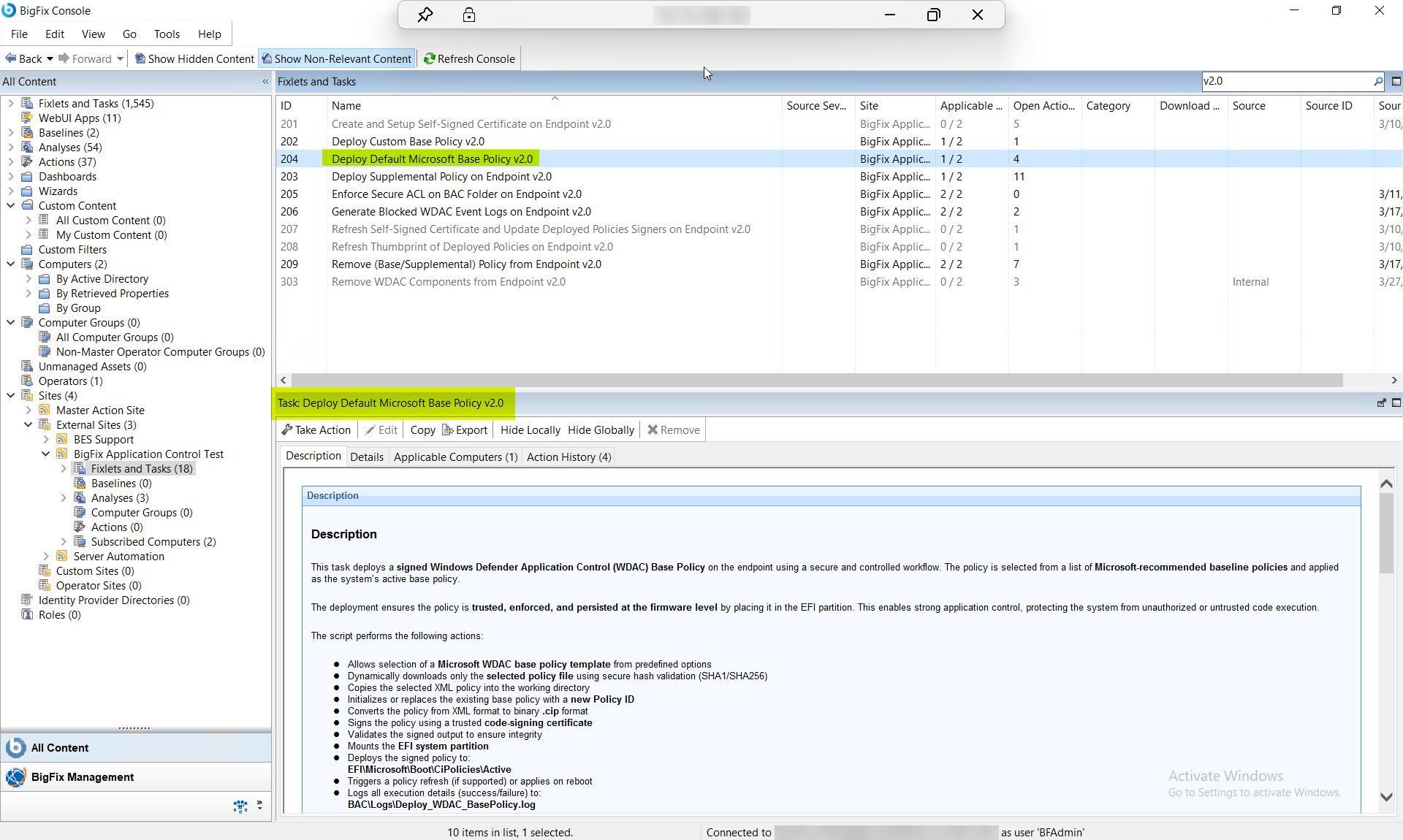
Procedure
- In the BigFix Console, navigate to .
- From the Fixlets and Tasks pane, select Task: Deploy Default Microsoft Base Policy v2.0.
-
From the Task: Deploy Default Microsoft Base Policy v2.0
pane, under Configuration Options select one of the
following policy options:
Figure 2. BigFix Console — Deploy Default Microsoft Base Policy v2.0: Select Base Policy Configuration Options Panel 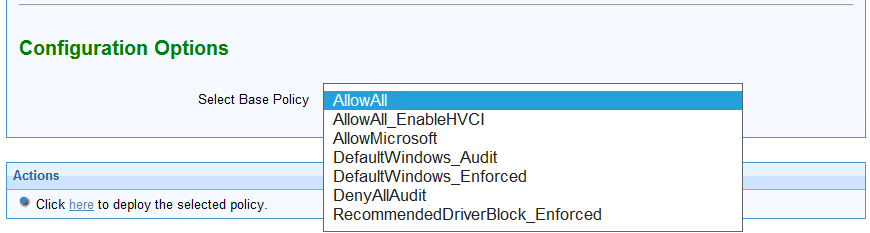
Table 2. Deploy Default Microsoft Base Policy v2.0: Select Base Policy Options and Descriptions Field Name Options Description Select Base Policy AllowAll Permissive policy (allows all applications) AllowAll_EnableHVCI Permissive policy with HVCI support AllowMicrosoft Allows only Microsoft-signed binaries DefaultWindows_Audit Default Microsoft policy in audit mode DefaultWindows_Enforced Default Microsoft enforced policy (recommended baseline) DenyAllAudit Blocks all applications in audit mode RecommendedDriverBlock_Enforced Blocks known vulnerable drivers - From the Task: Deploy Default Microsoft Base Policy v2.0 pane, click the Applicable Computers(n) tab and view the endpoints on which you want to run the task.
- Select the Take Actions tab and select the endpoints on which you want to apply this installer task.
- Click OK.
Results
- The selected WDAC base policy is successfully deployed to the system.
- The policy becomes the active enforcement policy for Application Control.
- The system enforces or audits applications based on the selected policy type.
- The policy persists across reboots via EFI deployment.
- Execution logs become available for audit and troubleshooting.