Create a Custom WDAC Base Policy Using the Policy Wizard
This deprecated topic describes how to use the Microsoft WDAC Policy Wizard to create a custom Windows Defender Application Control (WDAC) base policy. Starting from one of three templates — Default Windows, Allow Microsoft, or Signed and Reputable — configure policy rule options, add custom signing rules (publisher, file path, folder path, or file hash), keep Audit Mode enabled until ready to enforce, then build to generate the policy XML and optional binary for use with the Deploy Custom Base Policy task.
-
- Select the Policy Creator from the Start menu, then Base Policy
- If the default setting is enabled, the Base Policy option will be preselected. Otherwise, select the Base Policy option.
-
- Select from one of the default template policies
- Each of the template policies has a unique set of policy allow list
rules that will affect the circle-of-trust and security model of the
policy. The following table lists the policies in increasing order
of trust and freedom. For instance, the Default Windows mode policy
trusts fewer application publishers and signers than the Signed and
Reputable mode policy. The Default Windows policy will have a
smaller circle-of-trust with better security than the Signed and
Reputable policy, but at the expense of compatibility.
Table 1. WDAC Policy Wizard: Default Template Policy Options and Authorized Components (Increasing Order of Trust) Template Base Policy Description Default Windows Mode Default Windows mode will authorize the following components: - Windows operating components: any binary installed by a fresh install of Windows
- Apps installed from the Microsoft Store
- Microsoft Office 365 apps, OneDrive, and Microsoft Teams
- Third-party Windows Hardware Compatible drivers
Allow Microsoft Mode Allow mode will authorize the following components: - Windows operating components: any binary installed by a fresh install of Windows
- Apps installed from the Microsoft Store
- Microsoft Office 365 apps, OneDrive, and Microsoft Teams
- Third-party Windows Hardware Compatible drivers
- All Microsoft-signed software
Signed and Reputable Mode Signed and Reputable mode will authorize the following components: - Windows operating components: any binary installed by a fresh install of Windows
- Apps installed from the Microsoft Store
- Microsoft Office 365 apps, OneDrive, and Microsoft Teams
- Third-party Windows Hardware Compatible drivers
- All Microsoft-signed software
- Files with good reputation per Microsoft Defender's Intelligent Security Graph technology
The policy name and file location will default to values based on the selected template policy. The policy name and file location can be set by selecting the text box and typing the desired string. At any time during the workflow, you can choose to return to the default template page by selecting the Policy Template button on the left-hand menu.Note:Returning to the template page will remove the configured policy rule options as well as the custom signing rules.Figure 1. WDAC Policy Wizard — Select a Base Template for the Custom Policy 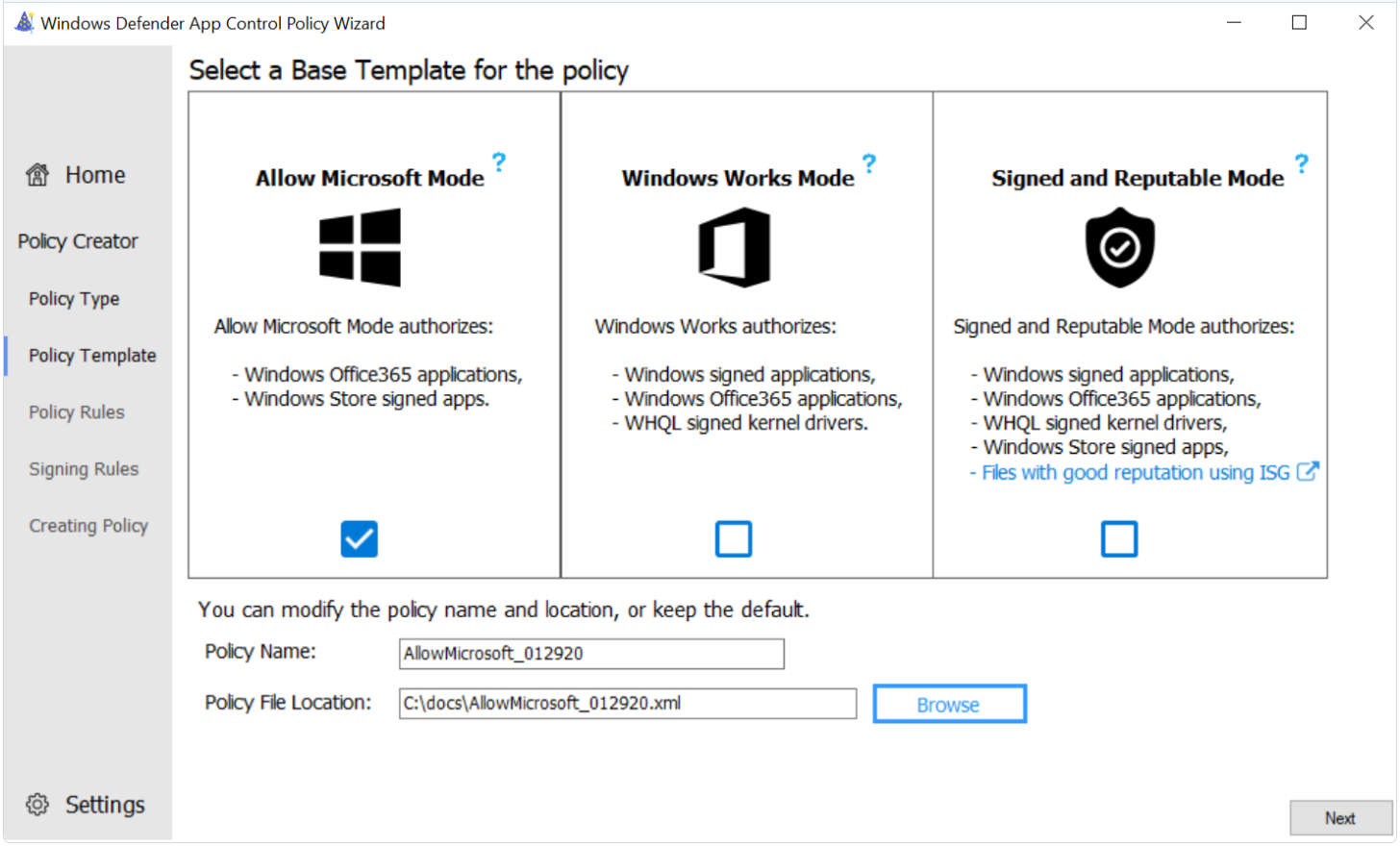
-
- Configure the policy rule options
-
Upon page launch, policy rule options will be automatically enabled or disabled depending on the chosen template from the previous page. Choose to enable or disable the desired policy rule options by pressing the slider button next to the policy rule titles.
Hovering the mouse over the policy rule names will display a short description of the rule at the bottom of the page. More information about each of the policy rules can be found on the App Control policy rules page.
Selecting the + Advanced Options button will reveal the advanced policy rule options panel. This grouping of rules contains additional policy rule options that are less common for the majority of users.
Lastly, Audit Mode is enabled by default for all of the templates. We recommend leaving the Audit Mode policy rule option enabled until users have fully understood how the policy and signing rules will affect their scenario. Disabling Audit Mode will result in the policy running in enforced mode after the policy is deployed. For more information on deploying App Control policies, see Deploying App Control Policies.
-
- Creating policy signing rules
- The Signing Rules List on the left-hand side of the page documents
the preset signing rules of the template as well as any
exceptions.Creating Custom Signing Rules
Selecting the + Custom Rules button will open the Custom Rules panel. Four types of custom rule conditions can be defined.
Table 2. WDAC Policy Wizard: Custom Signing Rule Condition Types and Usage Scenarios Rule Condition Usage Scenario Publisher To use a publisher condition, the files must be digitally signed by the software publisher, or you must sign with an internal certificate. File Path Any file can be assigned this rule condition; however, because path rules specify locations within the file system, any subdirectory will also be affected by the rule (unless explicitly exempted). Folder Path Any folder and subfolder can be assigned this rule condition (unless explicitly exempted). File Hash Any file can be assigned this rule condition; however, the rule must be updated each time a new version of the file is released because the hash value is based in part on the version. Publisher Rules
Select the Publisher option from the Rule Type combo box. Next, choose to Allow or Deny the publisher, and select a reference file signed by the software publisher on which to base the rule. By default, the publisher is set to apply to all files signed by the publisher, including the specific product name and file name with a version at or above the one specified. The restrictiveness of the rule can be modified using the slider. The text below the slider documents outlines the how the rule will be interpreted.
The table below shows the relationship between the slider placement, the corresponding App Control rule level and its description. The lower the placement on the table and the UI slider, the greater the specificity of the rule.Table 3. WDAC Policy Wizard Publisher Rule: App Control Rule Levels and Specificity Descriptions (Least to Most Specific) Rule Condition App Control Rule Level Description Publisher PCACertificate Highest available certificate is added to the signers. This is typically the PCA certificate, one level below the root certificate. Any file signed by this certificate will be affected. Product name Publisher This rule is a combination of the PCACertificate rule and the common name (CN) of the leaf certificate. Any file signed by a major CA, but with a leaf certificate from a specific company, for example, a device driver company, is affected. File name SignedVersion This rule is a combination of PCACertificate, Publisher, and a version number. Anything from the specified publisher with a version at or above the one specified is affected. Version FilePublisher Most specific. A combination of the file name, publisher, and PCA certificate as well as a minimum version number. Files from the publisher with the specified name and greater than or equal to the specified version are affected. Path Rules
Select the Path option from the Rule Type combo-box. Next, choose to Allow or Deny the path, and select either a File or Folder rule using the radio button below the Browse button. Lastly, select the reference file or folder on which to base the rule.
Hash Rules
Select the File Hash option from the Rule Type combo-box. Next, choose to Allow or Deny the hash, and select the file on which to base the rule.
Deleting Signing Rules
Template signing rules and custom rules can be deleted from the policy by selecting the rule from the rules list data viewer. Once the rule is highlighted, selecting the delete button underneath the table will prompt for additional confirmation. Select Yes to remove the rule from the policy and the rules table.
-
- Building the policy
- The policy build page will monitor the progress of the App Control
policy creation process. Depending on the number and complexity of
the custom signing rules, the build process could take several
minutes.
This tool creates the custom base policy XML to provide input to the ‘Custom Base Policy’ task. Refer to Deploy a Custom WDAC Base Policy on Endpoint v2.x for more details.