
Set Policy Modifications
This topic provides instructions for setting policy modifications on endpoints, including creating new rules, removing existing ones, and applying rules from a CSV file. It is essential for managing application control rules to enforce security policies and prevent unauthorized software execution.
About this task
This task provides a comprehensive solution for managing application control rules on target endpoints. It is essential for enforcing security policies, preventing the execution of unauthorized software, and hardening endpoints against malwares. By modifying the local policy file (...\BES Client\BAC\bes_bac.pol), this task allows an administrator to create, update, or remove rules based on file patterns, file hashes, or a centrally managed CSV file. The action this task performs is determined by the Select Mode parameter chosen by the administrator.
-
- Mode 1: Set New Rule
- This mode allows you to create and deploy a new, custom
application control rule. The policy operates in a default block
mode, meaning any new rule is added to a central configuration
that determines which applications are permitted or denied. The
configuration supports:
- Allow Rules: Explicitly permit necessary applications to run.
- Block Rules: Explicitly deny unauthorized or risky applications.
Table 1. Task: Set Policy Modifications Configuration Options Field Name Description Rule Name Name of the rule. Provide a clear, unique name for the policy (for example, "Block unauthorized torrent applications"). If a rule with the same name already exists, the task will fail. Rule Type Type of rule. Can be either Block or Allow. Path Pattern Path of the application or process to be allowed or blocked. Enter an executable name (for example, msedge.exe) or a full file path. Wildcards (*) are supported. For multiple entries, use a comma-separated list (for example, C:\Temp*.exe,C:\Users*\downloads*.exe). File Hash Hash value of the application file. For a more specific rule, provide the SHA-256 or SHA-384 hash of the file. For multiple hashes, use a comma-separated list. Rationale Description or reasoning of the rule. Note: Provide a value for either Path Pattern or File Hash for the rule to be valid. For more effective control, it is recommended to use a combination of both wherever feasible. -
- Mode 2: Remove Existing Rule
- This mode is used to modify or completely remove an existing
application control rule. It offers granular control, allowing
you to either delete an entire rule or selectively remove
specific criteria (like file paths or hashes) from within a
rule. When executed, the task performs one of the following
operations:
- Full Rule Deletion: To delete an entire rule, provide the Rule Name and Rule Type, but leave both the Path Pattern and File Hash fields empty. The task will find the matching rule and remove it completely.
- Partial Rule Modification: To remove specific criteria from an existing rule, provide the Rule Name, Rule Type, and the Path Pattern or File Hash you wish to remove. The task will find the matching rule and remove only the specified path(s) or hash(es), leaving the rest of the rule intact.
-
- Mode 3: Apply CSV Ruleset
- This mode creates or updates application control rules by
dynamically reading from centrally managed CSV files. This
allows for bulk management of application block/allow lists
without altering the task action script itself. When executed,
the task performs one the following actions:
- Based on the Rule Type you select (Block or Allow), it
reads from a corresponding source file:
allowlisted_applications.csv or
blocklisted_applications.csv.Note: For reference, you can download the sample allowlisted and blocklisted CSV format files from the links below:
- It parses the source file to extract a list of application file paths and/or file hashes.
- It then finds the rule specified by the Rule Name in the local policy file. If the rule exists, it is updated with the information from the CSV; if it does not exist, it is added as a new entry.
Remember: For this mode to function correctly, perform the following steps:- First, create and upload the source CSV file(s) to the BigFix server.
- Next, create the CSV File(s). Create a file named blocklisted_applications.csv (for blocking) or allowlisted_applications.csv (for allowing). The files must contain the headers Path Patterns and Hashes.
- Finally, upload the file(s) to the Master Action Site. In BigFix Console, navigate to tab. Right-click and select Add Files. Choose your CSV file and, most crucial, select the check-box labeled Send to clients before adding.
- Based on the Rule Type you select (Block or Allow), it
reads from a corresponding source file:
allowlisted_applications.csv or
blocklisted_applications.csv.
Perform the following steps to set policy modifications as needed:
Procedure
-
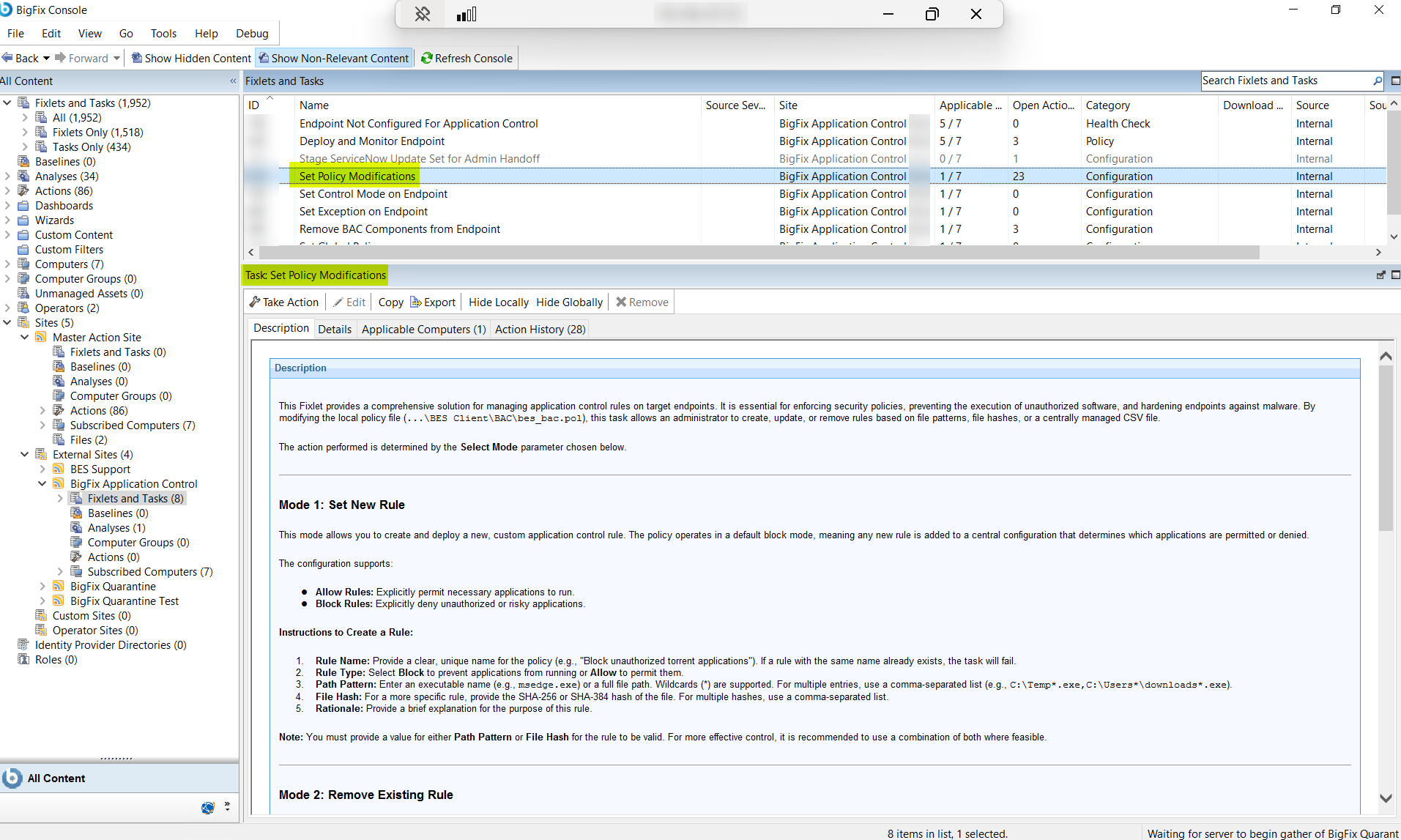
From the Fixlets and Tasks pane, select Task:
Set Rule on Endpoint.
-
From the Task: Set Policy Modifications pane, enter the
following information on the Description tab:
Table 2. Task: Set Rule on Endpoint Configuration Options Field Name Description Select Mode Select the mode: Set New Rule, Remove Existing Rule, Apply CSV Ruleset as needed. Based on the mode selected, you will get different configuration options.
What to do next
- For setting a new rule, refer to Set New Rule on Endpoints.
- For removing an existing rule, refer to Remove Existing Rule from Endpoints.
- For applying a CSV ruleset, refer to Apply CSV Ruleset to an Endpoint.