
Set Control Mode on an Endpoint
This topic outlines the process for setting the operational mode on an endpoint in BigFix Application Control, allowing administrators to choose between Allow Mode and Block Mode. Each mode enforces different rules for application execution, enhancing security or flexibility based on the environment's needs.
About this task
As an Administrator, you can set the operational mode for the Application Control policy on the endpoints. This setting determines the default execution and which set of rules (Allow or Block) are enforced on the endpoint.
-
- Allow Mode
- This mode has a default-deny policy. This means that all applications are blocked from running by default. Only applications and processes that match a specific "Allow Rule” are permitted to run. This is the most secure mode and is intended for highly controlled environments.
-
- Block Mode
- This mode has a default-allow policy. This means that all applications are permitted to run by default. Only applications and processes that match a specific “Block Rule” are prevented from running. This mode is intended for flexible environments.
You need to use Task: Set Control Mode on Endpoint for setting the desired control mode on an endpoint.
Follow the steps below to configure the mode on the endpoints:
Procedure
-
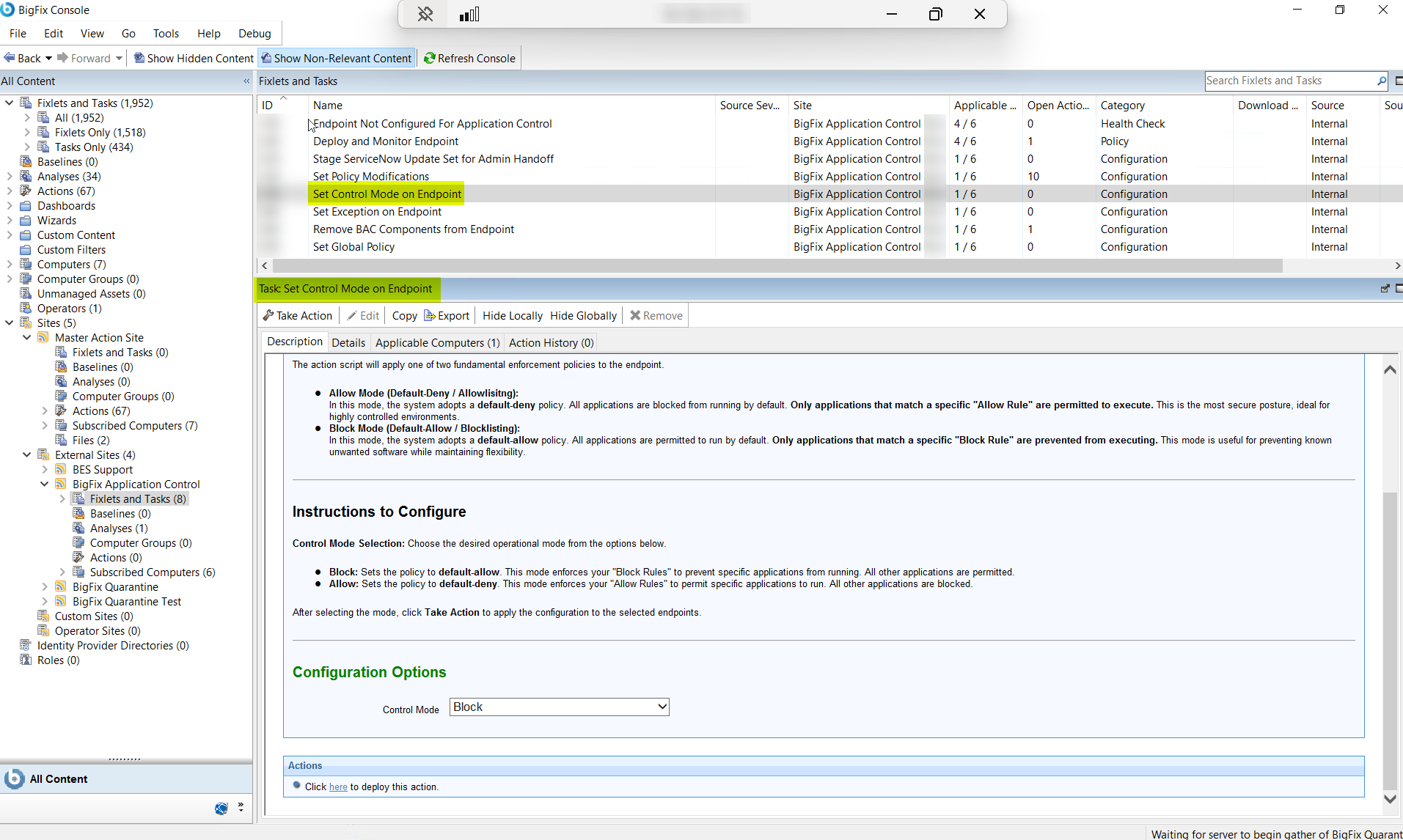
From the Fixlets and Tasks pane, select Task:
Set Control Mode on Endpoint.
-
From the Task: Set Control Mode On Endpoint pane, select
the relevant Mode from the drop-down, either Allow or
Block.
Figure 1. Task: Set Control Mode on Endpoint 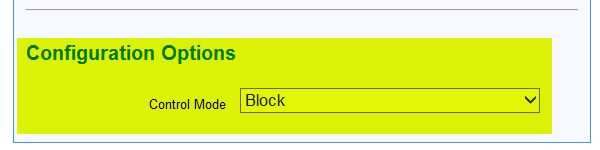
- Select the Take Actions tab and select the endpoints on which you want to apply the selected mode.
- Click OK.