
 Inventory
Dashboard
Inventory
Dashboard
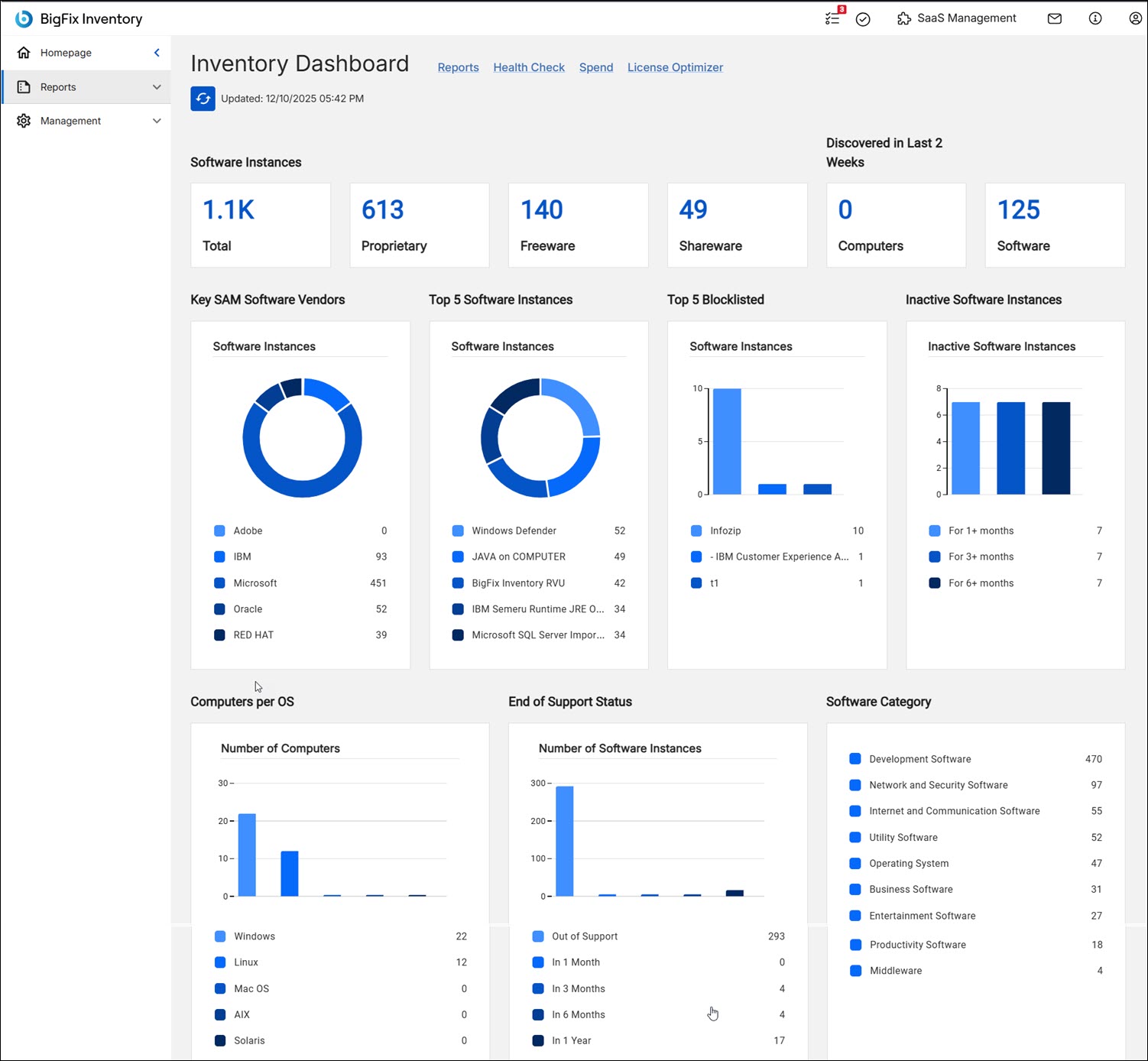
With version 11.0.4, BigFix Inventory brings a new 'Inventory Dashboard' which provides overall and breakdown data about your software database. The new dashboard is displayed by default if the preferred homepage is not set and you have the required permissions to view it.
 Required
permission: View Endpoints
Required
permission: View Endpoints
 Refresh
button—Refresh button is added to support cache mechanism in the Inventory dashboard. You can click the Refresh button to allow BigFix Inventory
recalculate and reload the data.
Refresh
button—Refresh button is added to support cache mechanism in the Inventory dashboard. You can click the Refresh button to allow BigFix Inventory
recalculate and reload the data.
Inventory dashboard widgets
- Software Instances
- The Software Instanced tile shows the number of present, not suppressed instances:
- Discovered in Last 2 Weeks
-
- Computers—Shows the number of computers with First Seen starting 2 weeks ago
- Software—Shows the number of instances with Discovery Start starting 2 weeks ago.
Drill down to Computers/Software Classification with the related filter.
- Computers per OS
- The Computer per OS tiles shows the number of computers for the following operating systems:
- End of Support Status
- The End of Support Status tiles shows the number of present, not suppressed software instances with the following attributes:
- Software Category
- The Software Category tile shows the number of instances (present, not suppressed) for the component categories having any instance. Drill down to Software Classification additionally filtered by the clicked category.
- Key SAM Software Vendors
- The Key SAM Software Vendors tiles shows the number of instances (present,
not suppressed) with the following component vendor name:
- Adobe
- IBM
- Microsoft
- Oracle
- RED HAT
- Top 5 Software Instances
- The Top 5 Software Instances tile shows the top 5 component names of instances, present and not suppressed. Drill down to Software Classification, additionally filtered by the clicked component.
- Top 5 Blocklisted
- The Top 5 Blocklisted tiles shows the top 5 component names of instances having a 'blocklist' or 'blacklist' tag (at the instance or component level), present and not suppressed. Drill down to Software Classification, additionally filtered by the clicked component. If no such instances are available and there is no 'blocklist' or 'blacklist' tags on the component level, the widget displays 'Define blocklist' and a link to Software Components. If no such instances is available and there is a ‘blocklist’ or ‘blacklist’ tag on the component level, the widget displays ‘No blocklisted instances found.’ information.
 Inactive
Software Instances
Inactive
Software Instances- Presents a number of inactive software instances for three periods: 1+, 3+, and 6+ months. Clicking any chart bar or legend item opens the matching Inactive Software report, wich lists detailed instance information.
The cached
values are recalculated automatically only if there was a successful data import since
the last recalculation, or if BigFix Inventory server was restarted. Moreover, the
entries may be evicted in case they are assumed to be no longer needed, for example the
user has not logged in for a long time or the user has not navigated to the dashboards
recently.In any case, if cached values are not available, they are recalculated, displayed and added to the cache once the user opens the related page.
- cache_continuous_processing_interval
- cache_expiration_period
- cache_max_size
- cache_recent_user_period