
 License Optimizer for
Microsoft SQL Server
License Optimizer for
Microsoft SQL Server
A License Optimizer dashboard is provided for Microsoft SQL Server products, Enterprise and Standard Edition, providing insights and essential tools to optimize licenses and reduce costs, taking into account the specific license type.
Required permission:  (View Contracts or Edit Contracts) and View Endpoints
Use cases
- Understand my total license spend and savings due to not deploying licenses
- Understand my total license saving if migrated to SQL Server Standard Edition from SQL Server Enterprise Edition
- Help to optimize license showing MS SQL Server components that are not started (not used)
- Help to optimize license by collocating licensable SQL Server components with Microsoft SQL Server database engine and avoiding unnecessary spend on computers/VMs
- Help to optimize license by identifying too many instances of a particular MS SQL Server component type and uninstalling them
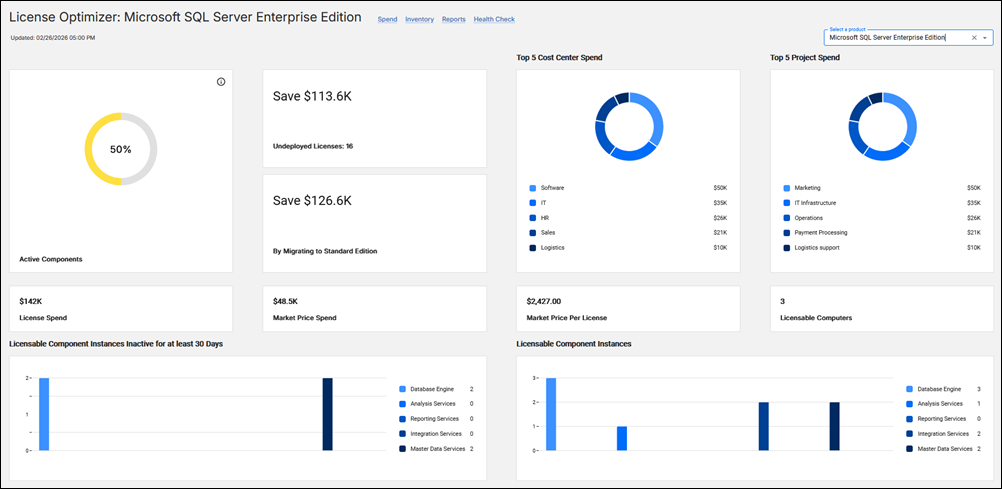
License Optimizer dashboard widgets
- Active Components
-
The percentage of software instances last used within the last 30 days. The widget has one of the following colors: red (<50%), yellow (50-80%), and green (>80%).
- Save xxx / Undeployed Licenses
-
The estimated savings from undeployed instances are based on the unit cost from license contracts and the number of licenses that are purchased but not deployed (not under measured values). If there is an ELA license contract, then ‘ELA license’ is displayed. In case there are no undeployed instances or savings are not possible, then ‘No potential savings’ is shown. Undeployed instances is the delta, i.e., the number of purchased licenses (metric quantity) in license contracts minus the measured value. Clicking on the widget redirects to the All Contracts report filtered by Delta greater than 0 and Contract Type is License and by the selected product.
Save xxx / By migrating to Standard Edition (Microsoft SQL Server Enterprise Edition only
It provides information on what potential savings may be from migrating from the enterprise to the standard edition, based on license expense and purchased quantity of the enterprise edition. To estimate the cost of the standard edition, its unit price is taken from non-ELA license contracts with defined expenses or, if no such contracts are available for the standard edition, its market price per license is used.
The limitation of virtualization with the Standard Edition will not be taken into consideration.
Limitations on using CPU & memory in the standard edition will not be taken into consideration.
- Top 5 Cost Center Spend
- The Top 5 Cost Center Spend widget shows the top five spends broken down as per the cost centers set in the active purchases. Clicking on each breakdown redirects to the Purchases in Contracts report for active purchases in contracts with the selected product. All contract types are taken into account.
- Top 5 Project Spend
- The Top 5 Project Spend widget shows the top five spends broken down as per the project set in the active purchases. Clicking on each breakdown redirects to the Purchases in Contracts report for active purchases in contracts with the selected product. All contract types are taken into account.
- License Spend
- The License Spend widget shows the sum of active purchases in contacts of type 'License.' In case there is at least one underlicensed contract of type 'License,' then an additional warning is displayed. Clicking on the widgets redirects to the All Contracts report with a filter by the contract type and by the selected product.
- Market Price per License
- It shows the estimation of the spend in dollars for the Microsoft Processor Core license, assuming the market price for mid-size company discounts with an annual subscription.
- Market Price Spend
- It shows the insight of estimating total license spend in dollars for the respective product, assuming market price for mid-size company discounts with annual subscriptions. Calculated for non-ELA license contracts when license quantity is greater than 0. When license quantity is 0, it is 0. In case of an ELA license contract, ‘ELA license’ is displayed.
- Licensable Computers
- It shows the number of computers with the product. Clicking on the widget redirects to the Software Summaries report with a filter by present, not suppressed instances, and by the selected product. Clicking on the widget redirects to the Software Summaries report with a filter by present, not suppressed instances, and by the selected product.
- Licensable Component Instances
-
It provides information about discovered instances of licensable components, which are database engine, analysis services, reporting services, integration services, and master data services. Clicking on a given item redirects to the Software Summaries report with a filter by present, not suppressed instances; component name matching the selected licensable component; and the selected product.
Note: Licensable component names are different from component names from the software catalog. For example, “Database Engine” is mapped to component names starting with “Microsoft SQL Server for Microsoft SQL Server," and various versions are included. - Licensable Component Instances Inactive for at least 30 Days
- The same data as in the Licensable Component Instances widget but limited to instances with a Last Used value at least 30 days ago. Clicking on a given item redirects to the Software Summaries report with a filter by present, not suppressed instances; component name matching the selected licensable component; and the selected product, having last been used at least 30 days ago.