
Export - Administrator Only
An Admin can perform export functions on any available repository. Export differs from a backup by performing a database dump in SQL allowing for importation into other SQL-compliant external databases or products. This media format is not supported for restore processing.
As exports are intended for external use only, it is recommended the backup media selected be one of the configured externally available mediums STORAGE1 or STORAGE2.
- From the Backup/Restore menu page select the Export tab.
A pop-up appears:
Figure 1. New Export 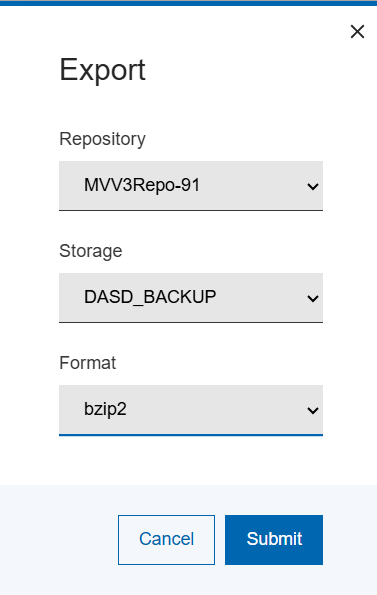
- Select your desired repository under the Repository drop-down menu.
- Select the export storage media to use under the Storage drop-down
menu.Note:By default DASD_BACKUP docker volume is available for use though for export processing it is recommended to have configured external storage media locations (Storage1 and/or Storage2) and to select one of those. Any external backup storage media that is not configured or available will not be enabled.
- Select the compression method required under the Format drop-down
menu.
The default is zip and will be the fastest option but may not offer the best disk space utilization. If you wish to have better compression at the expense of CPU/execution time, select bzip2 from the drop-down menu.
-
Select Save.
The exported is now initiated.
- If you start the export from the repositories Action menu, the repositories page gets updated and it shows that the selected repository is in use.
- Select the i icon next to the repository being exported to view the export progress as below.
- If you select the export process from the Backup/Restore administrator
menu, you are directed to the export progress page.
A new entry in the export history display will be added at the top.
-
You can click on the high-lighted ID number for your export to monitor the progress as displayed:
Figure 2. Export History Page 
The Actions menu allows for management of the export history and log viewing.
- Using the Files tab, you can download an export created file from the selected backup medium.
- Navigating to your desired export file.
- Select the file name.
The export file will be downloaded through your browser.
Note:If you used externally configured data storage, the export file(s) are also available directly on the host system at the configured location.Note:To see more details and information on performing a repository backup, export and restore, please refer to Login as Admin section of this manual.