Live Preview
For Iris releases earlier than 10.0.20.0, refer to the Live Preview for Earlier Releases
Overview
Live Preview provides a seamless in-app preview experience for your responsive web apps. It reduces the build and preview time of a responsive web app, letting you view your app as it appears on various devices without having to test it on those devices.
Faster previews
Previously, testing a web app required you to build the app, publish it, retrieve the URL, and open the URL in a web browser. Live Preview simplifies this process: when you select the Live Preview option, HCL Experience Studio builds the app, and the preview opens automatically once the build completes.
Preview a web app on different devices from a single tab
Live Preview lets you switch between devices to experience their different form factors. Select a device from the drop-down list in the preview, and the previewer instantly updates to mimic the view on that device.
Debugging support
Live Preview lets you detect and diagnose errors in your applications, set breakpoints, and step through your code using your browser's native DevTools. For instructions, see Debugging Live Preview.
Preview your Responsive Web App with Iris
Important: Before you run a Live Preview, ensure that you have a project in which you have a Web app designed.
To preview a Responsive Web App, do the following:
- Open the Volt Iris project in which you have your web app designed.
-
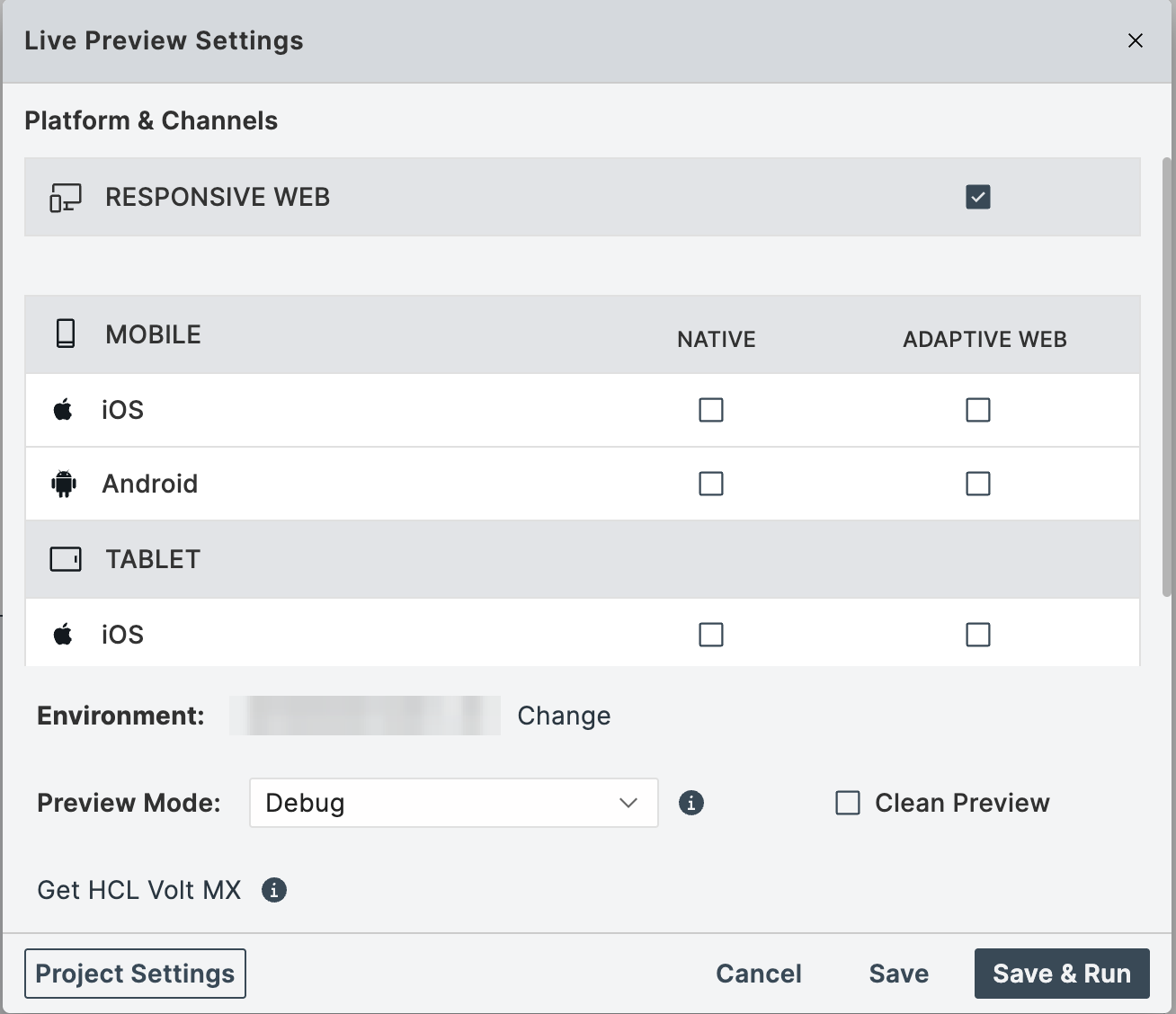
From the main menu, go to Build > Live Preview Settings. The Live Preview Settings window appears.
-
Select the Responsive Web channel for all the required platforms.
-
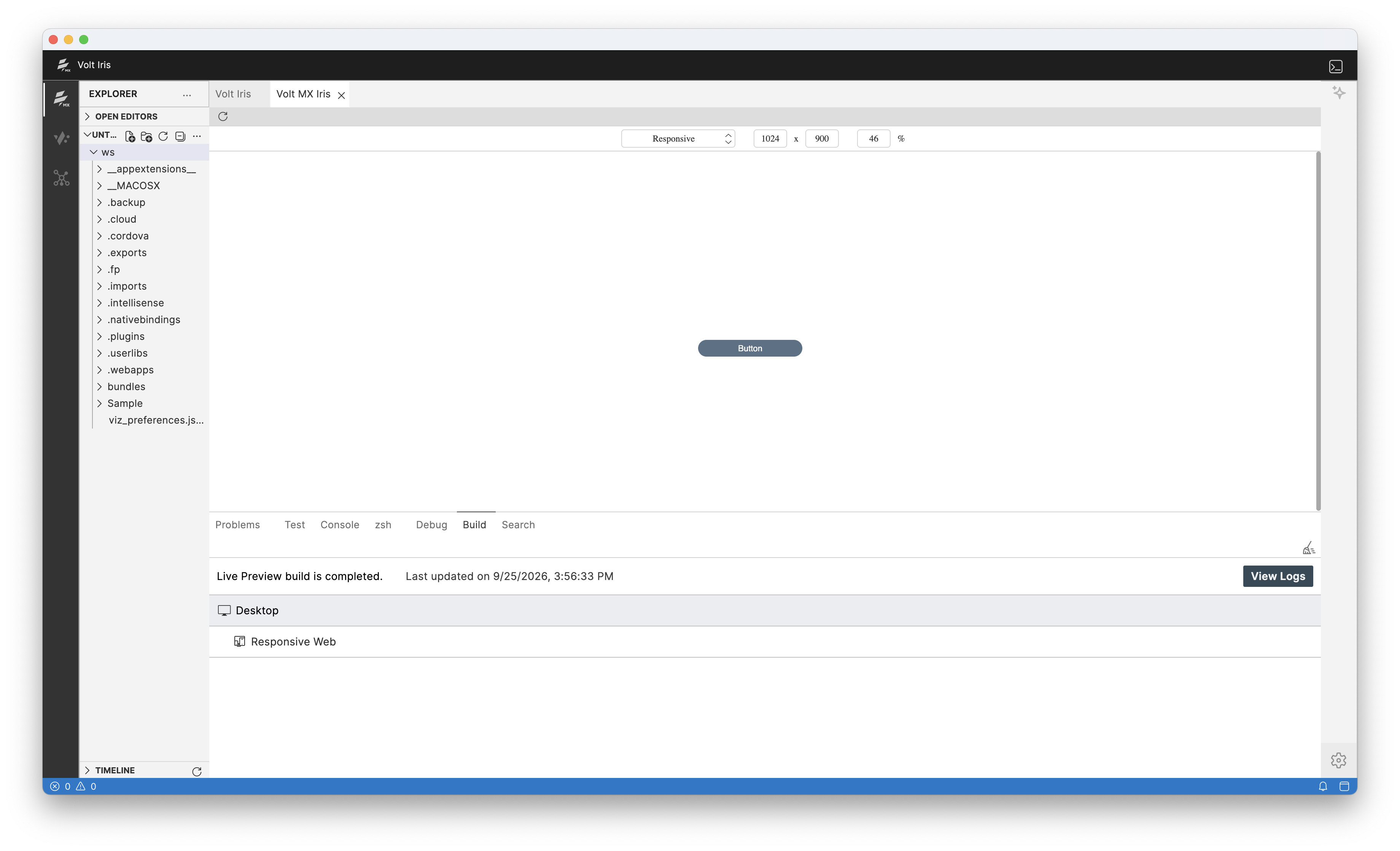
Click Save & Run or click Save and press Ctrl+R (Cmd+R on Mac) on your keyboard to launch the Live Preview. The build process begins in the Iris Build tab. Once the build for the selected platforms is completed, a closeable Live Preview tab opens inside the IDE.
-
The Live Preview tab includes a minimal toolbar with a Refresh option. The device selector, resolution, and orientation controls are rendered within the preview page itself, letting you select specific platform models and adjust their dimensions as required.
Debugging Live Preview
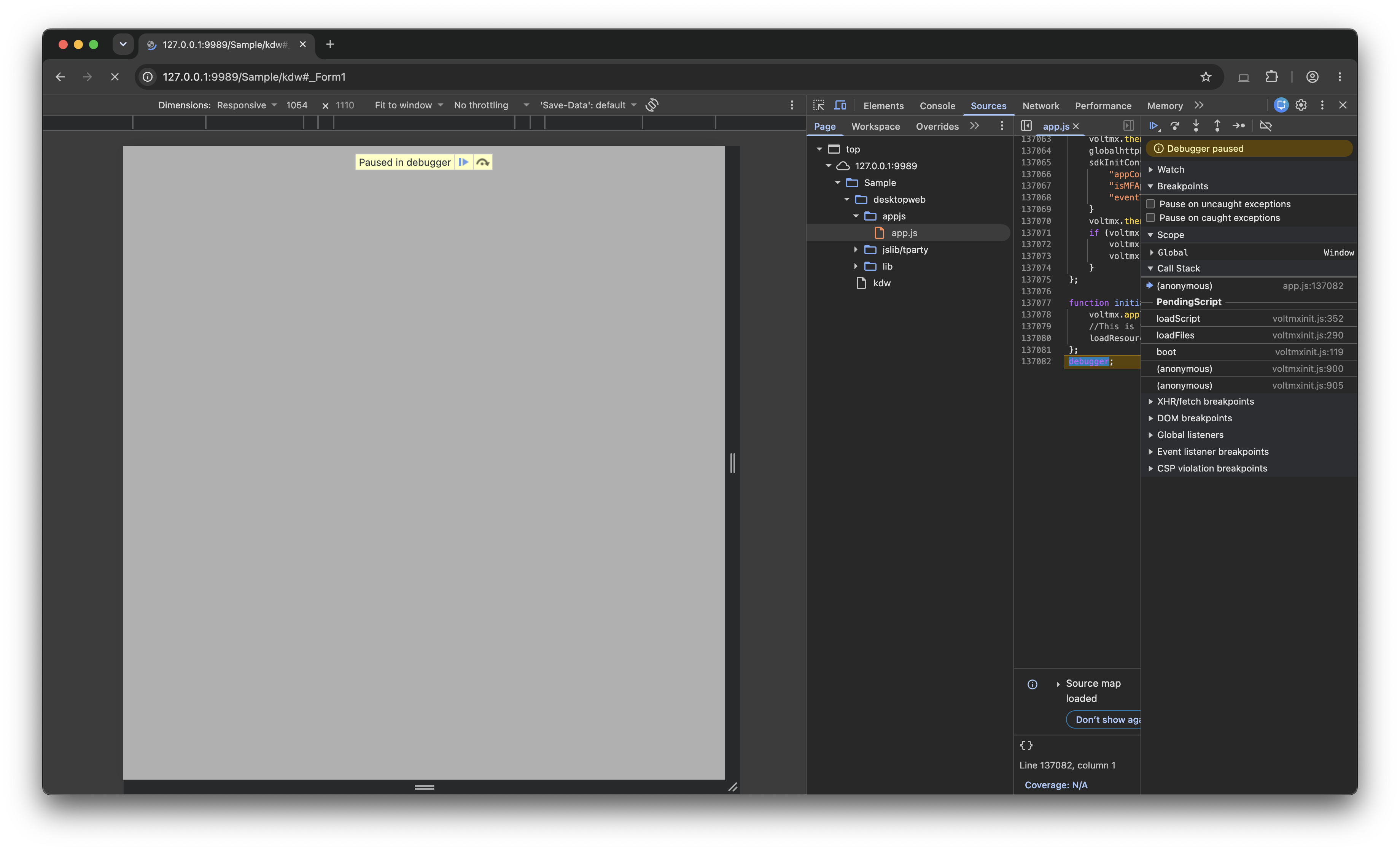
Debugging is performed externally, using your browser's native DevTools, rather than an in-app debugger. Open the localhost preview URL in a Chromium-based browser (Chrome or Edge) to inspect and debug the previewed application.
To debug Live Preview, do the following:
- Start Live Preview.
- Wait for the Live Preview is ready message.
- Locate the localhost URL (
http://localhost:<port>/...) displayed in the console tab. - Open the localhost URL in a Chromium-based browser (Chrome or Edge).
- Open DevTools using the platform shortcut:
- Windows/Linux: F12 or Ctrl+Shift+I
- macOS: Cmd+Option+I
-
Use the Console, Sources (with source maps), Network, Elements, and Application panels to debug your app.
-
Use the browser's Device Toolbar (Ctrl+Shift+M) for mobile emulation.
- Close the browser tab when you are done. Closing the browser tab does not affect the Live Preview tab in the IDE.
For information on using the Chrome debugger, see Get Started with Debugging JavaScript in Chrome DevTools on the Google Chrome website.
Preview your Native App with Iris
To preview a Native App, do the following:
- Open the Volt Iris project in which you have your web app designed.
-
From the main menu, go to Build > Live Preview Settings.
The Live Preview Settings window appears.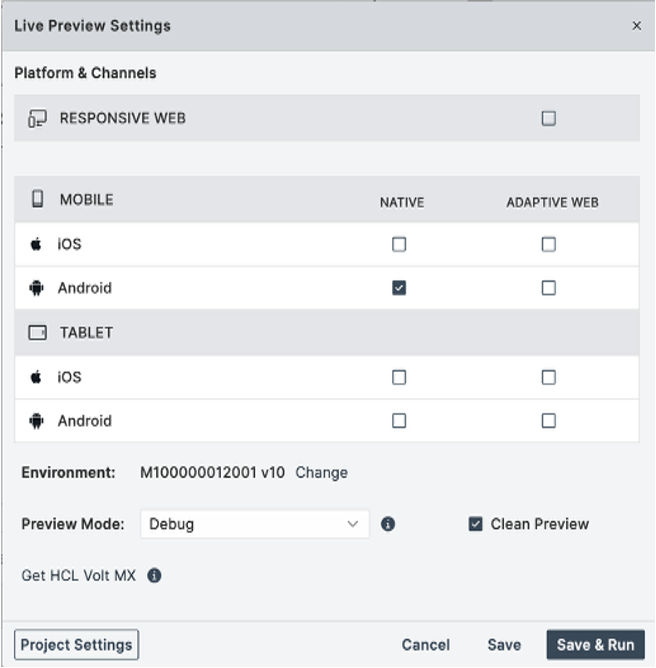
-
Select the Native channel for all the required platforms.
-
Click Save & Run or click Save and press Ctrl+R (Cmd+R on Mac) on your keyboard to launch the Live Preview. The build process begins in the Iris Build tab.
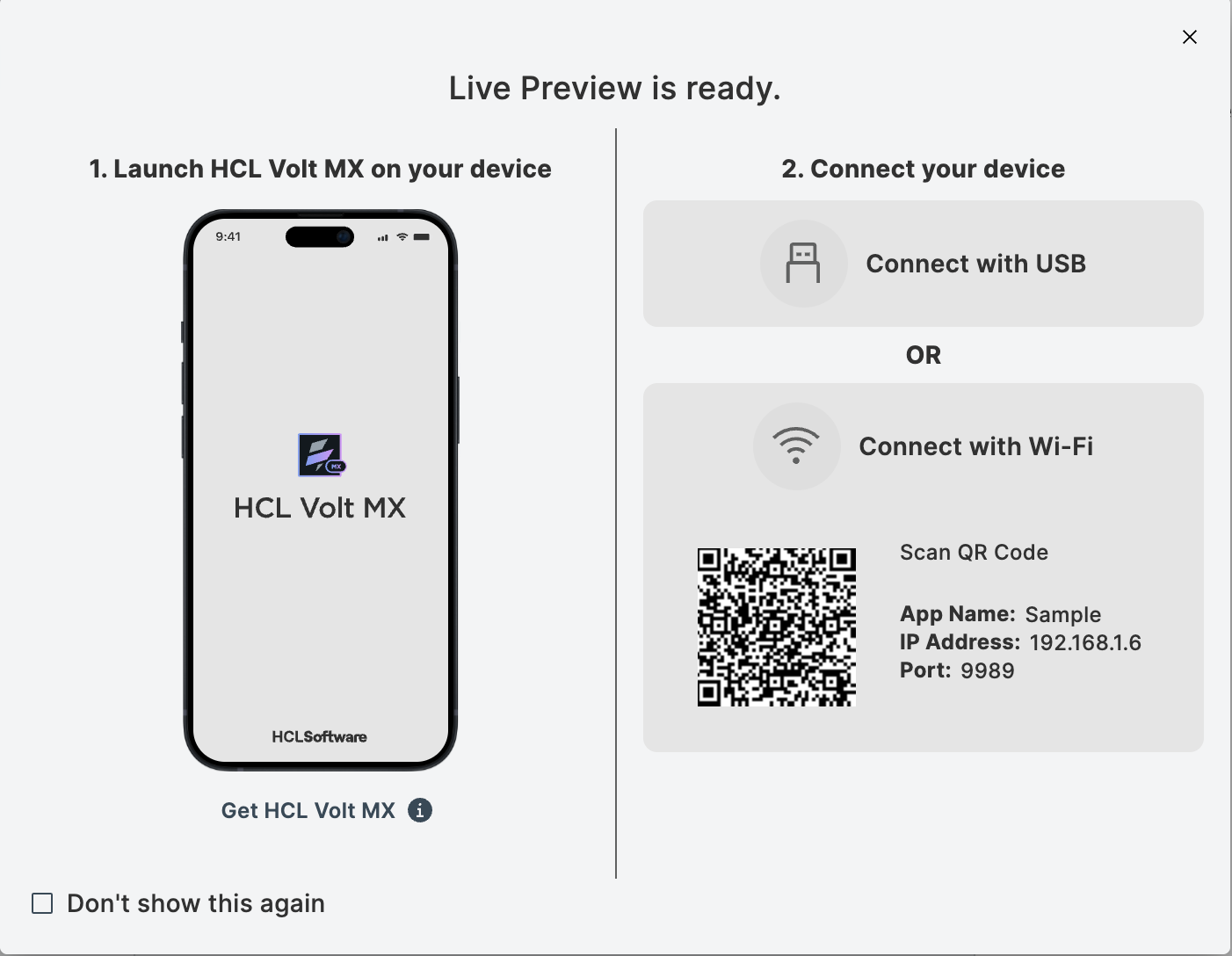
You can also see a Live Preview is ready message that contains App Details and a QR code for the web app. Using these details, you can preview the web app on your device. For more information, go to Preview an App on a Device.
To debug an application for iOS and Android platforms, see: