Volt IQ
For Iris releases earlier than 10.0.20.0, refer to the Iris Documentation for Earlier Releases
Overview
Volt IQ is an AI chat assistant integrated into HCL Volt Iris. It runs as a chat agent named Volt IQ inside the AI Chat panel.
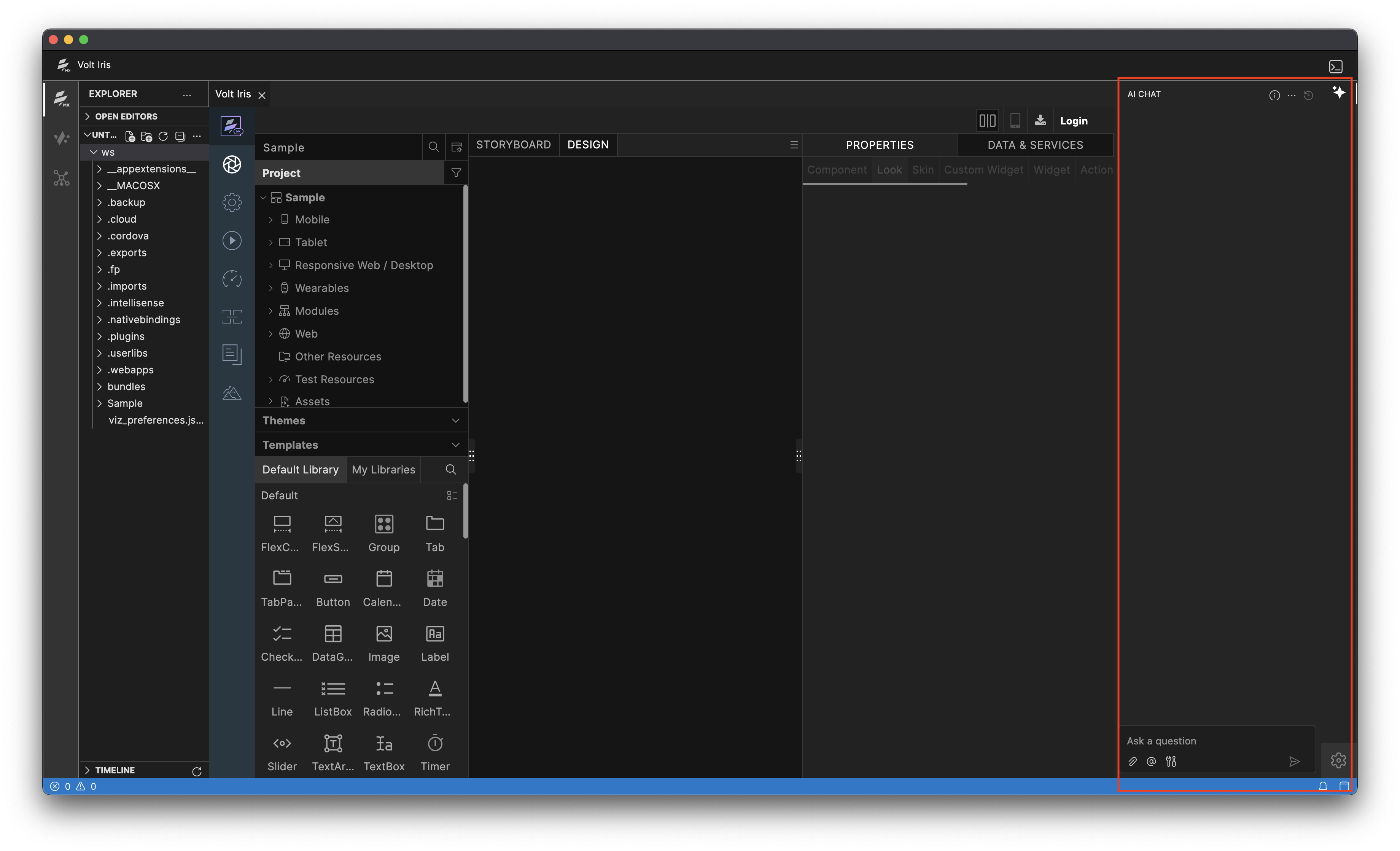
Volt IQ provides a broad range of assistance directly within the HCL Experience Studio workspace. It helps developers:
- Answer technical questions.
- Run actions through natural-language prompts.
- Search resources across Community, Marketplace, YouTube, and Hikes.
- Translate open projects to target locales.
Prerequisites
- Sign in to the Volt Foundry account configured in Preferences to receive Volt IQ RAG results through Volt AI.
- Community, Marketplace, YouTube, and Hikes results are available without signing in.
- An active internet connection is required for Volt IQ to search, translate, and generate Volt AI responses.
Interact with Volt IQ
To access and interact with Volt IQ in the AI Chat panel, follow these steps:
-
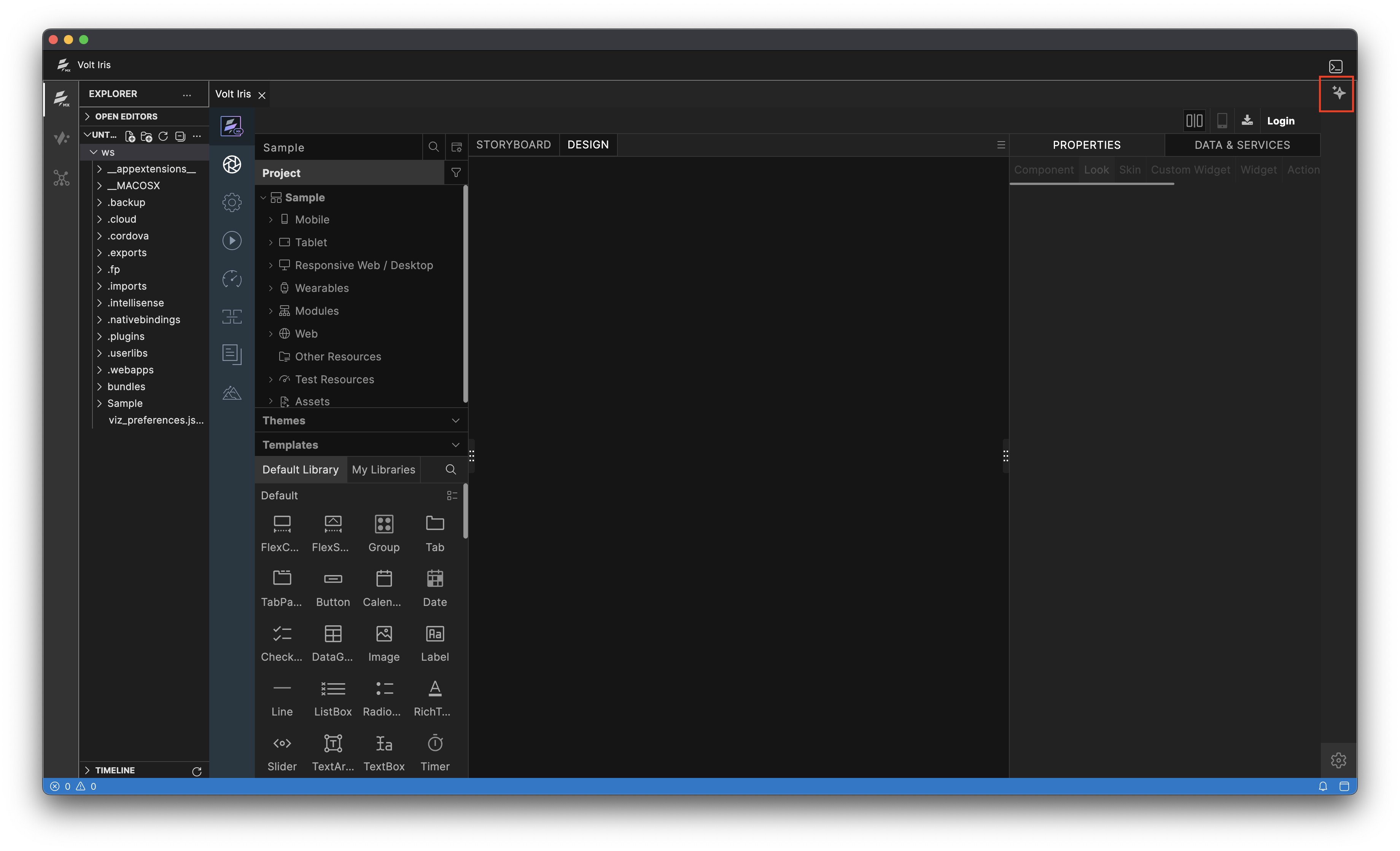
Open the AI Chat panel by selecting View > AI Chat from the main menu, or by running the View: Toggle AI Chat command from the Command Palette (F1 / Ctrl+Shift+P). You can also select the AI Chat icon.
-
Direct a message to Volt IQ by typing
@VoltIQfollowed by your question or command.
Note: You need to mention
@VoltIQonly for the first query. From the second query onwards, VoltIQ is pinned and remains the active chat agent for the session.
Result tabs and source filtering
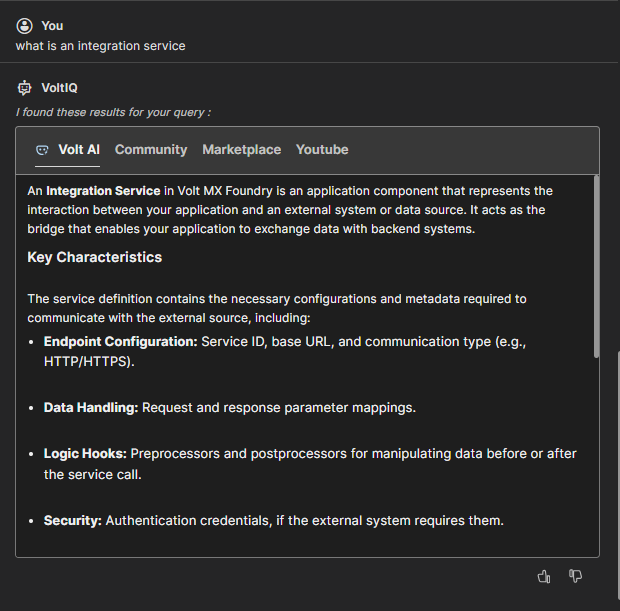
Search results and responses are presented across five result tabs:
| Tab | Description | Sign-in required |
|---|---|---|
| Volt AI | Displays RAG results as a list of cards containing a title and short description. | Yes |
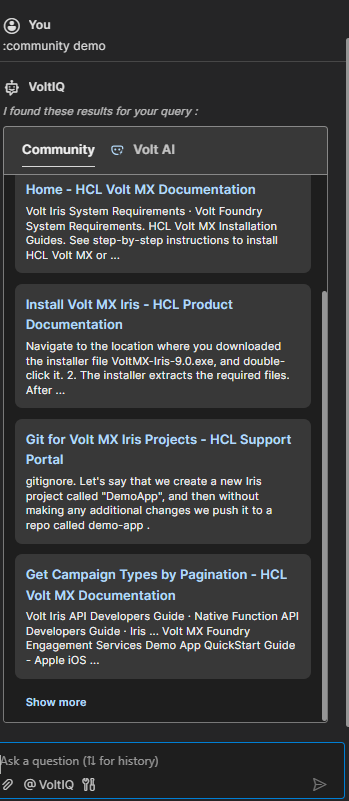
| Community | Displays a list of cards containing a title, short description, and a Show more link when additional results exist. | No |
| Marketplace | Displays components in a grid. Each item includes a thumbnail, title, and actions to view or download/import (showing a brief busy state while processing). | No |
| YouTube | Displays a grid of video thumbnails with titles. Selecting a thumbnail opens the video. | No |
| Hikes | Displays matching hikes as cards containing a title, short description, step details, and a Play Hike button that launches the hike inside Volt Iris (disabled while launching). | No |
Note: Only the tabs for sources that return relevant results are displayed — for example, a query might show only Volt AI and Marketplace, while another shows Volt AI, Community, Marketplace, and YouTube.
To scope a query to a single source, prefix your prompt with a colon and one of the five source names: :voltai, :community, :marketplace, :youtube, and :hikes.
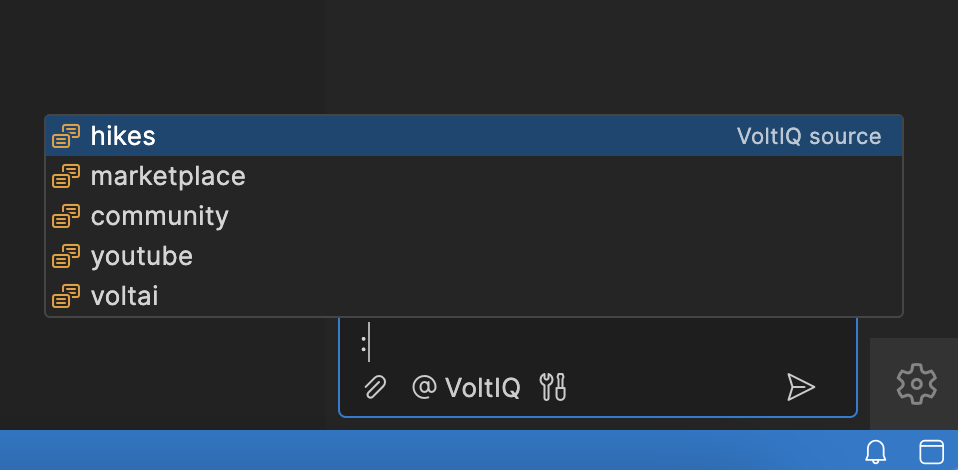
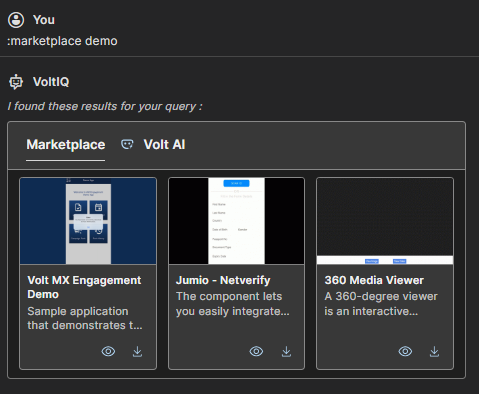
For example: @VoltIQ :marketplace demo.
Note: The
@prefix is reserved for selecting the chat agent, while the:prefix scopes the search source. Typing a colon displays an autocomplete list of the five source names.
Auto-suggestions
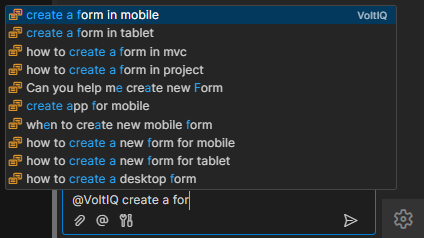
- Once VoltIQ is mentioned or pinned, typing in the input field (or focusing an empty input field) displays up to 10 example prompts from a curated utterance library.
- Exact phrase matches rank first, followed by partial word matches.
- An empty input field displays the top 10 default utterances.
- Selecting a suggestion automatically inserts it into the chat input box.
Volt AI
Volt AI is a generative AI chatbot that uses Retrieval-Augmented Generation (RAG) to deliver contextual, documentation-grounded responses. It is part of the Volt IQ suite and is available to signed-in users through the :voltai source.
Key features
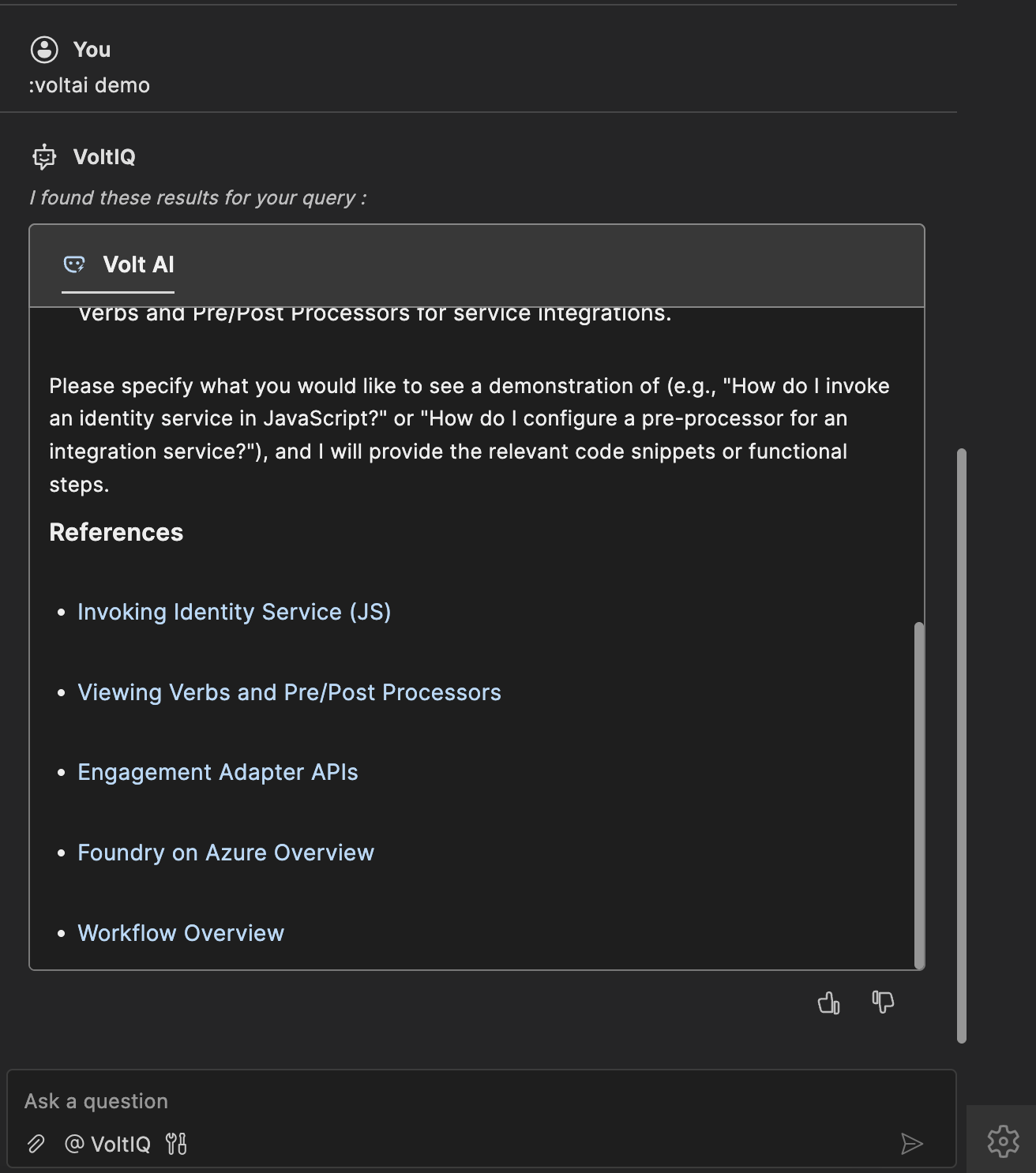
- Answers include relevant documentation links, and may include a References section listing links to related guides (for example, Volt Iris User Guide, Volt Foundry User Guide).
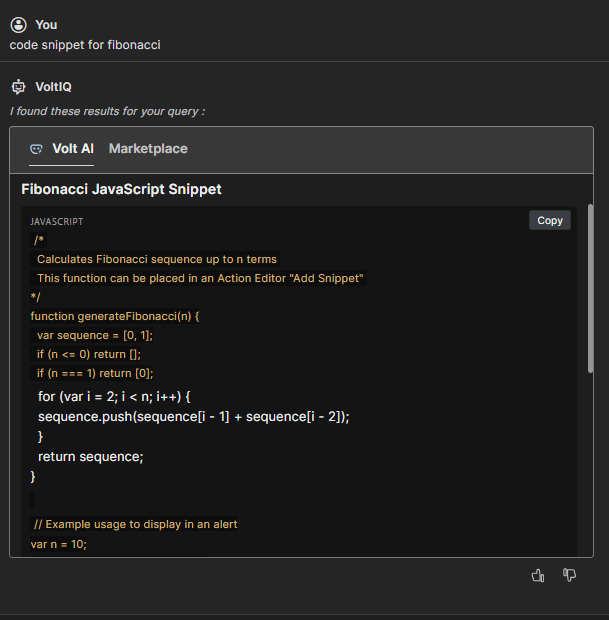
- Script generation: Volt AI generates Volt scripts on demand.
- Code snippets include a language label (for example,
JAVA,JAVASCRIPT) and a Copy button (tooltip Copy code). Clicking the button copies the code and briefly displays ✓ Copied. - Multi-Platform support: Volt AI also answers questions about LEAP, Go, and Domino if you are entitled to use these products (for example, "How to create a form in Domino?").
- Rate limiter: Volt AI has a daily usage limit. When the limit is reached, it displays the message "Rate limit exceeded. Try again later."
- Access control: Volt AI is available only to signed-in users; other sources (Community, Marketplace, YouTube, Hikes) remain accessible without signing in.
Accessing and using Volt AI
- Sign in to your Volt Foundry account.
- Address your query to
@VoltIQ(or rely on VoltIQ being pinned) in the AI Chat panel. - Optionally, scope the query using
:voltai(for example,@VoltIQ :voltai how to configure authentication). - Review the generated answer.
Feedback on Volt AI answers
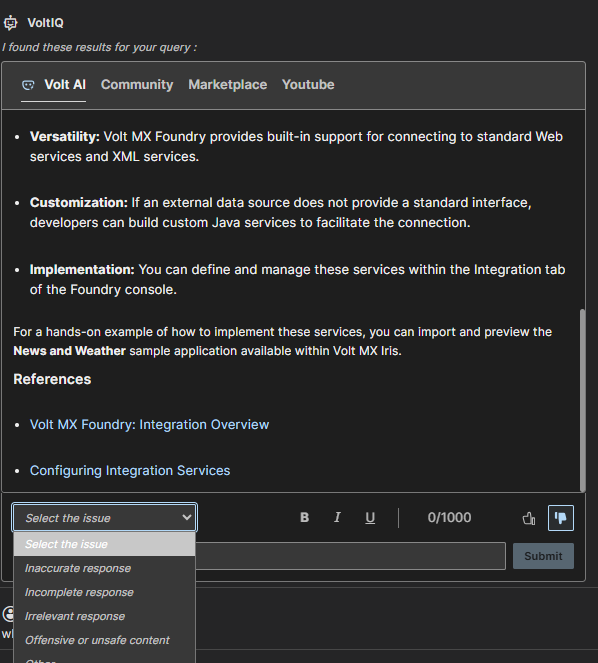
Volt AI answers include a thumbs-up icon (tooltip Helpful) and a thumbs-down icon (tooltip Not helpful).
Selecting the thumbs-down icon expands a feedback form containing:
- An issue-category dropdown, labeled Select the issue by default, with options: Inaccurate response, Incomplete response, Irrelevant response, Offensive or unsafe content, and Other.
- A text field with Bold, Italic, and Underline formatting controls, along with a character counter limited to 1000 characters (displayed as
0/1000). - A Submit button, which becomes enabled once an issue category is selected or text is entered.
Submitting the feedback form displays a Thanks for your feedback. message in the panel.
Important considerations
- If you ask a question that is outside the chatbot's scope, or if the requested information is unavailable, Volt AI responds with: "I'm sorry, but the provided context does not contain specific information about the topic."
- Code generation results may vary based on how you phrase your question. For more accurate results, ask questions in a clear and simple manner.
Follow-up questions
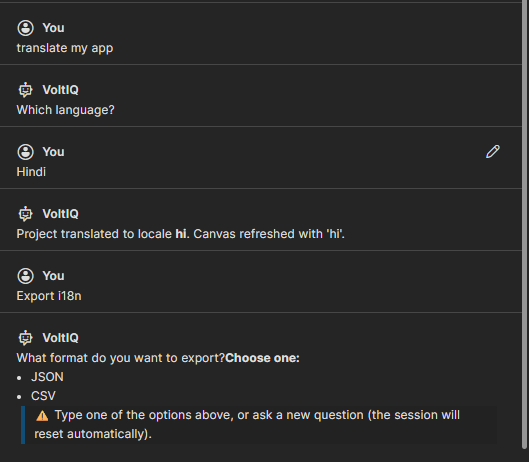
When Volt IQ requires additional information to complete a request, it replies with a plain bullet list of options under Choose one:, followed by a warning note: "⚠️ Type one of the options above, or ask a new question (the session will reset automatically)." These options are plain text and cannot be clicked.
If your reply does not match any listed option, Volt IQ checks whether its pending question is still active:
- If it is active, Volt IQ repeats the options and asks you to choose one or type
cancelto dismiss the question.
Note: Not all follow-up questions present a fixed list of options. Some, such as the language prompt during translation, ask an open-ended question (for example, Which language?) that accepts any free-text reply.
Generic search
Search results in Volt IQ are retrieved from Marketplace, Community, YouTube, and Hikes. You can explicitly scope search requests using the :source prefix syntax with example queries to view results in their respective tabs.
Marketplace search
Scope search to Marketplace by using the :marketplace prefix (for example, :marketplace login or :marketplace component). Results appear in a grid format with item thumbnails, titles, and options to view or download/import components.
Community search
Scope search to Community by using the :community prefix (for example, :community form navigation). Results appear as a list of cards featuring titles, descriptions, and Show more links when additional content is available.
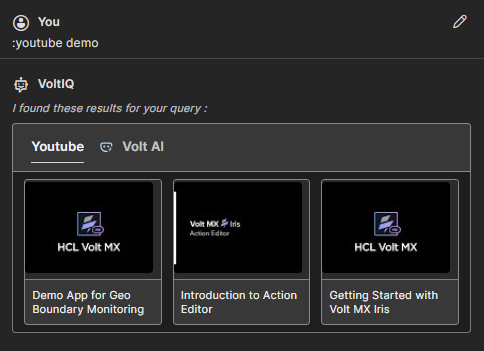
YouTube search
Scope search to YouTube by using the :youtube prefix (for example, :youtube live preview). Results appear in a grid of video thumbnails with titles that open the video when selected.
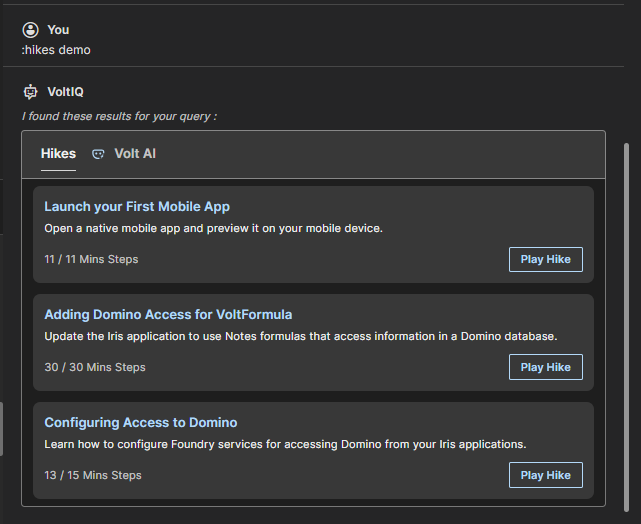
Hike search
Scope search to Hikes by using the :hikes prefix (for example, :hikes getting started). Results appear as cards showing hike titles, descriptions, step and time details (for example, 11 / 11 Mins Steps), and a Play Hike button.
Translation
Volt IQ can translate the open project to a target locale through a chat request.
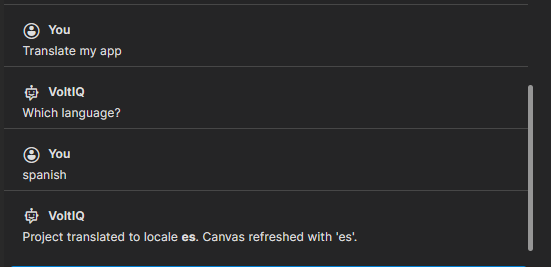
- In the AI Chat panel, ask Volt IQ to translate or localize your project (for example, "translate my app").
- If the target locale is not specified, Volt IQ asks a follow-up question, Which language?, and accepts any free-text reply (for example,
spanishorHindi). - Volt IQ processes the request and responds:
- If translation to English is requested, Volt IQ replies: "Translation is already available for English."
- For other target locales, Volt IQ confirms with a message such as: "Project translated to locale \<locale>. Canvas refreshed with '\<locale>'."
- To review translated strings, ask Volt IQ to open the Configure Internationalization dialog.
Iris actions
These commands are recognized through natural-language input to Volt IQ. They are not registered as separate entries in the Command Palette. When more information is needed, Volt IQ asks a follow-up question as a plain list of options — type one of the options exactly, or ask a new question to reset the pending state.
| Category | Example prompt | What happens |
|---|---|---|
| Project | open project |
Opens a project, creates a new project, closes all tabs, saves the current file or all files, refreshes the project, opens Project Settings, or opens Preferences. |
| Forms and components | create a new form for mobile |
Creates a new form for a channel (mobile, tablet, desktop web) or creates a new component. |
| Build and Run | build for selected platforms |
Builds for selected platforms, runs Live Preview, builds and publishes Web or Native, builds Native Local, or publishes Live Preview. |
| Debug | debug live preview |
Debugs Live Preview or a native application; a follow-up question asks for the platform if not specified. |
| Import and export | import project |
Imports or exports a project, component, fonts, themes, internationalization content, or a Cordova project (local or cloud, asked via follow-up if not specified). |
| Marketplace | open marketplace |
Opens the Volt MX Marketplace, views a marketplace item, or downloads/imports a marketplace component or micro-app. |
| Live Preview settings | open live preview settings |
Opens the Live Preview Settings dialog. |
| Preferences and updates | check for updates |
Opens Preferences, checks for updates, opens Tutorials/Hikes, or opens documentation in the external browser. |
| Internationalization | translate the project |
Enables or disables internationalization, opens the Configure Internationalization dialog, or translates the project. |
| Native APIs and variables | manage global variables |
Manages NFIs, manages global variables, or manages Cordova plugins. |
| AI Suggestions | turn on AI suggestions |
Turns AI Suggestions on or off (replies "AI suggestions turned ON." or "AI suggestions turned OFF."), or reports the current state. |
| Terminal | open terminal |
Opens or closes the integrated Terminal panel. |
| Session | sign in |
Signs in or signs out. |
| Test project | run test cases |
Creates, opens, or runs Test Cases, Test Suites, and Test Plans for a channel; a follow-up question asks for the channel if not specified. |
| Analyze project | analyze project |
Opens the AI Assisted Development window to analyze the project, optionally scoped to a rule category. |
| Project clean-up and duplicate search | clean project or identify duplicates |
Requests to clean up the project or identify duplicate designs are recognized and return a short acknowledgment message, without further action or behavior. |
Design Suggestions engine
The Design Suggestions engine is part of the underlying Volt Iris application. while you design a form, it compares the form's UI with existing designs from the current project, HCL Marketplace, and the default library, and recommends designs based on visual, textual, and widget hierarchical similarities.
Note: To get design suggestions for a form, add at least three widgets to the form, and refresh the project before running a command.
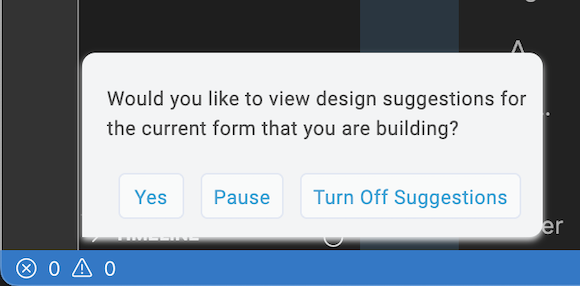
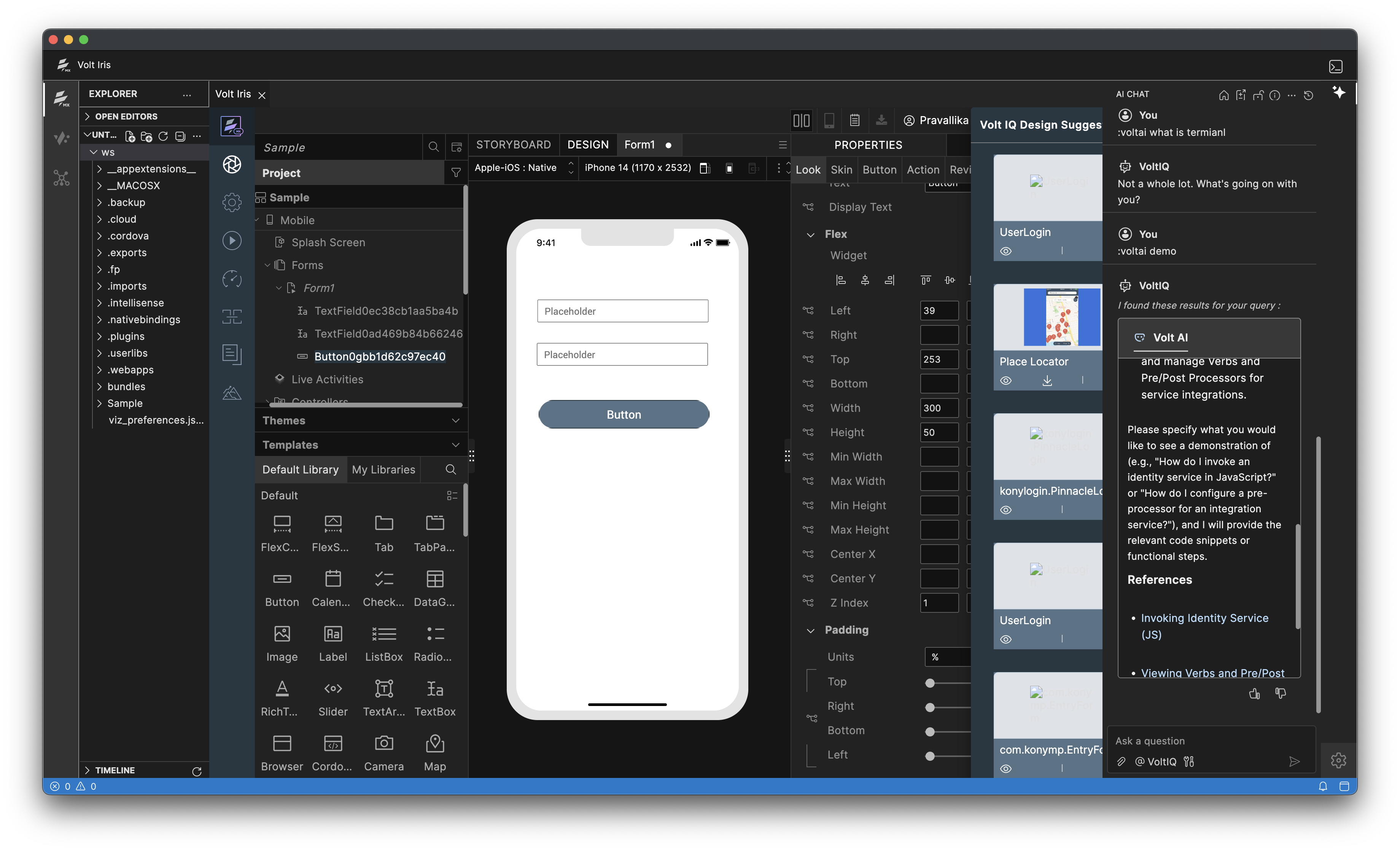
When similar designs are detected in the current project or in HCL Marketplace or in default library, a Volt IQ bubble appears on the lower-left corner of the screen. The bubble provides the following options:
- Yes: Opens the Volt IQ Design Suggestions window, where you can view a list of design suggestions.
- Pause: Pauses design suggestions for one hour.
- Turn Off Suggestions: Disables design suggestions until you turn them on again.
Suggestions are grouped by source, and each source supports its own set of actions:
- Current project
- Navigate: Navigates to the location of the matching design in the project.
- Copy: Copies the design to the clipboard.
- HCL Marketplace
- View: Opens the component in HCL Marketplace and displays its details.
- Download: Downloads the component into My Library of Volt Iris. This requires an active internet connection even though Design Suggestions itself works offline.
- Default Library
- View: Displays the suggested design in the Default Library section of Iris.
Volt IQ can also detect duplicate designs in the project. Ask it to "identify duplicates" to view a list of duplicate design groups, and copy any duplicate design to a form.
When suggestions are found, you can turn the feature off until re-enabled, or pause it for an hour, in addition to turning it back on.
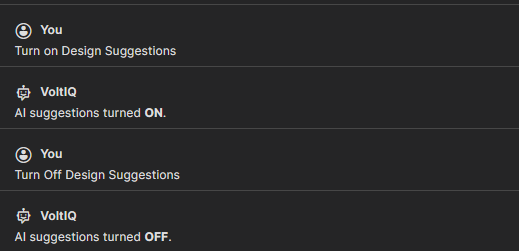
Volt IQ can turn the AI Suggestions feature on or off, or report its current state, via chat request (for example, "turn on AI suggestions", "turn off AI suggestions", "are AI suggestions on?").
Sign-in and session behavior
- Volt IQ initializes automatically the first time it is used after it starts, or after signing in or out, using the signed-in Volt Foundry session if available, or an anonymous session otherwise.
- If initialization fails, Volt IQ reports that initialization failed and suggests confirming that the local Volt IQ service is running.
- Signing out drops the session to anonymous mode — Volt AI results become unavailable until signing back in.
- Signing in re-authenticates automatically on the next message.
- If Volt IQ does not respond within 4 minutes, it reports a timeout and asks the user to try again.
AI Usage Disclaimer
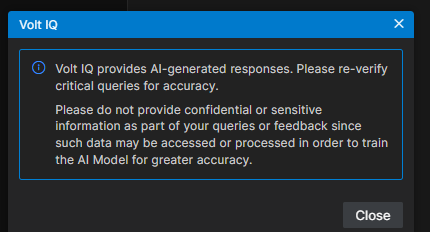
Volt IQ provides AI-generated responses. A Volt IQ Information button in the AI Chat panel toolbar opens a popup with the disclaimer:
"Volt IQ provides AI-generated responses. Please re-verify critical queries for accuracy."
"Please do not provide confidential or sensitive information as part of your queries or feedback since such data may be accessed or processed in order to train the AI Model for greater accuracy."