Generic Service
To change the configuration of Generic Service from HTTP to HTTPS, please follow the below steps:
- Press Win+R and type services.msc.
Figure 1. Hosting Generic Service from HTTP to HTTPS .png)
- Click OK to open Windows Services.
Figure 2. Hosting Generic Service from HTTP to HTTPS (Cont.) .png)
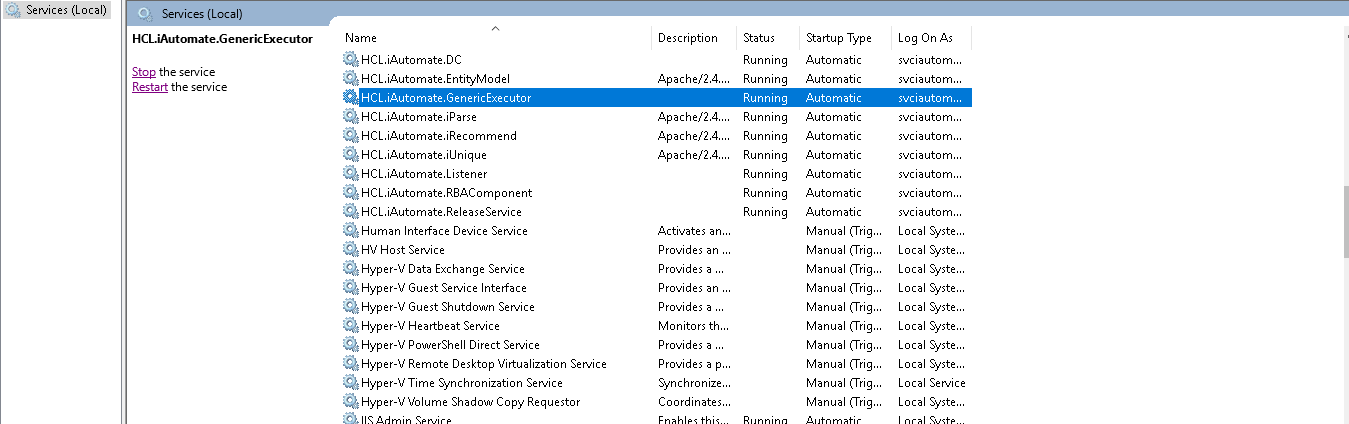
- Search for HCL.iAutomate.GenericExecutor service and right-click on it.
- Click Properties.
Figure 3. Hosting Generic Service from HTTP to HTTPS (Cont.) 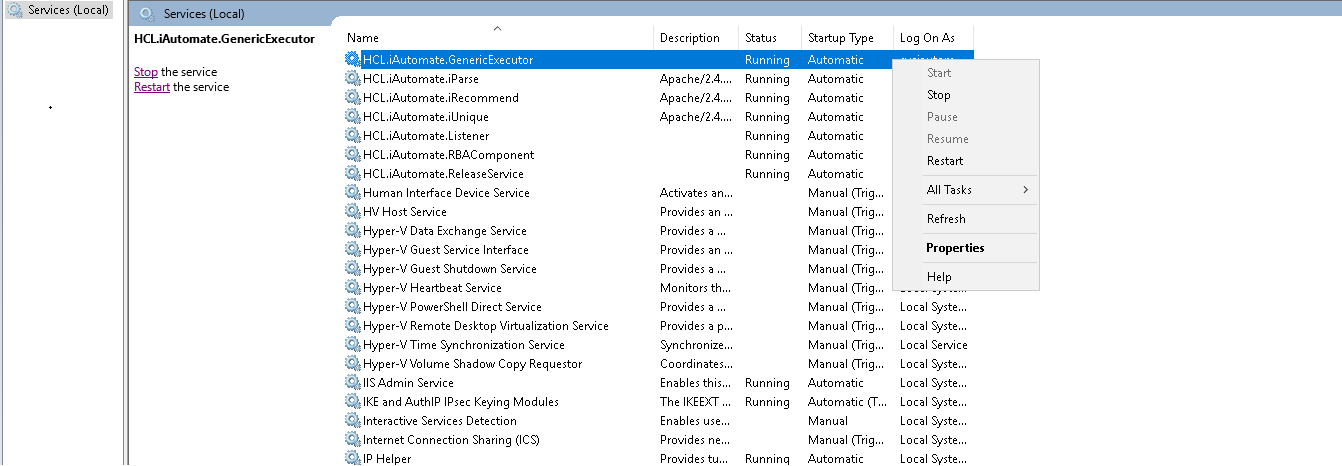
- Copy the value mentioned in Path to executable as shown in the image below.
Figure 4. Hosting Generic Service from HTTP to HTTPS (Cont.) 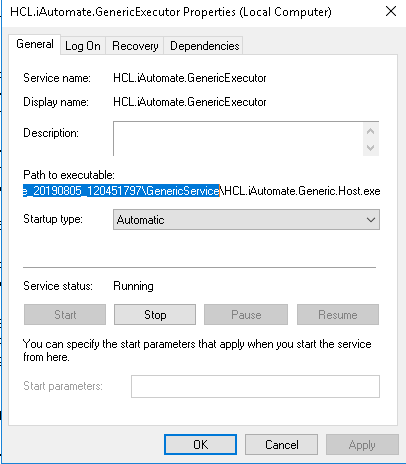
- Open File Explorer and then paste the copied path and press Enter to open the desired folder.
- Search for HCL.iAutomate.Generic.Host.exe config file and open it in a Notepad.
Figure 5. Hosting Generic Service from HTTP to HTTPS (Cont.) 
- Within the HCL.iAutomate.Generic.Host.exe config file, find the key
‘iAutomate.Generic.ServiceHostURL’’ and change its value from HTTP to HTTPS.
Figure 6. Hosting Generic Service from HTTP to HTTPS (Cont.) 
- Within the HCL.iAutomate.Generic.Host.exe config file, find the key
‘securityMode_Service’ and change its value from 2 to 3.
Figure 7. Hosting Generic Service from HTTP to HTTPS (Cont.) .png)
- Within the HCL.iAutomate.Generic.Host.exe config file, find the key
‘IsSelfSigned_Service’ and change its value from N to Y.
Figure 8. Hosting Generic Service from HTTP to HTTPS (Cont.) .png)
- Save the file for changes to be reflected.
- Open the command prompt as administrator and run the following
com
mand.netsh http add sslcert ipport=<ip>:<port on which service is running> appid={c60c3690-7b58-4c68-8590-e2fd061edd23} certhash="<Thumbprint of the certificate>"Note:Replace the < Thumbprint of the certificate> with the GUID identified earlier. - Select HCL.iAutomate.GenericExecutor service and click Restart to restart
the service.
Figure 9. Hosting Generic Service from HTTP to HTTPS (Cont.)