
Components
This section describes how to enable the secure communication by changing HTTP to HTTPS for the iAutomate Components.
As a prerequisite, user needs to have the Thumbprint of the certificate which can be identified using the below steps:
- Press Win+R and type mmc.
Figure 1. Identify Thumbprint of the Certificate 
- Click OK to open the Microsoft Management Console.
Figure 2. Identify Thumbprint of the Certificate (cont.) 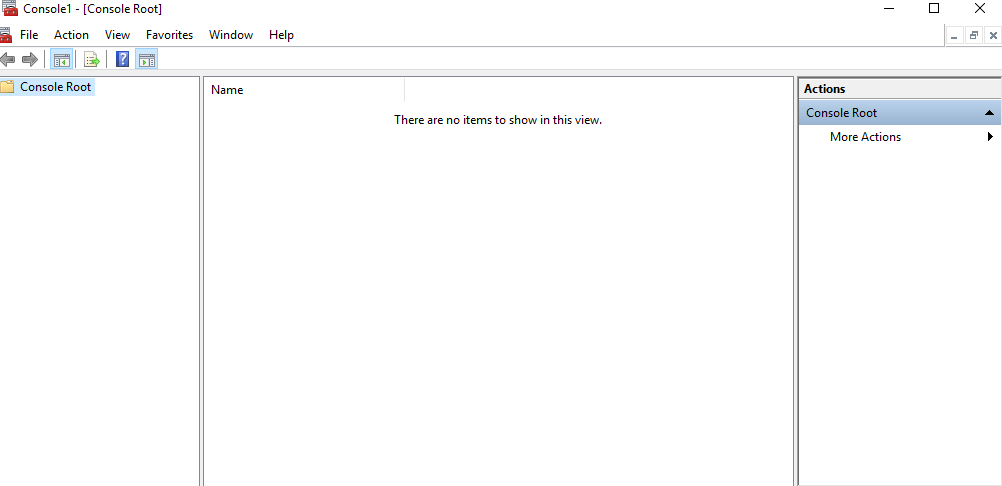
- From the File menu, select Add / Remove Snap-in.
Figure 3. Identify Thumbprint of the Certificate (cont.) 
- From the Available snap-ins list, select Certificates, then click
Add.
Figure 4. Identify Thumbprint of the Certificate (cont.) 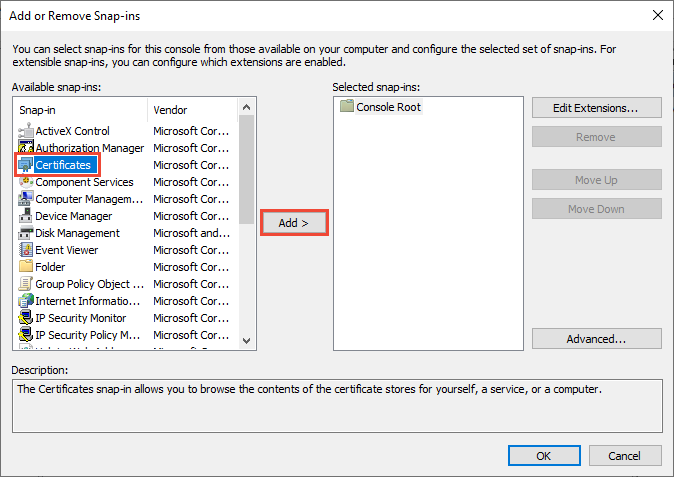
- Click OK.
- From the Certificates Snap-In window, select Computer Account and click Next.
Figure 5. Identify Thumbprint of the Certificate (cont.) 
- In the left pane, under Console Root, click Certificates (Local Computer).
- Click Personal folder to expand it and then click Certificates folder to
expand it.
Figure 6. Identify Thumbprint of the Certificate (cont.)  Note:Please install the certificate through the Microsoft Management Console in both Personal as well as Trusted People folder. Refer to the pre-requisites document for the detailed procedure for certificate installation at required locations.
 - In the list of certificates, find certificate HclTech.iautomate.Web .
- Double-click the certificate to open the Certificate dialog box.
- Scroll through the list of fields and click Thumbprint to display the value.
Figure 7. Figure 86 - Identify Thumbprint of the Certificate (cont.) 