
Configuration Changes via GUI
To change the configuration for various components via GUI from HTTP to HTTPS, please follow the below steps:
- Login to iAutomate using the Super Admin credentials.
- Roll-over to the Advance Configuration and click Load Balancer Configuration.
- Select Component Name as Web API.
- Change the Load Balancer URL from HTTP to HTTPS.
Figure 1. Configuration Changes via GUI from HTTP to HTTPS 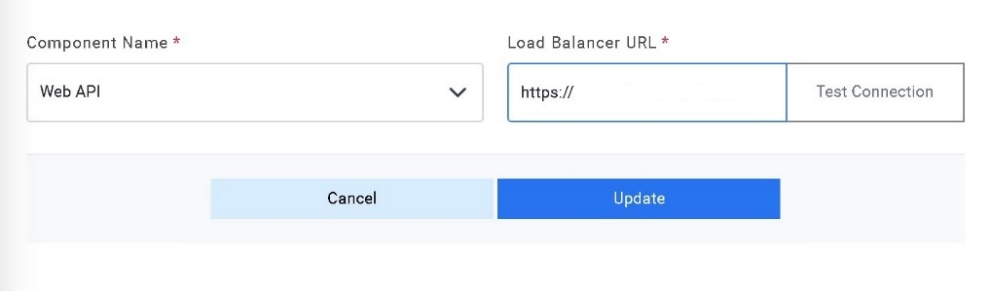
- Click Update to save the changes.
- Select Component Name as Data Collector.
- Change the Load Balancer URL from HTTP to HTTPS.
Figure 2. Configuration Changes via GUI from HTTP to HTTPS (Cont.) 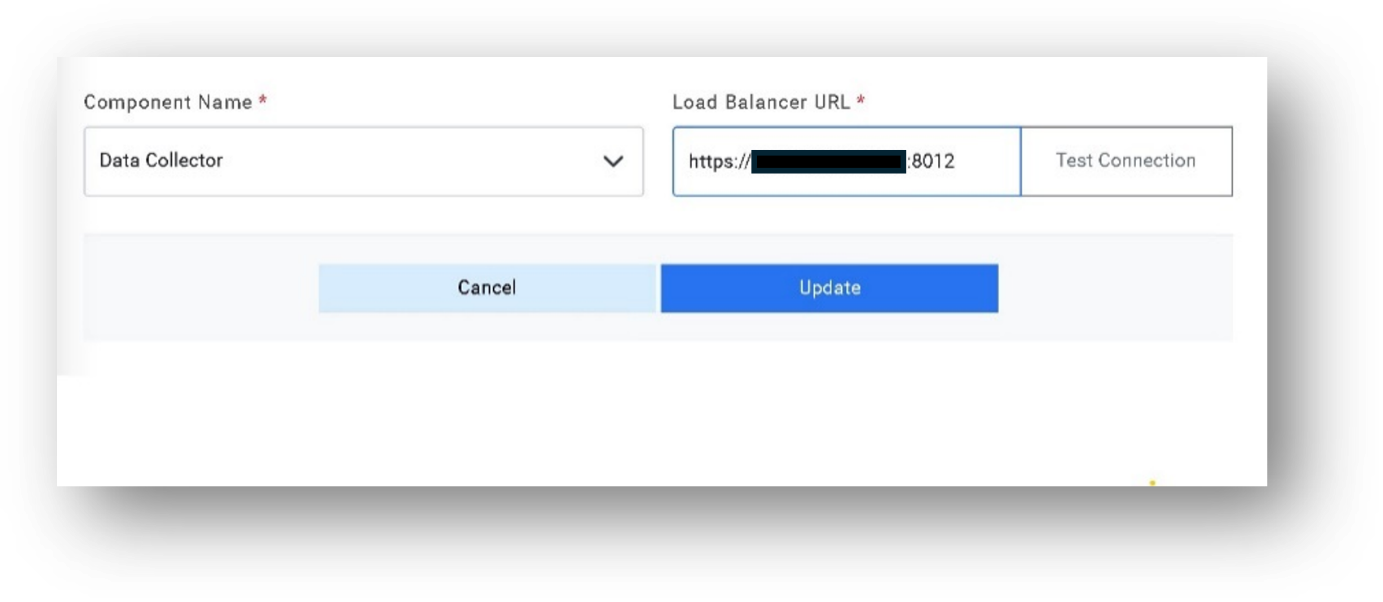
- Click Update to save the changes.
- Select Component Name as ‘Generic Service’.
- Change the Load Balancer URL from HTTP to HTTPS.
Figure 3. Configuration Changes via GUI from HTTP to HTTPS (Cont.) 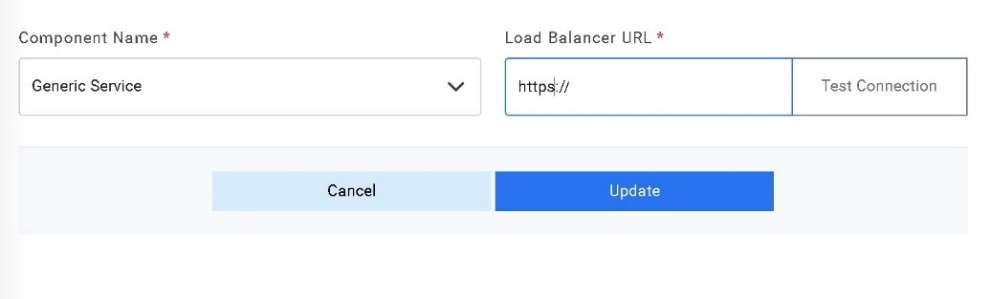
- Click Update to save the changes.
- Select Component Name as ‘Release Service’.
- Change the Load Balancer URL from HTTP to HTTPS.
Figure 4. Configuration Changes via GUI from HTTP to HTTPS (Cont.) 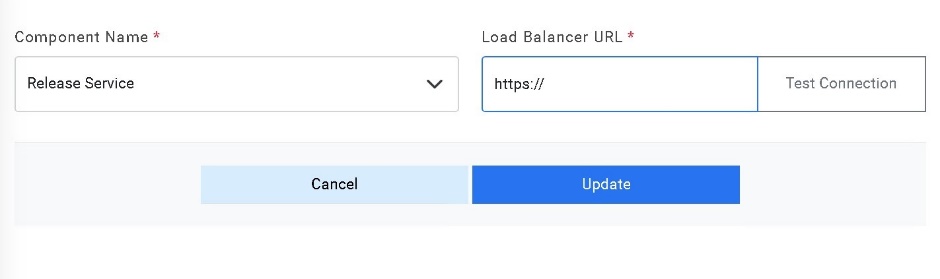
- Click Update to save the changes.
- Select Component Name as ‘RBA Service’.
- Change the Load Balancer URL from HTTP to HTTPS.
Figure 5. Configuration Changes via GUI from HTTP to HTTPS (Cont.) 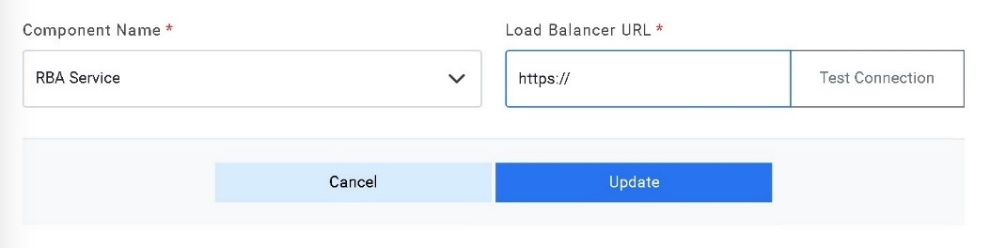
- Click Update to save the changes.
- Select Component Name as ‘Active Directory’.
- Change the Load Balancer URL from HTTP to HTTPS.
Figure 6. Configuration Changes via GUI from HTTP to HTTPS (Cont.) 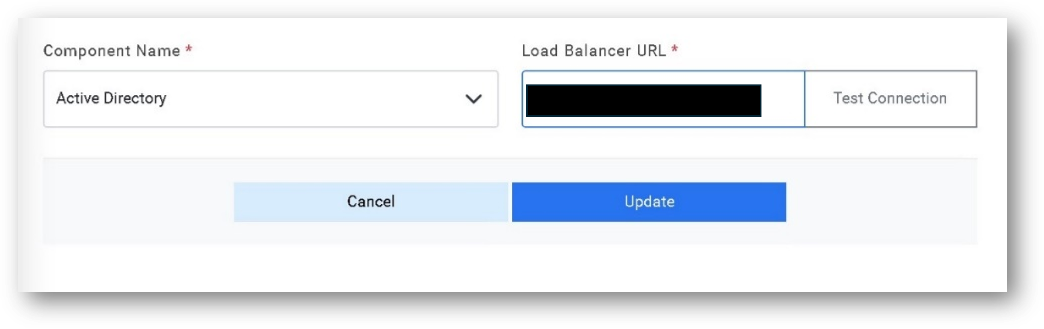
- Click Update to save the changes.
- Select Component Name as ‘Email Service’.
- Change the Load Balancer URL from HTTP to HTTPS.
Figure 7. Configuration Changes via GUI from HTTP to HTTPS (Cont.) 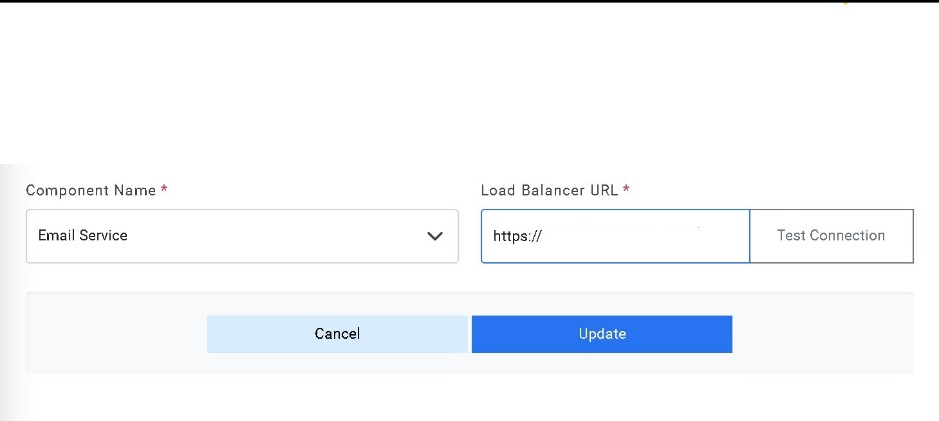
- Click Update to save the changes.
- Select Component Name as ‘DAG Service’.
- Change the Load Balancer URL from HTTP to HTTPS.
Figure 8. Configuration Changes via GUI from HTTP to HTTPS (Cont.) 
- Click Update to save the changes.
- Select Component Name as ‘Assignation Service’.
- Change the Load Balancer URL from HTTP to HTTPS.
Figure 9. Configuration Changes via GUI from HTTP to HTTPS (Cont.) 
- Click Update to save the changes.