Solution
- Open iAutomate Web URL and login with Organization Admin credentials.
- Go to Actions then Runbooks and click Manage Runbooks.
Figure 1. Manage Runbooks 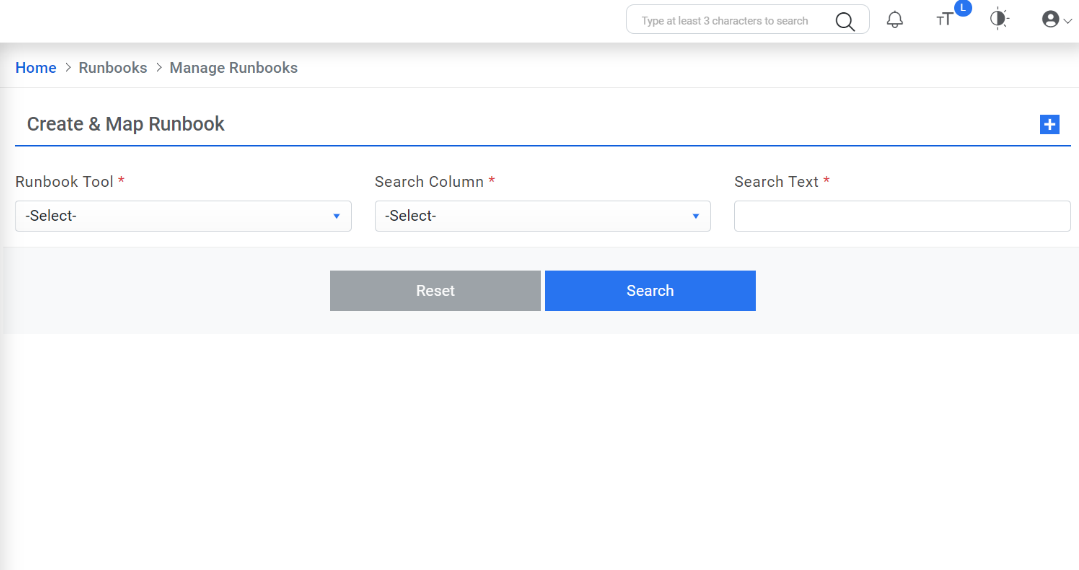
- Select Runbook Tool from dropdown.
- You can download the template for filling in the metadata in Excel file by selecting Bulk
Upload then clicking on Download Template.
Figure 2. Manage Runbook (Cont.) 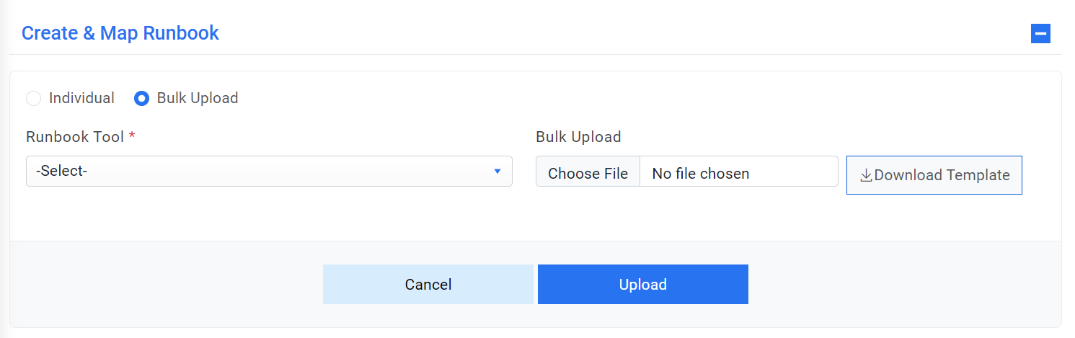
- Otherwise, click Choose File to upload the runbook if metadata
sheet is already available. Click the Upload button.
Figure 3. Import Runbook 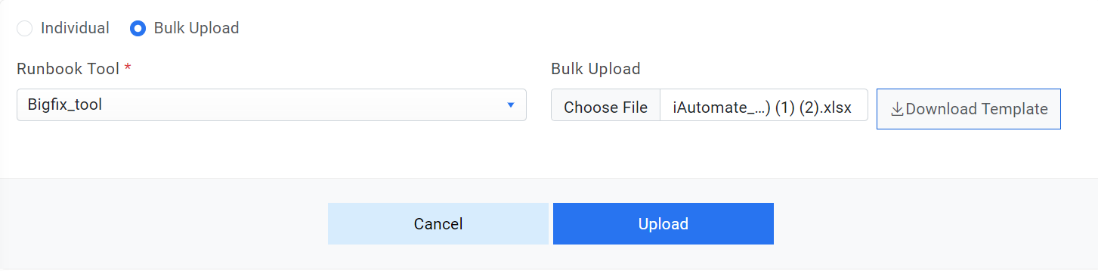
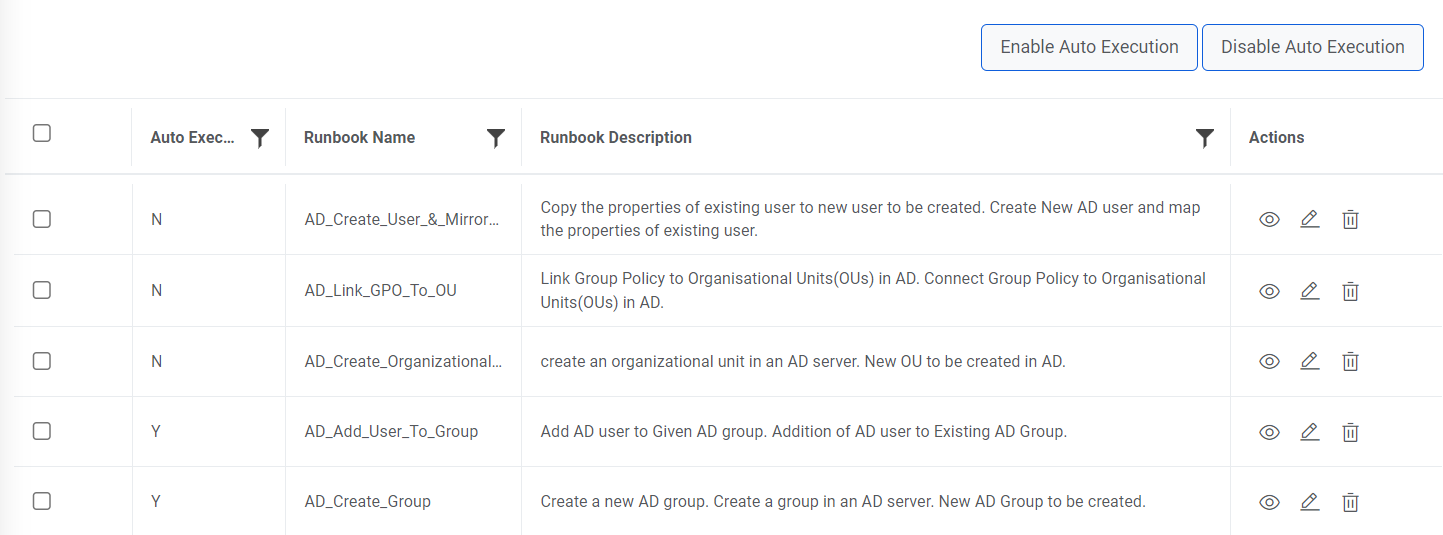
- Users can enable or disable the automatic execution of multiple runbooks simultaneously by
selecting checkboxes corresponding to Runbooks. By offering this capability, this feature
enhances the flexibility and control users have over their automation processes. It provides
flexibility and control over the execution process, ensuring that users can manage and
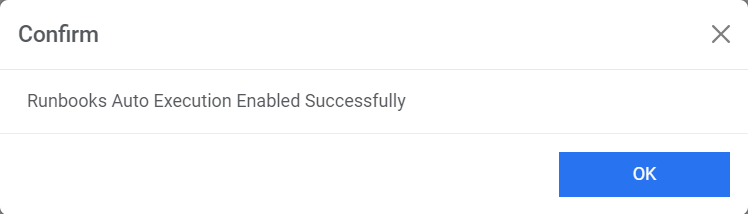
schedule their automation tasks efficiently. Upon Clicking Enable Auto Execution Runbooks
Auto Execution Enabled Successfully message will come on alert popup and Upon Clicking
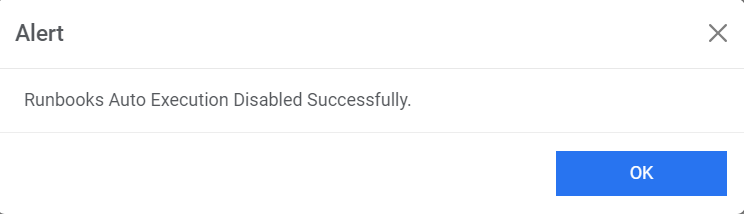
Disable Auto Execution Runbooks Auto Execution Disabled Successfully message will come on
alert popup.
Enable/Disable Auto Execution
Enabling Runbook Auto Execution
Disabling Runbook Auto Execution
- Runbook Saved Successfully message will come on an alert popup.
Figure 4. Runbook Saved Successfully