
Knowledge Search
This section describes how to use the advanced, organization-specific configuration to retrieve results from the knowledge repository.
To use Knowledge Search, perform the following steps:
- On the main menu bar, click on Knowledge, and then click Knowledge Search tab.
- The Knowledge Search screen appears.
Figure 1. Knowledge Search 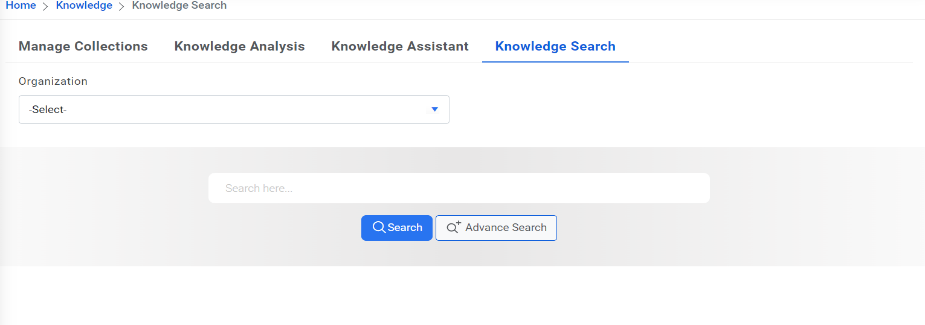
- Select the Organization from the drop-down list,
then type the search string in the Search box, and then click Search. The
search results are displayed in the grid below.
Figure 2. Search 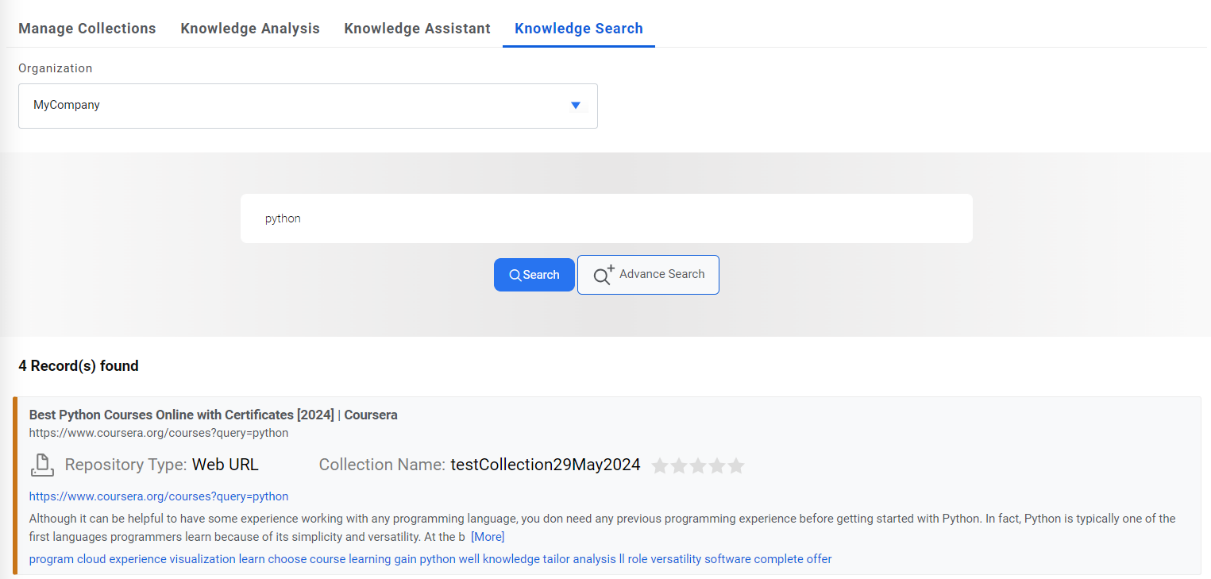
- For more advanced search, instead of clicking
 , click the Advance Search
button.
, click the Advance Search
button. - An Advance Search window is displayed for users to fill in the information and
retrieve results.
Figure 3. Advance Search 
- Advance Search allows users to restrict search results by applying conditional filters or defining the order of the search results.
- Users can add any number of custom conditions to refine their search for more relevant results.
- Click
 to start a search. After
the search filter is applied, any results that appear will align with the conditions
specified in the Advance Search box.
to start a search. After
the search filter is applied, any results that appear will align with the conditions
specified in the Advance Search box.Figure 4. Advance Search Results 
Note:
All fields marked with an asterisk (*) are mandatory.